Link a successor product
A successor is the product that replaces one you're phasing out or discontinuing, such as a new model or a new pack size. Once you link them, the new product's forecast inherits the old product's sales history, planning counts the old product's remaining stock before buying more of the new one, and orders can switch to the new product automatically. Each product can have one successor. A successor can have its own successor, which makes a chain.
A successor isn't the same as a substitution rule. A substitution rule says which product can fill an order in place of another. A successor says which product takes over for good, and it can create the substitution rule for you. See Substitute products on sales orders.
Before you begin
- Your role needs permission to manage product lifecycle. Without it, Add link and the row actions are greyed out and say "You don't have permission to change lifecycle".
- Create the new product first. See Create a product.
Add a successor link
You can link a successor from the Successors tab, or while you discontinue or phase out the old product (see Set the successor while you discontinue).
-
Go to PIM → Lifecycle and open the Successors tab.
-
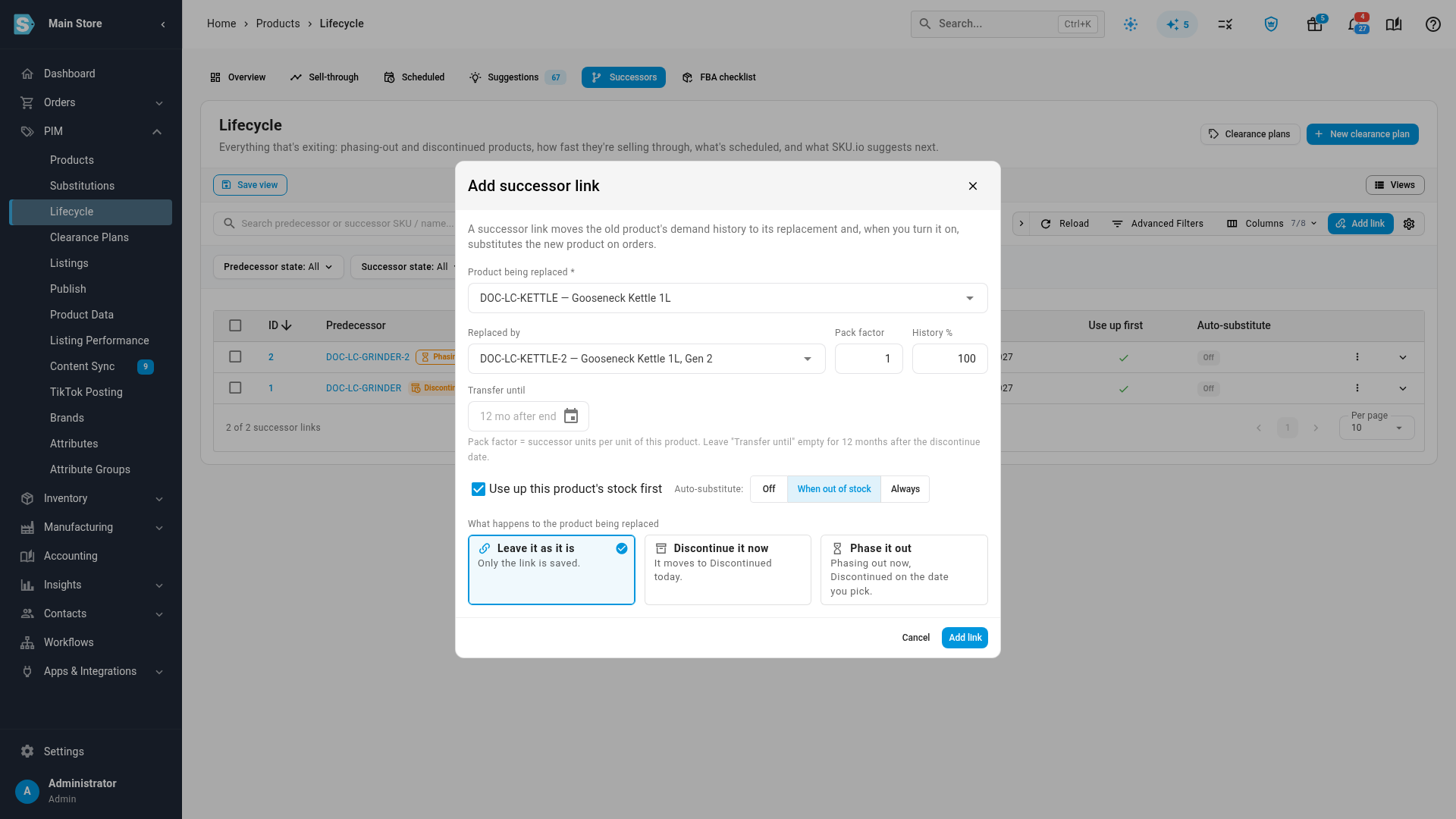
Click Add link. The Add successor link dialog opens.
-
In Product being replaced, search for the old product by SKU or name and pick it.
-
In Replaced by, search for the new product and pick it. The other fields unlock.
-
Set the link's options. Each one is described in Successor options. The defaults suit a like-for-like replacement.
-
Under What happens to the product being replaced, choose:
- Leave it as it is to save only the link;
- Discontinue it now to move the old product to Discontinued today;
- Phase it out to move it to Phasing out now, and to Discontinued on the date you pick in Becomes Discontinued on.
-
Click Add link.
The message "Successor link added" appears, and the link is added to the table. If you chose to discontinue or phase out the old product, its reason is recorded as Replaced by a new product. On the old product's page, Replaced by and the new SKU appear next to its SKU, and link to the new product.
Successor options
| Option | What it does | Default |
|---|---|---|
| Pack factor | How many units of the new product replace one unit of the old one. For a 6-pack replacing singles, enter 6. Inherited sales and the stock used up first are multiplied by it. It must be greater than zero. | 1 |
| History % | How much of the old product's sales feeds the new product's forecast, as a whole number from 0 to 100. Use less than 100 if the new product will only take over part of the demand. | 100 |
| Transfer until | The date the old product's sales stop feeding the new forecast. | 12 months after the old product's discontinue date, or after today if it has none |
| Use up this product's stock first | Planning subtracts the old product's available stock, times the pack factor, from what it buys of the new product. | On |
| Auto-substitute | When out of stock or Always creates a substitution rule, so orders for the old product can be filled with the new one. Off creates none. | Off |
How the successor uses the old product
Inherited sales history
Until the Transfer until date, the new product's forecast adds the old product's sales, times the pack factor and the History %. Returns of the old product are subtracted. So a new product with no sales of its own still gets a forecast. In demand planning, its line shows an Inherited history chip.
If the old product itself had a successor link from an older product, the history passes down the chain, up to 5 links back.
Reports keep each product's own sales. The inherited history only feeds planning.
Use up the old stock first
With Use up this product's stock first on, planning orders less of the new product while the old one still has stock. For example, with 40 units of the old product available and a pack factor of 1, the new product's suggested order drops by 40. Its planning line shows a Use-up chip, and the chip's tooltip says how many units it counted.
Substitute on orders
With Auto-substitute set to When out of stock or Always, SKU.io creates a replacement substitution rule from the old product to the new one, with the note "Created by lifecycle succession". When out of stock uses the new product only when the old one has none left. Always uses it every time. If a substitution rule for the pair already exists, SKU.io uses that one instead of creating another. Changing Auto-substitute to Off, or removing the link, deletes only a rule SKU.io created. Rules you made yourself are never changed.
The successor also appears where a discontinued product can't fill an order. On a sales order, the backorder message offers to add the successor's units, and a flagged channel order can Offer substitute. See Discontinue a product.
Set the successor while you discontinue
In the Change lifecycle dialog, open the Successor section and fill in the same options. If you choose the reason Replaced by a new product, the section opens by itself. The section isn't shown when you move a product to Active.
- If the successor is rejected, for example because of a loop, the whole change is refused, so nothing is half done.
- If the product already has a successor, the section shows it. Picking another product replaces the link. Clearing the field doesn't remove the link. To remove it, use the Successors tab.
Matrix products
For a matrix product replaced by another matrix product, SKU.io pairs the variants that have the same attribute values, such as Blue / M with Blue / M, and links each pair. This happens the same way whether you link them here or on the Successors tab. Variants without a match get no history, and the message after you save says, for example, "2 variants had no matching variant on the successor, so no history is transferred for them."
Editing the link on the Successors tab updates the variant pairs too, and removing it removes them.
In a bulk change
When you change several products at once, the Successor section says same for every selected product: each selected product is linked to the one successor you pick, for example when three old colors are all replaced by one new one. If the successor itself is in the selection, that product fails with "A product cannot replace itself." To give products different successors, change them one at a time or add the links on the Successors tab.
Review successor links
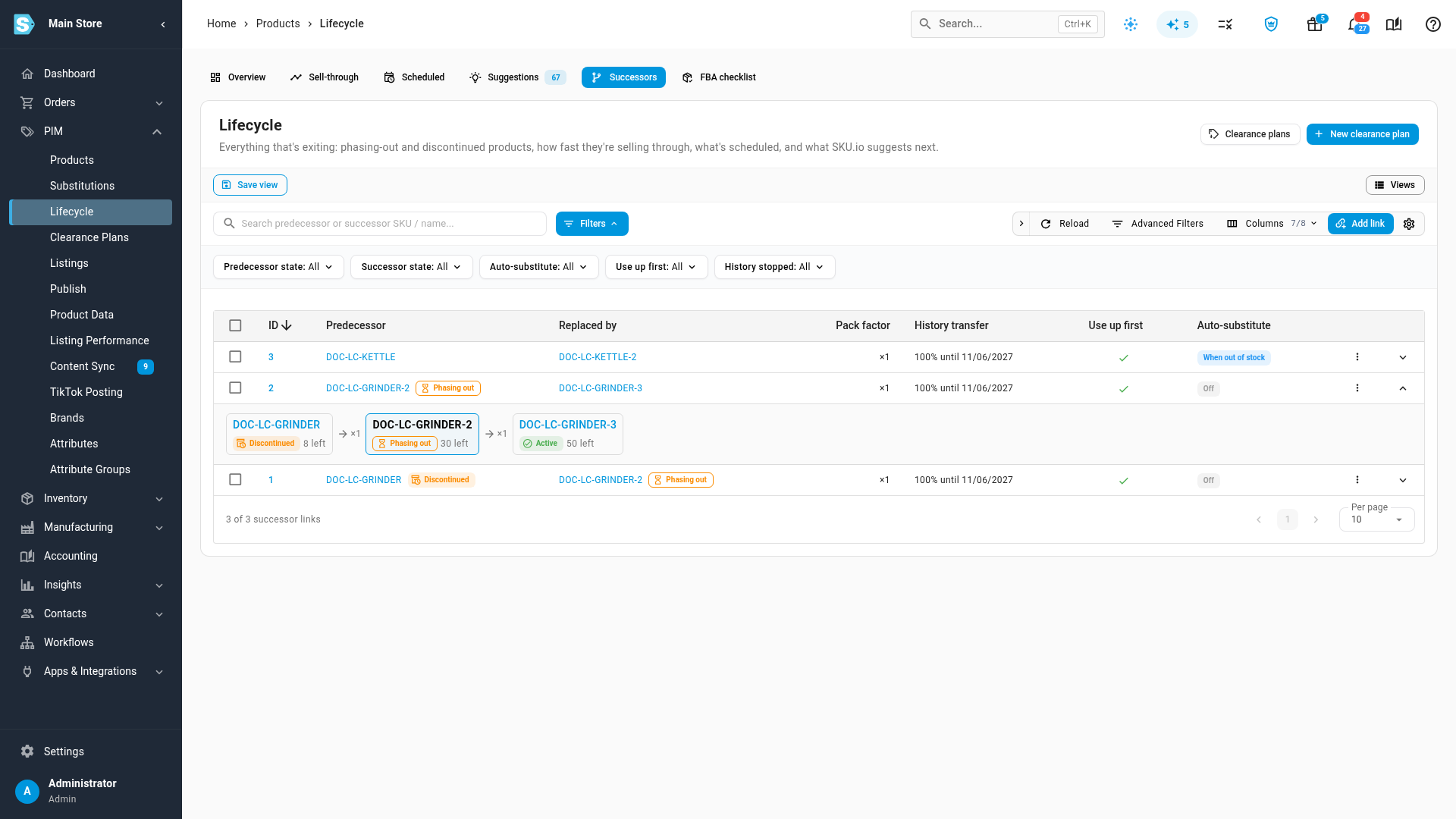
The Successors tab lists every link, with these columns: ID, Predecessor, Replaced by, Pack factor, History transfer, Use up first, Auto-substitute and, from the column selector, Created. Each product shows its state chip unless it's Active. History transfer shows the share and the stop date in your date format (Settings → General), for example "100% until 03/01/2027". Once that date has passed it reads "100% stopped 03/01/2027".
- Search by either product's SKU or name.
- Filter by Predecessor state, Successor state, Auto-substitute, Use up first and History stopped. History stopped finds links whose Transfer until date has passed, so the old product's sales no longer feed the new forecast.
- Click the arrow at the end of a row to see the whole chain. Each product shows its state and the units it has left, with the pack factor between them. If the chain is longer than 5, it says "Chain is longer than 5 — only the nearest links are shown".
On a product's page, the lifecycle panel shows Replaced by with the link's options, Replaces for the products it replaces, and the same Chain.
If the tab is empty, it says "No successor links yet".
Change or remove a link
To change a link:
- On the Successors tab, click the row's menu (⋮), then Edit link.
- Change Replaced by or the options. To change the old product's state, use Change lifecycle on that product instead.
- Click Save link.
To remove links:
- Click the row's menu (⋮), then Remove link. To remove several, tick their rows and click Remove links in the bulk toolbar.
- Confirm with Remove.
Demand stops moving to the successor, and any substitution rule the link created is removed. Both products keep their lifecycle state.
If the link is refused
| Message | What to do |
|---|---|
| "A product cannot replace itself." | Pick a different product in Replaced by. |
| "This would create a loop: … ." | The new product already leads back to the old one through another link. Remove or change that link first. |
| "The pack factor must be greater than zero." | Enter a positive number. |
| "History transfer must be a whole number between 0 and 100%." | Enter a whole percentage from 0 to 100, such as 75. Decimals aren't accepted. |
| "Choose the product being replaced." / "Choose the successor product." | Pick both products. |
| "Choose the date the predecessor is discontinued on." | With Phase it out, fill in Becomes Discontinued on. |
Next steps
- Phase out with a final buy to run the old product down while the new one takes over.
- Forecast and replenish stock to see the Inherited history and Use-up chips at work.
- Import and export lifecycle data to set successors from a spreadsheet.