Discontinue a product
Discontinue a product when you'll never buy or make it again. SKU.io stops planning and reordering it, blocks new backorders, and keeps selling the stock you have until it runs out. Before you confirm, the dialog shows what the change affects, and it can cancel unreceived purchase order lines and open backorders and email your wholesale customers.
If you still want one last order before you stop, phase the product out instead. See Phase out with a final buy.
Before you begin
- Your role needs permission to manage product lifecycle. Without it the lifecycle menu items are greyed out and say "You don't have permission to change lifecycle". See Product permissions reference.
- Each follow-up in the dialog needs its own permission: editing purchase orders to cancel their lines, editing sales orders to cancel backorders, and sending communications to customers to email them. Without one, its box is greyed out and its tooltip says which permission is missing.
- Check what Discontinued does in your account. Its rules are on the States tab of Settings → Products → Product Lifecycle. See Customize lifecycle states.
- To discontinue several products at once, or some variants of a matrix product, see Change lifecycle for many products or variants.
Steps
-
Go to PIM → Products and open the product.
-
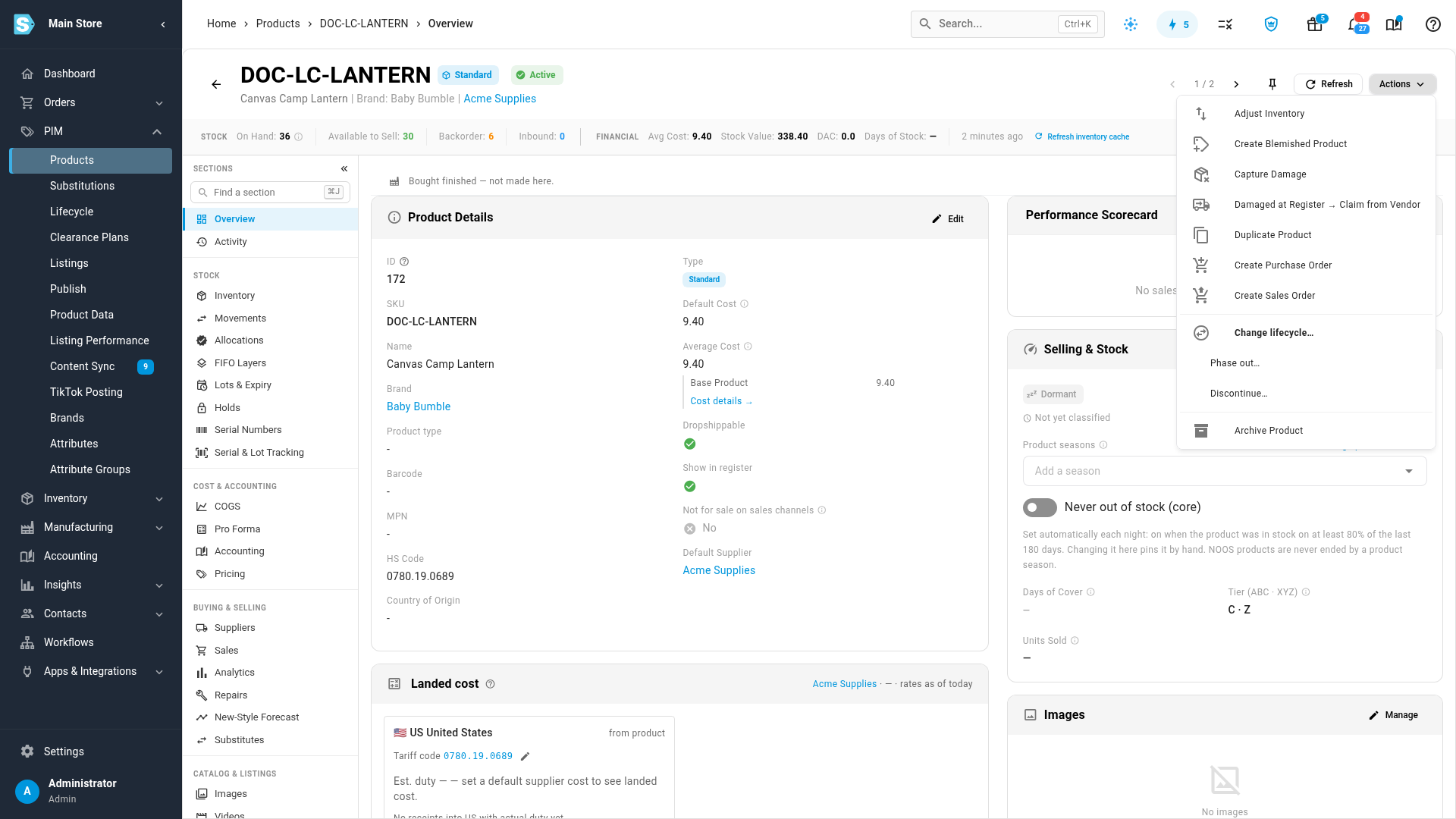
Click Actions, then Discontinue…. The Change lifecycle dialog opens with Discontinued already chosen.
-
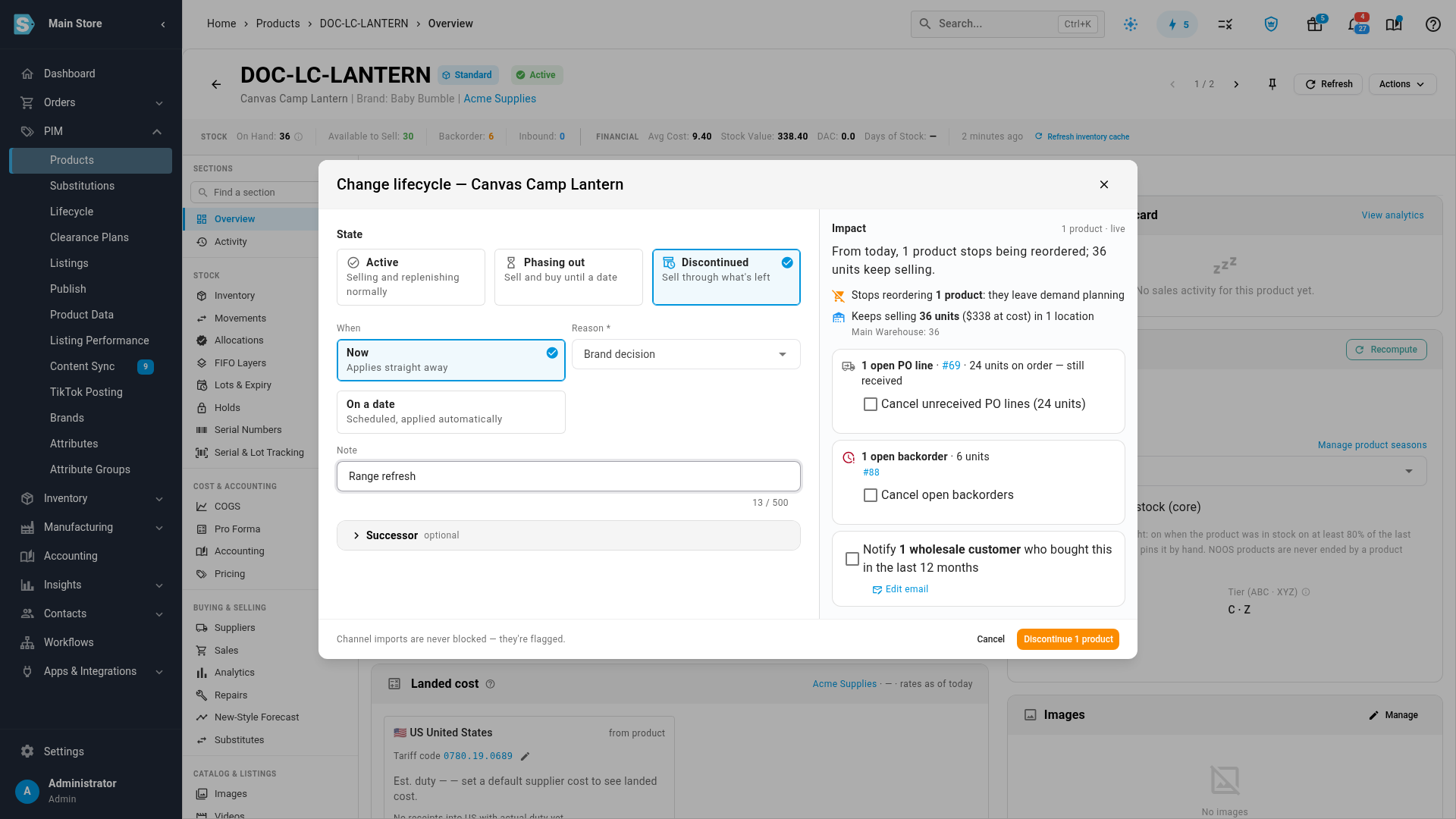
Under When, leave Now selected. To discontinue on a later date instead, choose On a date and pick the date. See Schedule lifecycle changes.
-
Choose a Reason. It's required, and it shows on the product's lifecycle panel and history.
-
Optionally, add a Note of up to 500 characters, such as "SS26 colour dropped".
-
Optionally, open Successor and choose the product that replaces this one. If you choose the reason Replaced by a new product, the section opens by itself. See Link a successor product.
-
Read the Impact column on the right, and tick the follow-ups you want. Each one is described in Read the impact and choose follow-ups.
-
Click Discontinue 1 product.
The product is now Discontinued. A message such as "Discontinued DOC-LC-LANTERN" appears with an Undo button for 10 seconds. If the product still has open purchase orders, the message also says so, for example "1 open purchase order still has 24 units on order; it will be received as normal." Missed the Undo button? You can still undo the change for 24 hours. See Reactivate a product or undo a change.
Other places to start
Every one of these opens the same dialog:
| Where | What to click |
|---|---|
| The product page | Actions, then Change lifecycle…, Phase out… or Discontinue…. Phase out… and Discontinue… pre-select their state. Phase out… isn't offered for a product that's already Discontinued. |
| The lifecycle chip next to the SKU | Click the chip to open the lifecycle panel, then Change lifecycle. An Active product shows no chip, so use Actions instead. |
| The products list | Right-click the product's row and choose Phase out… or Discontinue…. |
| Several products at once | Tick them on the products list and click Change lifecycle… in the bulk toolbar. See Change lifecycle for many products or variants. |
Read the impact and choose follow-ups
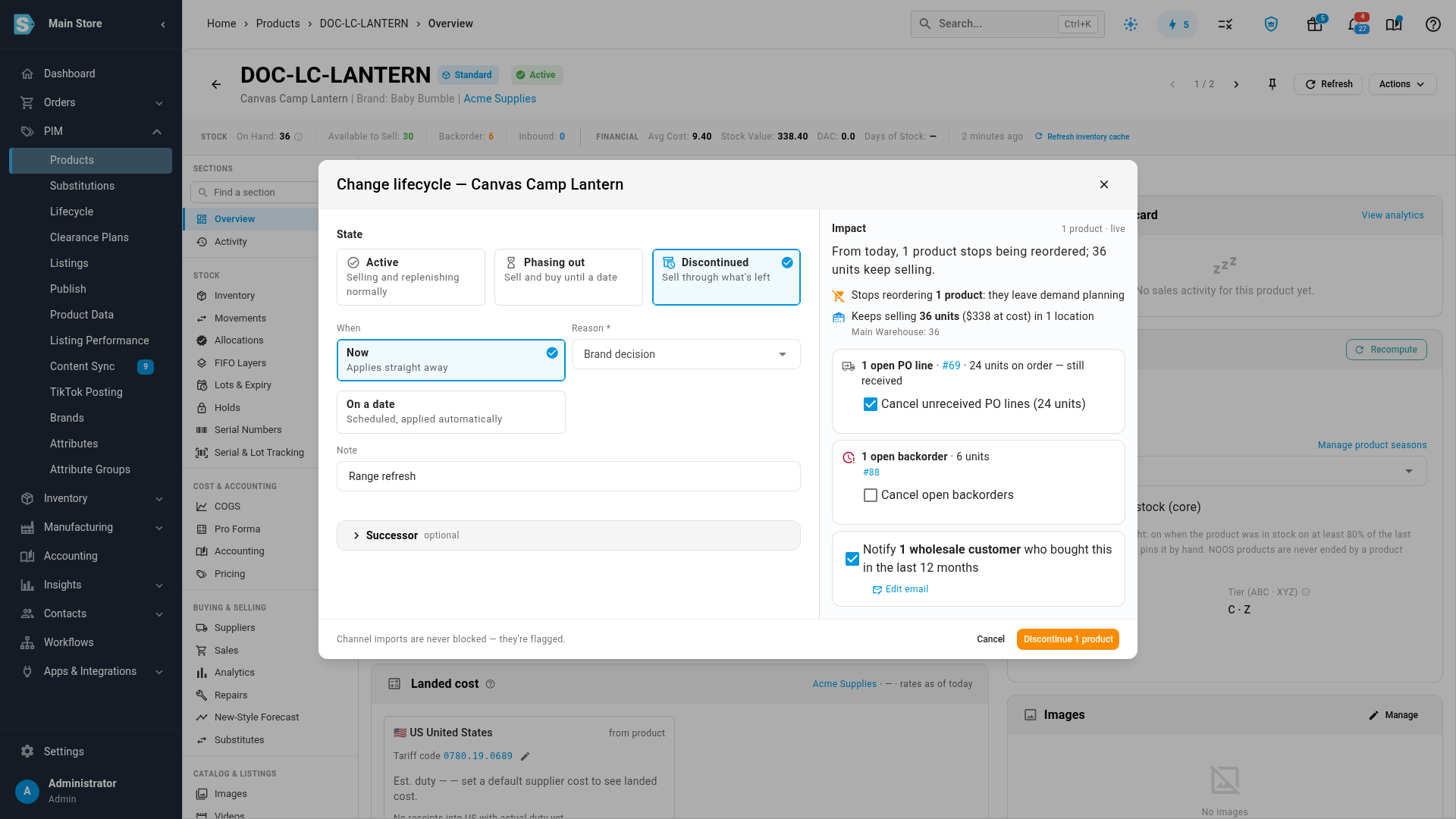
The Impact column updates live as you change the form. It starts with one sentence, such as "From today, 1 product stops being reordered; 36 units keep selling on 2 listings." Then it lists:
| Line | What it tells you |
|---|---|
| Stops reordering N products | The product leaves demand planning and reorder suggestions. |
| Keeps selling N units (… at cost) in N locations | The stock you can still sell, with its value at cost and the units in each warehouse. If there's none, it says No stock on hand. |
| N live listings on N channels | Listings that keep selling. Under it, what changes on your channels, such as "2 live listings switch to sell-through: they never show more than the real available stock." |
| Bundles, kits and BOMs | The bundles, kits and bills of materials that use the product as a component. They stop when its stock runs out. |
| N open PO lines | Purchase order lines that haven't been fully received, with links to the orders. They're still received unless you cancel them. |
| N open backorders | Sales order lines waiting for stock that won't come, with links to the orders. |
| Notify N wholesale customers who bought this | Company customers who bought the product recently. |
A product with no stock left also shows "No stock left. Discontinuing applies the sell-out action straight away — or archive the product instead." The sell-out action is what you chose on the Sell-out tab of lifecycle settings, so discontinuing an empty product can end its listings at once. If you only want it out of sight, archive it instead. See What happens when a discontinued product sells out.
If the column says Impact preview unavailable, you can still confirm. The change is applied the same way. Click Retry to load it again.
Cancel unreceived purchase order lines
Tick Cancel unreceived PO lines to stop the stock you've ordered but not received. When the change applies, each open line is short-closed for its unreceived quantity, with the reason "Product discontinued". Received units stay received. Leave it unticked to receive the order as normal. It's off by default.
Cancel open backorders
Tick Cancel open backorders to cancel the backordered quantity on open sales order lines, with the reason "Product discontinued". Only whole units are cancelled.
Email wholesale customers
Tick Notify N wholesale customers who bought this to email each company customer who bought the product within the look-back period. Each customer gets one email that lists every product of theirs in the change, and the email shows on the customer's timeline as "Discontinuation notice emailed".
- A wholesale customer is one with a company name and an email address who isn't archived. Customers without a valid email address are skipped.
- The look-back period is 12 months unless you change it on the Customer notices tab of lifecycle settings. The dialog's count uses the same period, for example "who bought this in the last 12 months".
- The option is offered only when you move products to Phasing out or Discontinued.
- Click Edit email to change the wording. It opens the Product Discontinuation Notice template in Settings → General → Email Templates, where you can use placeholders such as
{{customer_name}},{{product_table}},{{last_order_date}},{{remaining_stock}}and{{successor}}. Switching the template off stops the notices. See Customize email templates.
When you schedule the change for a later date, the follow-ups wait and run when it applies, as long as you still hold their permissions then.
What changes after you discontinue
These follow your settings on the States tab. With the default settings:
- Planning: the product leaves demand planning, reorder suggestions and automatic purchase orders, and its low-stock alerts stop.
- Adding it to a purchase order: the line is saved, then the This is a final buy dialog asks you to confirm, with a message such as "DOC-LC-LANTERN is Discontinued. This is a final buy." Click Keep final buy to keep it, or Remove line to take it off the order. On the order, the line shows a Discontinued chip. If you set the state to block purchase orders, the line isn't added, and the order says "Purchase orders are blocked for Discontinued products (DOC-LC-LANTERN)." The same dialog appears for a product whose supplier has discontinued it.
- Receiving: lines already on purchase orders are always received. If the state's Receiving open purchase orders rule is Enabled with warning, the receive drawer and the receipt flag the line.
- Sales orders you enter: you can sell the stock you have, but not more. When a line asks for more than is available, the order shows a row such as "DOC-LC-LANTERN: only 4 available. Discontinued products can't be backordered." Choose Add 4 available, Add 4 + 2 of the successor, Add 6 of the successor instead, or Dismiss. The successor buttons appear only when the product has a successor that's still Active or Phasing out.
- Channel orders: imports are never refused. A channel order that asks for more than you have is accepted, and the order shows "1 line can't be replenished" with the line marked Cannot be replenished (Discontinued). Click Offer substitute or Cancel line. If there's nothing to offer, Offer substitute is greyed out and says "This product has no successor or substitute yet. Add one on the product's Lifecycle panel."
- Listings: live listings keep selling only the stock you have. Publishing a new listing shows a warning.
Every row of the rules is in the Lifecycle policy matrix reference.
If the change doesn't save
The dialog shows the problem under the field or at the top:
| Message | What to do |
|---|---|
| "Choose a state." | Pick a state card. |
| "Choose a reason." | Phasing out and Discontinued need a reason. |
| "Choose the date the change takes effect." / "The date must be today or later." | Under On a date, pick today or a later date. |
| "The note may not be longer than 500 characters." | Shorten the note. |
| "Choose the successor product, or remove the successor." | You opened Successor and set its options but didn't pick a product. Pick one, or clear the field. |
| "The pack factor must be greater than zero." / "History transfer must be between 0 and 100%." | Fix the successor's numbers. A rejected successor stops the whole change. |
| "Choose at least one variant." | On a matrix product with Let me choose, tick at least one variant. |
| "The sell-out action is running for product #… right now, so its lifecycle cannot change yet. Try again in a few minutes." | SKU.io is ending the product's listings because it sold out. Wait a few minutes and try again. A scheduled change that meets this applies on the next hourly run. |
Next steps
- Link a successor product so planning and orders move to the replacement.
- Work the Lifecycle workspace to follow the product until it sells out.
- Create a clearance plan to mark the remaining stock down.
- How product lifecycle works for what each state changes.