Review and approve clearance markdowns
Every morning SKU.io checks each clearance plan, and each step that has come due becomes a suggested price on the plan's Review tab. Nothing reaches your channels until you approve it. This page covers the review, then the rest of the plan page: its products, steps, settings and how to end it.
Before you begin
- You need a clearance plan. See Create a clearance plan.
- Your role needs permission to manage pricing. Without it, the plan's buttons are greyed out with "You don't have permission to manage pricing".
- An ended plan can't be changed. Its buttons are greyed out with "This plan has ended".
Steps
-
Go to PIM → Clearance Plans.
-
Click the count in the plan's To review column.
The plan opens on its Review tab. You can also click the plan's name, then the Review tab.
-
Read the Why column to see why each step came due.
-
To change a suggested price, type over the price in the Proposed box.
SKU.io ticks the row for you.
-
Tick the other suggestions you want to apply.
-
Click Approve N.
SKU.io shows "Applying clearance prices — track progress in the job tray". Click the job tray at the top of the page to follow the progress.
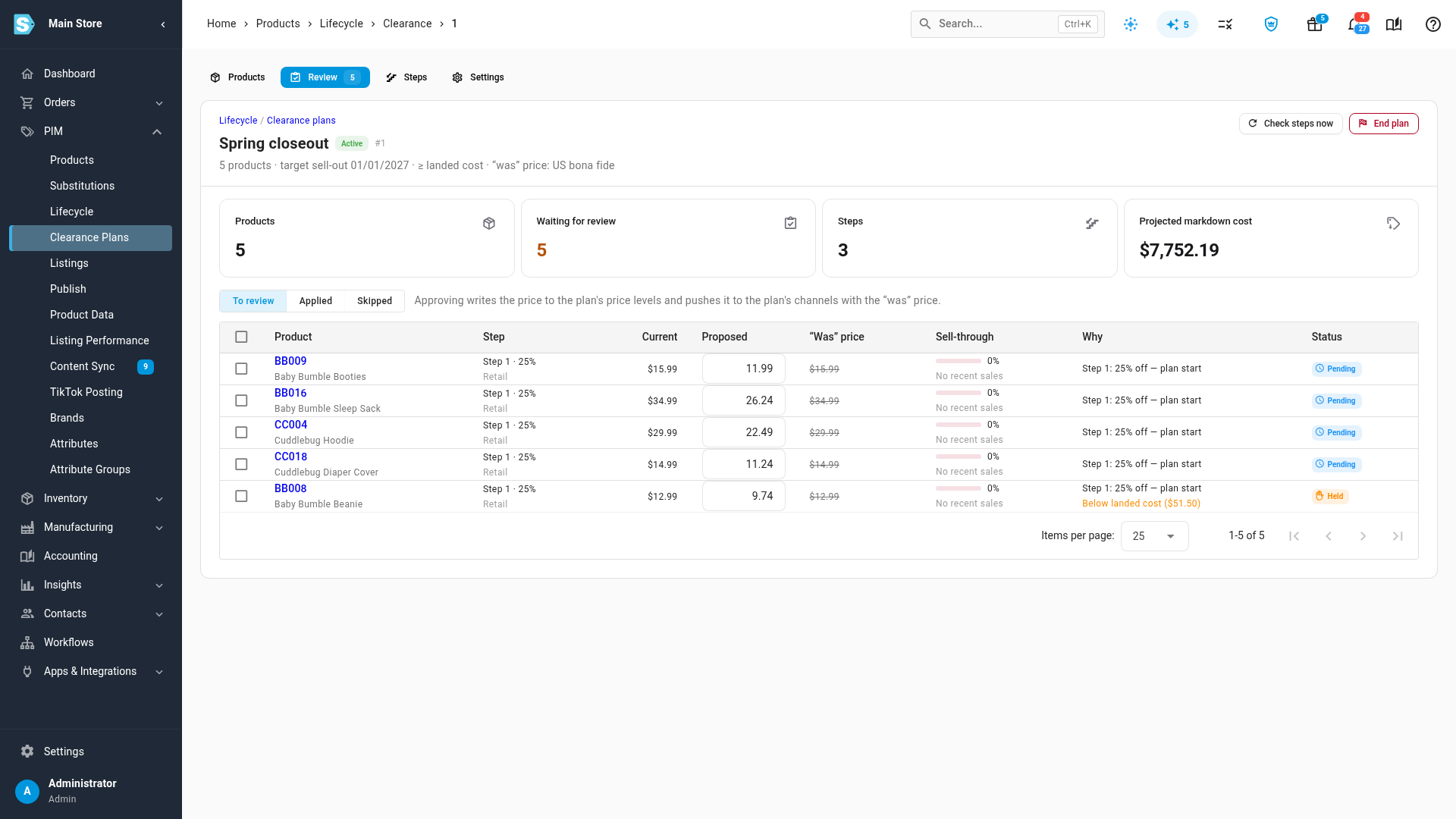
The plan page
The header shows the plan's name, Active or Ended, how many products it holds, its target date, its price floor and its "was" price rule. Under it are four figures:
| Figure | What it shows |
|---|---|
| Products | Products in the plan. |
| Waiting for review | Suggestions waiting on the Review tab. |
| Steps | Steps in the ladder. |
| Projected markdown cost | (Original price − clearance price) × units on hand, added up over the plan's products on its first price level. A product with no step applied yet counts at step 1's discount. |
The plan has four tabs: Products, Review, Steps and Settings. If you follow an old link to a plan that's gone, the page says "This clearance plan doesn't exist."
When steps come due
SKU.io checks every active plan every morning. On each check:
- A plan created for a whole lifecycle state adds the products that have moved into that state.
- Each product's next step is checked against its When rule, and a due step becomes a suggestion.
- A product with an open suggestion gets nothing new until you approve or skip it, so steps never pile up.
- A product with nothing on hand gets no suggestion.
To check straight away instead of waiting for the morning, click Check steps now at the top of the plan. The message says what it found, such as "3 new suggestions, 2 held". With Apply steps automatically on, it also says how many prices were applied and pushed to channels, and names any channel that couldn't take them.
Review suggestions
The Review tab has three views: To review (the default), Applied and Skipped.
| Column | What it shows |
|---|---|
| Product | The product. |
| Step | The step and its discount, such as "Step 2 · 40%", and the price level it changes. |
| Current | The price now. |
| Proposed | The suggested price. In To review, you can type over it. |
| “Was” price | The struck-through price shoppers will see. Suppressed means no compliant "was" price exists, so none is sent. Hover it for the reason. None means the plan sends no "was" price. |
| Sell-through | How much of the plan's stock has sold, and the weeks of cover left, or No recent sales. |
| Why | Why the step came due, such as "Step 1: 25% off — plan start" or "Behind plan: 22% sold vs 40% target at week 6". Held and skipped rows also show their reason. |
| Status | Pending, Held, Applied or Skipped. |
When there's nothing waiting, the tab says Nothing to review.
Approve
When you approve, SKU.io:
- Writes the new price to the plan's price levels.
- Fixes the "was" price at the first markdown, so later steps keep showing the same "was" price.
- Moves the product to that step.
- Pushes the new price, with the "was" price, to the plan's channels.
Each change is recorded in the product's price history. If something changed while you were reviewing, the job reports it for that product, for example "This suggestion was already applied.", "The product is no longer in this plan." or "This clearance plan has ended."
Change a price before you approve
Type a new price in the Proposed box. The price you type is used when you approve, and it's still checked against the plan's floor. Two things are refused on the spot:
- A price of zero or less: "Enter a price above zero".
- A price above the current one: "Prices never go up within a plan".
If you click Approve while a price shows one of these, SKU.io says "Fix the highlighted prices first."
Skip
- Tick the suggestions.
- Click Skip.
- Optionally, enter a Reason (optional).
- Click Skip in the Skip N suggestions? window.
The price stays as it is. A skipped step isn't suggested again for that product, and the next step can still come due. Skipped suggestions are listed in the Skipped view with your reason.
Held suggestions
A suggestion is Held when its price would break the plan's price floor or a pricing guardrail on your channels. The row says why, for example "Below landed cost ($8.50)" or "No landed cost on record, so the landed-cost floor cannot be checked". A held price is never applied automatically, even with Apply steps automatically on.
To clear a held suggestion, do one of these:
- Type a price above the floor in Proposed, then approve it. If the new price still breaks the floor, the suggestion stays held with the reason.
- Skip it.
- Change the plan's Price floor on the Settings tab, then click Check steps now.
The Products tab
The Products tab lists every product in the plan and how far down its ladder it is.
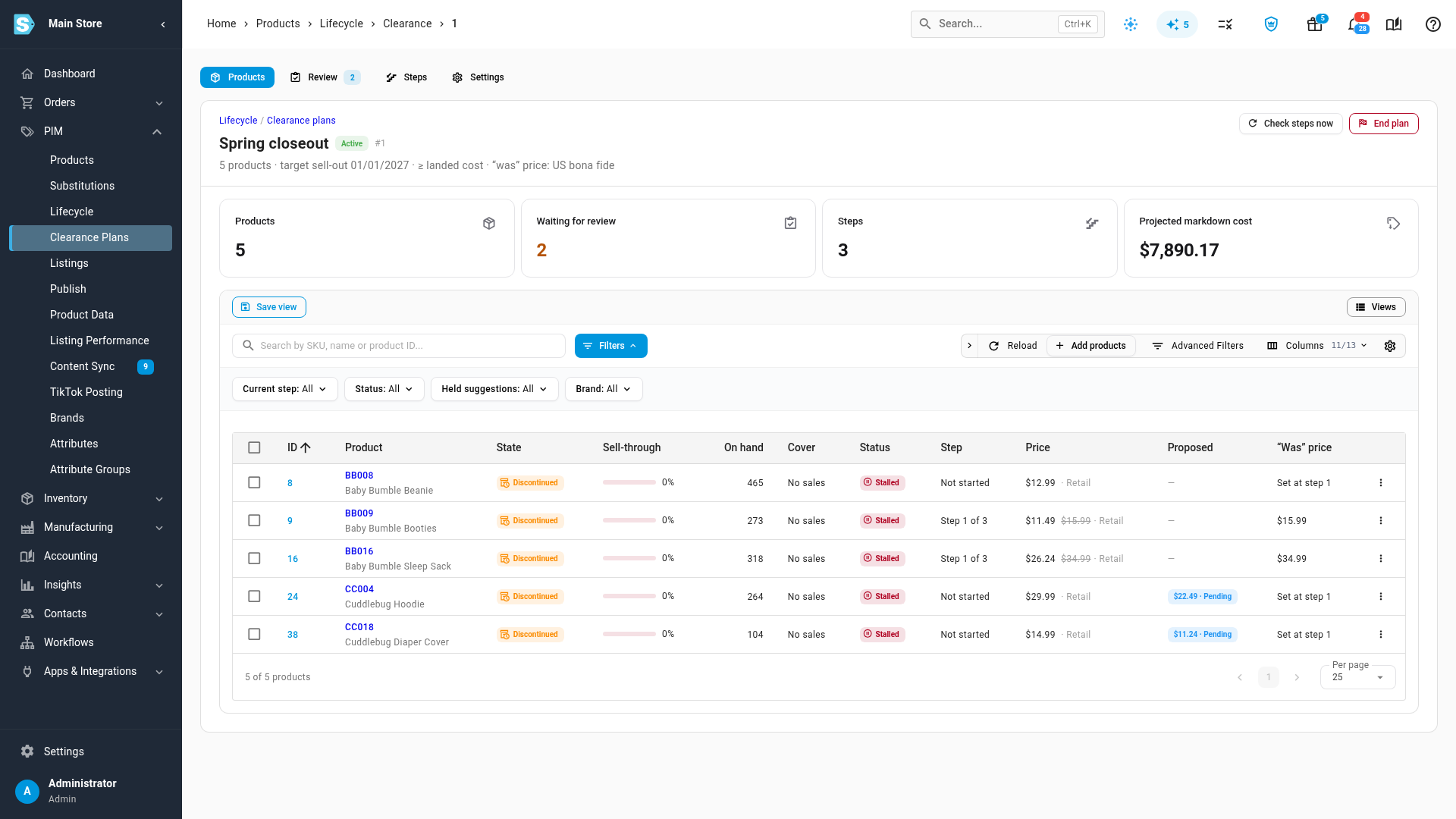
| Column | What it shows |
|---|---|
| ID, Product, State | The product and its lifecycle state. |
| Sell-through | How much of the stock it had when it joined the plan has sold. Hover for units sold and the planned pace. |
| On hand | Units left. |
| Cover | Weeks of stock left at the last 30 days' rate of sales, or No sales. Red when the stock would outlast the target date. |
| Status | On track, At risk, Stalled or Sold out. See below. |
| Step | Not started, or "Step 2 of 3". |
| Price | The current price, with the original struck through once it's marked down, and the price level. |
| Proposed | The open suggestion and its status. Click it to open the Review tab. |
| “Was” price | The "was" price, Set at step 1 before the first markdown, or Suppressed. |
Start units and Last step are hidden by default. Use Columns to show them.
| Status | Meaning |
|---|---|
| On track | Selling at or ahead of the pace needed to clear by the target date. |
| At risk | Selling behind a straight line from the day it joined to the target date, or holding stock that would outlast the target date. |
| Stalled | Nothing sold in the last 30 days. |
| Sold out | Nothing left on hand. |
Stalled means the same here as on the Sell-through tab of PIM → Lifecycle and in the Lifecycle: Clearance Behind Plan alert.
To narrow the list, use the quick filters Current step, Status, Held suggestions and Brand, or search by SKU, name or product ID.
Add products
- Click Add products.
- Type a SKU or name, and pick the products.
- Click Add N.
A matrix product adds all its variants. Each product joins at its current price, which becomes its original price for this plan. Its first step is checked on the next check, or when you click Check steps now.
Remove products
-
Tick the products.
-
Click Remove from plan.
You can also use Remove from plan in a row's ⋮ menu.
-
Click Remove in the Remove N products? window.
Removed products keep their current price and get no more steps. Their open suggestions are skipped, and their "was" price is cleared from your channels. The plan doesn't add them back on its own, even when it covers a whole state they're still in. After removing a product, you can raise its price again.
If you add a removed product back, it starts again at step 1 from its price at that time, which may already be marked down. So the discounts add up: 25% off a price that was already 25% off is about 44% off the price before the plan.
Change the steps
- Click the Steps tab.
- Change, add or remove steps.
- Click Save steps.
Editing steps doesn't touch prices already applied. It changes what's suggested next. Discard throws away your changes. The rules for a ladder are in Create a clearance plan.
Change the settings
- Click the Settings tab.
- Change the Plan name or any setting.
- Click Save settings.
New settings apply to suggestions from now on. "Was" prices already fixed at a product's first markdown stay as they are.
If you change Price levels on a running plan:
- Removing a price level skips its open suggestions and clears its "was" prices.
- An added price level catches up straight away to the deepest step each product has reached. Its suggestion reads, for example, "catch-up: this price tier joined after the product reached step 2".
Each setting is explained in the Clearance plan settings reference.
End a plan
- Click End plan.
- Choose what happens to prices:
- Keep clearance prices: prices stay where the last step left them.
- Restore original prices: products that are Active again get their original price back. Phasing-out and discontinued products keep their clearance price, so a markdown never goes back up on stock you're clearing.
- Click End plan.
Ending a plan stops all suggestions, skips the open ones, frees its products for another plan, and clears the "was" price from your channels on the next price push. The message says what happened, for example "Plan ended. Clearance prices kept." You can't undo it. An ended plan stays in the list under Ended, read-only.
Next steps
- Create a clearance plan
- Clearance plan settings reference
- Sell off closeout stock: offer what's left to wholesale buyers.