Sell off closeout stock
When a product is discontinued, the units you still hold are closeout stock. Off-price and wholesale buyers often take them in bulk. From the Sell-through tab of PIM → Lifecycle, you can send those buyers a spreadsheet or a photo linesheet, give them a closeout catalog on your B2B portal, or email them the offer directly.
Before you begin
- The products must be leaving your range: Phasing out, Discontinued or a state you created. Only those products appear on the Sell-through tab. See Discontinue a product.
- Each action needs its own permission. Without it, the button is greyed out and its tooltip names what's missing:
- Download CSV and Download linesheet need permission to export products ("You don't have permission to export products").
- Send to … customers needs permission to send communications to customers ("You don't have permission to email customers").
- Create closeout catalog needs permission to manage product lifecycle and to manage the B2B portal ("You need lifecycle and B2B portal management permissions to create a catalog.").
- Move assigned customers to tier needs permission to edit customers ("You need permission to edit customers to change their pricing tier.").
- Give your products a wholesale price, so the CSV, the linesheet and the offer show one. By default, SKU.io uses your price level named "Wholesale", or else your oldest price level with "wholesale" in its name. See Set a product price.
- To show a clearance price, put the products on an active clearance plan first. See Create a clearance plan.
Steps
Choose the products
Every closeout action works on either the rows you tick or every row that matches your filters.
-
Go to PIM → Lifecycle.
The workspace opens on the Overview tab.
-
Click the Sell-through tab.
-
Narrow the list with the quick filters, such as State, Product season or Channel.
-
Choose how to pick the products:
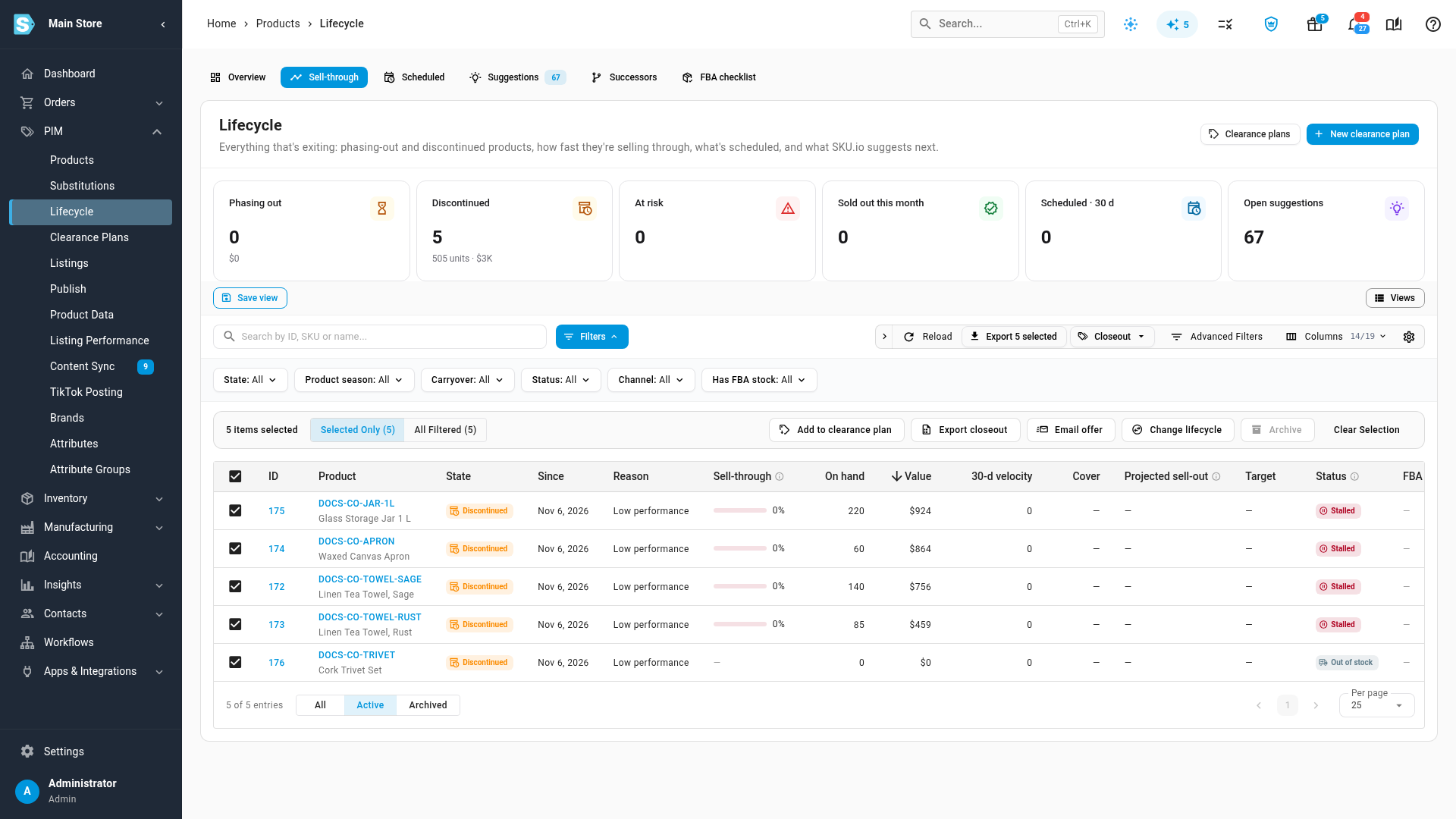
- Selected rows: tick the products, or tick the box in the table header to select every row on the page. The bulk actions bar shows Export closeout and Email offer. To include every matching row instead, click All Filtered in the bar.
- Everything that matches the filters: click Closeout in the toolbar, then Export closeout (CSV / PDF linesheet) or Email closeout offer. The menu shows how many rows match.
Export a closeout CSV
-
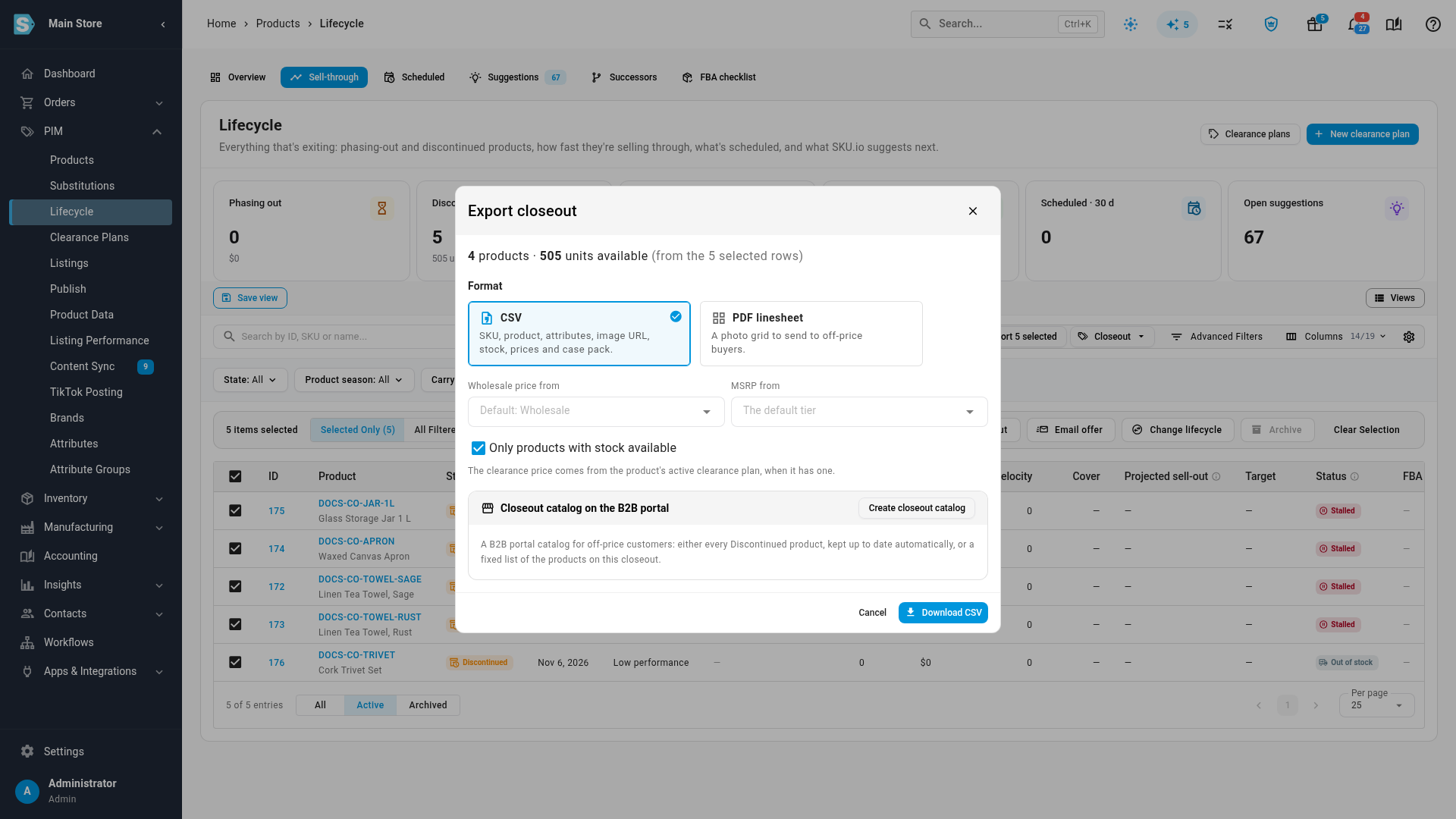
Click Export closeout.
The Export closeout dialog shows how many products and units are included, and where they came from, such as "from the 5 selected rows".
-
Under Format, keep CSV.
-
To use a different price level for the wholesale column, choose it in Wholesale price from.
Left empty, it uses your price level named "Wholesale", or else your oldest price level with "wholesale" in its name. The box shows which one, such as "Default: Wholesale EU".
-
To use a different price level for the MSRP column, choose it in MSRP from.
Left empty, it uses your default price level.
-
Leave Only products with stock available ticked to leave out products with nothing available.
The count at the top of the dialog updates when you change it.
-
Click Download CSV.
SKU.io downloads
closeout-YYYY-MM-DD.csvand shows Closeout export downloaded.
The CSV has one row per product, sorted by SKU:
| Column | What it holds |
|---|---|
SKU | The product's SKU. |
Product | The product name. |
Attributes | The variant's options, such as size and color. |
Image URL | The product's primary image. |
Units available | Stock you can sell across all warehouses. |
Wholesale price | The price from Wholesale price from, or blank if the product has no price on that level. |
Clearance price | The current price from the product's active clearance plan, or blank if it isn't on one. |
MSRP | The price from MSRP from. |
Case pack | How many units come in a case. |
Download a PDF linesheet
A linesheet is a photo grid of the products and their prices, ready to send to a buyer.
-
In the Export closeout dialog, under Format, click PDF linesheet.
-
To print a deadline on the sheet, pick a date in Offer valid until (optional).
It prints as a date such as "Nov 30, 2026". Leave it empty for no deadline.
-
Click Download linesheet.
SKU.io downloads
closeout-linesheet-YYYY-MM-DD.pdf.
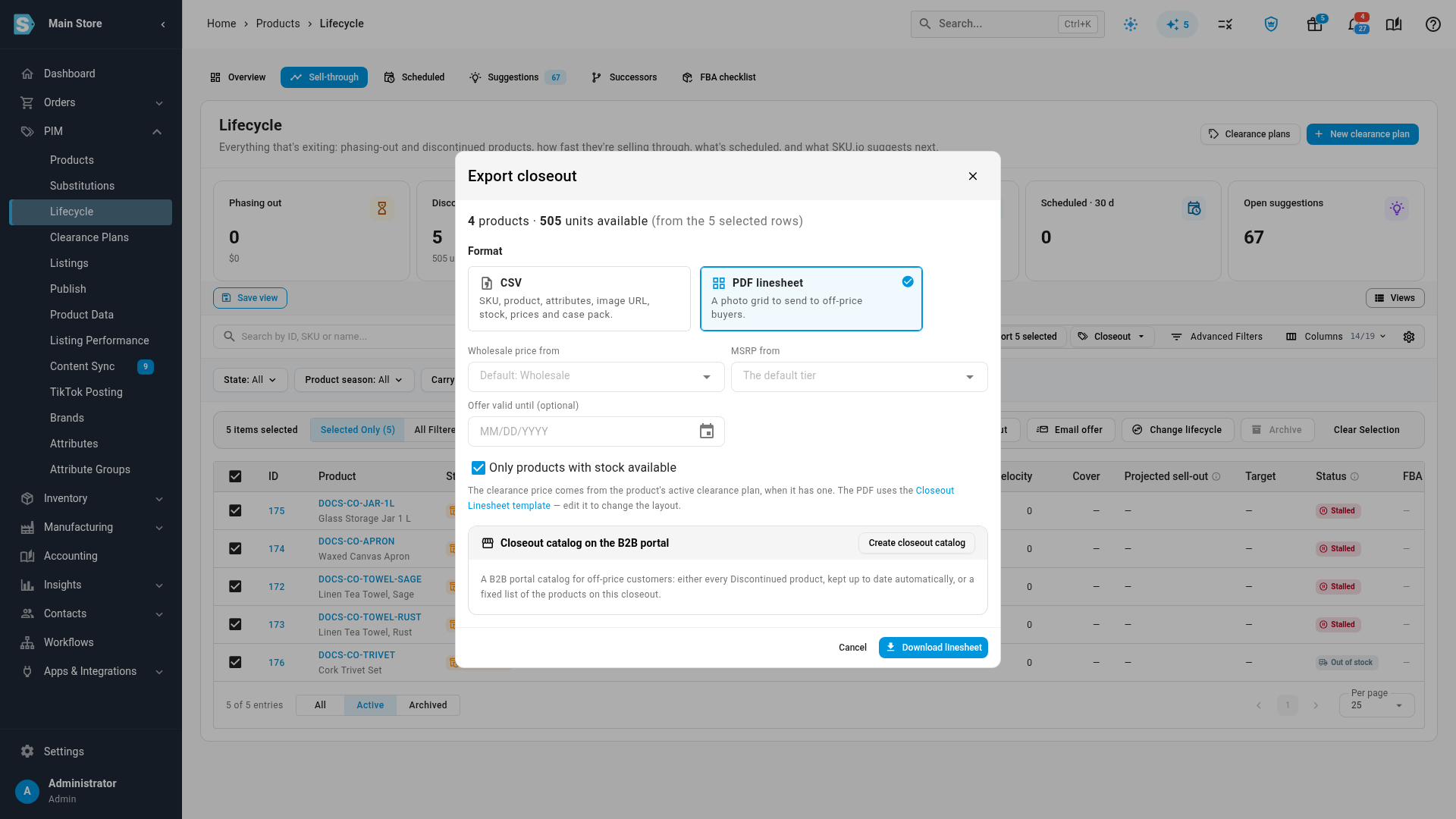
The linesheet's layout comes from the Closeout Linesheet PDF template. To change it, click Closeout Linesheet template in the dialog, or see Closeout linesheet template reference.
Create a closeout catalog on the B2B portal
A closeout catalog limits what a buyer sees on your B2B portal to your closeout products, so off-price customers can order them online.
-
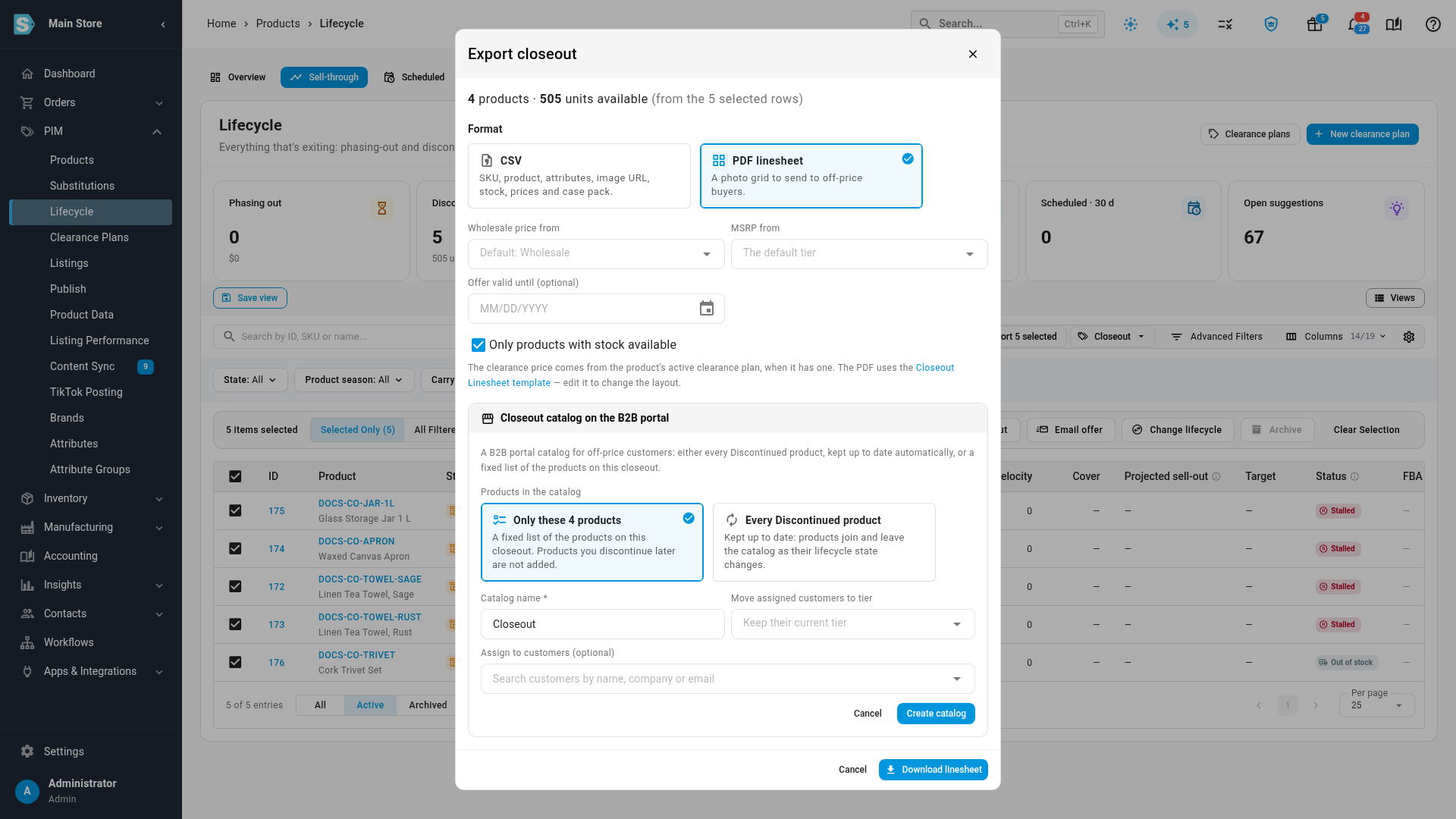
In the Export closeout dialog, on the Closeout catalog on the B2B portal card, click Create closeout catalog.
-
Under Products in the catalog, choose what the catalog holds:
- Only these … products — a fixed list of the products in this closeout. Products you discontinue later aren't added.
- Every Discontinued product — kept up to date. Products join and leave the catalog as their lifecycle state changes. When the closeout also has Phasing out products, this option reads Every Discontinued and Phasing out product and the catalog follows both states. Active products in the closeout are left out, and the option says how many.
-
In Catalog name *, type a name, such as "Closeout — Winter 2026".
-
To give buyers access, choose them in Assign to customers (optional).
-
To move those customers onto a price level, choose it in Move assigned customers to tier.
Leave it on Keep their current tier unless you mean to change their pricing for good. A warning explains that every order they place from then on is priced from that level, not only closeout products.
-
Click Create catalog.
If you chose a price level, the button reads Create catalog and change … customers' tier. SKU.io shows Created "…" with an Open catalog link.
To undo a price level change, change it back on each customer. Closing the Export closeout dialog doesn't affect a catalog you've created.
Email a closeout offer
-
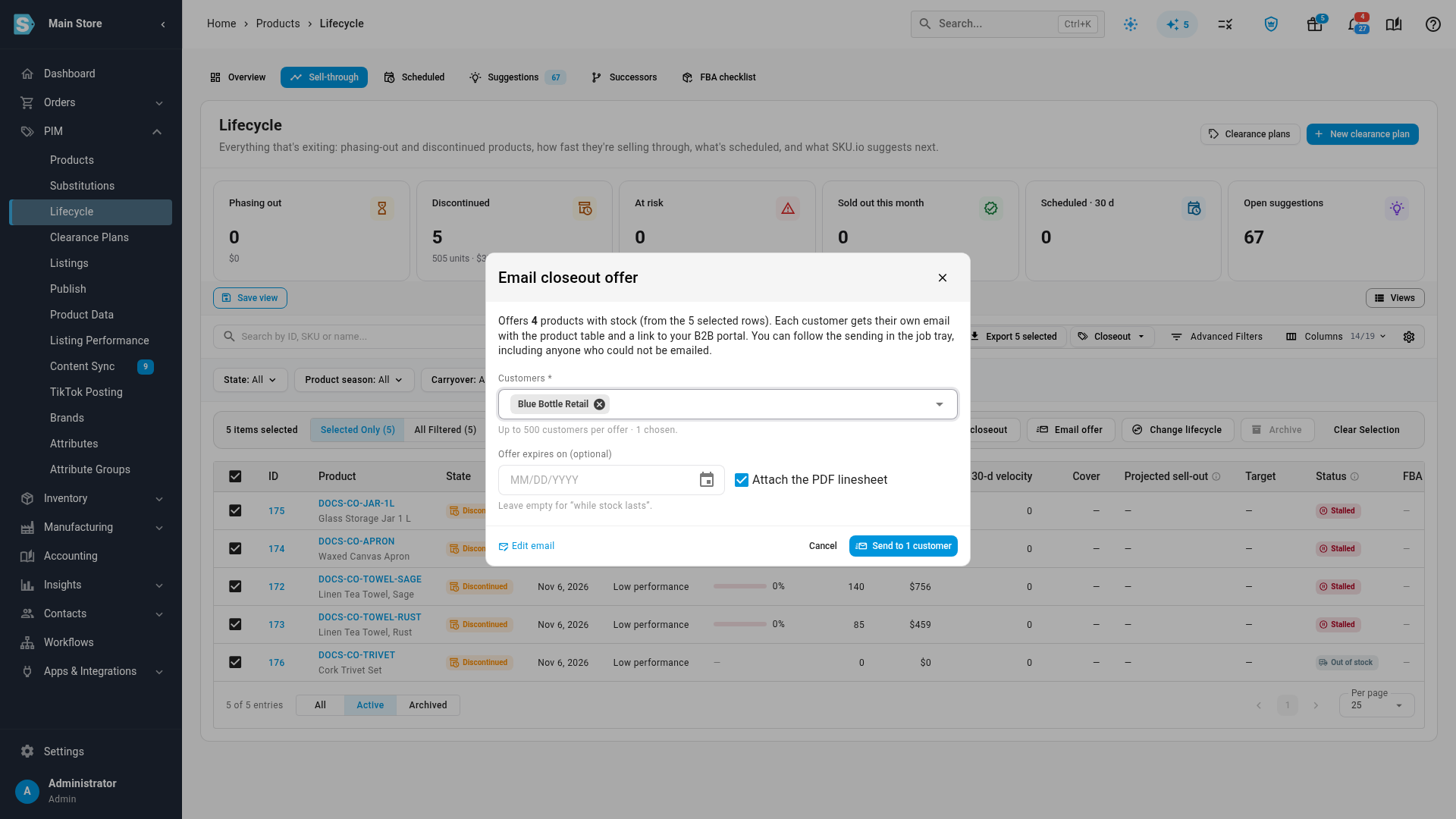
Click Email offer in the bulk actions bar, or Closeout → Email closeout offer for every row that matches your filters.
The Email closeout offer dialog says how many products with stock it offers.
-
In Customers *, search by name, company or email, and pick each customer.
One offer can go to up to 500 customers; the hint under the box counts how many you've chosen.
-
To set a deadline, pick a date in Offer expires on (optional).
Leave it empty, and the email says the offer is open while stock lasts.
-
Leave Attach the PDF linesheet ticked to attach the linesheet, or untick it to send the email alone.
-
To check or change the wording first, click Edit email.
The Closeout Offer email template opens in a new tab. See Change the closeout offer email.
-
Click Send to … customers.
SKU.io shows "Emailing the closeout offer to … customers — follow it in the job tray." The emails go out in the background.
Each customer gets their own email with:
- A table of the products with stock: SKU, name, options, units available, price and MSRP. The price is the clearance price when the product is on an active clearance plan, and the wholesale price otherwise.
- A link to your B2B portal, so they can order straight away.
- "The linesheet with photos is attached to this email." only when the PDF is attached.
- "This offer is open until …, or while stock lasts." when you set a date, or "This offer is open while stock lasts."
Change the closeout offer email
The offer always goes out in your Closeout Offer email template, so you can change the subject and wording once and every later offer uses it.
-
Go to Settings → General → Email Templates.
-
Click Closeout Offer.
It's a Manual template: nothing is sent until you click Send to … customers in the Email closeout offer dialog. To stop closeout offers altogether, switch off Allow sending under Tools → Sending; the template then shows Manual · Off.
-
Edit the subject and body, then click Save.
The built-in subject is Closeout offer from {{store_name}}: {{product_count}} products at clearance prices. In Code, type {{ to pick a variable, or click one under Variables in Tools. These variables are available:
| Variable | What it prints |
|---|---|
{{customer_name}} | The customer's name. |
{{product_table}} | The table of products on offer. |
{{product_count}} | How many products are on offer. |
{{portal_link}} | A link to your B2B portal. |
{{linesheet_link}} | A link to the PDF linesheet, valid for 14 days. |
{{linesheet_note}} | "The linesheet with photos is attached to this email." when the PDF is attached, and nothing otherwise. |
{{offer_terms}} | The sentence about the deadline, or "while stock lasts". |
{{expiry_date}} | The date from Offer expires on, or "stock runs out". |
{{store_name}} | Your store's name. |
A paragraph left empty by a variable, such as {{linesheet_note}} without an attachment, is dropped from the email. For the editor itself, see Customize email templates.
Variations and edge cases
Matrix products and archived products
Ticking a matrix product includes each of its variants, and the matrix product itself isn't listed. Bundles and archived products are never included.
Large closeouts
One export, linesheet or offer holds up to 2,000 products, taken in SKU order. When more match, the dialog says "Only the first 2,000 products (by SKU) fit in one export. Narrow the filters to export the rest." A catalog with Only these … products holds up to 2,000 products too. You can email an offer to up to 500 customers at a time. Choose more and Send to … customers is greyed out, and the hint under Customers says how many to remove; send the rest as a second offer.
Nothing to export or offer
If no product matches, Download CSV is greyed out with "No products match — nothing to export". An offer only includes products with stock, so Send to … customers is greyed out with "No products with stock to offer" when there are none. It also stays greyed out until you choose a customer ("Choose at least one customer").
Customers who can't be emailed
The offer goes to the customer's email, or their billing email when there's no email. A customer with neither is skipped, and SKU.io names them, for example "1 won't get it: Northwind Gifts (no valid email address)." A customer is also skipped when Allow sending is switched off on the Closeout Offer email template their store uses. The job tray lists everyone who wasn't emailed and why. If none of the customers you chose can be emailed, nothing is sent and the dialog says "None of the chosen customers can be emailed", with the reason.
No linesheet template
If the Closeout Linesheet PDF template has been removed, Download linesheet shows "No closeout linesheet template is set up. Add one under Settings → PDF Templates." An offer with Attach the PDF linesheet ticked is refused with a message that tells you to add the template or untick the box.
The count doesn't load
If SKU.io can't count the products, the dialog shows "Could not count the closeout products." with a Retry button.
Offer expiry in the past
Offer expires on must be today or later. An earlier date shows "The offer expiry must be today or later."
Next steps
- Create a clearance plan: mark prices down in steps, so the closeout shows a clearance price.
- Work the Lifecycle workspace: find the products that are stalled or at risk.
- Restrict what buyers see with catalogs: edit the closeout catalog after you create it.