End a season
When a selling season such as SS26 is over, most of its products shouldn't be reordered. The end-of-season wizard finds the products whose last season it was, leaves out the ones that carry on, and phases out or discontinues the rest in one background job. You can tell your wholesale buyers and start a clearance plan for the same products as you go.
Before you begin
- Set up your product seasons and tag your products with them. See Set up seasons and carryover.
- Your role needs permission to manage product lifecycle. Without it, End season… is greyed out with "You don't have permission to change lifecycle".
- To notify customers, your role also needs permission to send communications to customers.
- These are product seasons, not the merchandise seasons of Inventory → Merchandise Planning. Ending a product season doesn't touch an Open-to-Buy plan.
Steps
-
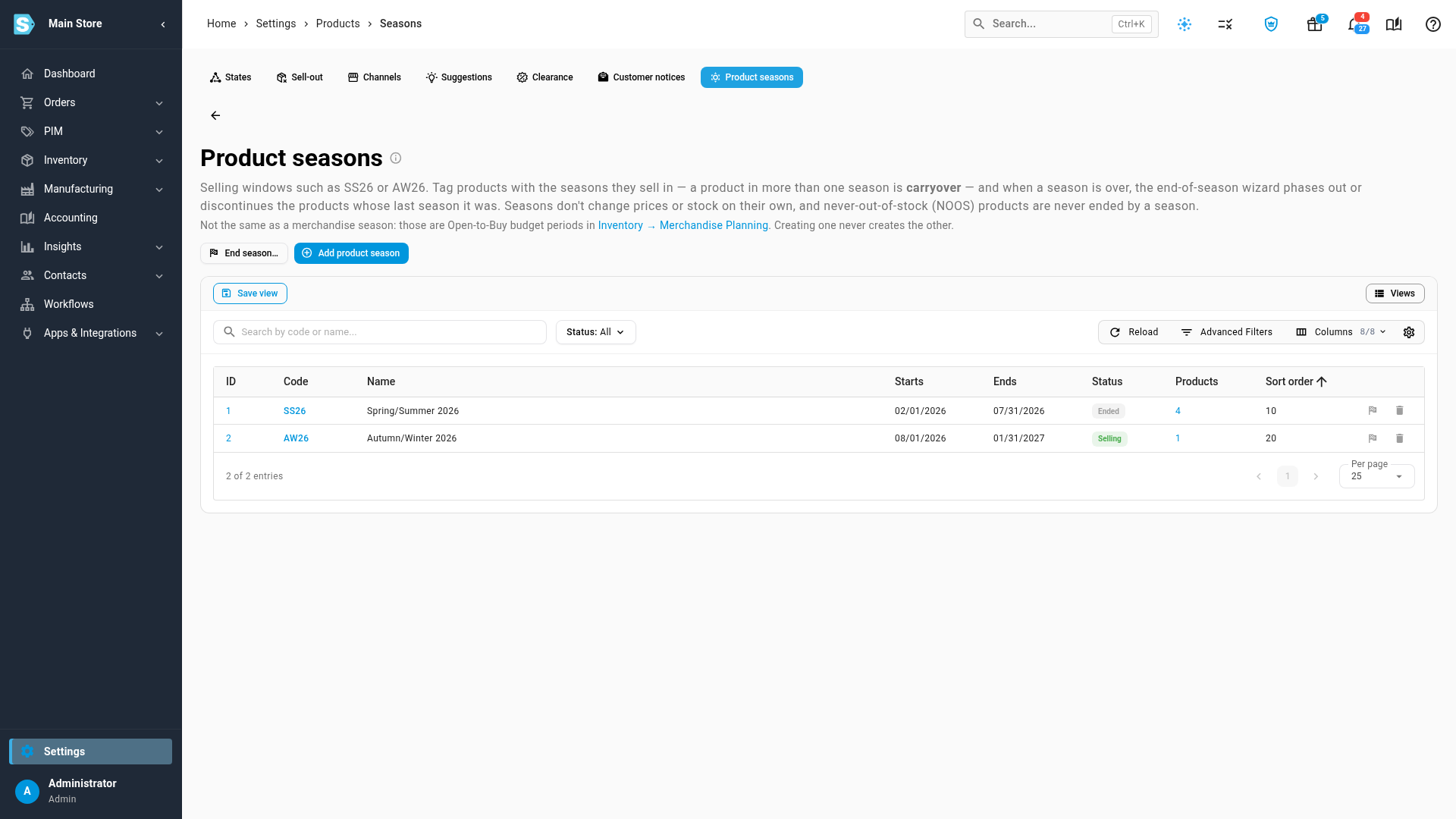
Go to Settings → Products → Product seasons.
-
Click End season….
To end one particular season, you can also click the flag icon on its row, or right-click the row and choose End season…. Otherwise the wizard starts on the first season whose Status is Ended.
-
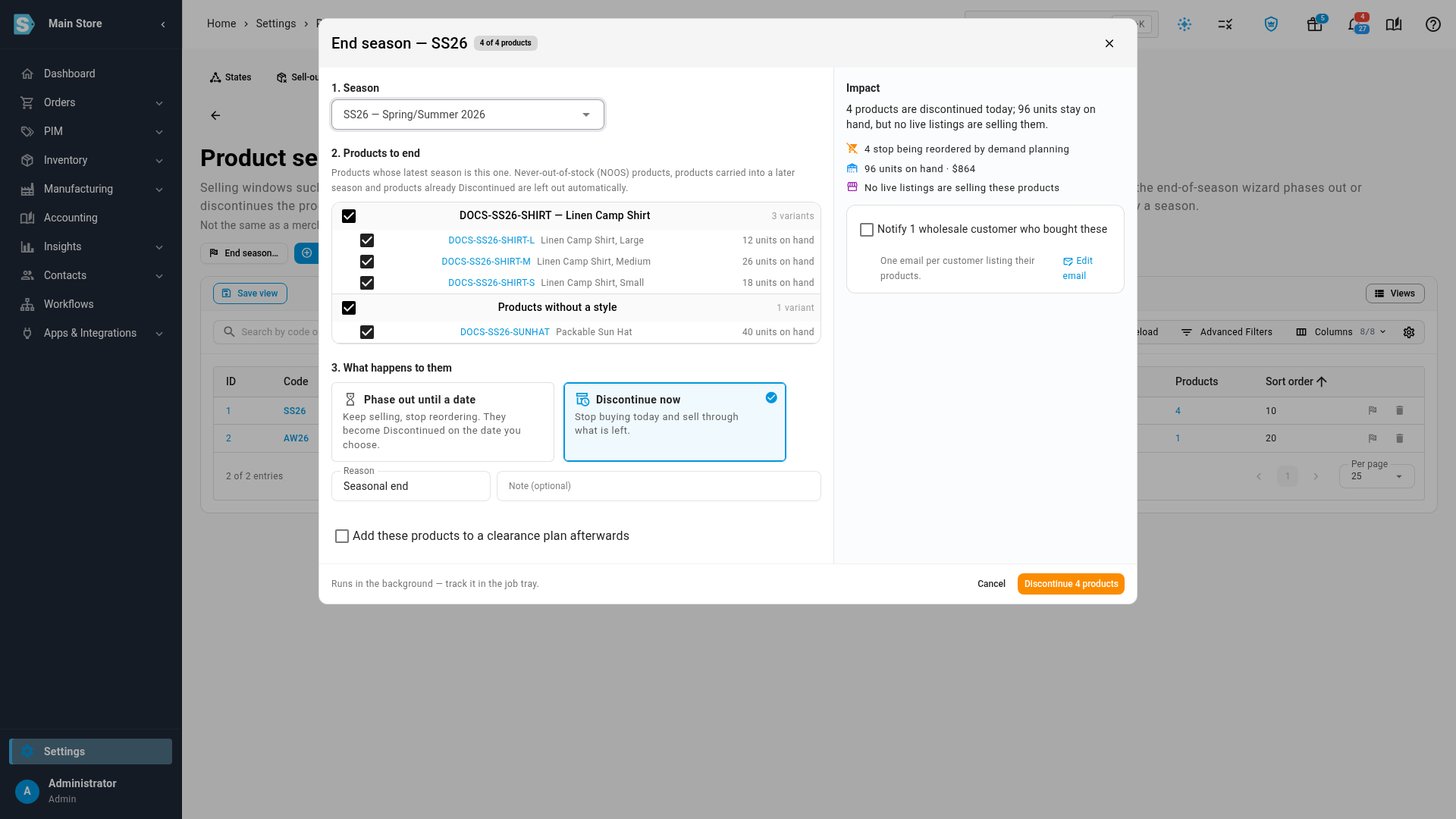
Under 1. Season, choose the season to end.
The dialog title changes to End season — and the season's code, such as End season — SS26.
-
Under 2. Products to end, check the list.
Every product is ticked to start with. Variants are grouped under their style, with the units on hand for each. The chip in the title counts how many are ticked, such as 4 of 4 products.
-
Untick any product you want to keep selling unchanged.
To untick a whole style, untick the style's own checkbox.
-
Under 3. What happens to them, choose an outcome:
- Discontinue now — stop buying today and sell through what's left. This is the default.
- Phase out until a date — keep selling and stop reordering. Enter Discontinue on *, the date the products become Discontinued automatically. Optionally enter a Last order date, after which purchase orders for them get a warning.
-
To add your own note to each product's history, type it in Note (optional).
The Reason is always Seasonal end. If you leave the note empty, it reads "Season SS26 ended" for your season's code.
-
Check the Impact panel.
It sums up what changes: how many products stop being reordered by demand planning, the units and value on hand, how many live listings are still selling them, and any open purchase order lines that still arrive. Warnings appear here too.
-
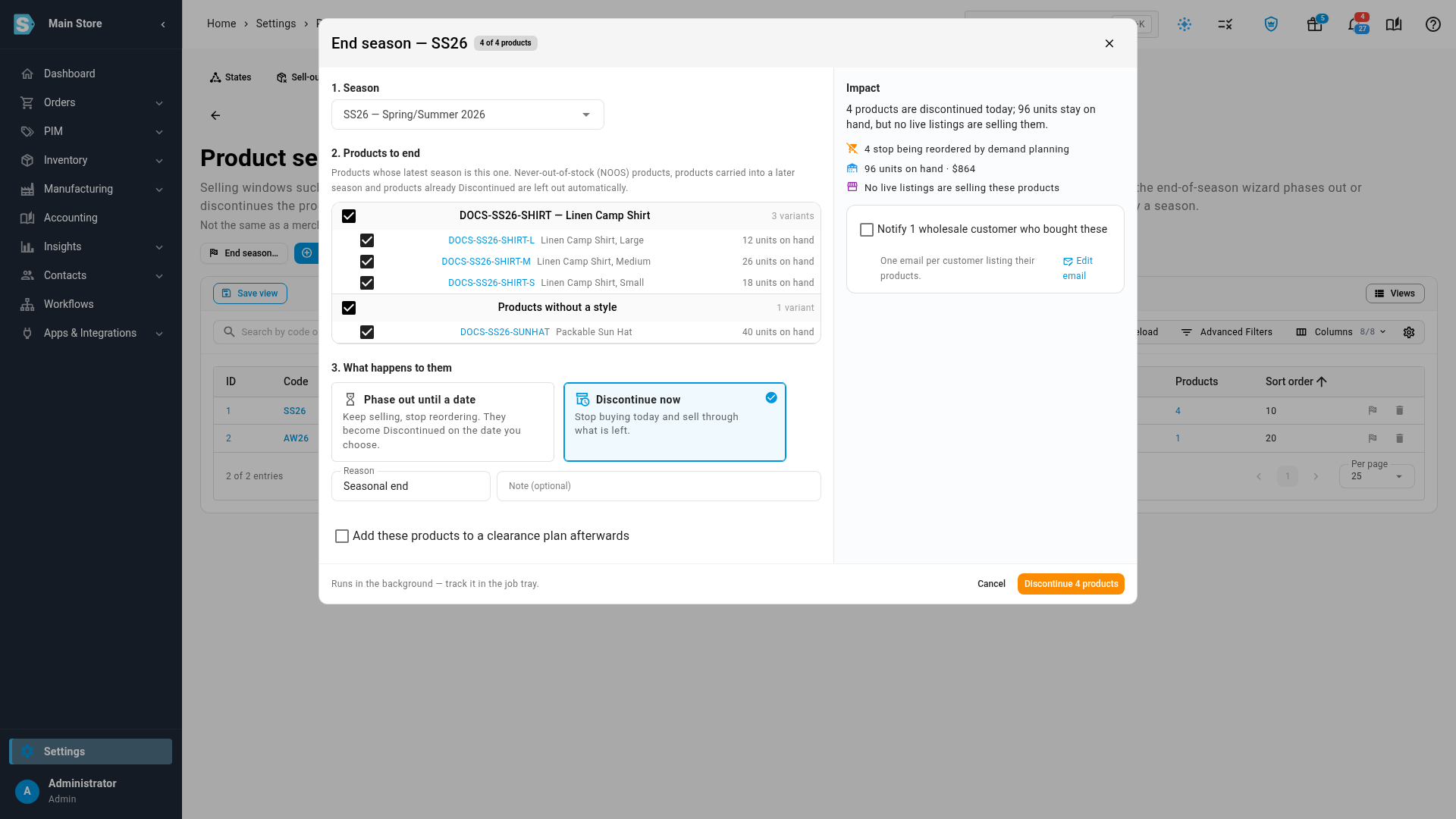
To tell your wholesale customers, tick Notify … wholesale customers who bought these.
Each customer gets one email listing their products. Click Edit email next to it to change the wording.
-
To mark the products down next, tick Add these products to a clearance plan afterwards.
-
Click Discontinue … products, or Phase out … products if you chose a phase-out.
SKU.io shows "Ending season SS26 — 4 products. Track it in the job tray." The change runs in the background.
When the job finishes, the job tray shows a summary such as "Season SS26 ended: 4 changed". Each product's lifecycle history records the change with the reason Seasonal end and your note.
If you ticked Add these products to a clearance plan afterwards, the Add to clearance plan dialog opens straight away with the same products. See Create a clearance plan.
Which products the wizard offers
The wizard offers the products whose latest season is the one you're ending. It leaves out:
- Never-out-of-stock (NOOS) products. A season never ends them.
- Carryover products, which are also tagged with a later season or a Planned one.
- Products that are already Discontinued.
- Archived products.
A product that's already Phasing out is offered, so you can discontinue it now. When a matrix product is tagged with the season, its variants are offered under it, unless a variant is NOOS, carried over or discontinued itself.
If nothing is left, the wizard says "Nothing to end — every product in this season is NOOS, carried over or already discontinued."
Customer notices
The notice goes to wholesale customers: customers with a company name and an email address who bought one of the products within the look-back period. Each customer gets one email, sent once after the whole job finishes, listing only the products they bought. If no customer qualifies, the option is greyed out. The email is the Discontinuation Notice template. See Discontinue a product for what it says and how to edit it.
Variations and edge cases
The confirm button is greyed out
Hover it to see why: "Choose a season." or "Choose at least one product."
Phase-out dates are refused
Discontinue on * is required for a phase-out and must be after today. The Last order date must be on or before it. The wizard shows "Discontinue date is required for Phasing out", "The discontinue date must be after today" or "Last order date must be on or before the discontinue date" under the field.
The clearance plan dialog opens before the job finishes
The Add to clearance plan dialog opens as soon as the job starts, so the products may still be changing state while you fill it in. That's fine for a plan that covers the products you selected.
Some products fail
The job keeps going when one product can't be changed. The job tray lists each failed product with the reason, and the summary counts them, such as "Season SS26 ended: 3 changed, 1 failed".
The impact or product list doesn't load
The wizard shows "Impact preview unavailable." or "Could not load the season's products." with a Retry button.
The season's status
Ending a season changes its products, not the season. Its Status still follows its start and end dates.
Changed your mind
Bring a product back with Reactivate, or undo the change soon after you make it. See Reactivate a product or undo a change.
Next steps
- Review lifecycle suggestions: SKU.io suggests discontinuing products whose last season has ended, if you haven't run the wizard.
- Sell off closeout stock: offer the season's leftovers to wholesale buyers.
- Work the Lifecycle workspace: follow how fast the ended products sell through.