Phase out with a final buy
Phase a product out when you've decided to stop but still want one last order. A Phasing out product keeps selling and can still be bought. Planning covers only the demand up to its Discontinue on date, and purchase orders after its Last order date are flagged as a final buy. On the discontinue date, SKU.io moves the product to Discontinued for you.
To stop buying straight away instead, see Discontinue a product.
Before you begin
- Your role needs permission to manage product lifecycle. Without it the menu items are greyed out and say "You don't have permission to change lifecycle".
- Set the lead time on the product's suppliers. The dialog uses the longest one to suggest a last order date.
- Check what Phasing out does in your account on the States tab of Settings → Products → Product Lifecycle. By default it plans only up to the discontinue date and warns when you add the product to a new bundle, kit or listing. See Customize lifecycle states.
Steps
-
Go to PIM → Products, search for the product by its code, and click its SKU to open it.
-
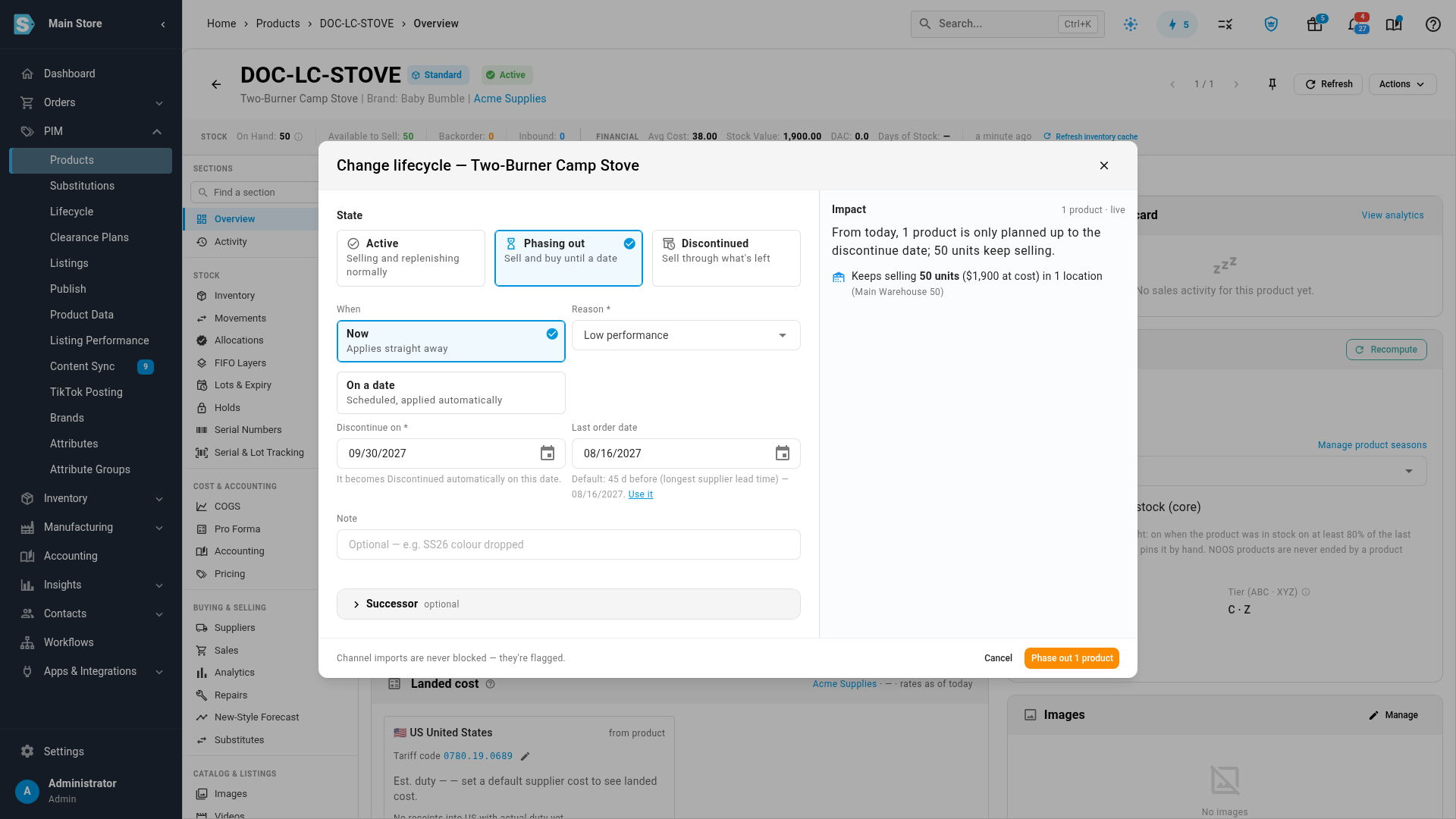
Click Actions, then Phase out…. The Change lifecycle dialog opens with Phasing out already chosen.
-
Choose a Reason.
-
In Discontinue on, pick or type the day the product becomes Discontinued, and press Enter. It must be after today.
-
In Last order date, pick the last day you'll order it. Under the field, the dialog suggests a date, such as "Default: 45 d before (longest supplier lead time) — Jan 15, 2027." Click Use it to take that date. You can leave the field empty.
-
Optionally, add a Note and a Successor. See Link a successor product.
-
Check the Impact column. It says, for example, "From today, 1 product is only planned up to the discontinue date; 50 units keep selling." To tell your wholesale customers, tick Notify N wholesale customers who bought this. Their email includes the last order date, so they can place a last order. See Email wholesale customers.
-
Click Phase out 1 product.
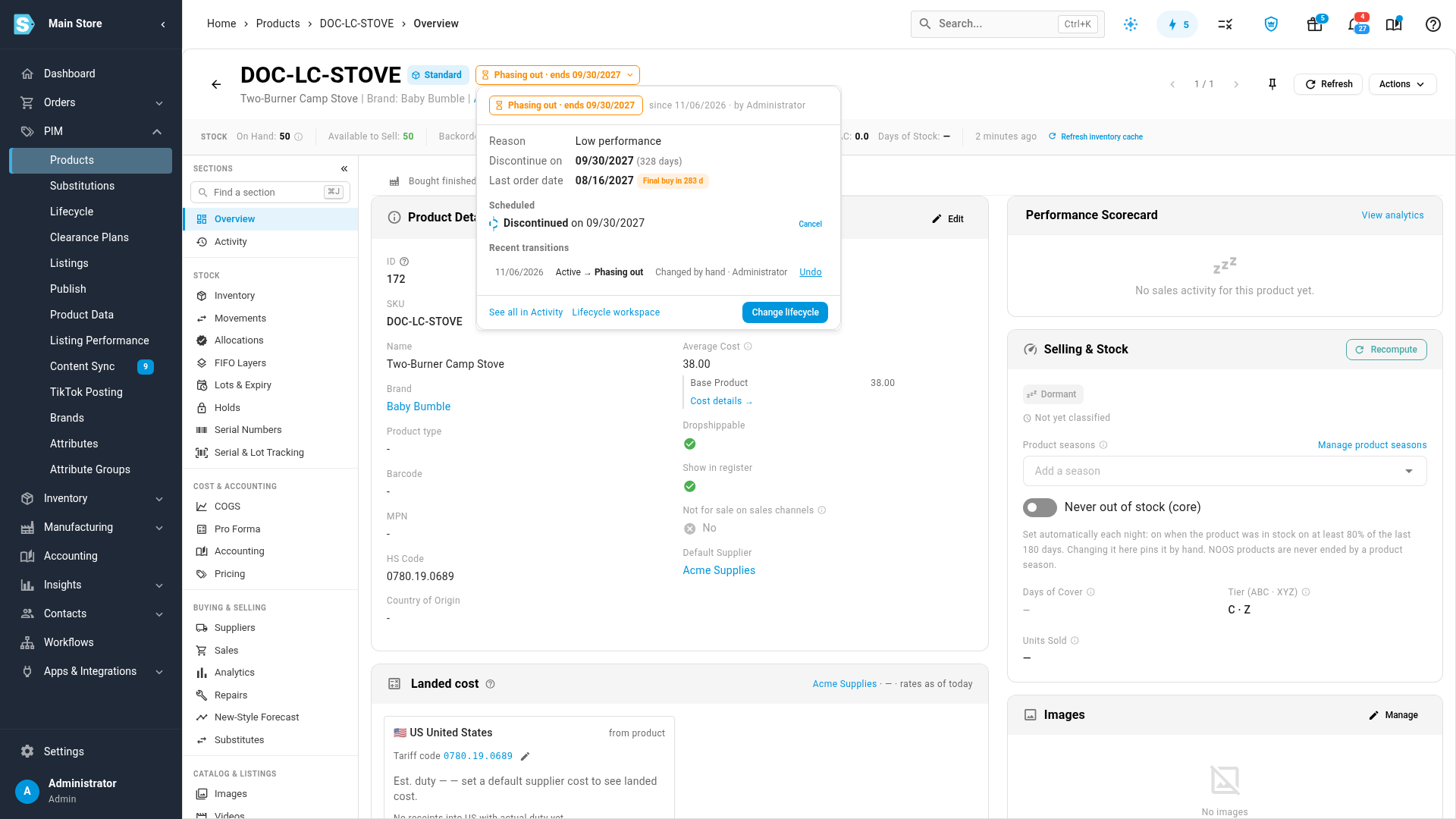
The message "Phasing out DOC-LC-STOVE" appears, with an Undo button for 10 seconds. Next to the SKU, the product now shows a chip such as Phasing out · ends Mar 1.
Click the chip to open the lifecycle panel. It shows the Discontinue on date with the days left, the Last order date with a chip such as Final buy in 12 d, and under Scheduled, the move to Discontinued on the discontinue date.
What happens during the phase-out
Planning buys only what sells before the discontinue date
With the default Capped to discontinue date rule for Demand planning & reorder suggestions, a phasing-out product's planning line:
- covers only the demand expected up to the discontinue date;
- rounds down to whole case packs;
- never raises an order to the supplier's minimum order quantity. If the minimum is more than the product needs, nothing is ordered, and the line says Below MOQ before discontinue date;
- caps minimum and target stock at what's expected to sell before the discontinue date, but still covers open customer orders and backorders;
- carries a chip such as Final buy · phase-out 1 Mar 2027.
After the last order date, the line orders nothing and says Past last order date. Once the discontinue date arrives, it says Discontinue date reached. Scheduled forecasts and automatic purchase orders skip the product after its last order date too.
A state set to Capped to discontinue date but with no discontinue date on the product plans normally. See Forecast and replenish stock.
Purchase orders after the last order date are a final buy
Until the last order date, you add the product to purchase orders as usual. On the order, its line shows a chip such as Phasing out · ends Mar 1, 2027.
After the last order date, adding it saves the line and then opens This is a final buy, with a message such as "DOC-LC-STOVE is past its last order date (15 Jan 2027). This is a final buy." Click Keep final buy to keep the line, or Remove line to take it off the order. Lines already on purchase orders are received as normal.
The product discontinues itself
On the discontinue date, the product moves to Discontinued within the hour. Its history shows the change as Scheduled, and from then on the Discontinued rules apply. Until then, the move is listed on the Scheduled tab of PIM → Lifecycle, where its origin is Phase-out end date.
To keep the product Phasing out past that date, click Cancel next to the scheduled move in the lifecycle panel, then Cancel change. Its Discontinue on date is removed, and the product stays Phasing out until you change it. Its Last order date stays as it was. See Schedule lifecycle changes.
Change the dates
- Click the Phasing out chip next to the SKU, then Change lifecycle. The dialog opens on Phasing out, with the current Discontinue on and Last order date filled in.
- Change the dates and click Update phase-out for 1 product.
The scheduled move to Discontinued follows the new date.
Start the phase-out on a later date
Under When, choose On a date to start the phase-out later. The Discontinue on date must then be after the start date, or the dialog says "The discontinue date must be after the date the phase-out starts." If the discontinue date has already passed when the start date arrives, the phase-out doesn't start. The schedule is cancelled with the note "Not applied: Its discontinue date … passed before the phase-out could start. Phase the product out again with a new date, or discontinue it."
If the dates are rejected
| Message | What to do |
|---|---|
| "Discontinue date is required for Phasing out." | Fill in Discontinue on. |
| "The discontinue date must be after today." | Pick tomorrow or later. To stop today, discontinue the product instead. |
| "Last order date must be on or before the discontinue date." | Move the last order date earlier, or clear it. |
Next steps
- Link a successor product so the replacement inherits the sales history.
- Schedule lifecycle changes to see and manage every upcoming change.
- Discontinue a product for what changes once the product is discontinued.