Reactivate a product or undo a change
Plans change. If you decide to keep selling a product you phased out or discontinued, reactivate it and it goes back to Active. If you changed a product's state by mistake, undo the change within 24 hours and the product goes back exactly as it was. Every change, and every undo, is kept in the product's lifecycle history.
Before you begin
- Your role needs permission to manage product lifecycle. Without it, Reactivate and Undo are greyed out or hidden, and say "You don't have permission to change lifecycle". See Product permissions reference.
- Reactivate appears only for products that aren't Active.
Reactivate a product
-
Go to PIM → Products and open the product.
-
Click Actions, then Reactivate. You can also use Reactivate in the row menu of the products list.
-
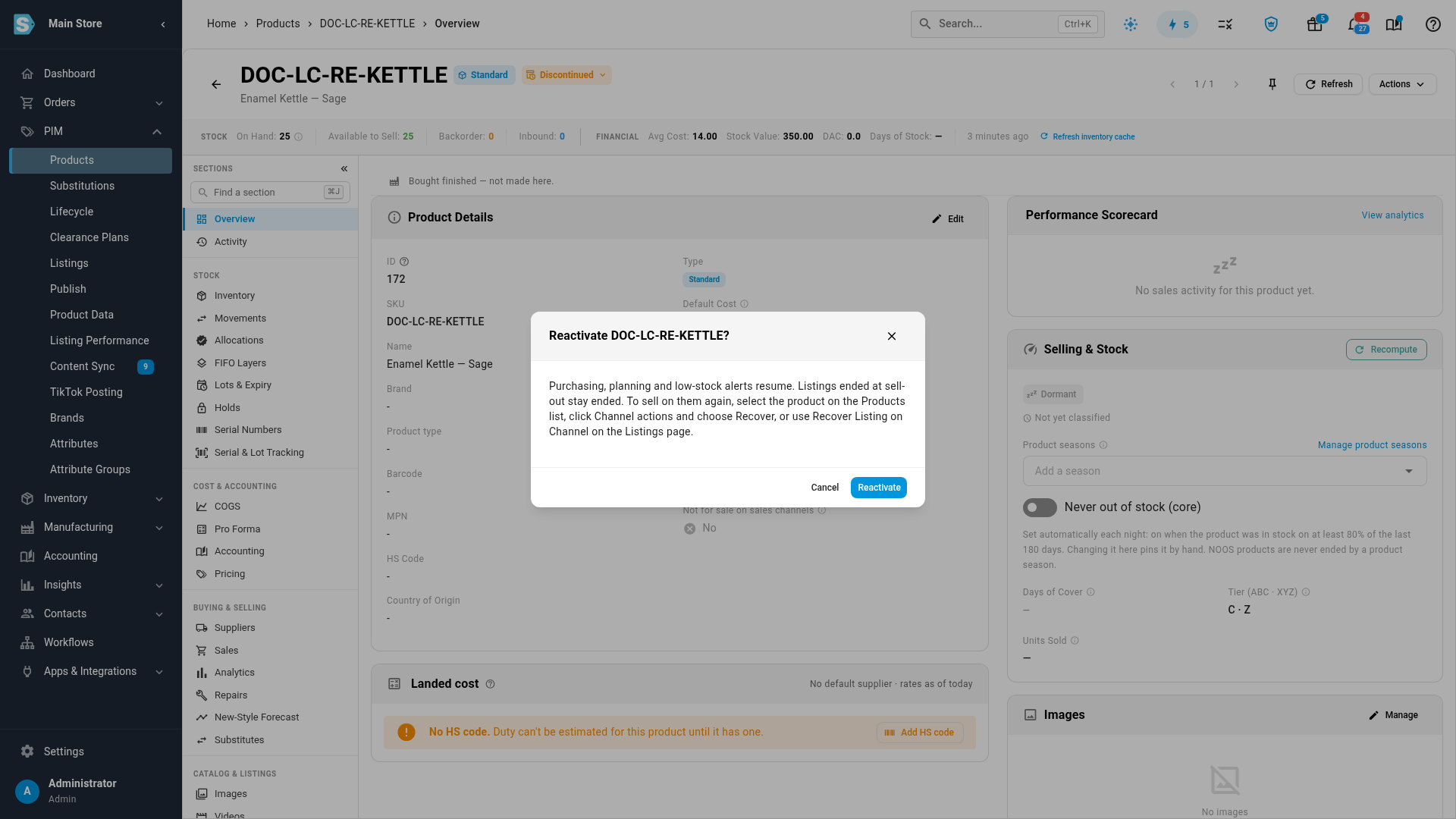
Read the dialog. Its title is Reactivate followed by the product's SKU, and it says what changes.
-
Click Reactivate.
SKU.io shows "Reactivated" and the SKU, with an Undo button for 10 seconds. To reactivate many products at once, select them on the products list, use Change lifecycle… and choose Active. See Change lifecycle for many products or variants.
When a product goes back to Active:
- Purchasing, demand planning and low-stock alerts include it again.
- Its reason, note, Discontinue on date and Last order date are cleared.
- Any pending scheduled change for it is cancelled.
- If the sell-out action archived it, it's unarchived too. The dialog tells you when this applies.
- On Shopify, its listings are updated to match Active again, so the lifecycle tag and the other Shopify lifecycle behaviours you set up no longer apply. See Set up channel lifecycle behaviour.
Listings that were ended when the product sold out stay ended. To sell on them again, select the product on PIM → Products and use Channel actions → Recover, or use Recover Listing on Channel on the Listings page. See Browse your channel listings.
Undo a change
You can undo the latest lifecycle change of a product for 24 hours. There are three places to do it:
- Right after the change: click Undo on the message at the bottom of the screen. It stays for 10 seconds.
- From the state chip: click the state chip next to the SKU, and click Undo next to the change under Recent transitions. See Check a product's lifecycle at a glance.
- From the history: on the product's Activity tab, click Undo on the change's row in the Lifecycle card.
SKU.io shows "Change undone". The product gets back its previous state, reason, note and dates, exactly as before the change.
Undo puts back the whole change:
- A change that moved a matrix product and its variants together is undone for all of them.
- Scheduled changes come back the way they were. A schedule the change cancelled is restored, and a schedule the change created, such as a phase-out end date, is removed.
- Undoing a reactivation of a product that was archived at sell-out archives it again.
Undo doesn't reverse everything the change did. Purchase order lines and backorders it cancelled stay cancelled, and notice emails it sent to customers stay sent.
When you can't undo
Undo appears only while a change can still be undone. If you try anyway, for example from an old browser tab, you see one of these messages:
| Message | What to do |
|---|---|
| "Changes can only be undone within 24 hours." | Change the lifecycle instead. |
| "The product has changed again since, so this change can no longer be undone. Change its lifecycle instead." | Only the latest change can be undone. |
| "An undo cannot itself be undone. Change the lifecycle instead." | Make the change again with Change lifecycle…. |
| "This change has already been undone." | Nothing to do. |
| "The sell-out action has already run for this product, so it cannot be undone. Reactivate it instead." | The product sold out after the change. Use Reactivate. |
| "The sell-out action has already ended at least one of its listings, so this change cannot be undone. Reactivate it instead." | Use Reactivate, then recover the listings. |
| "This change moved the product out of a state that was deleted, so it cannot be undone. Change its lifecycle instead." | The product can't go back to a state that no longer exists. |
| "The sell-out action is running for" the product "right now, so its lifecycle cannot change yet. Try again in a few minutes." | Wait a few minutes and try again. |
An undo never puts a product back into a state that has been deleted.
Check a product's lifecycle at a glance
A product that isn't Active shows its state as a chip next to its SKU, at the top of its page.
-
Open the product.
-
Click the state chip next to the SKU.
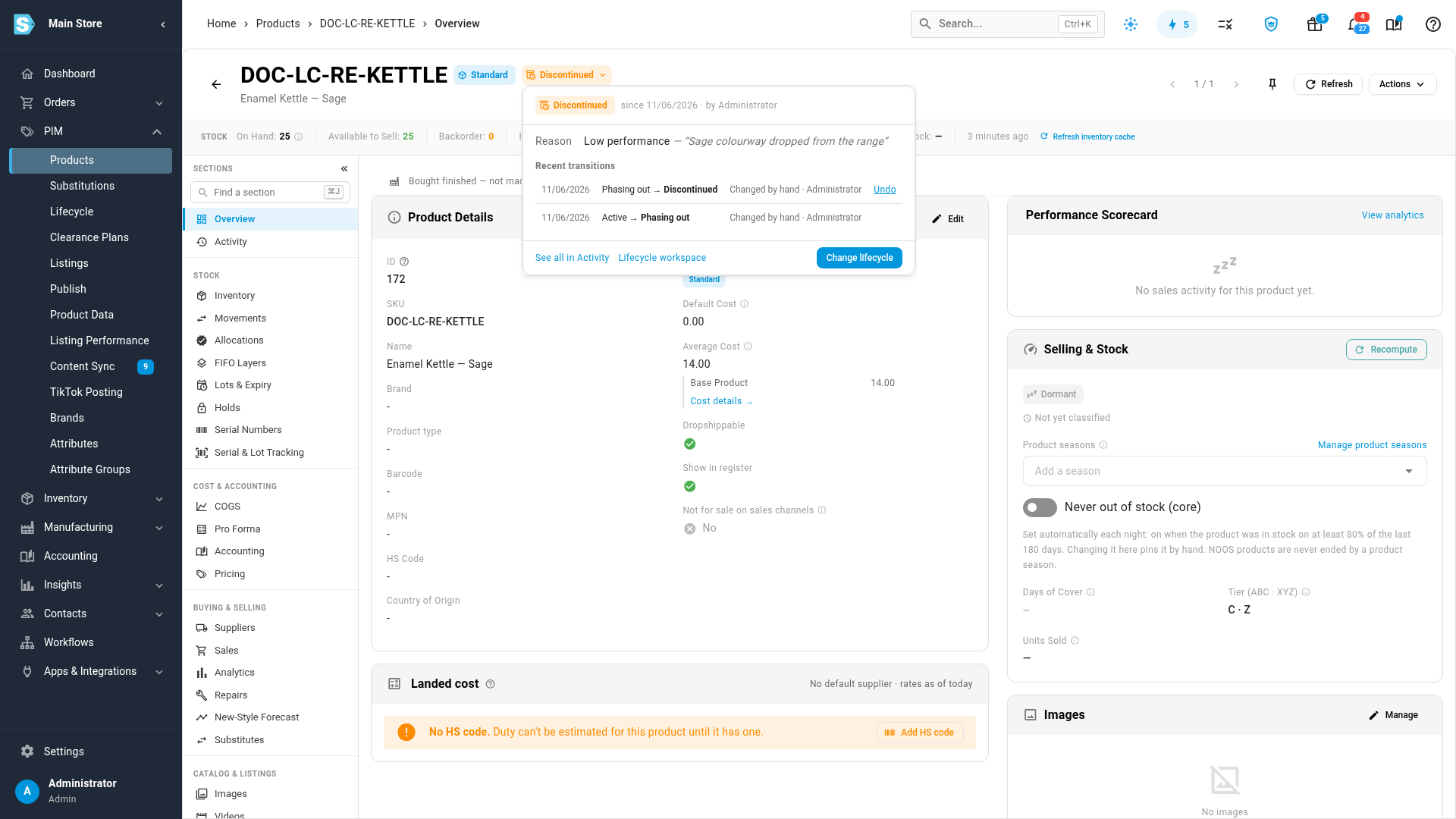
The panel shows what you need before you change anything:
| Field | What it shows |
|---|---|
| Header | The state chip, when the product entered it and who changed it. |
| Reason | The reason chosen for the change, and the note in quotes, if there is one. |
| Discontinue on | For a Phasing out product, the day it becomes Discontinued, and how many days are left. |
| Last order date | For a Phasing out product, the last day to order it, with a Final buy in chip that counts down the days. |
| Replaced by | The successor product, with its pack factor, how much sales history it takes over and until when (for example "history 100% until 03/01/2027", or "stopped" once that date has passed), and use up first if that's on. Click the SKU to open the successor. |
| Replaces | The products this one replaces. |
| Chain | The whole line of predecessors and successors, when there is one. |
| Scheduled | The next scheduled change, with a Cancel button. See Schedule lifecycle changes. |
| Recent transitions | The latest changes: date, old and new state, what made the change and who, with Undo next to any change you can still undo. |
Only the fields that apply appear. For a matrix product, the panel shows a table of its variants instead, grouped by an attribute such as color, with the states each group is in.
At the bottom of the panel, See all in Activity opens the product's Activity section, where the Lifecycle card lists every change, Lifecycle workspace opens PIM → Lifecycle, and Change lifecycle opens the Change lifecycle dialog. When the product has a successor, a Replaced by link next to the chip also takes you straight to it.
Read the lifecycle history
-
Open the product.
-
Click Activity in the product's sections, or click See all in Activity in the lifecycle panel.
-
Find the Lifecycle card.
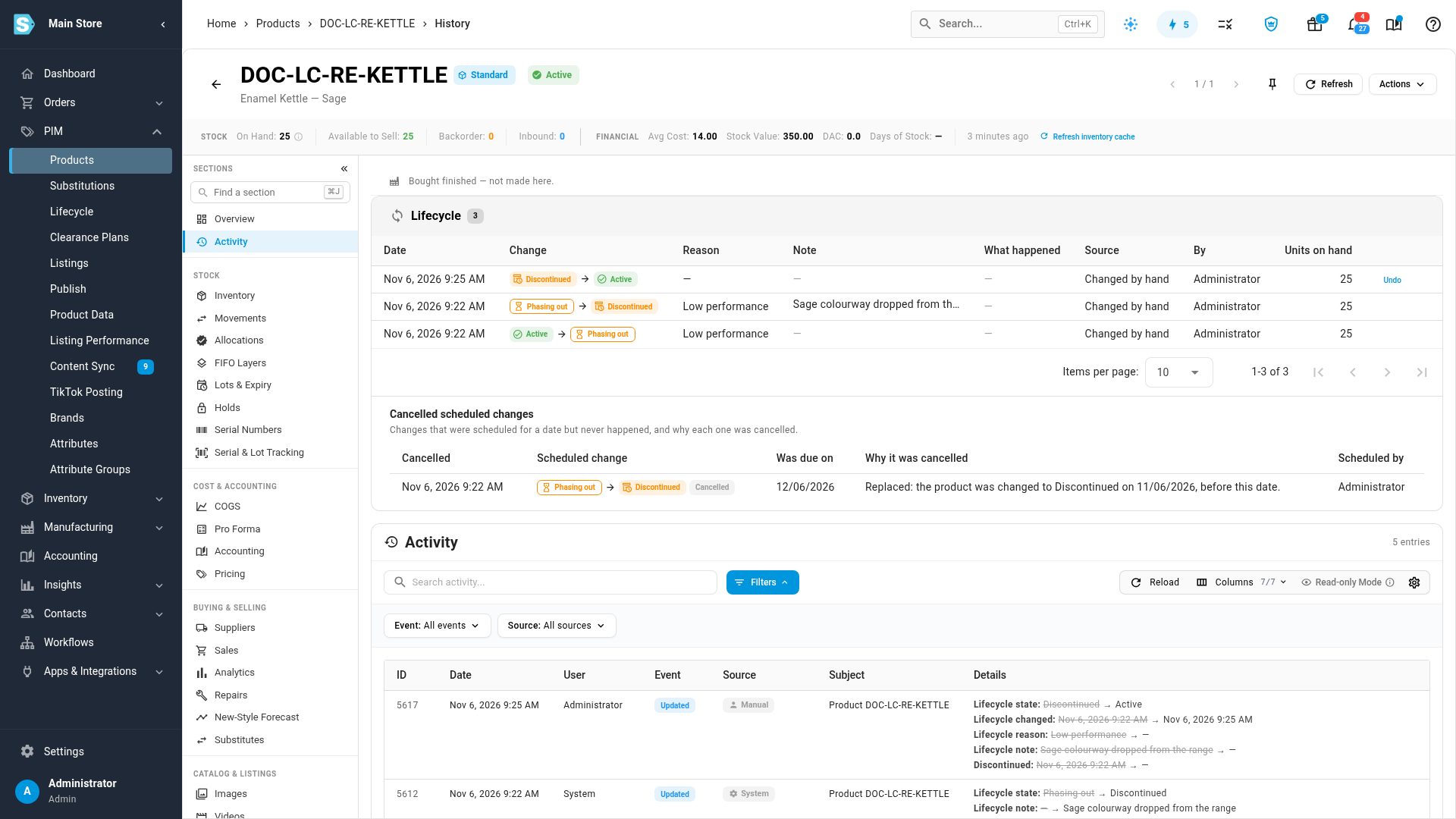
Each row is one change, newest first:
| Column | What it shows |
|---|---|
| Date | When the change happened. Undone changes are struck through and carry an Undone chip. |
| Change | The old state, an arrow and the new state. |
| Reason | The reason chosen for the change. |
| Note | The note, if any. Point to it to read all of it. |
| What happened | What SKU.io did as a result, for example "Sold out: listings ended, product archived". Click the arrow at the end of the row to see each channel's outcome. |
| Source | What made the change, for example Changed by hand, Scheduled, Accepted suggestion, Sold out or Undo. The Lifecycle states reference lists every source. |
| By | Who made the change, or System when SKU.io made it automatically. |
| Units on hand | How much stock the product had at that moment. |
Undo shows at the end of a row while that change can still be undone. A product that has never changed state shows "No lifecycle changes yet. Every change of state is recorded here."
Below the table, Cancelled scheduled changes lists changes that were scheduled for a date but never happened, and why each one was cancelled. For example, discontinuing a Phasing out product early cancels its scheduled discontinue date with "Replaced: the product was changed to Discontinued on" and the date. See When a scheduled change is due.