Chase a customer's overdue balance
When a wholesale customer pays on terms, you need to know what they owe, how late it is, and when you last reminded them. Each customer's page answers all three. The Overview ages their balance, the Receivables tab lists every open order, and you can email a statement or a payment request without leaving SKU.io. Every message you send is logged on the customer.
Before you begin
- You need permission to view the customer and their sales orders. To send statements and payment requests, you also need permission to send customer communications.
- Give the customer Payment Terms, so their orders have due dates. See Set payment terms and a credit limit.
See how much is overdue
-
Go to Contacts → Customers and open the customer.
-
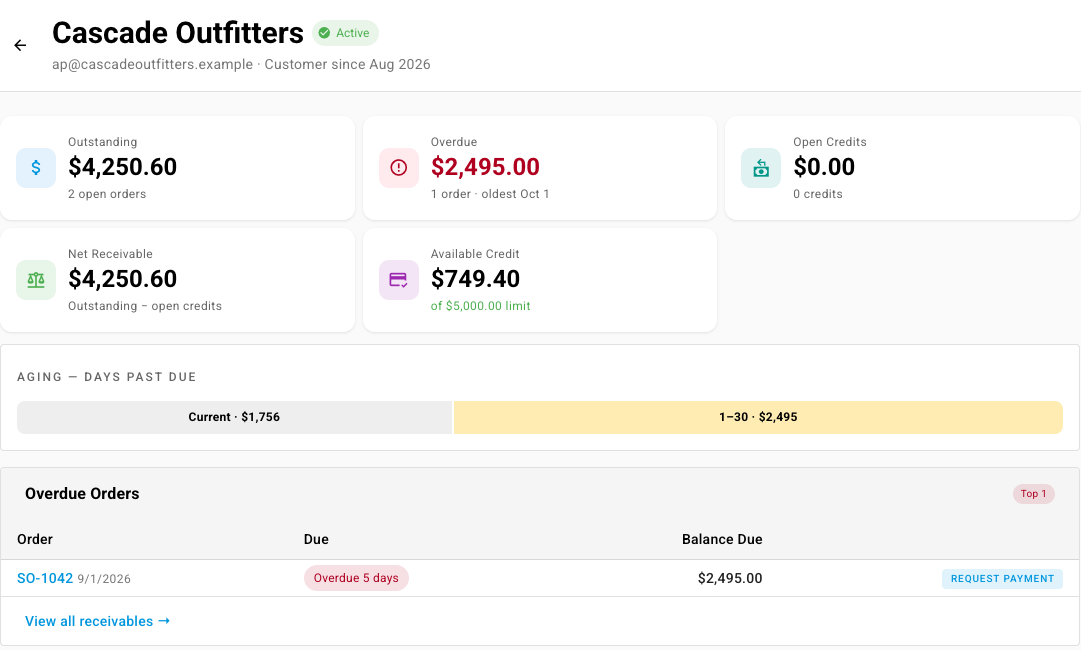
On the Overview tab, read the top row: Outstanding, Overdue, Open Credits, Net Receivable and Available Credit. On credit hold shows when their orders are held.
-
Read Aging — days past due. It splits the balance into Current, 1–30, 31–60, 61–90 and 90+ days past due.
-
Overdue Orders lists the orders behind the overdue figure, how many days overdue each one is, and its Balance Due, with a Request Payment button on each.
Work through the open orders
-
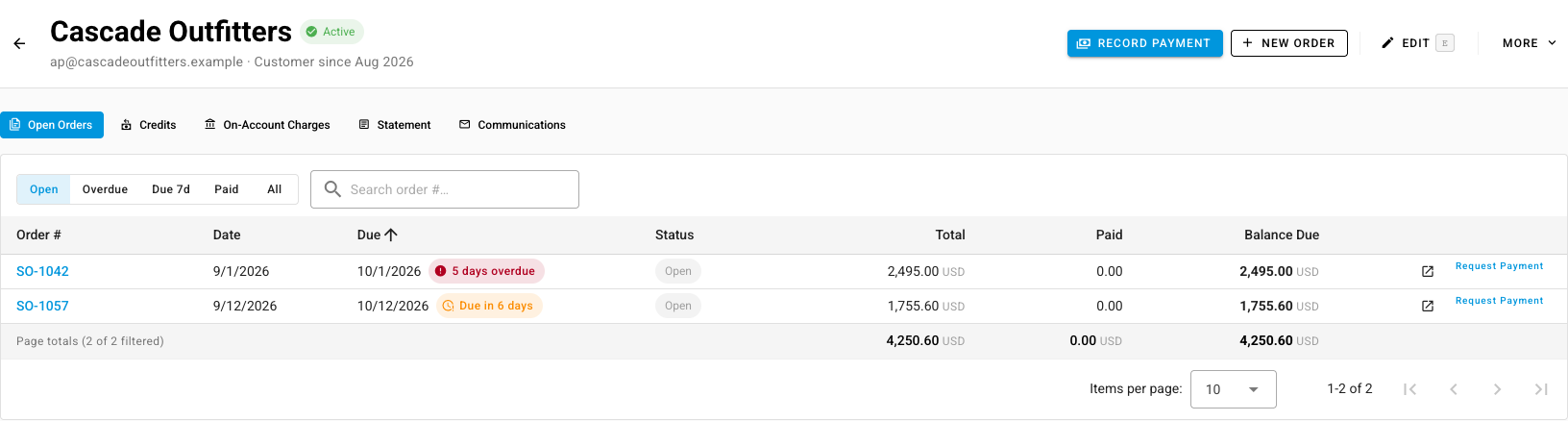
Open the Receivables tab. Open Orders lists each unpaid order with its Total, Paid, Balance Due, due date and status.
-
Use the chips above the table to show Open, Overdue, Due 7d (due in the next seven days), Paid or All orders. Each due date carries a chip such as 5 days overdue or Due in 6 days.
-
Click an order number to open the order, or Request Payment on a row to chase that order alone.
Credits lists open credits you can apply, and On-Account Charges lists point-of-sale sales charged to their account.
Send a statement
-
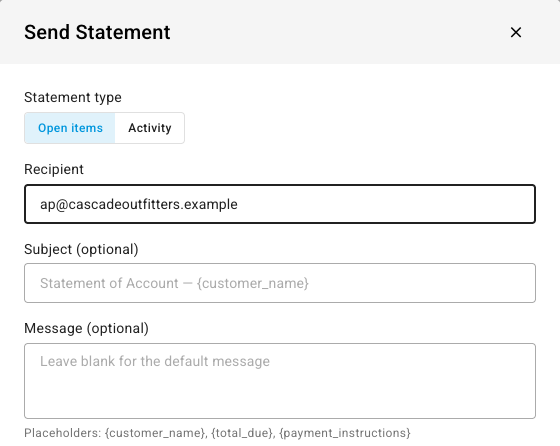
Click More at the top of the customer page and choose Send Statement.
-
Choose the Statement type:
- Open items lists every unpaid order and credit, with the total outstanding.
- Activity lists every order, payment and credit in a Period, such as Last 90 days, Month to date or Year to date, with a running balance.
-
Check the Recipient. Optionally change the Subject and add a Message. Leave them blank to use the default wording. You can use the placeholders shown under the message, such as
{total_due}, and check the result with Preview email. -
Click Send Statement. The customer gets an email with the statement attached as a PDF.
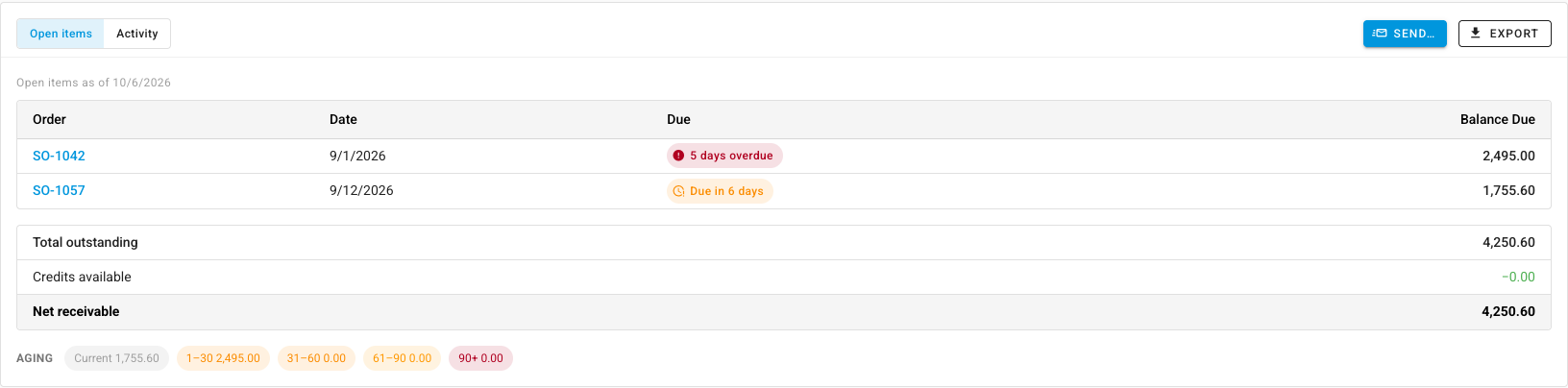
To see the statement before you send it, open Receivables → Statement. It shows the open items or activity, the Total outstanding, Credits available and Net receivable, and the balance by age. Click Send… to email it, or Export and choose PDF statement to download it.
Request payment
- Click More and choose Request Payment. The dialog shows the customer's Outstanding balance. To chase one order instead, use Request Payment on that order's row.
- Check the Recipient, and optionally the Subject and Message.
- Click Send Request.
Review what you've sent
Open Receivables → Communications. Every statement and payment request is listed with when it was Sent, its Type, Scope, Recipient, Subject, and who sent it (Sent By). Check it before you chase again, so you don't send a second reminder the same day.
When the customer pays, click Record Payment at the top of the page.
Ageing and chasing work one customer at a time. SKU.io doesn't have a report that ages receivables across all customers, and it doesn't send reminders on a schedule.
Next steps
- Manage credit holds: hold new orders for customers over their limit.
- Record payments and apply store credit: record what they pay.