Import part compatibility
Instead of adding part compatibility rows one at a time, upload a CSV with one row per part and what it fits. Rows that match an existing part, product, category, and issue type update that row's quantity instead of creating a duplicate — so re-importing the same file later is always safe.
Before you begin
- You need the Manage repair settings permission to import.
- Every
part_skuandproduct_skumust already exist as a product in your catalog — the import matches by SKU, it doesn't create products.
Import a file
-
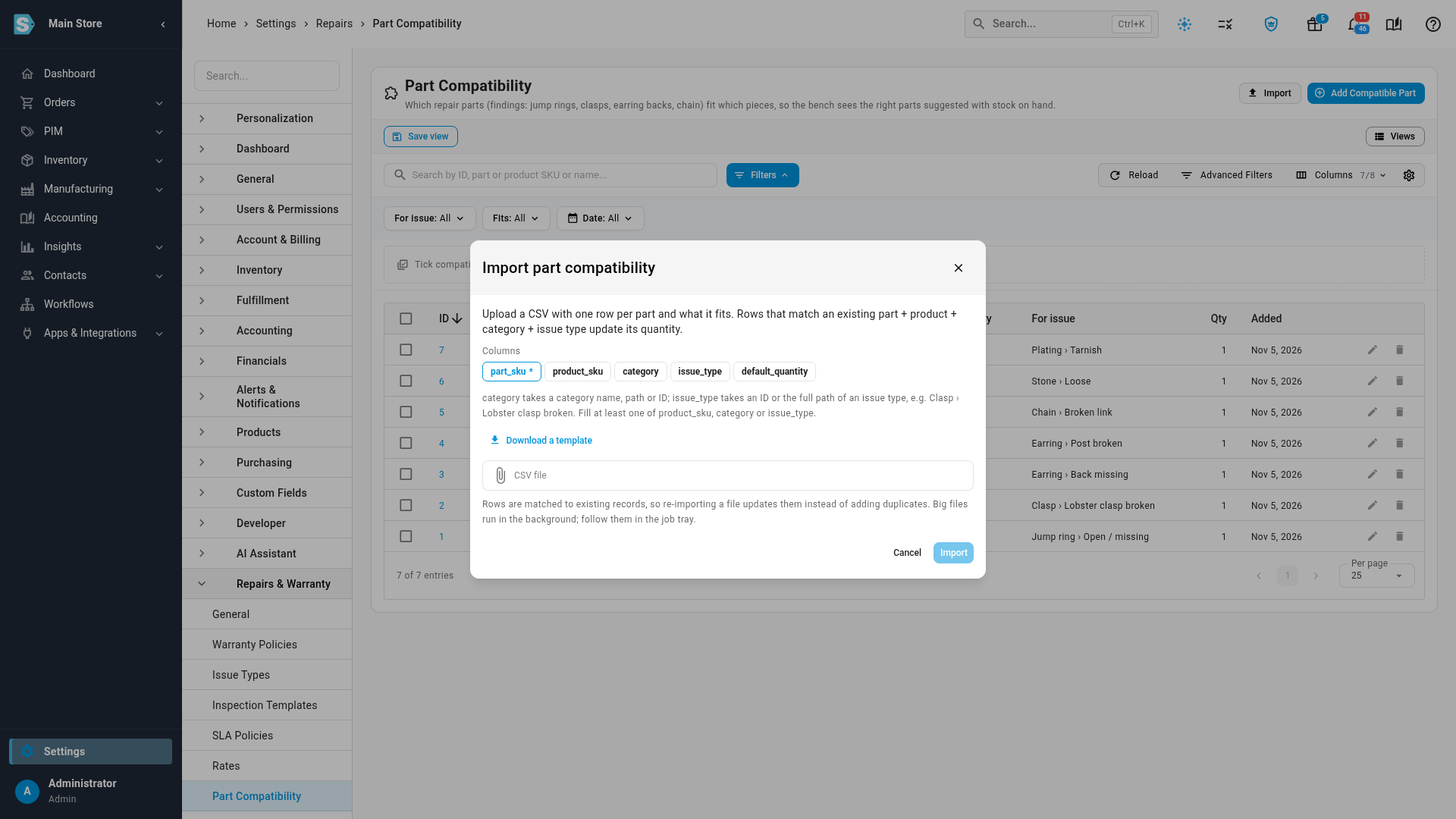
Go to Settings → Repairs & Warranty → Part Compatibility and click Import.
-
Click Download a template if you want a starting file with the right headers and a sample row.
-
Choose your CSV file and click Import.
-
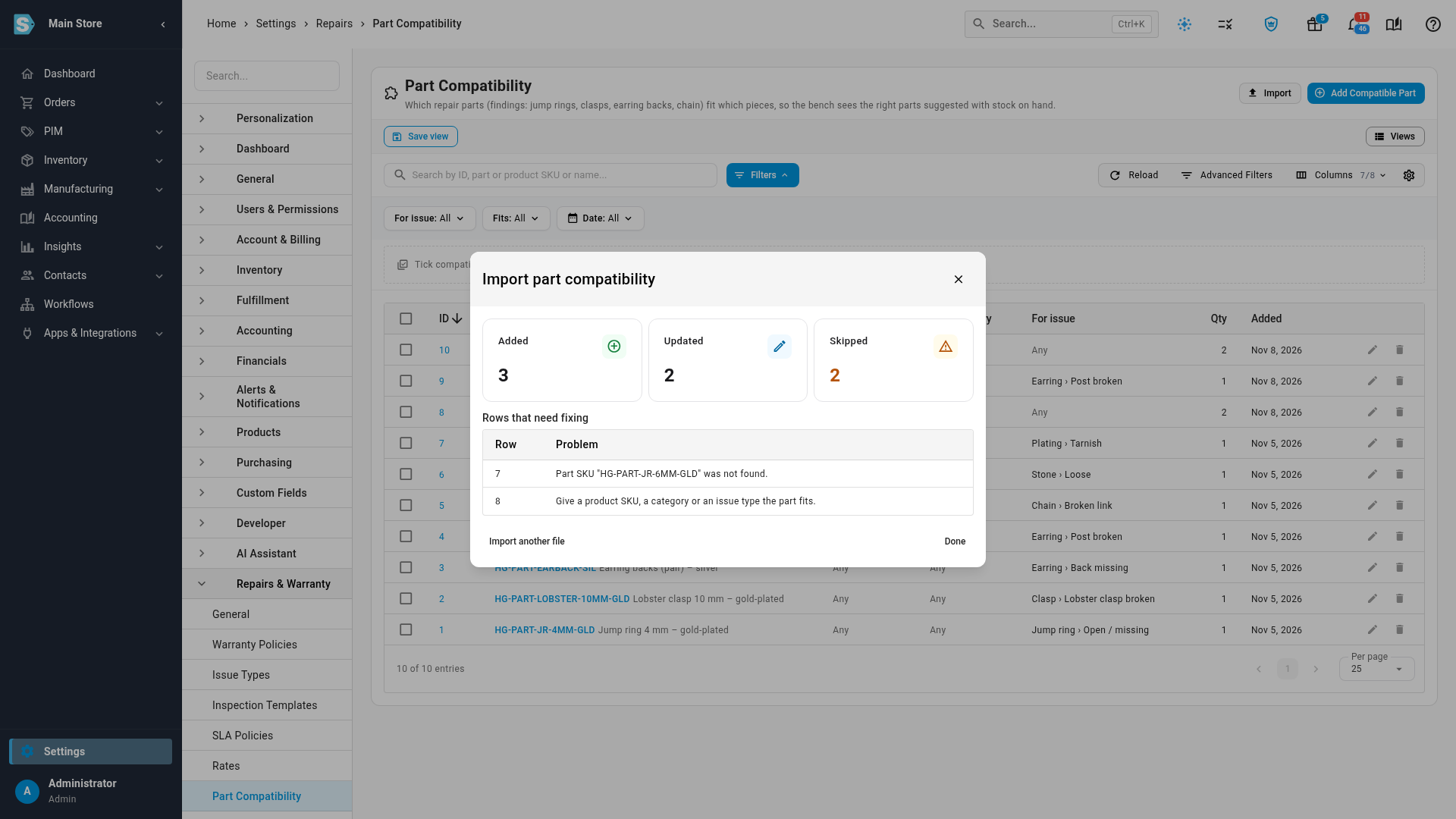
A file of 1,000 rows or fewer imports immediately and shows Added, Updated, and Skipped counts, plus a Rows that need fixing table naming the row number and problem for anything skipped.
-
A larger file runs in the background instead — SKU.io tells you it's importing and to follow it in the job tray; the Part Compatibility list refreshes on its own once the job finishes. The job's summary also reports how many rows were skipped, and the job tray's row-level failures list shows up to the first 500 of them.
The columns
Column headers are matched without case or spacing sensitivity, so "Part SKU" and part_sku are both read the same way.
| Column | Required | Format | Accepted values | Notes |
|---|---|---|---|---|
part_sku | Yes | Text | An existing product's SKU | The repair part (finding) being linked, for example JR-6MM-G. Not found → "Part SKU "{sku}" was not found." |
product_sku | No | Text | An existing product's SKU | The specific piece this part fits. Blank means "not tied to one product." Not found → "Product SKU "{sku}" was not found." |
category | No | Text or number | A category's exact numeric ID, or its name/path (for example Necklaces › Chain › Broken link) | Matched ignoring extra spaces around the path separator. Not found → "Category "{category}" was not found." |
issue_type | No | Text or number | An issue type's numeric ID, or its full path from the top of the tree (for example Clasp › Lobster clasp broken) | Matched case- and space-insensitively against ›, >, or / as the same separator. Not found → "Issue type "{issue_type}" was not found." |
default_quantity | No | Number | Any number greater than 0 | Blank defaults to 1. Pre-fills the quantity when a technician adds the part on the bench. Invalid value → "Default quantity "{value}" must be a number above 0." |
At least one of product_sku, category, or issue_type must be filled in on every row — a row with all three blank is rejected with "Give a product SKU, a category or an issue type the part fits."
Match key (what counts as "the same row")
A row updates an existing compatibility row's default_quantity — rather than creating a new one — when the part and everything it fits (product_sku, category, and issue_type, including when any of them is blank) exactly match a row that's already there. A row with only an issue type set is a different match than one with the same issue type and a product, so you can have both. This is different from adding a row by hand on the Part Compatibility page, where the exact same combination is rejected outright — the importer updates it instead, on purpose, so re-importing a file is always safe.
File limits and bad-row handling
- The uploaded file must be a CSV or plain text file, up to 20 MB.
- At most 50,000 rows import in one file — a larger file is rejected with "Import at most 50,000 rows at a time."
- Above 1,000 rows, the import always runs as a background job, tracked in the job tray, rather than holding the page open.
- A row that fails validation is skipped, not fixed or guessed at — every other valid row in the same file still imports. Problems are reported per row, with the exact row number and message, so you can fix just those rows and re-import the same file (valid rows that already imported simply update again with no change).
No export
The Part Compatibility list has Import and Add Compatible Part, plus a bulk Remove — there's no matching Export of the compatibility table.
Next steps
- Manage part compatibility — add, edit, and remove rows one at a time.
- Build issue types and inspection checklists — set up the issue types a row's
issue_typecolumn can reference.
Video transcript
Instead of adding rows one at a time, you can upload a CSV file. On the Part Compatibility page, click Import, next to Add Compatible Part at the top. The dialog lists every column the importer reads. Part SKU is required, and must name an existing product. Use Download a template to start from a file with the right headers. Choose your CSV in the file field, below the template link. Then click Import to check and load every row. A small upload finishes within a few seconds. A large one runs in the background, so follow it in the job tray. Totals for Added, Updated, and Skipped show across the top. Rows that need fixing are listed below, each with its row number and problem.