Add discounts and charges
SKU.io lets you lower an order's price with discounts and raise it with charges — extra fees such as shipping, handling, or packaging. This guide covers discounting a single line, discounting the whole order, applying a saved discount code, and adding charge lines, all from the order's detail page.
- Line discount — a discount that applies to one line item only.
- Order discount — a discount spread across every product line on the order.
- Discount code — a saved discount, such as WHOLESALE10, that fills in the name, type and value for you.
- Charge (financial) line — a non-product line that adds a fee to the order, grouped as a customer-facing Revenue Line (for example, shipping revenue) or an internal Cost Line (for example, packaging cost).
- Proration — how a charge is distributed across the product lines (by revenue, cost, weight, quantity, and more).
- Nominal code — the general-ledger account a charge posts to in your accounting.
Before you begin
| Requirement | Why it's needed |
|---|---|
| Update sales orders permission | Adding, editing, and removing discounts and charge lines all require it. |
| An editable order | Discounts and charges can be added while the order is a draft or open. A closed, cancelled, or fully paid order is locked against these edits, as is an order another user is editing. See View and edit a sales order. |
| At least one line item (for line and order discounts) | You discount lines you've already added — see Manage order lines. |
The examples below use order SO-DOCS-0001 for customer Blue Bottle Retail, with the products Stainless Water Bottle 750ml, Insulated Tumbler 500ml, and Reusable Straw 4-Pack.
Apply a discount to one line
The fastest way to discount a single line is its Disc % column in the line-items grid.
- Open the sales order — for example, SO-DOCS-0001.
- In the line you want to discount (for example, Stainless Water Bottle 750ml), click the Disc % cell. It reads — when the line has no discount yet.
- Type the percentage — for example, 10 — and press Enter.
What you'll see: SKU.io records a percentage line discount (named Line Discount), shows the reduced unit price with a green discount chip on the line, and updates Subtotal and Discounts in the totals footer at the bottom of the page.
The Disc % cell holds a single percentage discount per line. Entering a new value clears the existing line-level discount and sets one at the new rate, so the rate never stacks on itself. This inline discount is always a percentage applied before tax. To apply a fixed amount to a line, or to layer more than one discount, use an order discount instead.
Discount several lines at once
To discount many lines in one step, use the bulk action above the grid.
-
Click Bulk Edit above the grid.
-
Select the checkboxes on the lines you want to discount. To target every line, leave all checkboxes unchecked.
-
Click the Discount button above the grid. It shows the scope in parentheses — the number of selected lines (for example, Discount (3)), or Discount (All 12) when nothing is selected.
-
In the Apply Discount to 3 Selected Lines dialog (titled Apply Discount to All Lines when nothing is selected), choose how to apply it:
Mode What it does Replace all Removes every existing line-level discount on the targeted lines and sets a single discount at the rate you enter. Add discount Adds a new discount alongside any existing line-level discounts. Delete all Removes every line-level discount from the targeted lines. -
For Replace all or Add discount, enter the rate, or pick a saved code in Discount code. Click Apply (or Delete in delete mode).
-
Click Done to leave bulk editing.
To open the same dialog for one line, click the ⋮ menu at the end of the line and choose Apply discount….
Apply a discount to the whole order
An order discount is entered once and spread proportionally across the product lines. Add it from the totals footer.
- In the totals footer at the bottom of the order, find the Discounts section and click Add (or the + / Add Order Discount control).
- In the Add Order Discount dialog, enter a Name — for example, Loyalty discount. The name shows on the order and its documents, so make it meaningful.
- Choose a Type:
- Percentage — a percentage off the order.
- Fixed amount — a flat currency amount off the order.
- Enter the value in Rate (%) (for a percentage, 0–100) or Amount (for a fixed amount).
- Leave Apply before tax checked to discount the pre-tax total, or uncheck it to discount after tax.
- Click Add.
What you'll see: SKU.io spreads the discount across the product lines by their share of the order, lowers the order Total, and lists the discount under Discounts in the footer breakdown.
A percentage order discount is applied to the order subtotal — the sum of the line totals after any line discounts. (An order can be configured to calculate it on the grand total, the subtotal plus tax, instead.) The resulting amount is then allocated across the product lines in proportion to each line's value, with any rounding difference assigned to the largest line.
Edit or remove an order discount
- In the totals footer, click Discounts to open the breakdown.
- Click the pencil icon next to the order discount you want to change. The Edit Order Discount dialog opens.
- Change the name, type, value, or Apply before tax, then click Save — or click Delete to remove the discount entirely.
Use saved discount codes
A discount code saves a discount you give often, such as 10% for trade customers or a fixed amount off for damaged packaging. Your team picks it from a list on the order instead of typing the name and value each time, and the order shows which code was used.
Discount codes are for your team on sales orders. Buyers on the Customer Portal can't enter them.
Set up a discount code
You need permission to manage discount codes.
-
Go to Settings → General → Discount Codes.
-
Click Create Discount Code.
-
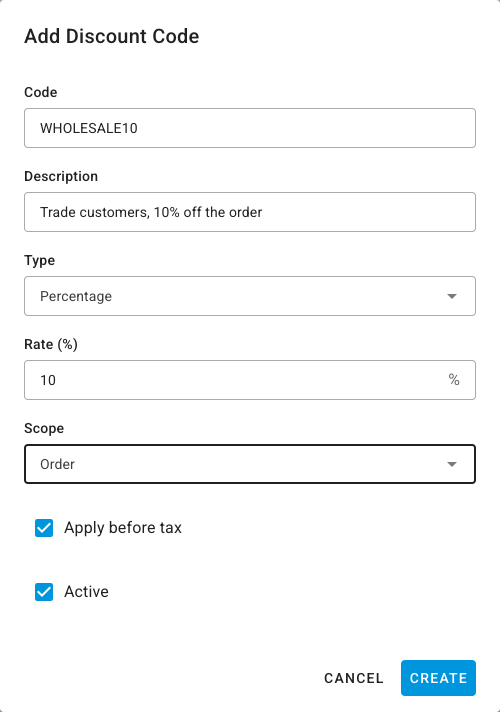
Fill in the Add Discount Code dialog:
Field What it does Code The name your team picks, for example WHOLESALE10. It becomes the discount's name on the order. Description Optional. Shown under the code in the picker, so say when to use it. Type Percentage or Fixed Amount. Rate (%) or Amount The value. A fixed amount on a line comes off that line's total, not off each unit. Scope Order offers the code when you discount the whole order, Line when you discount lines, and Both in either place. Apply before tax Discounts the pre-tax total when checked. Active Clear it to take the code out of the pickers without deleting it. -
Click Create.
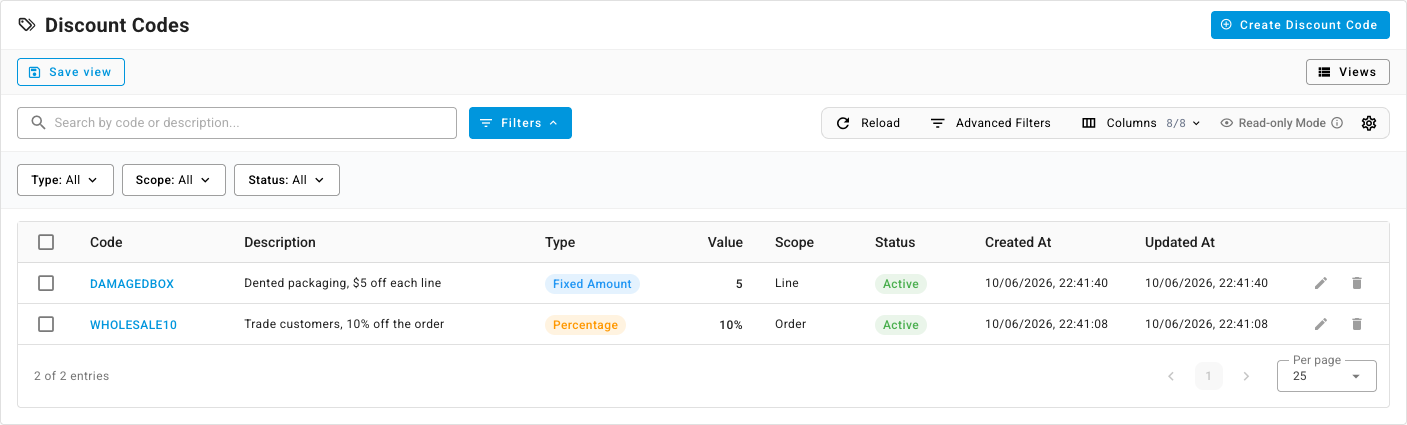
The Discount Codes list shows every code with its type, value, scope, and status. Click the pencil icon to change a code, or the trash icon to delete it. Changing or deleting a code doesn't change orders it was already applied to.
Apply a code to the whole order
-
In the totals footer of the sales order, click Add next to Discounts.
-
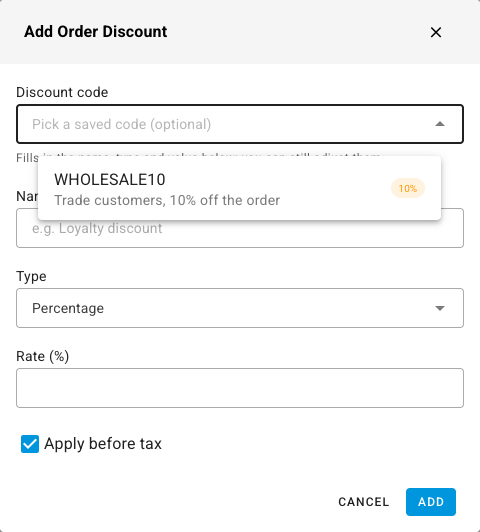
In the Add Order Discount dialog, click Discount code. The list shows active codes with Order or Both scope, each with its value.
-
Pick the code, for example WHOLESALE10. It fills in Name, Type, the value and Apply before tax. You can still change them for this order.
-
Click Add.
What you'll see: the discount comes off the order total under the code's name. Click Discounts in the footer to see it listed with its amount and a grey Code tag, so you can tell it came from a saved code. When you edit the discount later, the dialog still shows the code it came from.
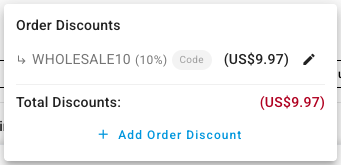
The tag says where each discount came from:
| Tag | Where the discount came from |
|---|---|
| Code | A saved discount code. If you renamed the discount, the tag names the code, for example Code: WHOLESALE10. |
| Channel | The sales channel the order was imported from, such as a store's own discount. |
| Import | A sales order import file. |
| Portal | An order-value discount on a Customer Portal order. |
| No tag | A discount someone typed in by hand. |
Apply a code to a line
-
Click the ⋮ menu at the end of the line, for example Stainless Water Bottle 750ml, and choose Apply discount…. To discount several lines at once, use Bulk Edit and Discount as described in Discount several lines at once.
-
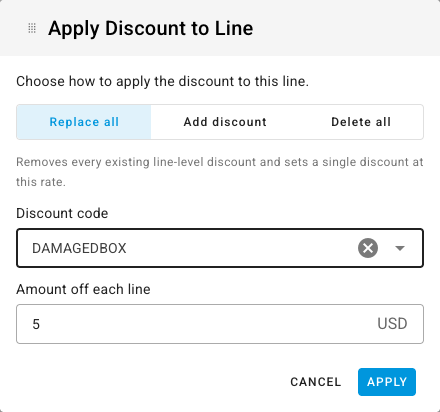
Choose Replace all to swap out the line's existing discounts, or Add discount to add this one alongside them.
-
In Discount code, pick the code, for example DAMAGEDBOX. The list shows active codes with Line or Both scope. The value fills in under Rate (%), or under Amount off each line for a fixed amount.
-
Click Apply.
What you'll see: the line shows the code and the amount under its unit price, and its total drops. A DAMAGEDBOX code worth $5 takes a two-bottle line from US$49.90 to US$44.90.

Add a charge line
Charges are non-product lines you add to the order. They live in two cards on the order's detail page:
- Revenue Lines — customer-facing charges that add to what the customer pays, such as shipping revenue or a handling fee.
- Cost Lines — internal costs recorded against the order, such as packaging or labeling, that don't change the customer's total.
To add one:
-
Scroll to the Revenue Lines or Cost Lines card and use its inline add row (the highlighted row at the bottom).
-
In Type, search for and pick a charge type — for example, Shipping. To create a type you don't have yet, type its name and choose Create "…".
If you have no types of that kind yet, the list says so and offers the common ones in one click: Create Shipping, Create Handling or Create Surcharge for revenue lines, and Create Freight, Create Duties or Create Packaging for cost lines. Create a different type… lets you name your own. Each opens Create Financial Type with the name filled in; check it and click Create, and the new type is picked for the row.
-
Enter a Description (it pre-fills from the type), the Qty, and the Amount.
-
Optionally set the other fields:
Field What it does Proration How the charge is distributed across product lines — Revenue Based, Cost Based, Weight Based, Volume Based, Quantity Based, Specific Line, or Manual. Nominal Code The general-ledger account this charge posts to in your accounting. Disc % A discount on the charge line itself. Tax The tax rate applied to the charge. Allocate When checked, spreads the charge across the product lines using the selected Proration method (instead of sitting as its own line). -
Click Add.
What you'll see: the charge appears as a row in the card, and its amount rolls into the order totals — Revenue Lines show in the footer's Revenue Lines breakdown and raise the Total.
To change a charge later, click any editable cell in its row (Qty, Amount, Description, and the dropdown fields open inline). To remove it, click the trash icon on the row and confirm.
A discount and a charge each need a complete value or the save is rejected:
- A percentage discount needs a Rate between 0 and 100.
- A fixed amount discount needs an Amount.
- A charge line needs a Type and an Amount of at least 0.
- A line discount must be attached to a specific line (the Disc % and bulk actions do this for you).
How discounts and charges affect the order
Discounts and charges don't just change the number in the footer — they flow through to the order's financials and accounting:
- Line and order discounts reduce each line's net revenue; charge lines add revenue (Revenue Lines) or cost (Cost Lines).
- These amounts roll into the order's financial lines and its accounting transaction, coded to the nominal codes you set. See How order financials flow to accounting.
- Because they change the order total, they also change the balance due and what appears on the invoice. See Record payments and apply store credit and Generate invoices, packing slips, and accounting.
Next steps
- Manage order lines — add the product and revenue lines you're discounting or charging.
- View and edit a sales order — when and why an order is locked against edits.
- How order financials flow to accounting — where discounts, tax, and charges land in your books.
- Record payments and apply store credit — collect the adjusted balance.
- Sales orders overview — the full order lifecycle.