Set up channel lifecycle behaviour
The Channels tab sets channel-native behaviour that makes selling through clean. Shoppers can't order stock you'll never replenish, your theme can say "Final stock", and a page that sells out sends visitors to its replacement. These options apply only to products in a sell-through state (Discontinued, out of the box), and they're undone when you reactivate a product. They never change prices: use a clearance plan for that.
Before you begin
- You need the Settings → Edit permission. Without it the tab says "You can view these settings. Ask an admin with Settings access to change them.", and Save Changes is greyed out.
- The Shopify options work once a Shopify store is connected. Until then the card says "No Shopify store is connected. These options are saved and apply as soon as you connect one." See Connect a Shopify store.
- What happens to a listing when the product sells out is set on the Sell-out tab, not here.
Open the Channels tab
- Go to Settings, click Products, then click Product Lifecycle.
- Click the Channels tab.
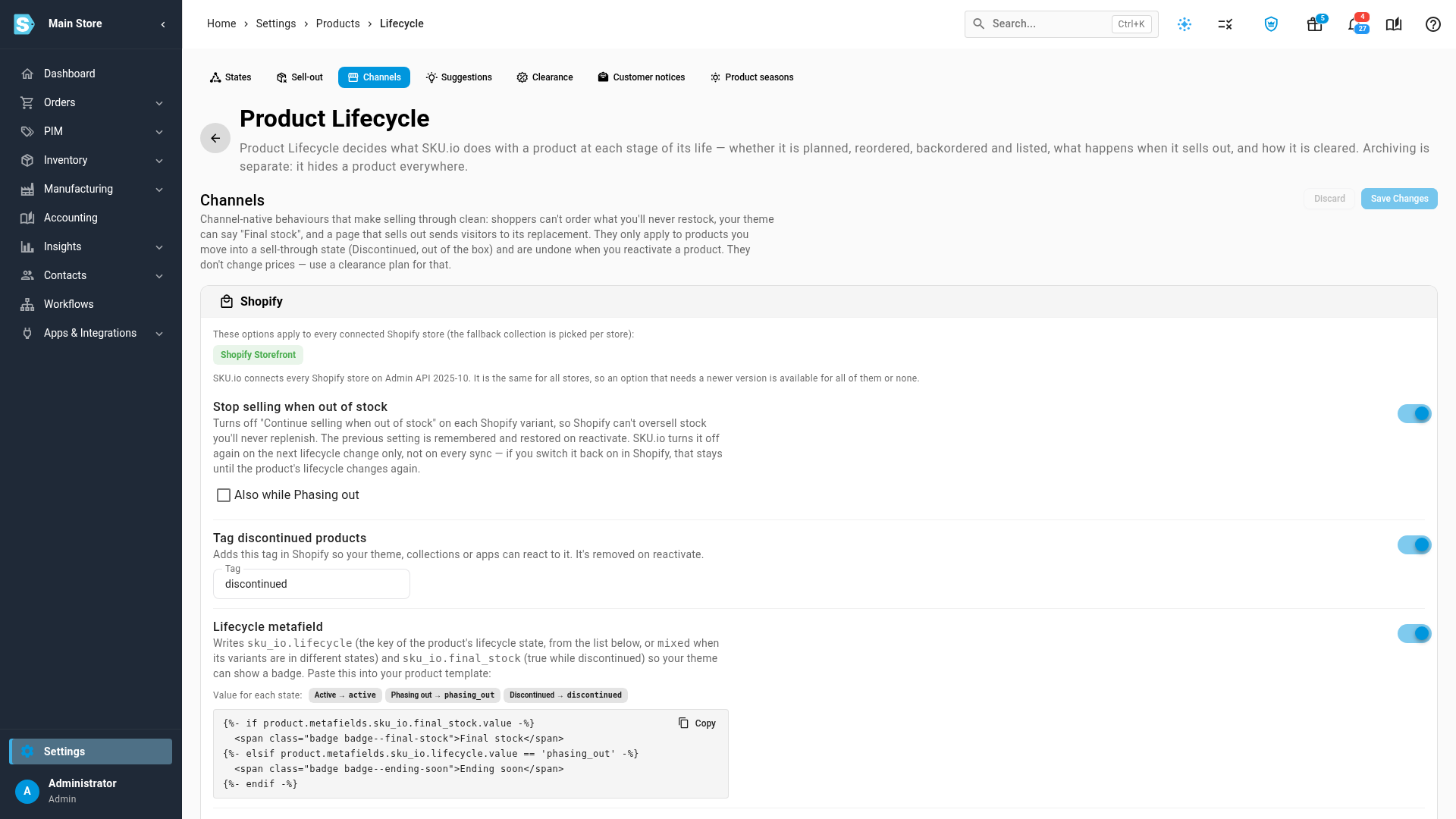
The Shopify card lists your connected stores as chips, and the Shopify API version SKU.io uses for all of them. A chip's colour shows whether SKU.io may create redirects on that store: green when it may, orange when you need to reconnect, and grey when SKU.io couldn't check. Hover a chip to read which. The options on the card apply to every connected Shopify store, apart from the fallback collection, which you pick per store.
Choose the Shopify options
- Turn each option on or off. Each one is described below.
- Click Save Changes. You see "Channel settings saved".
Stop selling when out of stock
On unless you turn it off. When a product enters a sell-through state, SKU.io sets each of its variants to "Stop selling when out of stock" in Shopify, so Shopify can't oversell stock you'll never replenish. The previous setting is remembered and put back when you reactivate the product.
- Tick Also while Phasing out to do the same for products that are phasing out. It's greyed out while the switch is off.
- SKU.io sets this again only when the product's lifecycle changes, not on every sync. If you switch it back in Shopify, your change stays until the product's lifecycle changes again.
- Turning the switch off puts back each variant's original setting.
Tag discontinued products
On unless you turn it off. SKU.io adds a tag in Shopify, discontinued unless you change it in Tag, so your theme, collections or apps can react to it.
- The tag goes on once every variant of the Shopify product is in a sell-through state, and comes off when you reactivate it.
- If you change the tag, SKU.io swaps the old tag for the new one.
- A tag you added yourself before SKU.io did is never removed.
- The tag can't be empty while tagging is on ("Enter a tag, or turn tagging off."), can't contain a comma ("A Shopify tag cannot contain a comma."), and can be up to 40 characters ("Keep the tag to 40 characters or fewer.").
Lifecycle metafield
On unless you turn it off. SKU.io writes two product metafields your theme can read: sku_io.lifecycle, which holds the product's state (active, phasing_out, discontinued, or a value for each state you added yourself), and sku_io.final_stock, which is true while the product is discontinued. When a product's variants are in different states, the product-level value is mixed.
To show a badge, click Copy next to the Liquid snippet on the card, then paste it into your Shopify product template. The snippet shows Final stock on discontinued products and Ending soon on products that are phasing out:
{%- if product.metafields.sku_io.final_stock.value -%}
  <span class="badge badge--final-stock">Final stock</span>
{%- elsif product.metafields.sku_io.lifecycle.value == 'phasing_out' -%}
  <span class="badge badge--ending-soon">Ending soon</span>
{%- endif -%}
Turning the option off stops SKU.io writing the metafields. It doesn't remove the ones already written.
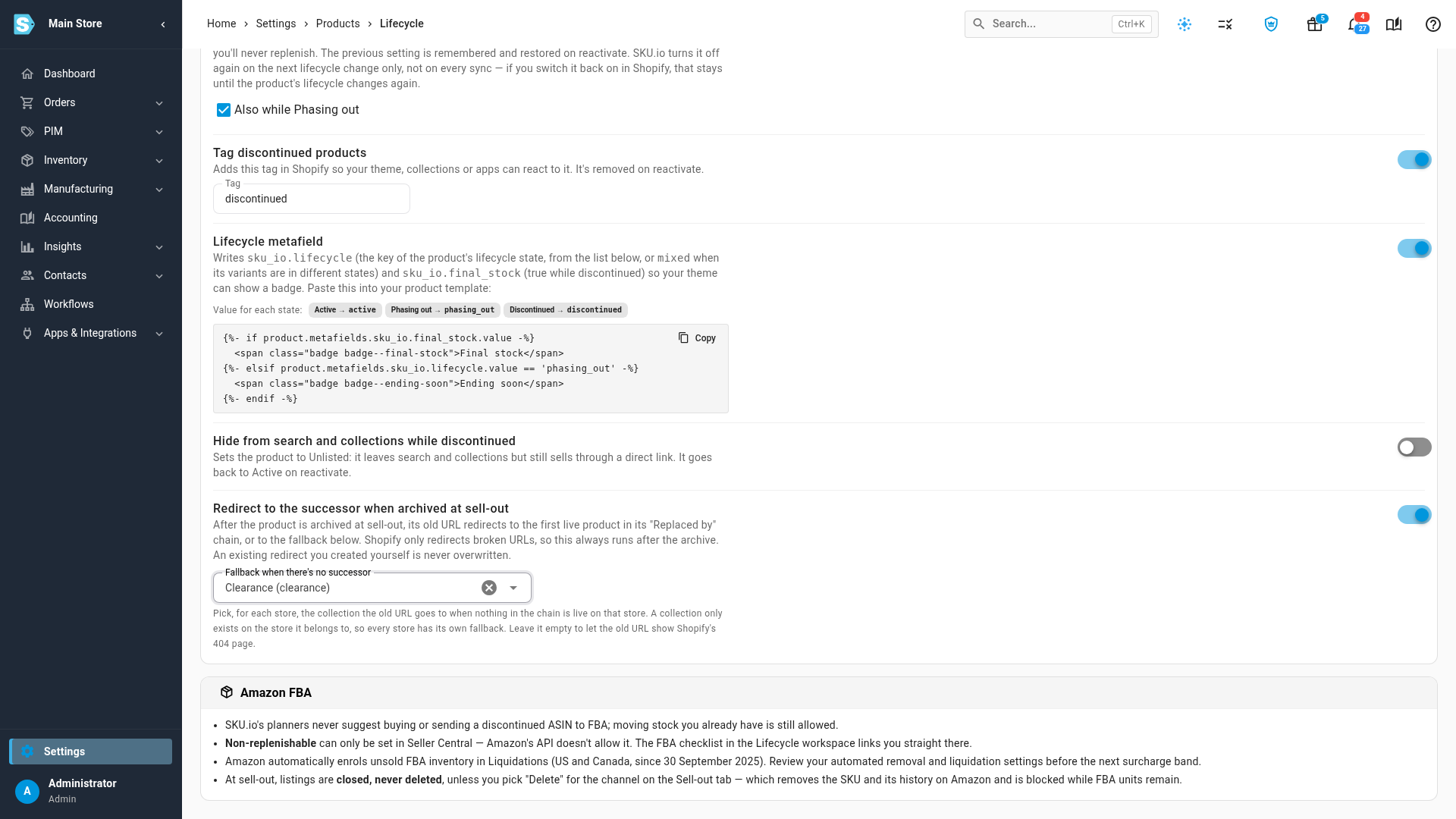
Hide from search and collections while discontinued
Off unless you turn it on. SKU.io sets the product to Unlisted in Shopify: it leaves search and collections, but still sells through a direct link. It goes back to Active when you reactivate the product.
- Shopify products that are draft or archived are left alone.
- The switch is greyed out when a store's connection uses a Shopify API version older than 2025-10, which doesn't have Unlisted. Hover the switch to read why.
Redirect to the successor when archived at sell-out
On unless you turn it off. After a product is archived at sell-out, its old Shopify URL redirects to the first live product in its Replaced by chain on that store. When nothing in the chain is live there, it redirects to the fallback collection you pick. Shopify only redirects broken URLs, so the redirect is always created after the product is archived.
- If you have more than one Shopify store, choose the store in Store.
- In Fallback when there's no successor, search for and choose a collection on that store. With more than one store, the field is labelled Fallback on followed by the store's name.
- Repeat for each store, then click Save Changes.
What to expect:
- A collection only exists on the store it belongs to, so every store has its own fallback.
- Leave the fallback empty, showing None (show 404), to let the old URL show Shopify's 404 page when there's no live successor.
- A redirect you created yourself in Shopify is never overwritten.
- When the product's Shopify page is live again, because it was relisted or reactivated, SKU.io removes the redirects it created for it.
- If a store's connection doesn't allow redirects, the card says, for example, "Shopify Storefront: Reconnect Shopify to grant redirect permission." Reconnect that store to grant it.
- If SKU.io couldn't check a store's permission, the card says so for that store. Reload the page to check again.
- A store that has no fallback of its own may show a note that it uses a fallback saved before each store had its own. Pick a collection for the store, or click Stop using it.
- Set successors with Link a successor product.
What changes when you save
- Changes to Stop selling when out of stock, Tag discontinued products, Lifecycle metafield and Hide from search and collections while discontinued are sent to every product they affect, not only to products that change state later.
- The redirect options apply to sell-outs from now on. They don't create redirects for products that were archived before.
- Save Changes and Discard stay greyed out until you change something. Discard puts every option back to the last save.
- If the settings can't load or save, you see "Failed to load channel settings" or "Failed to save channel settings".
Amazon FBA at the end of a product's life
The Amazon FBA card has no options. It explains what SKU.io does, and doesn't do, for discontinued products at FBA:
- SKU.io's planners never suggest buying or sending a discontinued ASIN to FBA. Moving stock you already have is still allowed.
- Non-replenishable can only be set in Seller Central, because Amazon doesn't allow it through its API. The FBA checklist in the Lifecycle workspace links you straight there. See Work the FBA checklist.
- Amazon automatically enrols unsold FBA inventory in Liquidations in the US and Canada, since 30 September 2025. Review your automated removal and liquidation settings before the next surcharge band. See Check the FBA aged-inventory surcharge.
- At sell-out, Amazon listings are closed, never deleted, unless you choose Delete for the channel on the Sell-out tab. Delete removes the SKU and its history on Amazon, and is blocked while FBA units remain. FBA listings need nothing at sell-out, because their stock is already 0.