Choose what happens when a product sells out
When a discontinued product has truly sold out, SKU.io can tidy up its listings for you: leave them live at zero, end them, or end them and archive the product. You choose the default on the Sell-out tab, override it for any channel, and set how long SKU.io waits in case returns come back.
Before you begin
- You need the Settings → Edit permission. Without it the tab says "You can view these settings. Ask an admin with Settings access to change them.", and Save Changes is greyed out.
- The sell-out setting only applies to products in a state whose When it sells out row on the States tab is Use the sell-out setting. Out of the box that's Discontinued only, so Active and Phasing out products are never ended or archived. See Customize lifecycle states.
- "Sold out" means every unit is gone: no stock in any warehouse, Amazon FBA and 3PLs included, and nothing in transit, on order or allocated. A product that is merely out of stock today doesn't count. What happens when a discontinued product sells out explains how and when SKU.io checks.
Choose the default action
- Go to Settings, click Products, then click Product Lifecycle.
- Click the Sell-out tab.
- Under When a discontinued product sells out, click one of the three options:
- Keep its listings live at zero: listings stay up, showing sold out. Choose this if you might restock or want to keep the page's search ranking. This is the default.
- End its listings: each listing is ended in its channel's own way, which you can undo. To bring a listing back, select the product on Products and use Channel actions → Recover, or turn on relisting (see Relist when stock comes back).
- End its listings and archive the product: also archives the product in SKU.io once every listing has reached its end state, so it leaves lists and the default views of reports. A product with no listings is archived without waiting on any channel.
- Click Save Changes. You see "Sell-out settings saved".
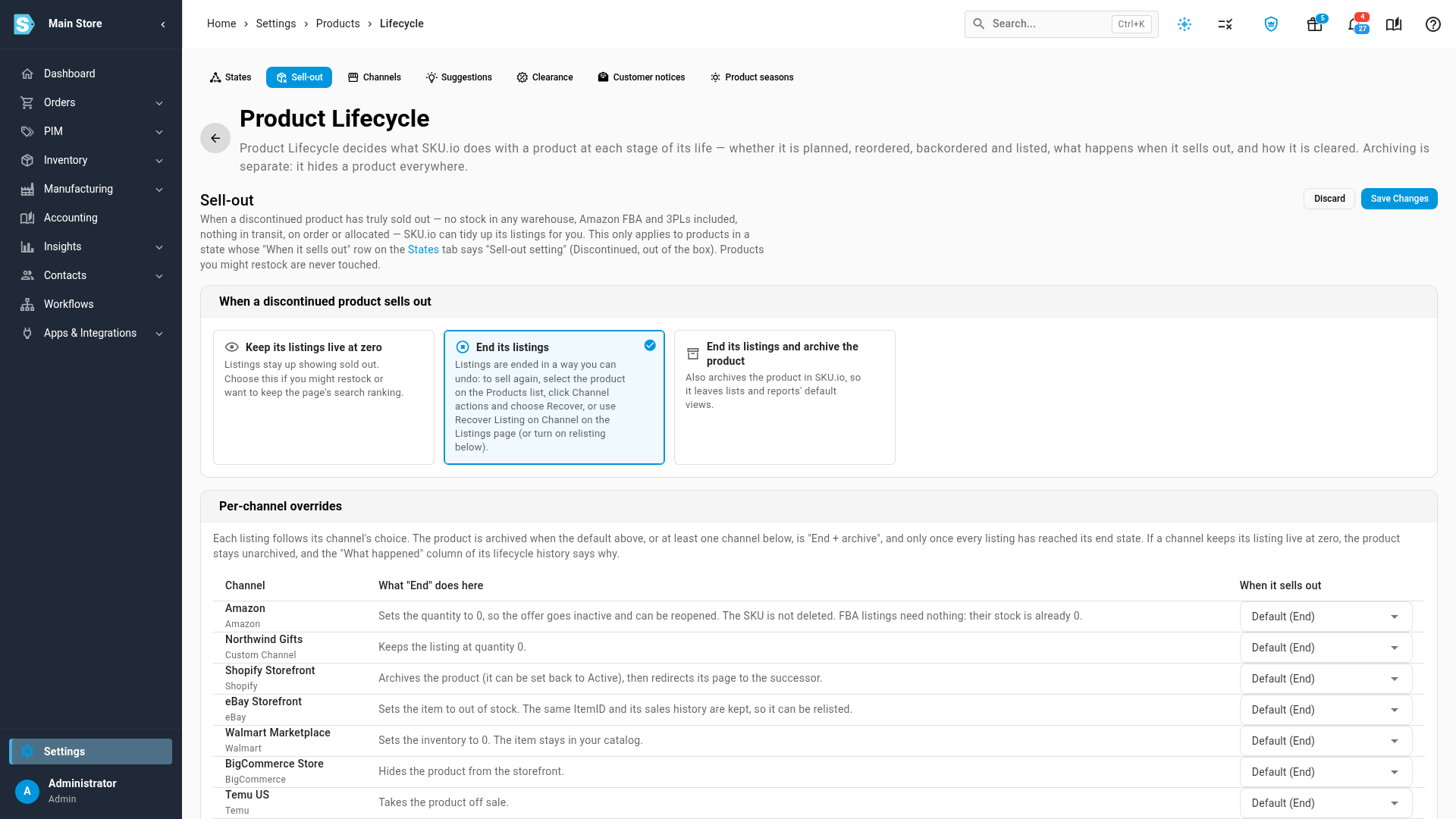
What "End" does depends on the channel. For example, it sets the quantity to 0 on Amazon, so the offer goes inactive and can be reopened, and it archives the product on Shopify. Each channel's behaviour is listed in the What "End" does here column of the overrides table and in Sell-out behaviour by channel.
Override the action for a channel
Each connected channel account follows the default unless you choose something else for it.
- Under Per-channel overrides, find the channel in the Channel column.
- Read What "End" does here for that channel.
- In When it sells out, choose an option:
- Default followed by the current default in brackets, for example Default (End).
- Keep at zero
- End
- End + archive (archives the product once every channel has ended it)
- Delete, only for channels that support it.
- Click Save Changes.
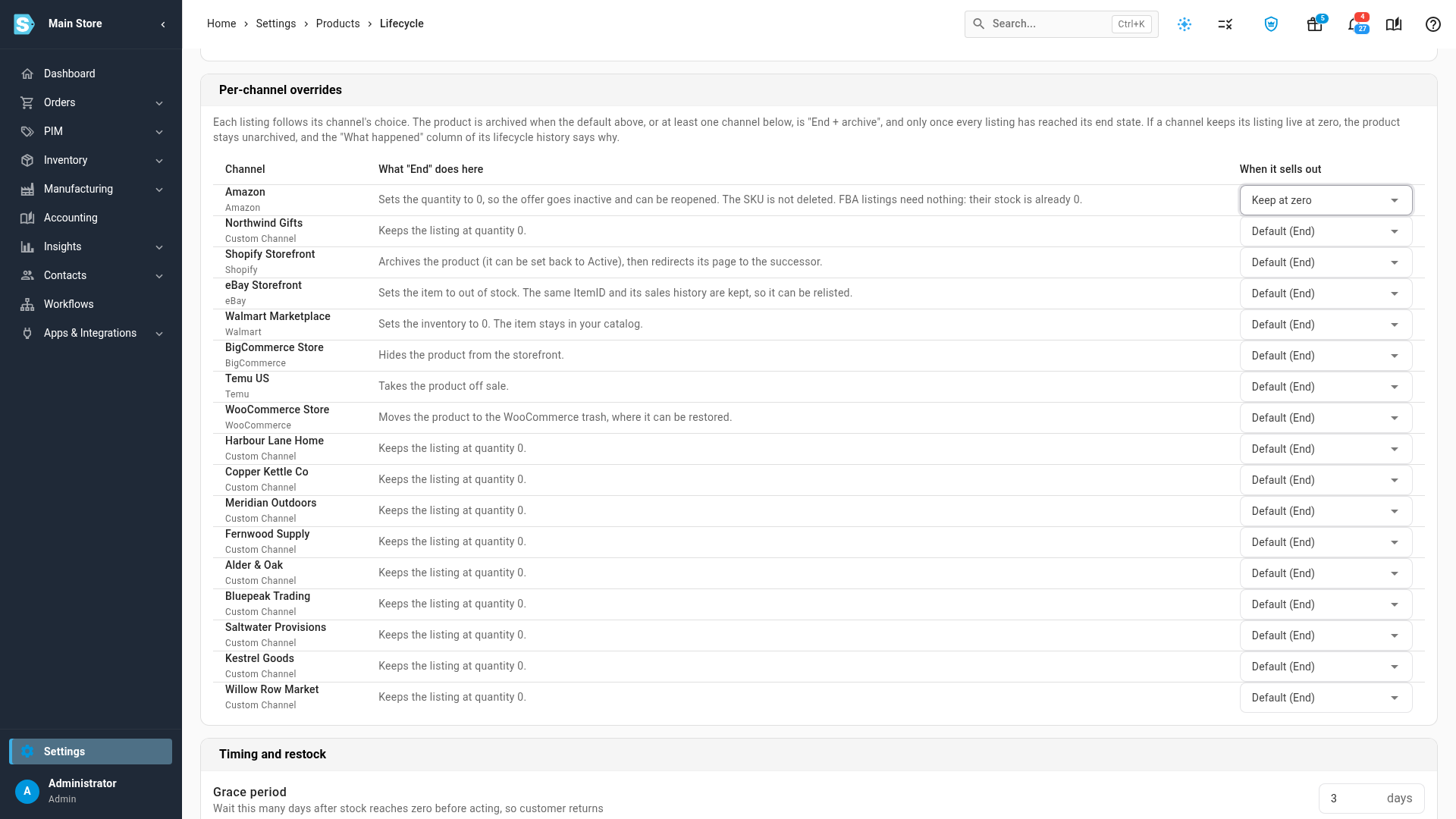
How the choices combine:
- Each listing follows its own channel's choice.
- The product is archived when the default, or at least one channel, is set to end and archive, and only once every listing has reached its end state.
- A channel set to Keep at zero keeps its listing live, so the product stays unarchived. Its lifecycle history says why.
- Delete shows a red warning under the choice that says what it removes, for example "Deletes the SKU and its history on Amazon. Blocked while any FBA units remain."
- If no channels are connected, the table says "No sales channels connected — the default applies everywhere."
- An override you set for a channel you later disconnect stays saved but does nothing.
Set the grace period
The grace period gives returns already on their way time to land before SKU.io acts.
- Under Timing and restock, enter the number of days in Grace period. It's 3 days unless you change it, and accepts whole numbers from 0 to 30. Anything else shows "Enter a whole number of days from 0 to 30."
- Click Save Changes.
The wait starts when the product's stock first reaches zero. If stock comes back during the wait, the action is cancelled and the product's lifecycle history says why. A new grace period also applies to products already waiting.
Relist when stock comes back
Sometimes stock turns up after a product was archived at sell-out: a customer return, a late purchase order or a stock adjustment. When it does, the product goes back to Discontinued, never Active, and you get an alert.
- Under Timing and restock, turn on Relist when discontinued stock comes back to also recover the listings that were ended. It's off unless you change it; with it off, the listings stay ended.
- Click Save Changes.
What to expect:
- Listings are recovered only once the stock is on hand. Stock that is only on order doesn't relist anything.
- If a channel refuses a recovery, SKU.io keeps retrying until the channel confirms it.
- Listings that were deleted are never relisted.
What the sell-out action doesn't cover
The What this doesn't cover card at the bottom of the tab lists the limits:
- FBA stock: SKU.io can't remove stock from Amazon's warehouses. Use the FBA checklist in the Lifecycle workspace.
- Variants on Shopify: a sold-out variant stays at zero, greyed out by your theme, while its siblings sell. SKU.io never deletes a variant. The action runs when every variant has sold out.
- Products you might restock: only products in a sell-through state are checked, so Active and Phasing out products are never ended or archived.
- Failures: if a channel refuses, for example because its connection expired, SKU.io retries three times, alerts you, and doesn't archive the product until every listing has ended.
Save or discard your changes
- Save Changes and Discard stay greyed out until you change something.
- Discard puts every field back to the last save.
- If the save fails, you see "Failed to save sell-out settings" or the reason the save was refused.