Set up seasons and carryover
A product season is a selling window, such as SS26 or AW26, with a code, a name and dates. You tag products with the seasons they sell in. A product in more than one season is carryover, and when a season is over, the end-of-season wizard phases out or discontinues the products whose last season it was. Seasons don't change prices or stock on their own.
A product season (Settings → Products → Product seasons) tags the products you sell in a window. A merchandise season (Inventory → Merchandise Planning, for example Fall 2026) is a retail-calendar budget period for Open-to-Buy. They share a word but nothing else, and creating one never creates the other. See How Open-to-Buy works for merchandise seasons.
Before you begin
- To add, edit or delete product seasons, you need the Settings → Edit permission. Without it, Add product season and the row's Delete don't appear.
- To tag a product with seasons on its page, you need the Products → Edit permission. Without it the field is greyed out: "You don't have permission to edit products".
- End season… needs the Products → Lifecycle permission. Ending a season is covered in End a season.
Add a product season
- Go to Settings, click Products, then click Product seasons. You can also click Product seasons in the tab bar of the Product Lifecycle settings page.
- Click Add product season.
- Type a Code, up to 20 characters, for example SS27. It's required: "A season code is required (e.g. SS26)." Each code can be used once: "A season with code SS27 already exists."
- Type a Name, for example Spring / Summer 2027. It's required too.
- Optionally, set Starts on and Ends on. The end date can't be before the start date: "The end date must be on or after the start date."
- Optionally, change Sort order. Seasons are listed by it, lowest first. It starts at 100.
- Leave Status empty to let the dates decide it. See Season status.
- Click Add product season. You see "Product season added".
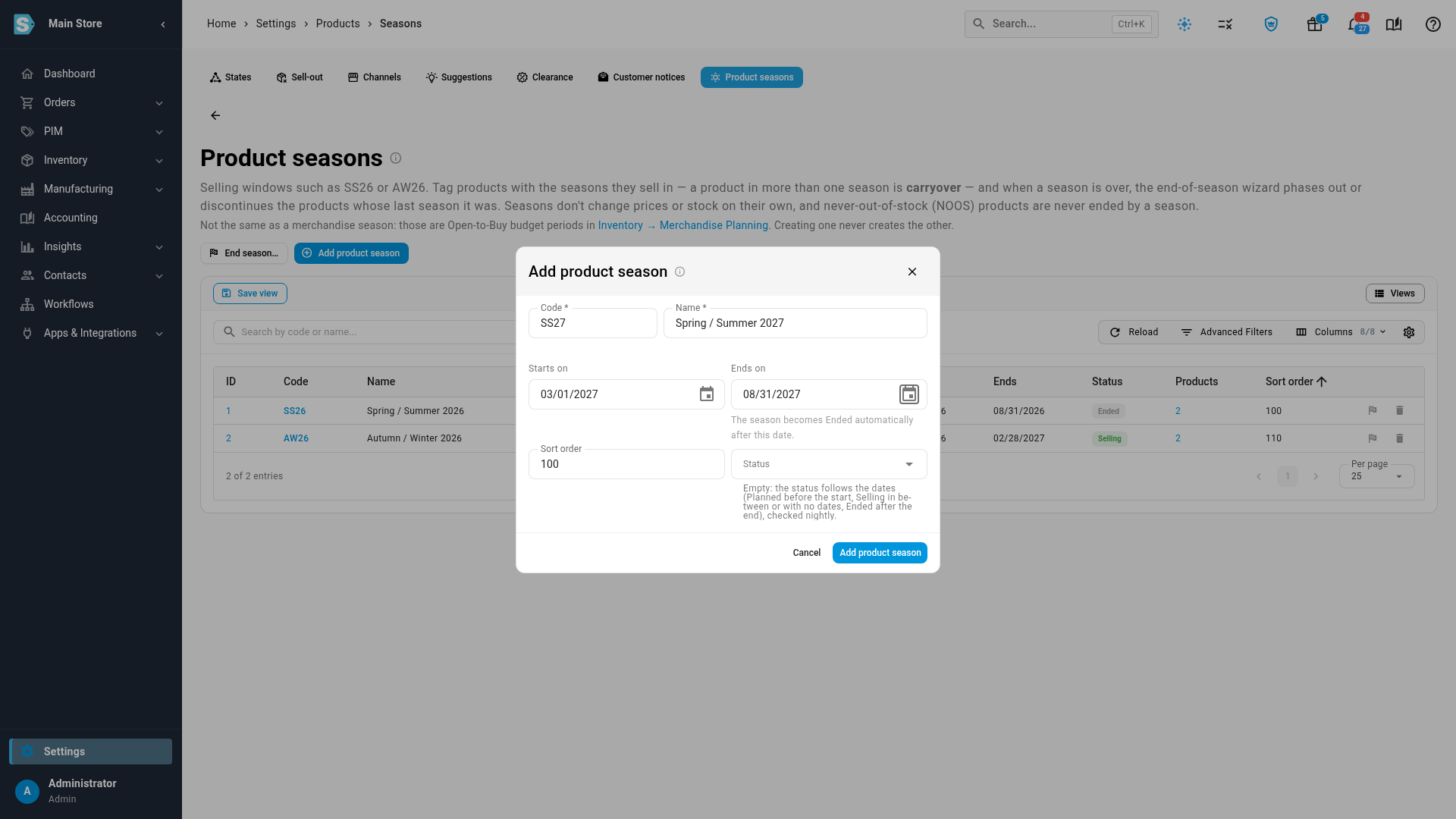
To change a season, click its Code or ID in the list, or right-click the row and choose Edit. The dialog is titled Edit product season followed by the code. Make your changes, then click Save. You see "Product season saved".
The product seasons list
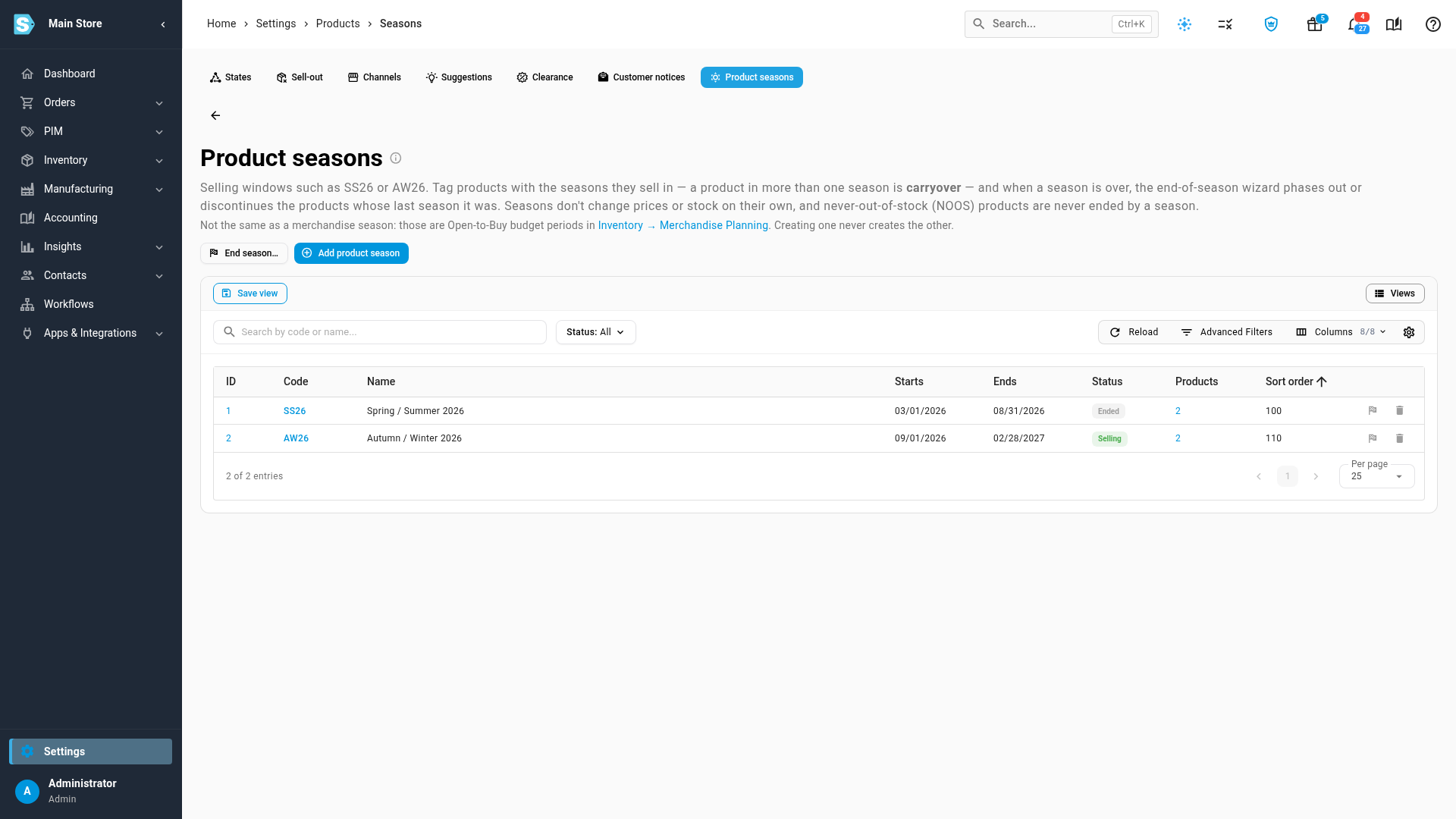
The list shows ID, Code, Name, Starts, Ends, Status, Products and Sort order. Use Search by code or name... and the Status filter to narrow it down. With no seasons yet, the list says No product seasons yet and offers Add product season.
The Products count links to the products list, filtered to the products in that season.
Season status
Each season shows Planned, Selling or Ended.
- With Status left empty, the dates decide it, checked every night: Planned before Starts on, Selling between the dates, and Ended after Ends on. A season with no dates is Selling.
- Pick a Status yourself and it stays as you set it. The nightly check doesn't change it, and its chip has a hand icon. To follow the dates again, edit the season and clear Status.
- A season reaching Ended doesn't change any products. To phase out or discontinue the products whose last season it was, use End season…. See End a season.
Tag a product with its seasons
- Open the product, on the Overview tab.
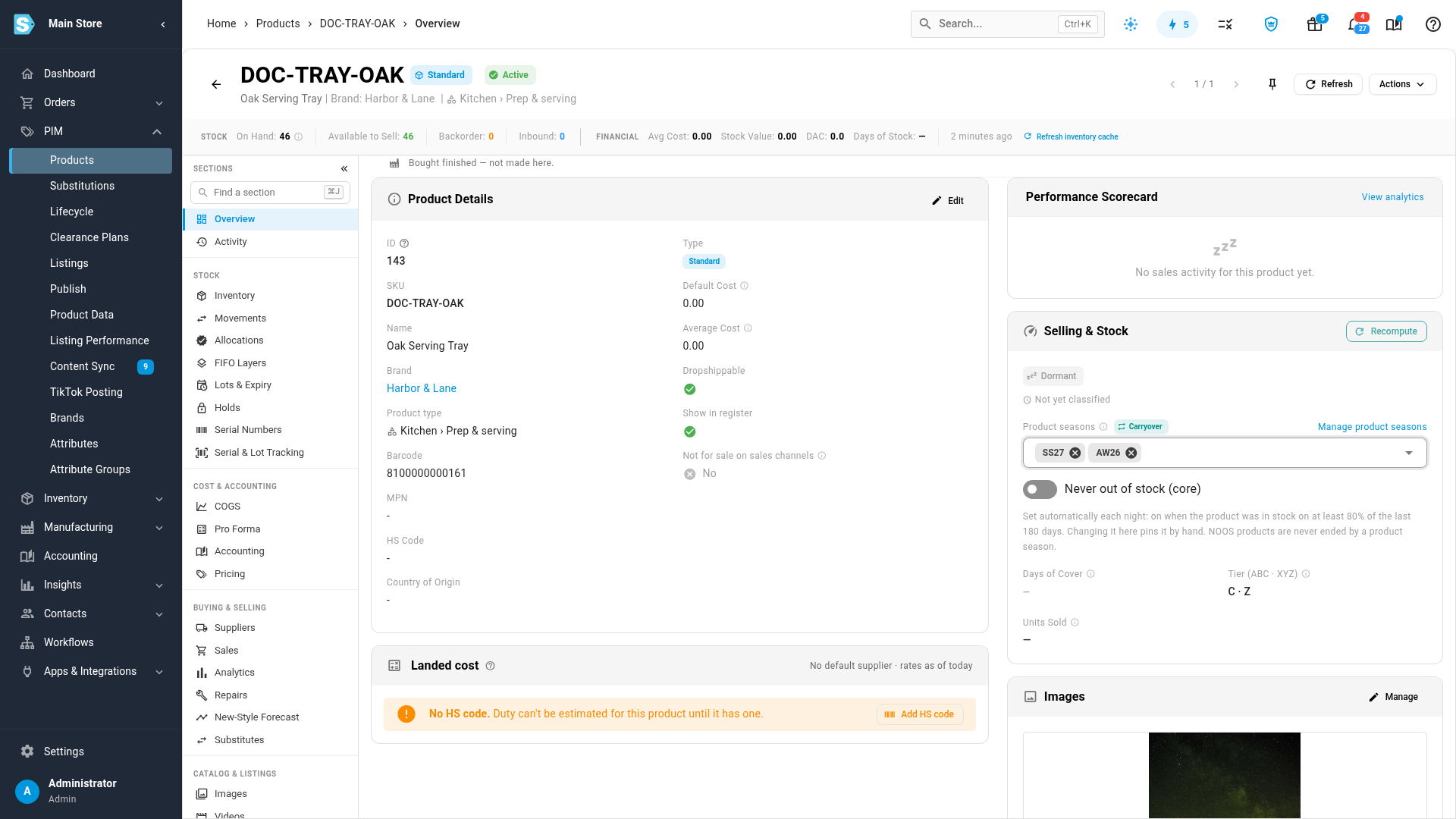
- In the Selling & Stock card, click Product seasons.
- Choose each season the product sells in. Each choice saves straight away.
A product in two or more seasons shows a Carryover chip next to the field. The end-of-season wizard skips a product that carries into a later season. To remove a season, click the × on its chip. Manage product seasons next to the field opens the seasons list.
Tag many products at once
- On the products list, select the products.
- Click Bulk Edit.
- In Apply to All, choose the Product seasons field from the Product seasons group.
- Choose what to do:
- Add to seasons adds the seasons you pick and keeps the others.
- Remove from seasons takes off only the seasons you pick.
- Replace (purge + set) sets exactly the seasons you pick.
- Clear all removes every season.
- Choose the seasons, then preview and apply the change.
The same group has Never out of stock (core), which you set with Set to Yes or Set to No. Setting it in bulk pins it, the same as setting it by hand. See Bulk-edit products for the preview and apply steps, and Import and export lifecycle data to set seasons from a file.
Mark core products as never out of stock
Never-out-of-stock (NOOS) products are your core lines. A season never ends them: the end-of-season wizard leaves them out, and SKU.io doesn't suggest ending them when their season is over.
SKU.io sets the flag for you each night. It's on when the product was in stock on at least 80% of the last 180 days. To set it yourself:
- Open the product, on the Overview tab.
- In the Selling & Stock card, turn Never out of stock (core) on or off. You see "Pinned as never out of stock" or "No longer never out of stock".
Once you set it, it's pinned: the line under the switch says the nightly classification won't change it. To let SKU.io decide again, click Return to automatic. The message says whether the flag is on or off today, for example "Never out of stock is automatic again (on today)".
Delete a season
- In the product seasons list, click the delete icon at the end of the row, or right-click the row and choose Delete.
- Confirm. For an empty season, click Delete. If products are in the season, the confirmation says how many, for example "Delete season "SS27"? 12 products are in it and will be removed from it.", and the button is Remove and delete.
You see "Season SS27 deleted", with the season's code. Deleting a season only removes its link to the products. The products themselves don't change.
Filter by season and carryover
- On the products list, use the Product season and Carryover filters. Carryover offers All, Carryover (2+ seasons) and Not carryover.
- The Sell-through tab of the Lifecycle workspace has the same two filters. See Work the Lifecycle workspace.
- In Demand Planning, the advanced filters have a Product seasons group with Product season and Carryover (2+ seasons).