Make configured products to order
When a configured product has a recipe, you can make it straight from the order. Each manufacturing order carries the customer's options, so whoever makes it sees exactly what to make.
Before you begin
- The configured product has a recipe. Also create a recipe builds one when you create the product (see Map or create configured products). To build one yourself, for example one made-to-order product per base, go to Manufacturing → Recipes / BOMs, click New BOM, and choose the made-to-order product as the output and the base product as a component. See Create a recipe (bill of materials).
- You need the Sales Orders Edit permission (
sales_orders.update).
Make one line, or every line on the order
Every order line whose product has a recipe gets a Make button, and its backorder chip reads make or buy.
- Open the sales order.
- Click Make on the line. Its manufacturing order is raised straight away.
- When two or more lines can be made, click Make all (N) at the top of the lines instead, and confirm. One manufacturing order is raised for each.
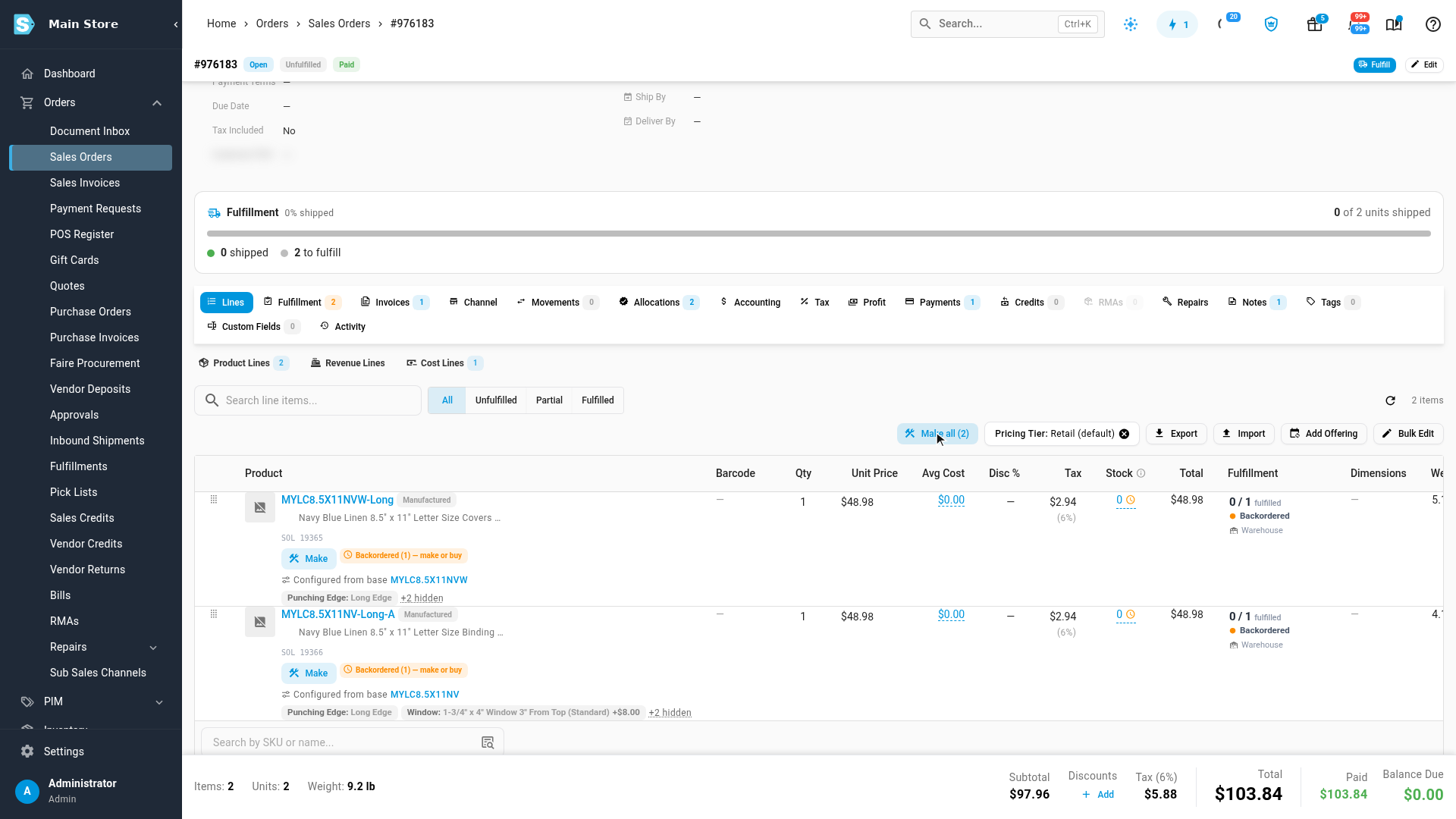
Each line then shows Being built, with its manufacturing order number. Each manufacturing order notes who raised it, and from which line.
Make is greyed out, with a tip saying why, when the line doesn't need building:
- stock on hand or an incoming purchase order already covers it;
- it's drop-shipped: the supplier sends it straight to your customer on a drop-ship purchase order. The same product sent from your own warehouse can still be made. Make all and automatic build to order skip drop-shipped lines too.
For configured items you always drop-ship, create them without a recipe, switch on Dropshippable, and add the supplier and its cost.
To work through every order at once, click All orders next to Make all, or go to Manufacturing → Make to Order. It lists every open line, across all your orders, that's short of an item you make and has no manufacturing order yet, so you can make them in bulk. See Make everything waiting to be built (Make to Order). To raise manufacturing orders without clicking anything, see Raise manufacturing orders automatically (build to order).
What the manufacturing order shows
The manufacturing order follows the configured product's recipe.
- A Customer options card lists what the customer chose.
- On the Components tab, the base product is marked Base product: one plain item goes in, one configured item comes out.
- On the Operations tab, each step set to show them carries the customer's options. The step Also create a recipe adds is set for you. On a recipe you build yourself, switch on Show customer options on the step. If no step shows them, the card says so.
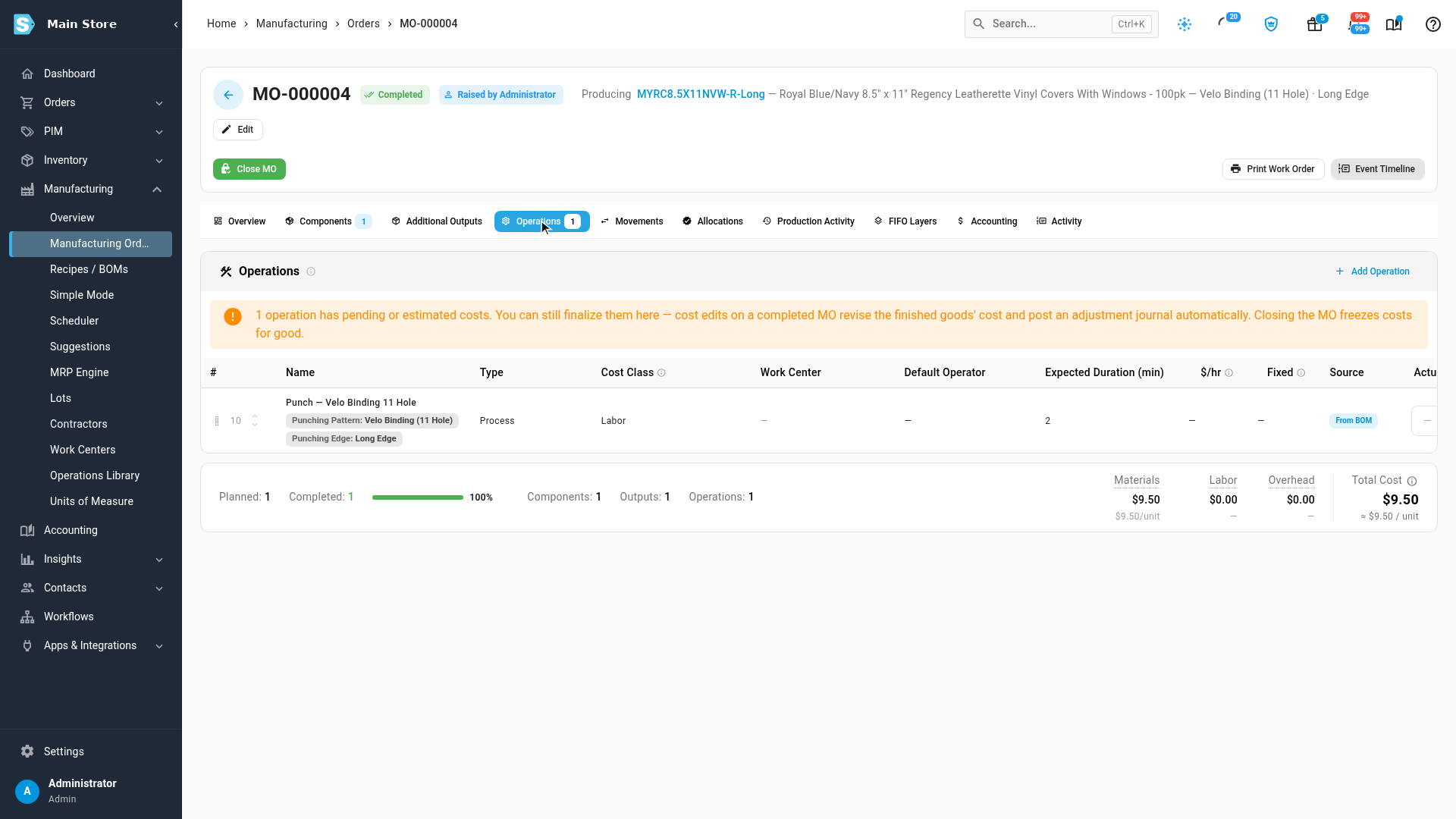
When you record production, the base product's stock goes down by what was used, and the configured product's stock goes up by what was made. See Build with a manufacturing order.
See what one unit costs to make
Any product with a recipe, including a configured product, shows a Recipe cost box on its Overview: what one unit costs to make.
| Row | What it adds up |
|---|---|
| Components | each component's default cost, or its average cost when it has no default |
| Labor | each step's hourly rate times its time |
| Overhead | the work center's overhead % on that labor, plus any machine or overhead steps. You set the overhead % in Manufacturing → Work Centers. |
| Setup (Fixed Cost per run) | a step's Fixed Cost, charged once per run and spread over the units one run makes |
| Total | the cost of one unit |
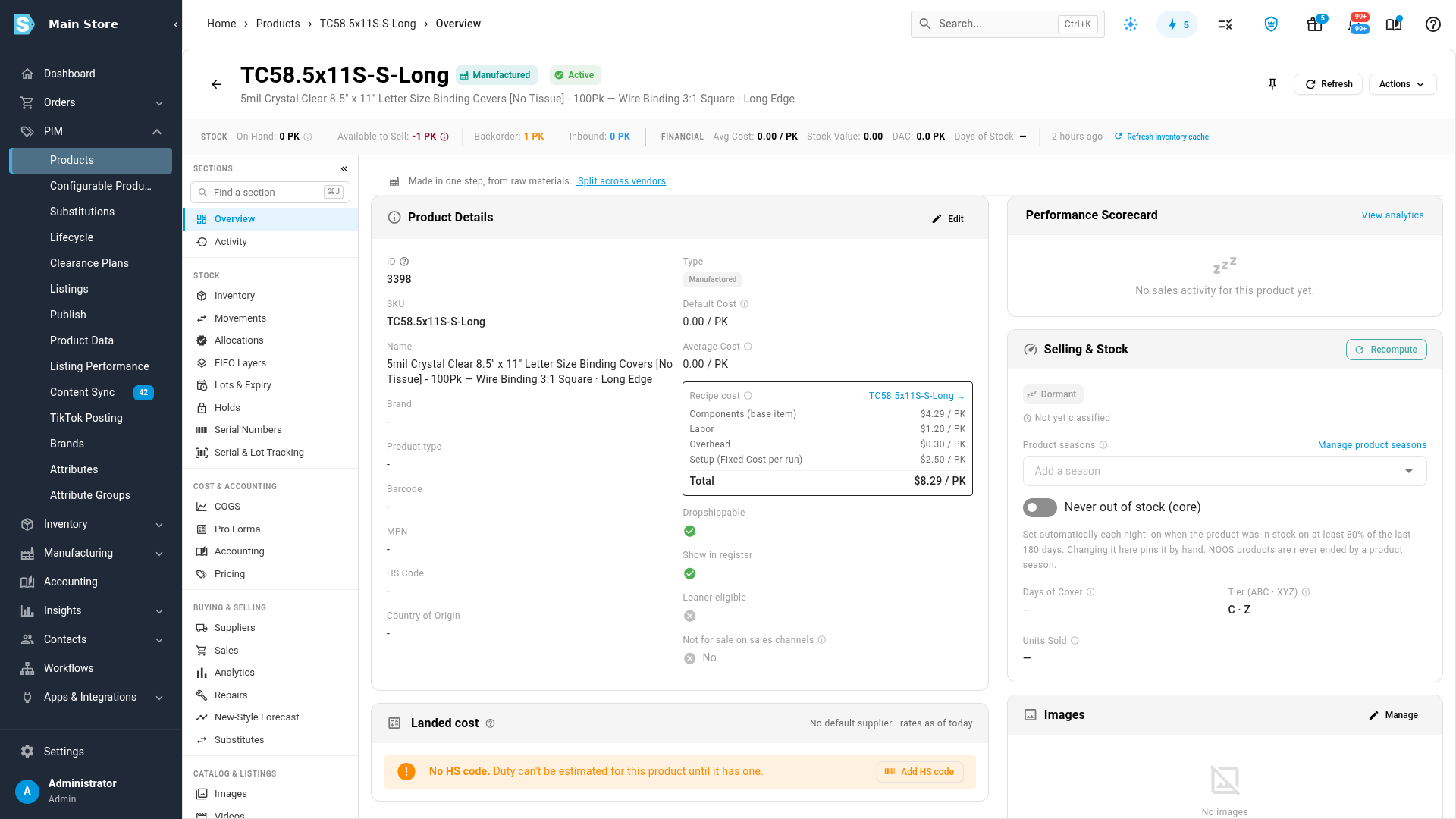
It's a planning figure, and it doesn't change the product's Default Cost. The real cost is worked out from what's recorded when the manufacturing order is produced. If a component has no cost yet, the box says so. The link at the top opens the recipe.
Next steps
- Make everything waiting to be built (Make to Order): make every configured line across your orders in one go.
- Raise manufacturing orders automatically (build to order)
- Make items to order from raw materials, stock, or both
- Set up work centers
Video transcript
Every order line whose product has a recipe gets a Make button. Make raises that line's manufacturing order straight away. When there are two or more, Make all raises one for each of them in a single click. It asks you to confirm, and then each line shows Being built, with its manufacturing order number. Each manufacturing order notes who raised it, and from which line. Here's what a manufacturing order uses. On the Components tab, the recipe consumes one plain M Y R C eight and a half by eleven N V W pack, the base product, and produces the punched version, dash R, dash Long. The Operations tab is the punching step, a process step, carrying the customer's options: the punching pattern and the edge. Before it's made, you have four of the plain pack on hand, and none of the punched one. Start production, then record it. The dialog shows what goes in and what comes out: one plain pack consumed, one punched pack produced. Mark the punching step done, and record the production. Now the plain pack is down by one, and the punched pack is up by one. Once a configured product has a recipe, its Overview shows the Recipe cost: what one unit costs to make. The component, here the plain base cover, plus the punching step's labor and overhead, and the setup charged once per run, add up to a total per unit. It's a planning figure; the real cost comes from the stock used when you record production. The link opens the recipe, with its component and its punching step. Some configured items you'll never make yourself. When a line is drop-shipped, the supplier sends it straight to your customer on a drop-ship purchase order, so it's never built: its Make button is greyed out, and the tip says why. The same product from your own warehouse can still be made. Configured items you always drop-ship, create without a recipe.