Raise manufacturing orders automatically (build to order)
When you make what you sell, an order for an item you don't have in stock shouldn't wait for someone to notice. With build to order switched on, an approved sales order line that is short of a product with an active recipe gets its own manufacturing order for the shortfall. The finished units go to that order first, and buyers aren't asked to purchase the product.
How it works
- It starts when the order is approved. Draft orders and orders on hold raise nothing. Once the order is approved and a line can't be filled from stock, SKU.io raises a manufacturing order for the missing quantity, usually within a minute.
- Only the shortfall is built. If you have 2 in stock and the customer orders 5, the order gets the 2 from stock and a manufacturing order for 3. A recipe that makes several units per run is rounded up to whole runs, and any extra units go to stock.
- The whole recipe runs. The manufacturing order uses the product's default recipe, with every component and step. It's built where the order ships from.
- One order per line. Each line gets its own manufacturing order, so a note for one customer's order never ends up on a different order.
- It starts Confirmed, not started. By default the new order is Confirmed: its materials are reserved and the recipe's steps are copied onto it. If a material is short, the order is still raised, and it waits for that material before production can start. Starting production is always done by a person.
- It's safe to run twice. Running it again for the same order never raises a second manufacturing order for the same shortfall.
- Contract-manufactured products are raised as outsourced manufacturing orders, with their purchase order to the product's default contractor. See Manufacture with a contract manufacturer.
Before you begin
- The products you want built have an active default recipe. See Create a recipe (bill of materials).
- You have permission to change settings. To raise orders by hand from a sales order, you also need to be able to edit sales orders and see manufacturing orders.
Switch on build to order
-
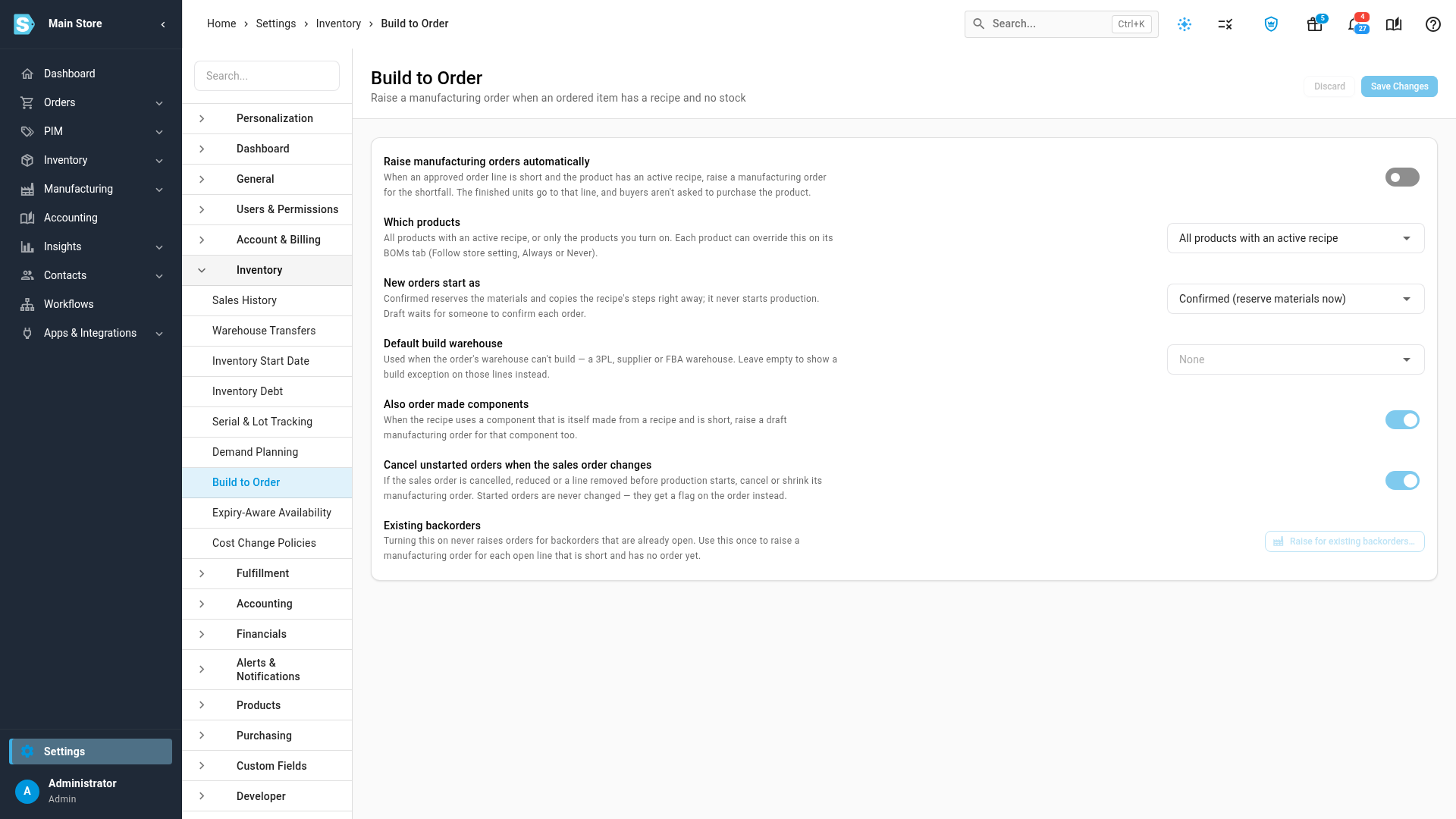
Go to Settings, click the Inventory card, and select Build to Order.
-
Switch on Raise manufacturing orders automatically.
-
Check the other settings:
Setting What it does Which products All products with an active recipe builds every product that has one. Only products I turn on builds only the products you set to Always (see Set it for one product). New orders start as Confirmed (reserve materials now) reserves the materials and copies the recipe's steps right away. Draft (I'll confirm them) leaves each order for someone to confirm. Neither starts production. Default build warehouse Used when the order ships from a warehouse that can't build, such as a 3PL, supplier or FBA warehouse. The order is made there and delivered to the order's warehouse. Leave it at None to show a build exception on those lines instead. Also order made components When the recipe uses a component that is itself made from a recipe and is short, a draft manufacturing order is raised for that component too. Cancel unstarted orders when the sales order changes Cancels or shrinks a manufacturing order whose sales order is cancelled, reduced or loses the line before production starts. Switch it off to only flag them. -
Click Save Changes.
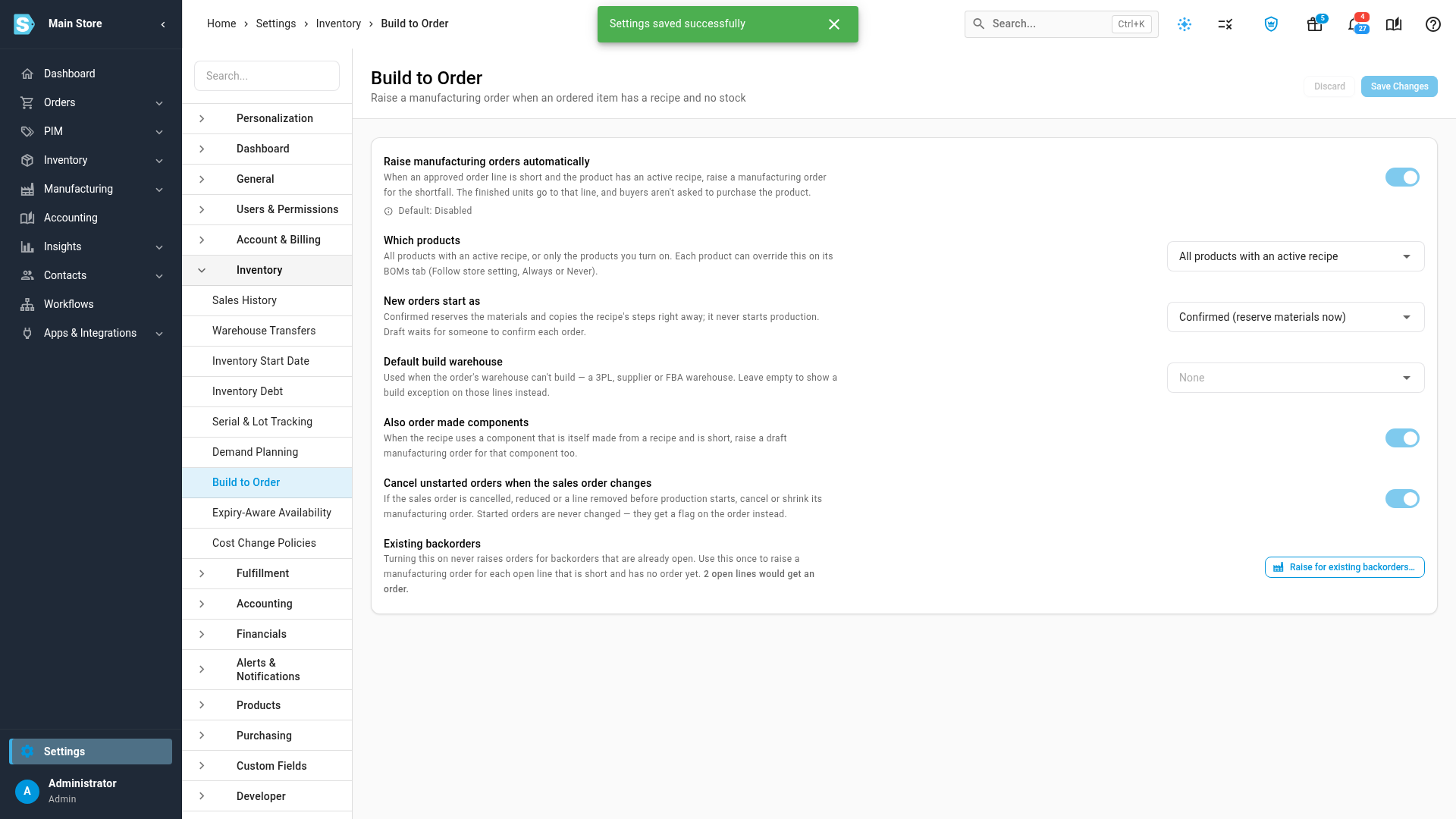
From now on, new orders are covered. Switching on never touches backorders that are already open.
Raise orders for backorders that are already open
-
On the same page, under Existing backorders, click Raise for existing backorders…. The button is available once the switch is on and saved.
-
The dialog counts the open lines that would get a manufacturing order. Click Raise orders.
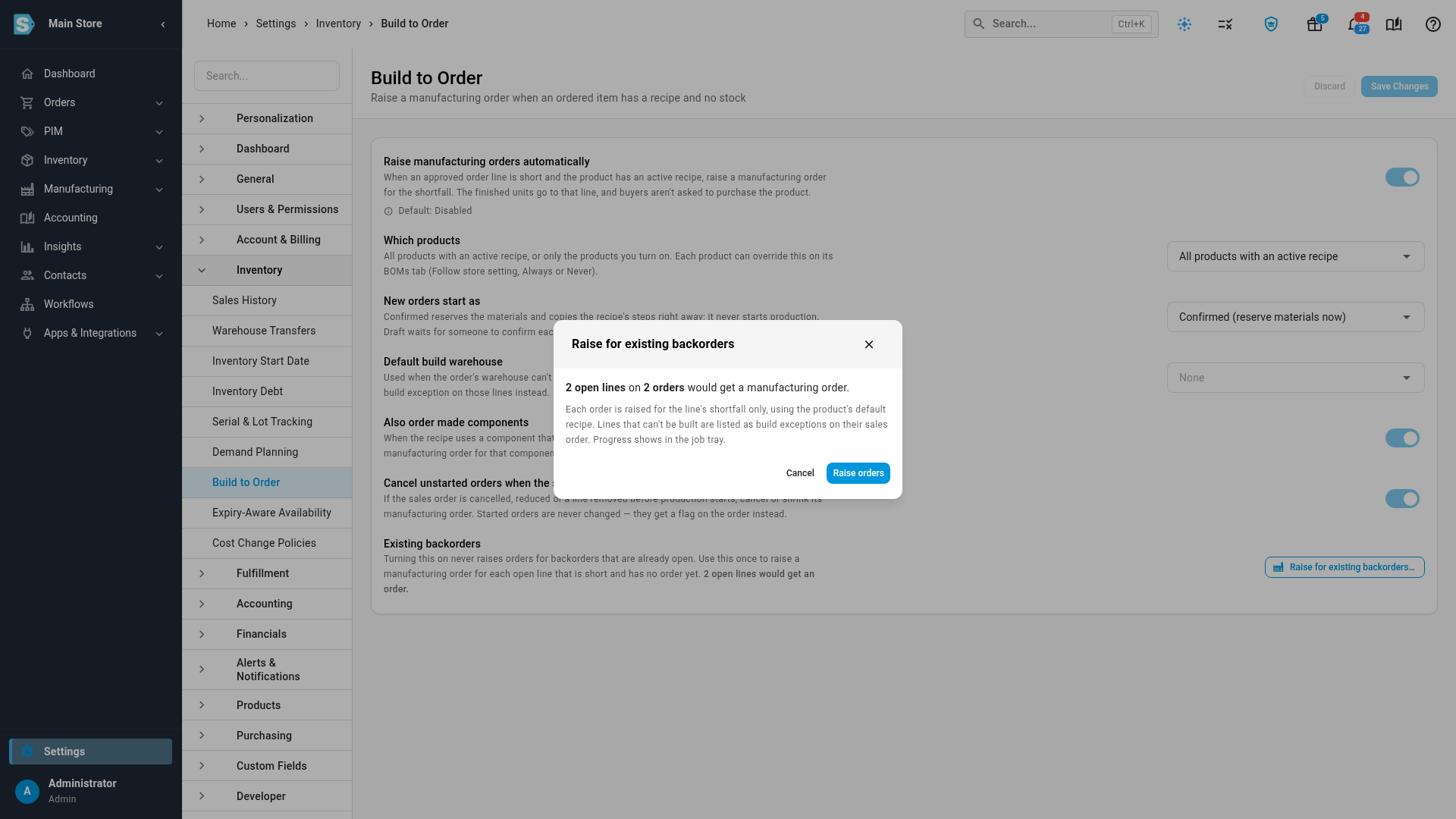
Progress shows in the job tray. Each order is raised for its line's shortfall only. Lines that can't be built show a build exception on their sales order. When the job is done, the note under Existing backorders says no open backorders need one.
Follow an order from the sales order
-
Go to Orders → Sales Orders and open the order.
-
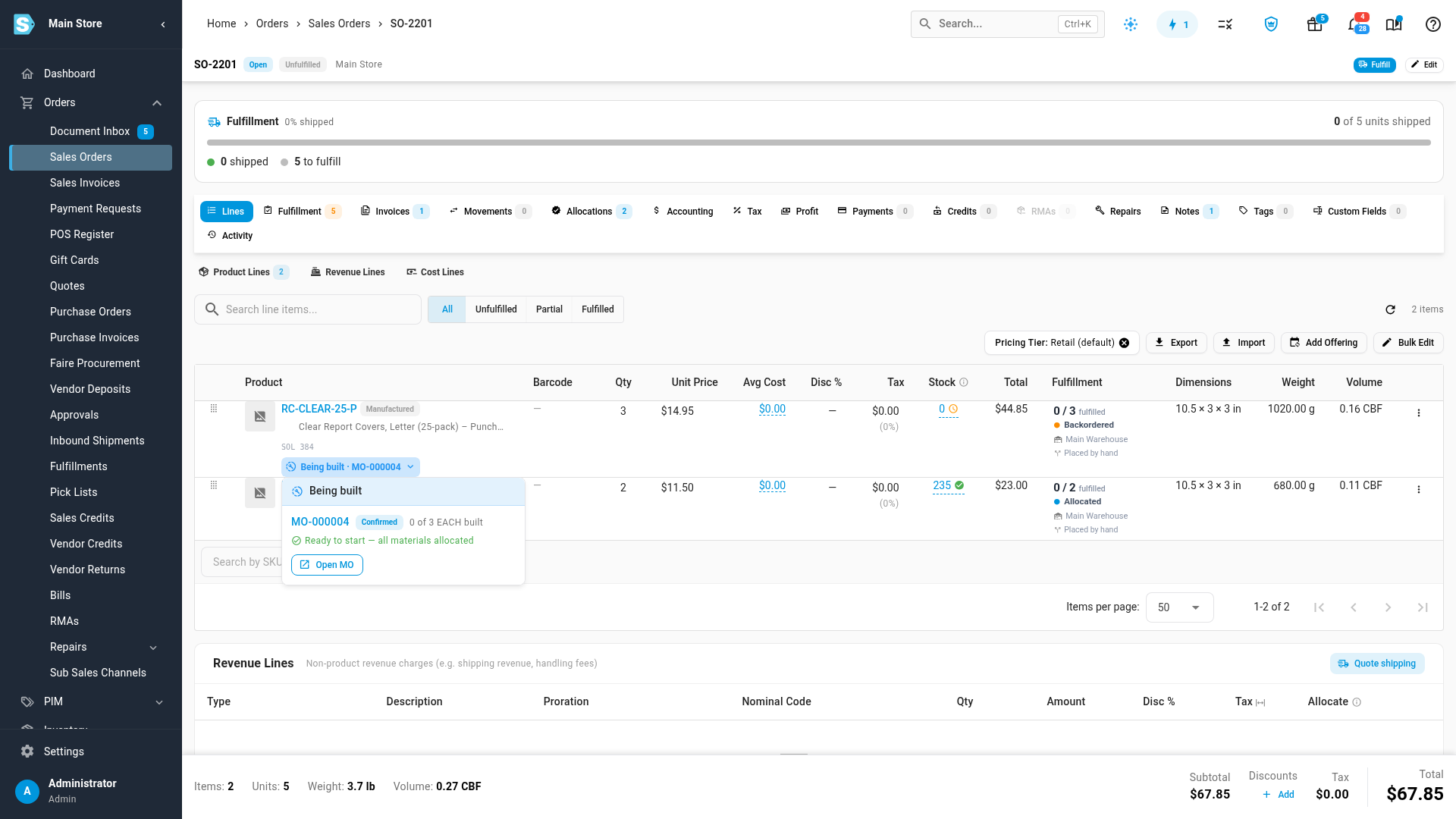
A short line shows Being built with its manufacturing order number. While the order is still being raised, it shows Will be built. Once production starts, it shows In production with the number made so far.
-
Click the chip to see the manufacturing order's status, how many are built, and whether its materials are ready: Ready to start — all materials allocated, or Waiting on a number of materials, with the date they're due when a purchase order covers them.
-
Click Open MO to open the manufacturing order.
The manufacturing order shows Raised automatically beside its status, and Created From links back to the sales order and its line. Its notes say which order and line it was raised for.
Because it starts Confirmed, the recipe's steps are already copied onto its Operations tab, each marked From BOM. Add what this order needs, such as a punch pattern, as a note on the step. See Make items to order from raw materials, stock, or both.
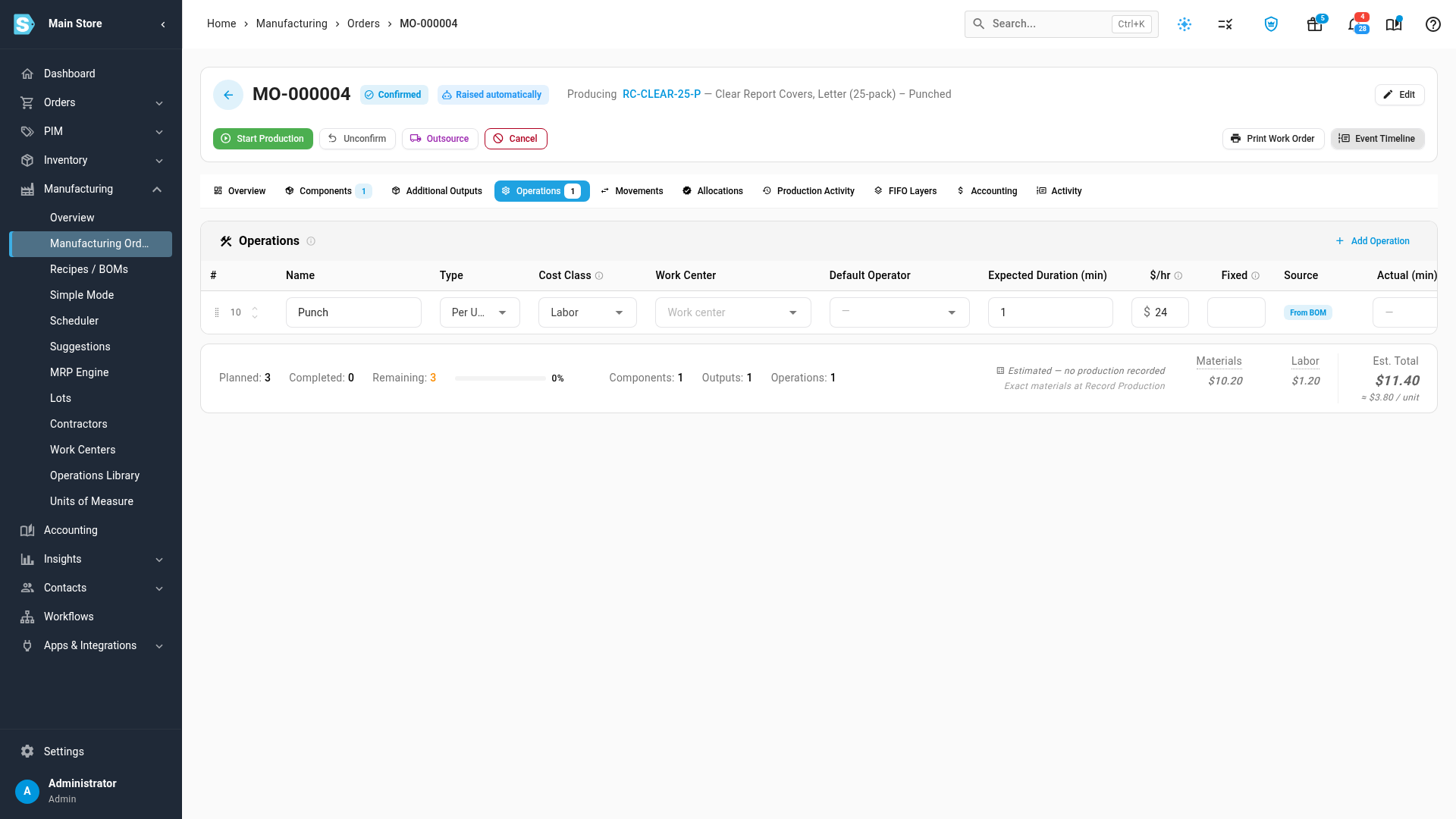
When you record production, the finished units go to the sales order line they were made for before any other backorder.
Find these orders in Manufacturing Orders
Go to Manufacturing → Manufacturing Orders. Three filters help:
- Source: choose Build to order to list the orders raised this way. The Source column shows how each order came to exist.
- Readiness: Ready to start lists confirmed orders with every material allocated, the shop floor's queue. Waiting on materials lists confirmed orders with at least one short component.
- Flagged: Flagged only lists orders whose sales order changed after production started.
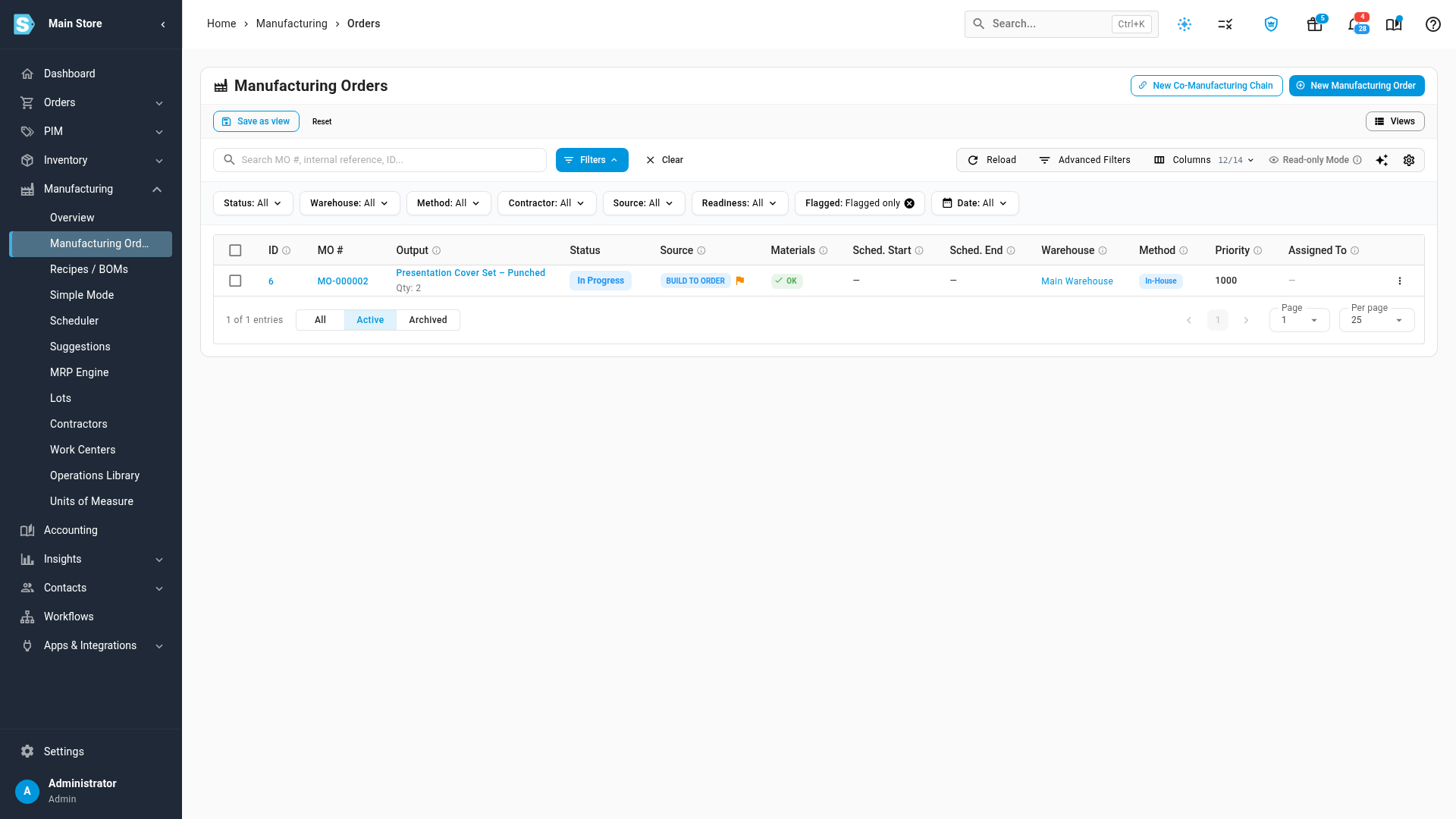
When the sales order changes
What happens depends on whether production has started:
| The sales order… | Production not started | Production started |
|---|---|---|
| is cancelled, or the line is removed | The manufacturing order is cancelled. | The order is flagged No longer needed. |
| is reduced | The manufacturing order is shrunk, or cancelled if nothing is left. | The order is flagged: the sales order now needs fewer units. |
| is increased | The manufacturing order grows. | A second manufacturing order is raised for the difference. |
| moves to another warehouse | The manufacturing order is cancelled and raised again in the new warehouse. | The order is flagged: the sales order now ships from a different warehouse. |
| is put on hold | Nothing changes. | Nothing changes. |
With Cancel unstarted orders when the sales order changes switched off, orders that haven't started are flagged instead of being cancelled or shrunk. If the line is filled from stock some other way, for example by a return, the manufacturing order isn't cancelled. It's flagged No longer needed so you can decide.
A flagged order shows a banner that explains what changed. Its finished units go to stock instead of to that line.
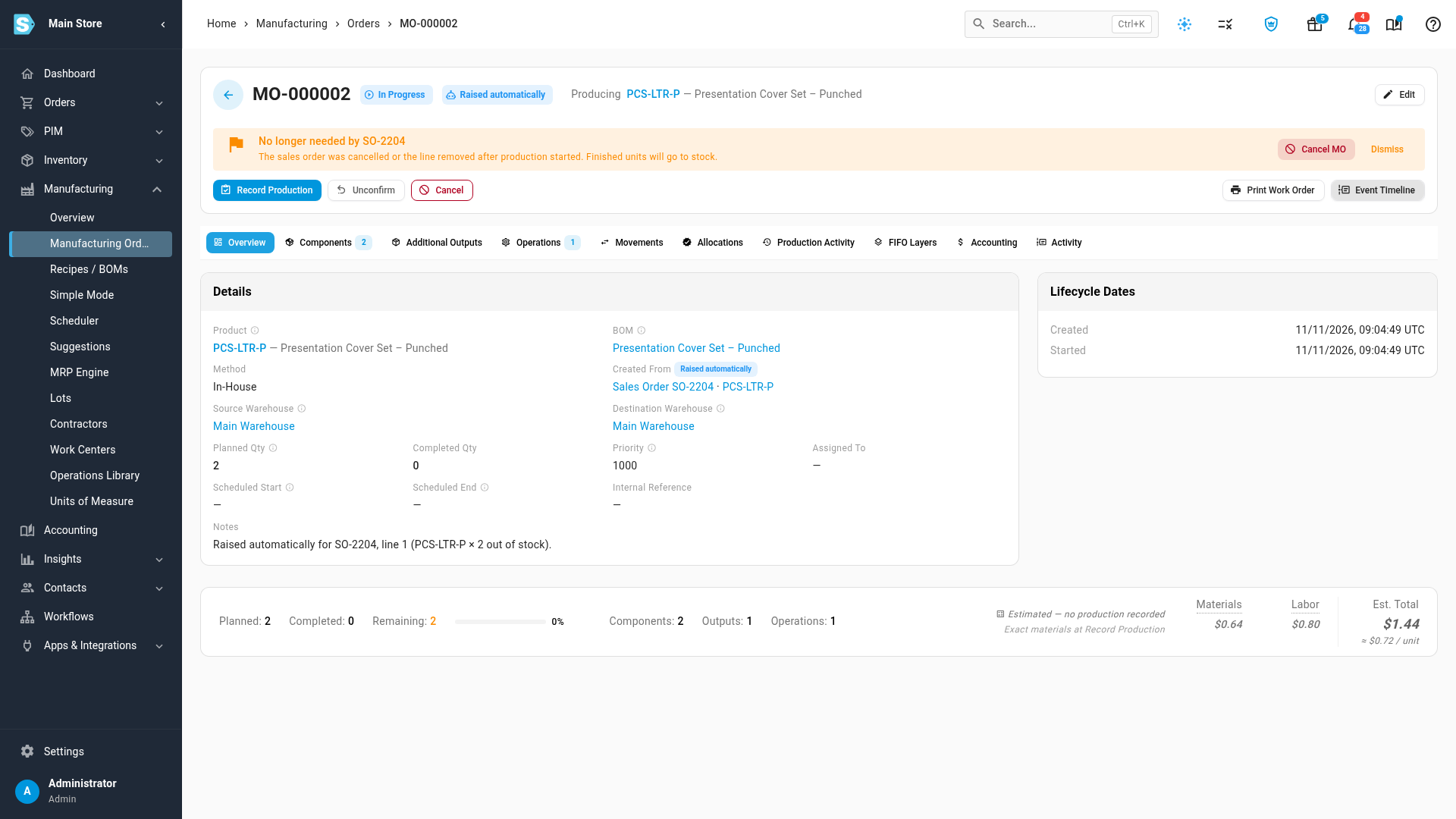
- Click Cancel MO to stop it.
- Click Dismiss to keep building it for stock.
Fix a line that can't be built
When a line should be built but can't be, it shows a red Build exception chip instead.
-
Go to Orders → Sales Orders, click Filters, and set Build to order to Build-to-order exceptions. The list shows every order with a line that couldn't be built.
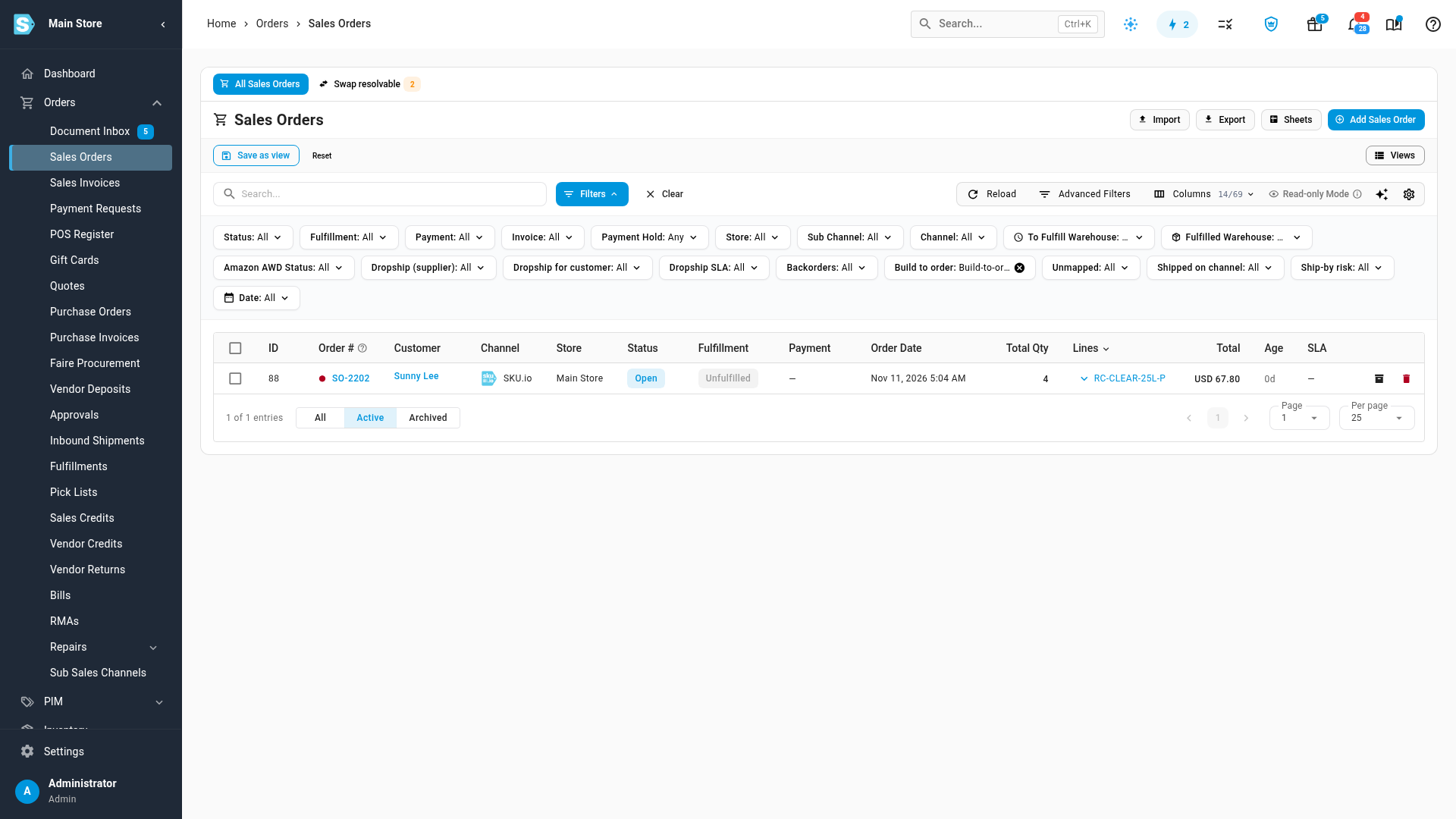
-
Open the order and click Build exception on the line. It says why:
Reason What to do No active recipe The product is set to Always but has no active recipe. Click Open recipes and add or activate one. Warehouse can't build The order ships from a warehouse that can't build and no default build warehouse is set. Set a Default build warehouse in the Build to Order settings. Unit of measure mismatch The line's unit can't be converted to the recipe's output unit. Click Open recipes and fix the recipe's output unit, or add the conversion. Couldn't confirm the order The manufacturing order was raised but stayed in Draft. Open it and confirm it. Couldn't create the order Nothing was raised, for example because a contract-manufactured product has no default contractor. Click Open product and fix what the message names. Blocked by product lifecycle The product's lifecycle state doesn't allow new manufacturing orders. Click Open product to check it. 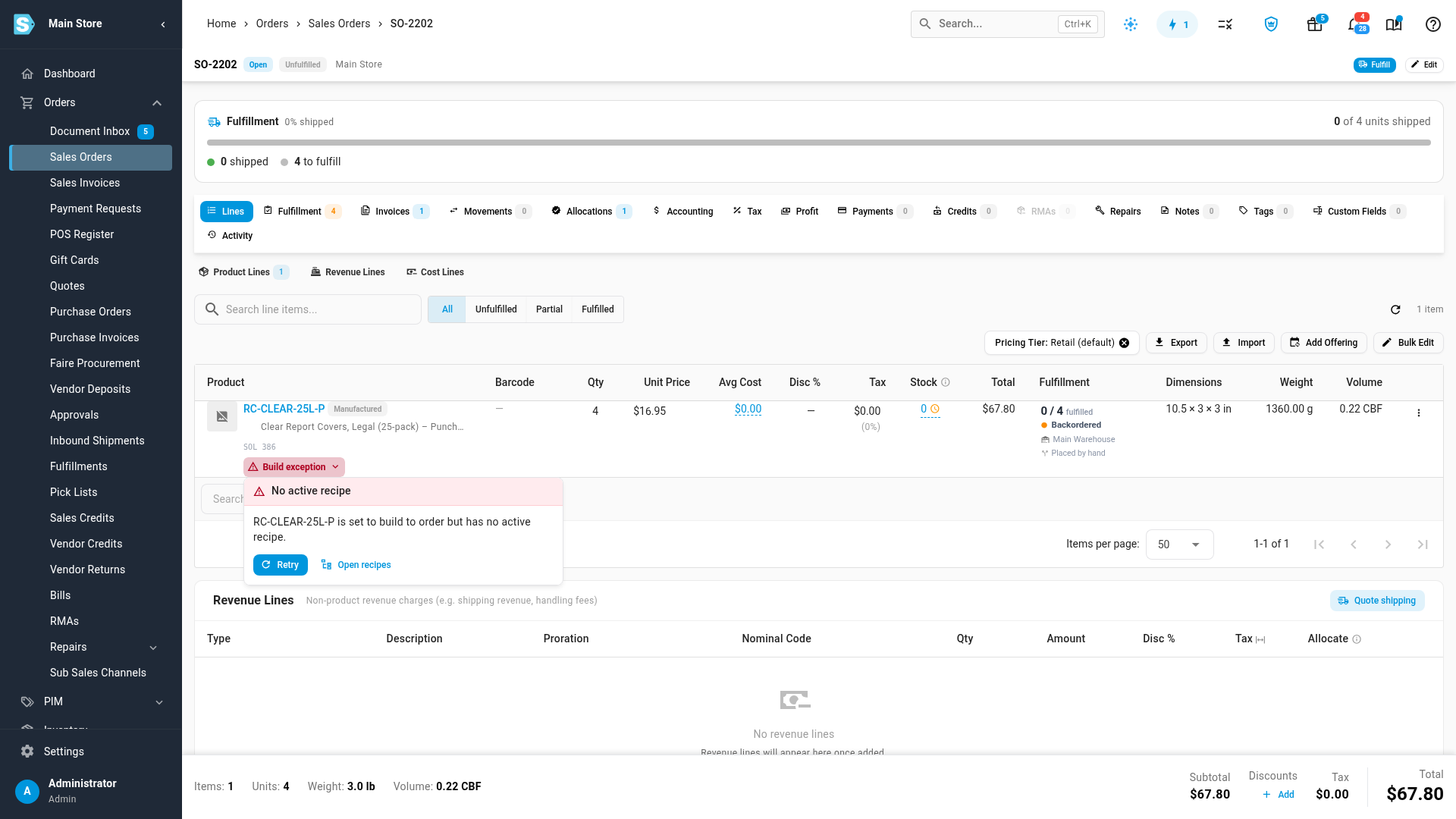
-
Fix the cause, then click Retry. The exception clears as soon as the line is built.
A line whose product isn't set to be built, or has no recipe under All products with an active recipe, isn't an exception. It waits for purchasing as usual.
Raise manufacturing orders by hand
On any approved sales order, click More and choose Raise manufacturing orders. It raises what the order's short lines need, right now, and tells you what it did. It works even when Raise manufacturing orders automatically is switched off, so you can use it as a button instead of the automation. Clicking it twice never raises the same order twice.
To work through every short line across all your orders from one list, use the Make to Order page. See Make everything waiting to be built (Make to Order).
Set it for one product
-
Open the product and select its BOMs tab.
-
In the Build to order card, choose what happens when the product is out of stock on an order:
- Follow store setting uses the Build to Order settings. The label shows whether that's On or Off for this product.
- Always builds this product even when the store only builds the products you turn on.
- Never leaves the product's short lines to purchasing.
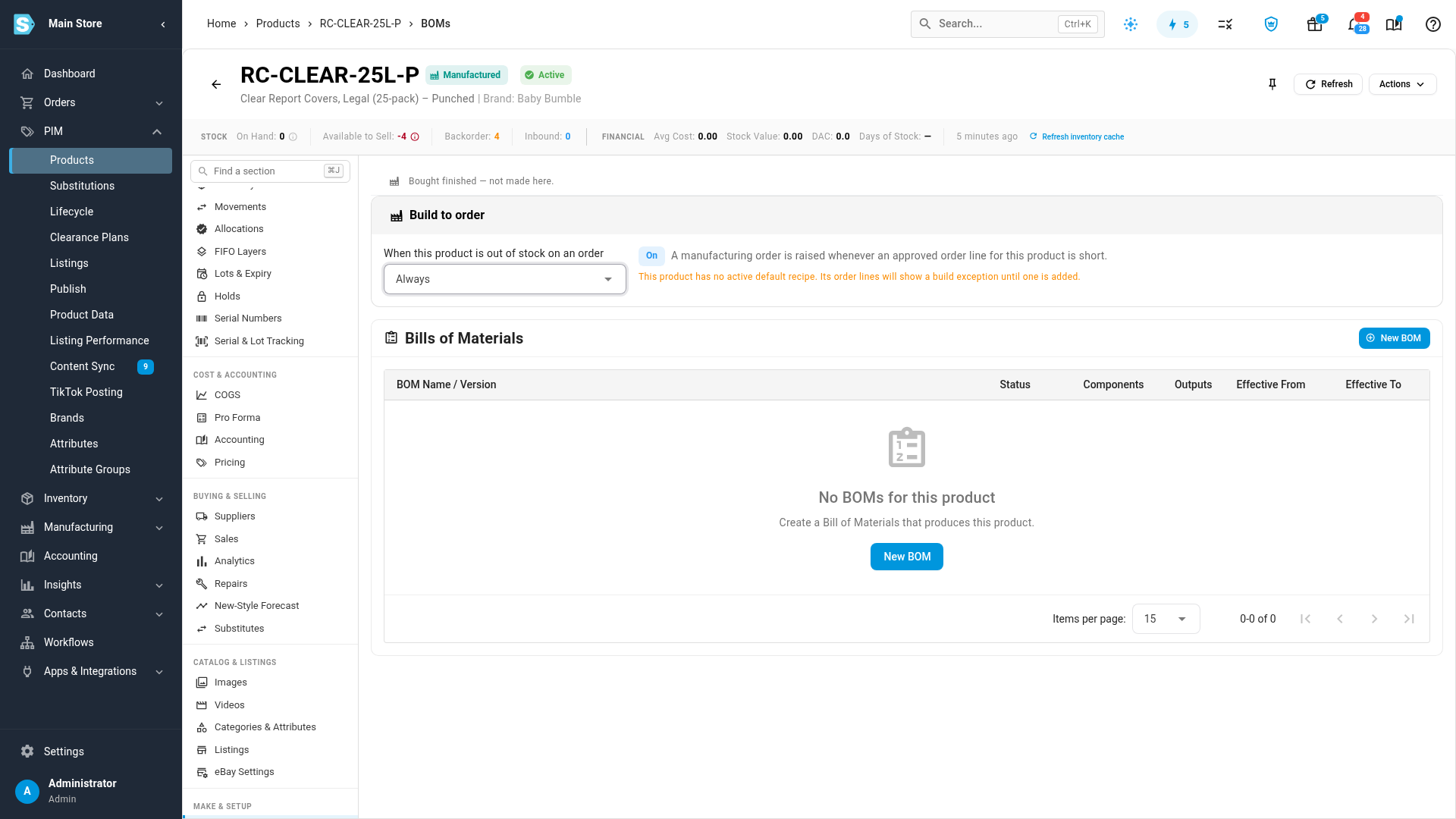
The card also names the default recipe it would use, and warns you when the product has none.
Next steps
- Build with a manufacturing order: start production and record what was made.
- Make everything waiting to be built (Make to Order): see every line waiting to be made and raise their orders in bulk.
- Handle component shortfalls on a manufacturing order: clear a Waiting on materials order.
- Make items to order from raw materials, stock, or both: set up recipes for customized items and add per-order notes.
- Manufacture with a contract manufacturer: how outsourced orders and their purchase orders work.
Video transcript
When an order is short of an item you make, SKU.io can raise its manufacturing order for you. To set it up, open Settings, at the bottom of the menu on the left. The settings are grouped into cards, one for each part of the app, such as Orders, Inventory and Accounting. Click the Inventory card, and its list of settings opens below it. Then choose Build to Order, near the bottom of that list. These settings apply to your whole store, across every sales channel. Every build-to-order setting is on this one page. It starts switched off, so nothing is raised until you turn it on. Switch on Raise manufacturing orders automatically. Which products decides what gets built: every product with an active recipe, or only the ones you turn on. New orders start as Confirmed, which reserves the materials and copies the recipe's steps. Confirmed never begins production by itself. The default build warehouse is used when an order ships from a warehouse that can't build. Leave the last two switches on. Then click Save Changes, and wait for the confirmation. Switching it on never touches lines that are already waiting. To build those too, click Raise for existing backorders, at the bottom of the page. A dialog opens, and counts the lines that would get a manufacturing order. Click Raise orders to start. A background job raises them, one sales order at a time, so you can keep working while it runs. The job tray, at the top of the page, shows its progress while it runs. When the job is done, the note above the button says nothing is left to raise. Now let's see what happened on a sales order that was short. In the menu on the left, open Orders, then choose Sales Orders. The list shows your newest orders first. Find the order in the list, and click its number to open it. Its product lines are further down the page. The short line now says Being built, with its manufacturing order number. Click it to see the details. The popup shows the order's status, and how many are built so far. It also says whether the materials are ready, so production can start. To see the whole order, click Open, at the bottom of the popup. The manufacturing order is marked Raised automatically. Created From links back to the sales order and its line. It's already Confirmed, so its materials are reserved. On the Operations tab, the recipe's steps are copied, ready for this order's notes. When the units are made, they go to that sales order first. Now open Manufacturing Orders, in the Manufacturing menu on the left. The Source column shows which orders build to order raised. The Readiness filter finds the ones that are ready to start. And the Flagged filter finds orders whose sales order changed after production started. Choose Flagged only to list just those. If a sales order is cancelled or reduced before production starts, its manufacturing order is cancelled or shrunk for you. After production starts, it's never changed for you, but it gets a flag. Open the flagged order to see why. The banner at the top explains what changed on the sales order. Cancel it from the banner if you don't need the units. Dismiss keeps building it, and the finished units are added to your stock. Sometimes a line can't be built, and it gets a build exception instead. To find those orders, go back to Sales Orders in the menu on the left. Click Filters to show every filter for the list. Then open the Build to order filter, and choose Build-to-order exceptions. The list now shows only the orders that need a fix. Click the order number to open the order. The order opens on its details, with its product lines further down. You can also run build to order for a whole order yourself, whenever you like. Click More at the top, and choose Raise manufacturing orders. That works even when the switch is off, and clicking it twice never doubles an order. Down on the line, click Build exception to see why it wasn't built. The popup names the reason, in plain words. Fix the cause, and then click the Retry button. Here the product has no recipe, so click Open recipes. On each product's recipes tab, the Build to order card sets its own rule. Follow store setting uses the switch you just set. Always builds this product even when the store only builds selected products. Never leaves its short lines to purchasing. This one is set to Always but has no recipe yet, so the next step is a new recipe.