Make everything waiting to be built (Make to Order)
Make to Order is one list of every open order line, across all your sales orders, that is short of an item you make and has no manufacturing order yet. Use it each day to make everything that can be made, see what is waiting on components, and fix or set aside the lines that can't be made.
Before you begin
-
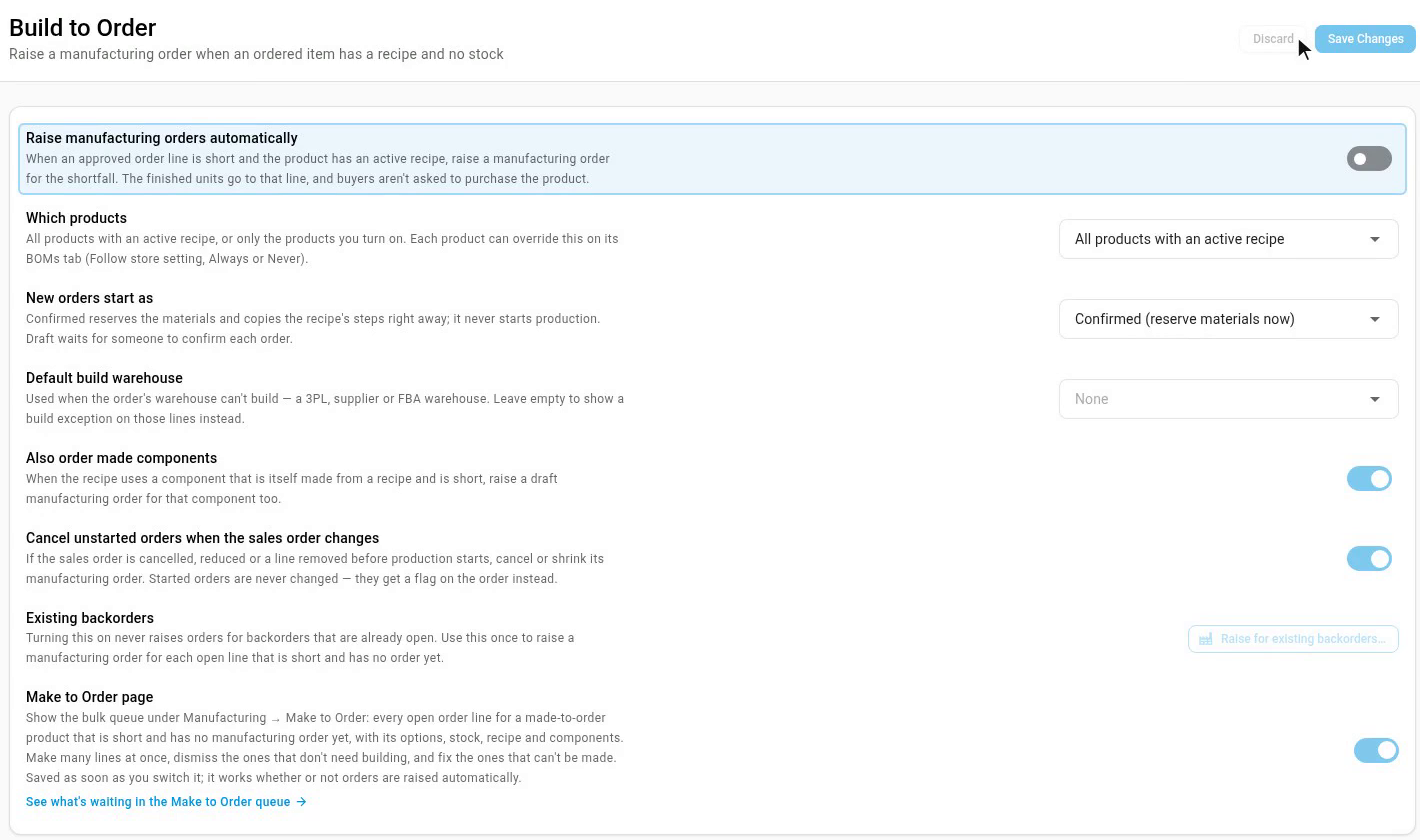
The Make to Order page is switched on. Go to Settings, click the Inventory card, select Build to Order, and switch on Make to Order page. It saves as soon as you switch it, and Make to Order appears in the Manufacturing menu. It's off until you switch it on.
-
The products you make have an active default recipe. Lines without one are listed too, as Needs setup. See Create a recipe (bill of materials).
-
To make lines, you need the Sales Orders Edit permission (
sales_orders.update). To exclude a product, you need the Products Edit permission (products.update).
Make lines from the list
-
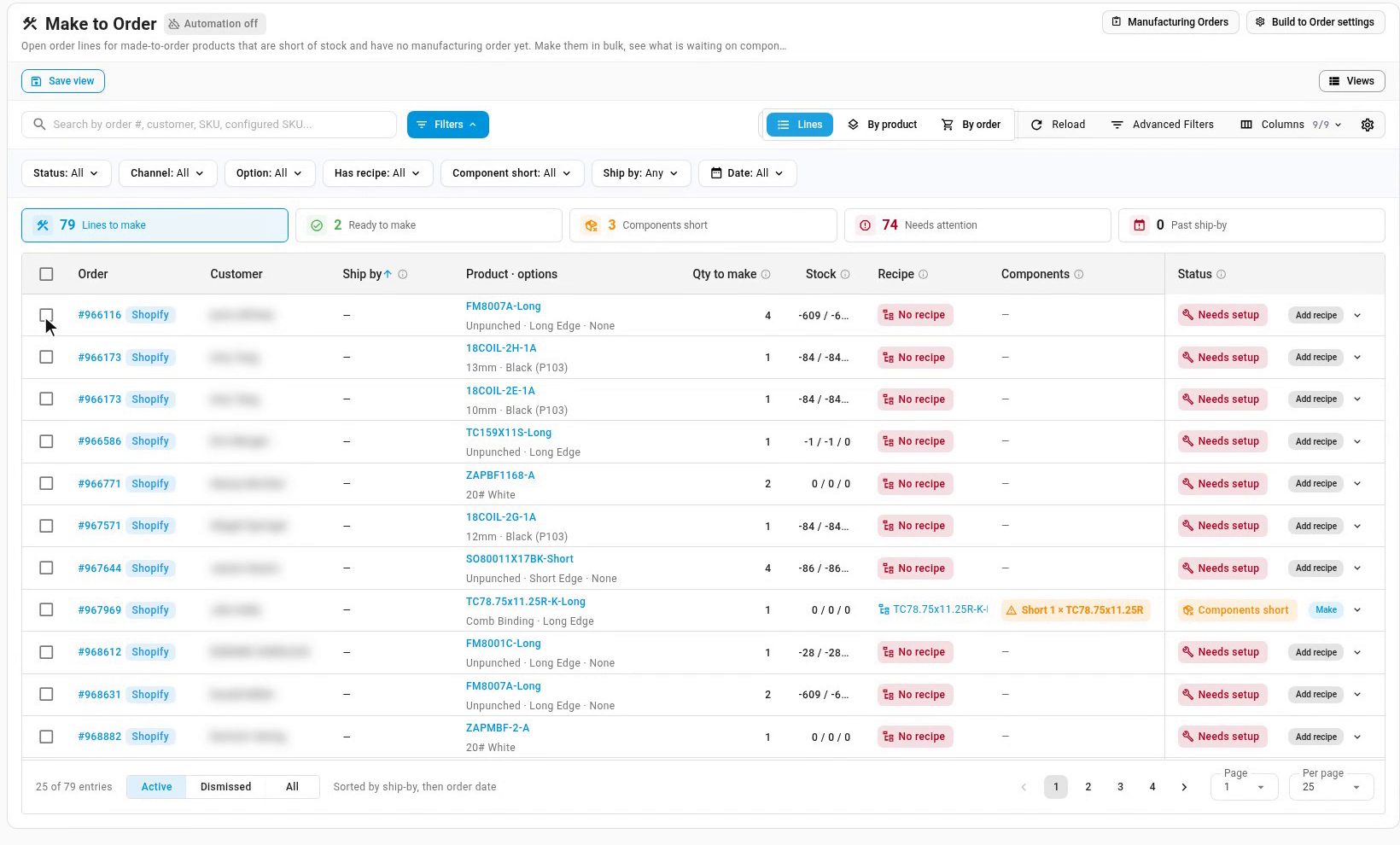
Go to Manufacturing → Make to Order. The list shows one row per order line, sorted by ship-by date, then by order date.
-
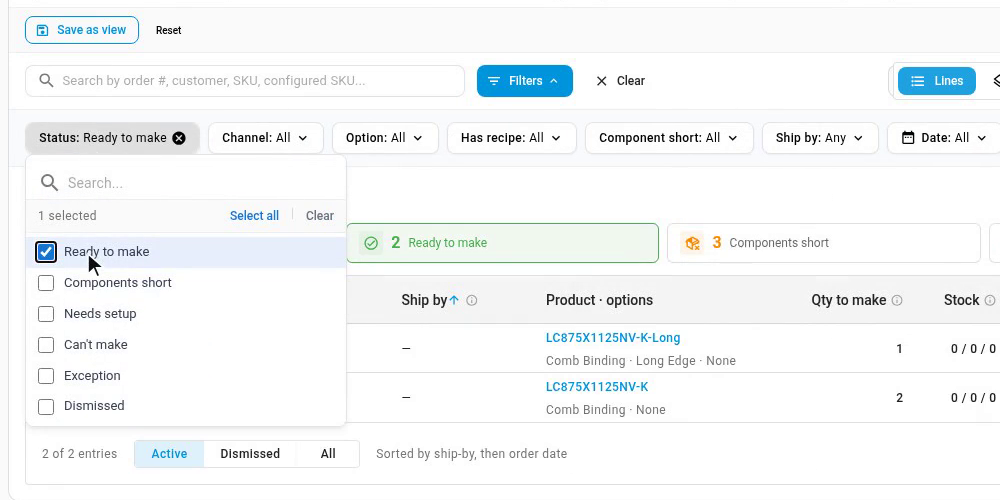
To see only what you can make, open the Status filter and choose Ready to make and Components short. You can also click the Ready to make or Components short card above the list.
-
Select the lines you want to make, then click Make in the bar above the list. The button counts the lines that can be made, for example Make 5 lines. To make one line, click Make on its row.
-
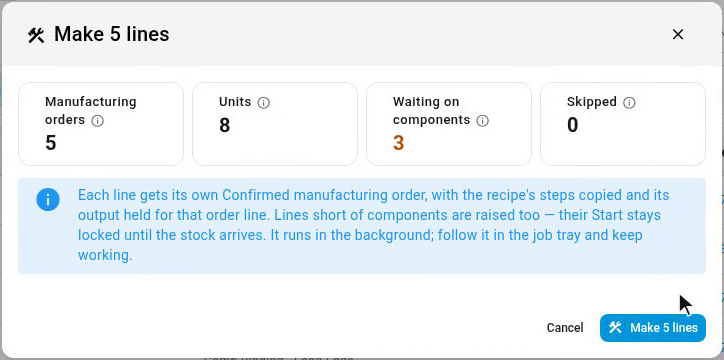
Check the summary: how many manufacturing orders will be raised, the units, how many lines are Waiting on components, and which selected lines are Skipped and why.
-
Click Make 5 lines (the button names your count). The lines are made in the background, and you can follow them in the job tray while you keep working.
-
When it's done, the results open. Each line shows Raised with the manufacturing order it created, or Skipped or Failed with the reason. Click a manufacturing order number to open it.
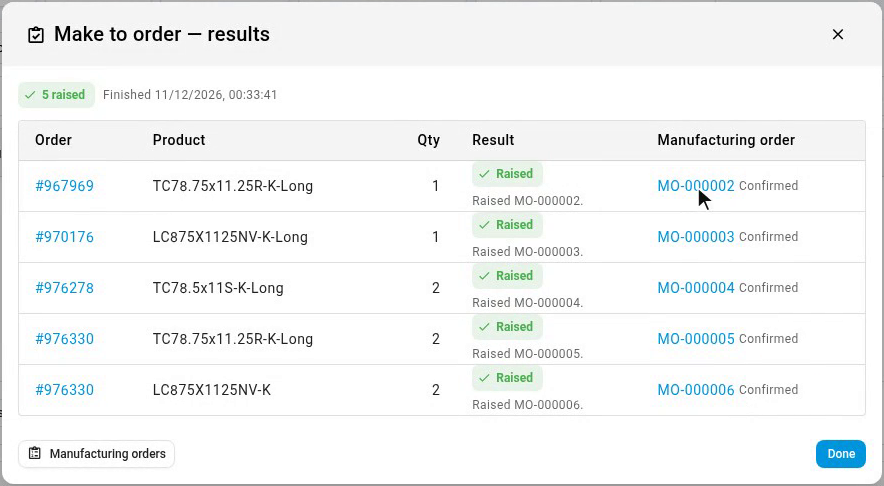
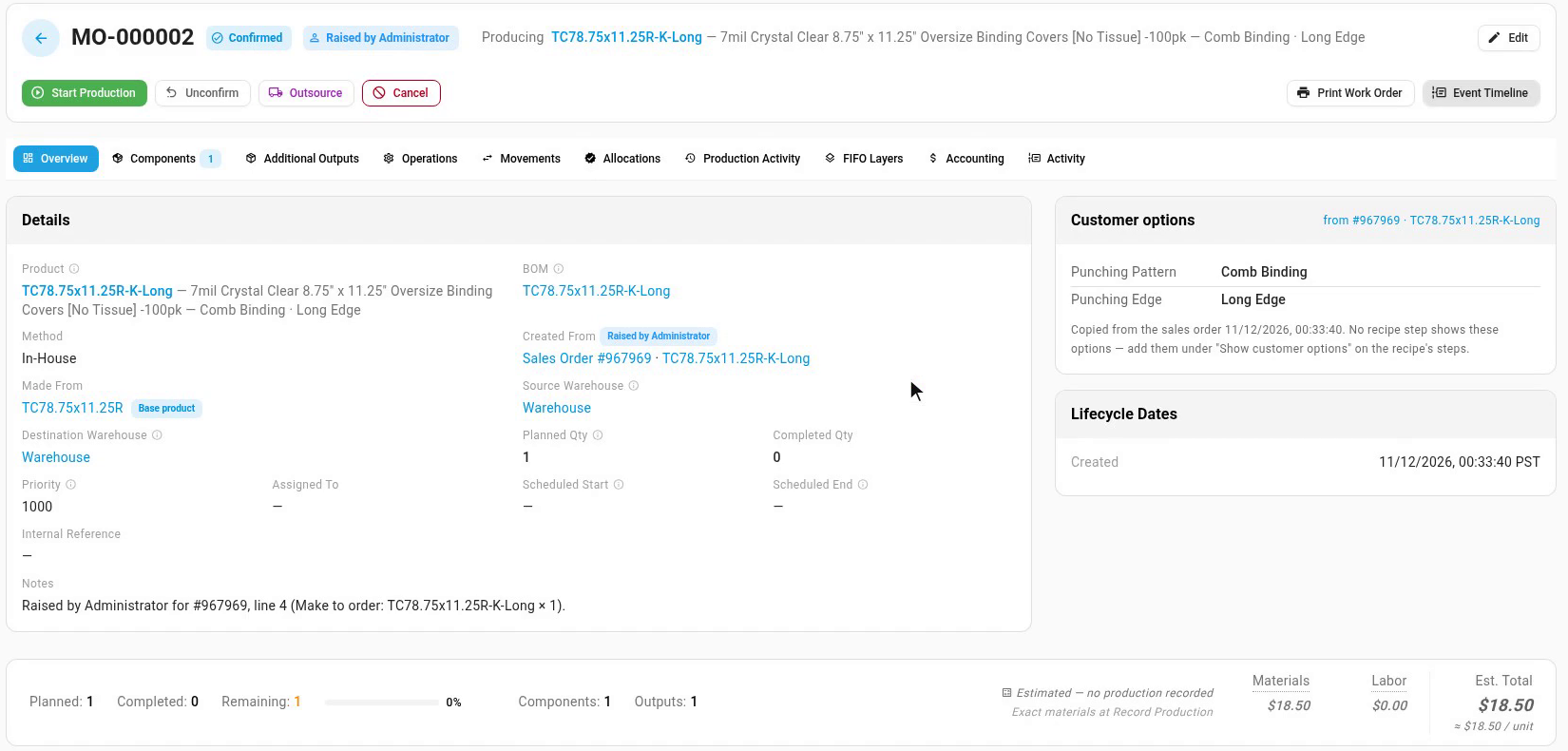
Each line gets its own manufacturing order, even when several lines are for the same product. The order is Confirmed: its materials are reserved, the recipe's steps are copied onto it, and the customer's options from the sales order line are shown on it. Its finished units go to that order line first.
To select every line that matches your filters, not only this page, select a line and switch the bar to All Filtered. The button becomes Make all that can be made.
What's on the list
An open order line is listed when all of these are true:
- Its product is made to order: it has an active default recipe, or its Build to order setting is Always, or the line was configured with options.
- The product isn't set to Never, and it isn't a kit or bundle.
- It ships from a warehouse that can build. Lines shipping from an FBA or supplier warehouse aren't listed.
- It doesn't have a manufacturing order yet. Once it has one, follow it in Manufacturing → Manufacturing Orders.
- It's short of stock that a purchase order doesn't already cover, or it has a build exception.
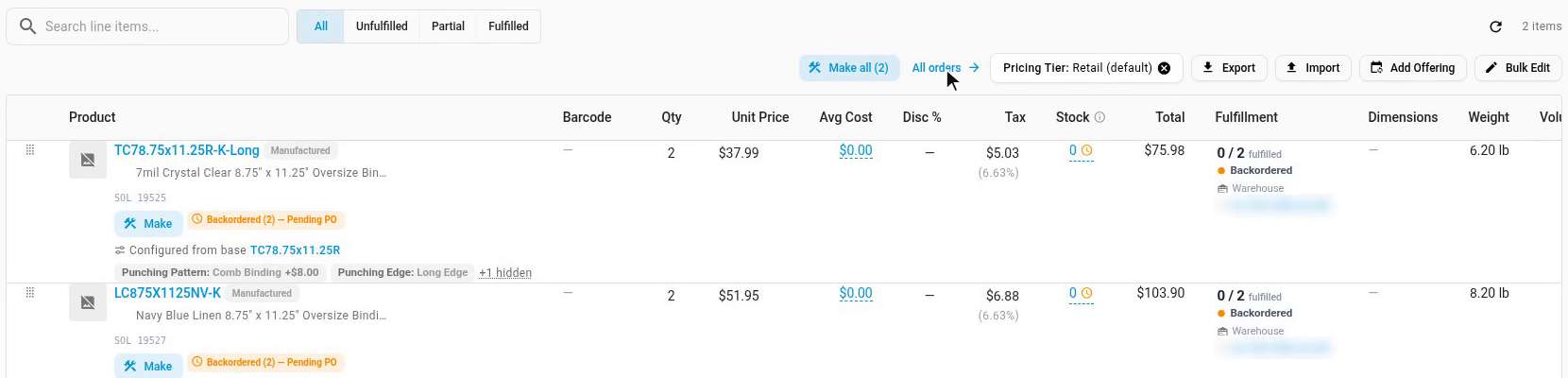
The page also has its own sales order shortcut. On a sales order with lines to make, Make all (2) makes them right there, and All orders next to it opens Make to Order.
Automatic or by hand
The chip next to the page title says whether manufacturing orders are raised automatically: Automation on or Automation off. Click it to see what that means for this list.
- Automation off: lines wait here until someone makes them.
- Automation on: new short lines get a manufacturing order by themselves, so this list shows only what automation couldn't raise and lines from before it was turned on. A row says why automation didn't raise it.
To switch automation on, click Build to Order settings at the top right of the page. See Raise manufacturing orders automatically (build to order).
Read a row
| Column | What it shows |
|---|---|
| Order | The sales order, with its sales channel. |
| Customer | The customer and the order date. |
| Ship by | The order's ship-by date. It turns red once the date has passed. |
| Product · options | The product, and the options the customer chose, such as a binding style or an edge. |
| Qty to make | The part of the line that is short and not covered by a purchase order. |
| Stock | This product at the line's warehouse: on hand / available / incoming on purchase orders. |
| Recipe | The product's default recipe, or No recipe. |
| Components | Whether the recipe's components are in stock for this line. A short component shows how many are missing and the purchase order that's bringing more. |
| Status | Whether the line can be made now. Hover the status for the full reason. |
Click the arrow at the end of a row to see each component's need, available and incoming stock, and Queue demand: what every line on the list needs of that component. When queue demand is more than what's available, the lines compete for it, and the lines made first get it.
| Status | What it means | What to do |
|---|---|---|
| Ready to make | It has a recipe and every component is in stock. | Make it. |
| Components short | It can be made, but a component is short. | Make it. The manufacturing order is raised now, and you can't start it until the components arrive. |
| Needs setup | The product has no default recipe. | Click Add recipe to open the product's BOMs tab and add one. |
| Can't make | It has a recipe, but build to order won't raise it. For example, the store only builds the products you turn on, or the product's planning policy says to buy it. | Click Open recipe or Open product and change what the reason names. |
| Exception | Build to order hit a problem on this line. | Click Open order, fix it on the sales order, then make it again. See Fix a line that can't be built. |
| Dismissed | Someone took it off the list. | Click Restore to put it back. |
The cards above the list count Lines to make, Ready to make, Components short, Needs attention (needs setup, can't make or an exception) and Past ship-by. Click a card to show only those lines, and click it again to clear it.
Dismiss a line or exclude a product
Not every short line needs building. Some will ship from a purchase order that's on its way, or you make them somewhere else.
- Dismiss takes lines off the list without changing anything else. Select the lines, click Dismiss, choose a Reason, add an optional Note, and click Dismiss. A dismissed line comes back by itself if its quantity changes. To see dismissed lines, choose Dismissed or All under the list, and click Restore to put one back.
- Exclude product stops a product from being built to order at all. Select its lines, click Exclude product, and click Set to Never. The product's Build to order setting becomes Never, so its short lines go to purchasing instead. You can change it back on the product's BOMs tab.
Group, filter and save views
- Lines, By product and By order group the rows on the page. By product shows how many lines need the same product, but each line still gets its own manufacturing order.
- The filters narrow the list by Status, Channel, Option (one of the customer's options, such as a binding style), Has recipe, Component short, Ship by and Date. Ship by has quick choices: Past ship-by, Due today or late and Due by Friday. Due by Friday includes orders that are already late.
- The search box finds an order number, customer, SKU or configured SKU.
- Click Save view to keep a set of filters as a view for next time.
- The settings gear at the end of the toolbar switches the rows between Compact and Comfortable.
Next steps
- Raise manufacturing orders automatically (build to order): let short lines raise their own orders, so this list only holds what needs a person.
- Make items to order from raw materials, stock, or both: set up recipes for customized items.
- Handle component shortfalls on a manufacturing order: clear a manufacturing order that's waiting on components.
- Build with a manufacturing order: start production and record what was made.
Video transcript
This order has two lines waiting to be made. Make all creates their manufacturing orders right here. To work through every order at once, click All orders. This is Make to Order. It lists every open order line, across all your orders, that's short of stock and has no manufacturing order yet. If you'd rather not do this by hand, turn on automatic manufacturing orders in Build to Order settings. This list then shows only what still needs a person. Each row shows the customer's options, your stock, the recipe, and whether its components are on hand. When a line can't be made, its status says why. To see only what you can make today, filter by status: ready to make, or waiting on components. Select the lines you want, then click Make. Check the summary, then confirm. Each line gets its own manufacturing order. When it's done, you see every line's result: the manufacturing order it created, or why it was skipped. Click one to open it. It's confirmed, with the customer's options and the recipe's components already on it.