Make items to order from raw materials, stock, or both
Some items you build from raw materials. Some you take off the shelf and finish for an order, for example by punching holes in them. Some need both. Each of these is an ordinary recipe, built with a manufacturing order. You set the recipe up once. On each order you then change only what that order needs, such as the punch pattern.
| You make the item from… | Its recipe has… | Example |
|---|---|---|
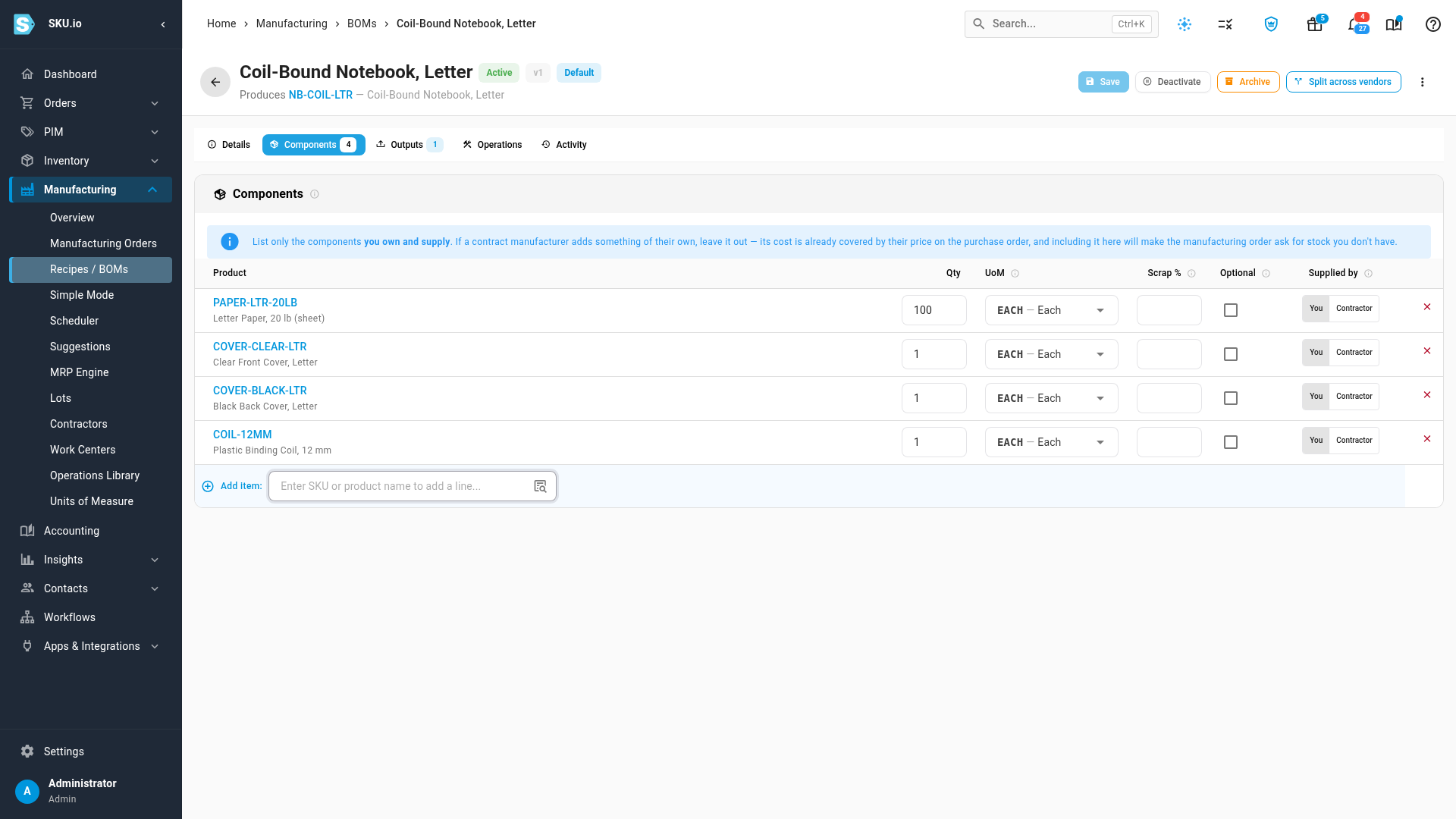
| raw materials | the raw materials as components | a notebook from paper, two covers and a binding coil |
| an item you already stock | the stocked item as its only component, plus the step that customizes it | a pack of report covers, punched |
| raw materials and a customizing step | the raw materials as components, plus the step | a cover set built from two cover sheets, then punched |
Before you begin
- Every component exists as a product: each raw material, and the stocked item you customize. See Create a product.
- A customized item has its own product, separate from the stocked one, for example
Clear Report Covers, Letter (25-pack) – Punched. A recipe can't use its own output as a component, so the stocked item and its customized version can't share a product. - The step that customizes an item is easier to reuse from the Operations Library. See Add operations to a recipe.
- The components have stock in the warehouse you build from.
Make an item from raw materials
This is the standard recipe. Go to Manufacturing → Recipes / BOMs, create the recipe for the finished product, and add each raw material on the Components tab with the quantity one finished unit uses. Create a recipe (bill of materials) has the full steps.
Operations are optional here. Add them only if the item takes labor or machine time you want costed.
Customize an item you stock
-
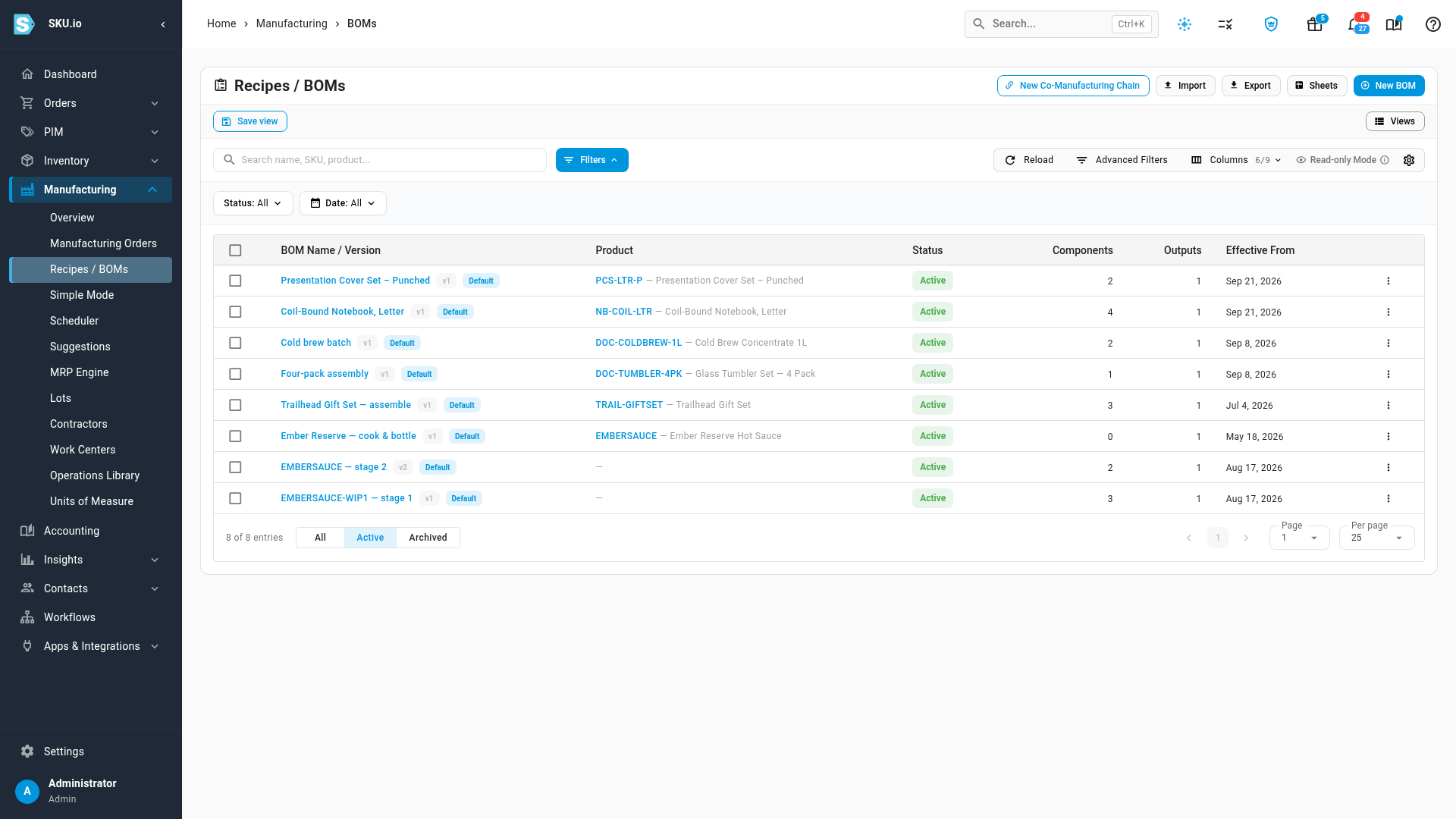
Go to Manufacturing → Recipes / BOMs and click New BOM.
-
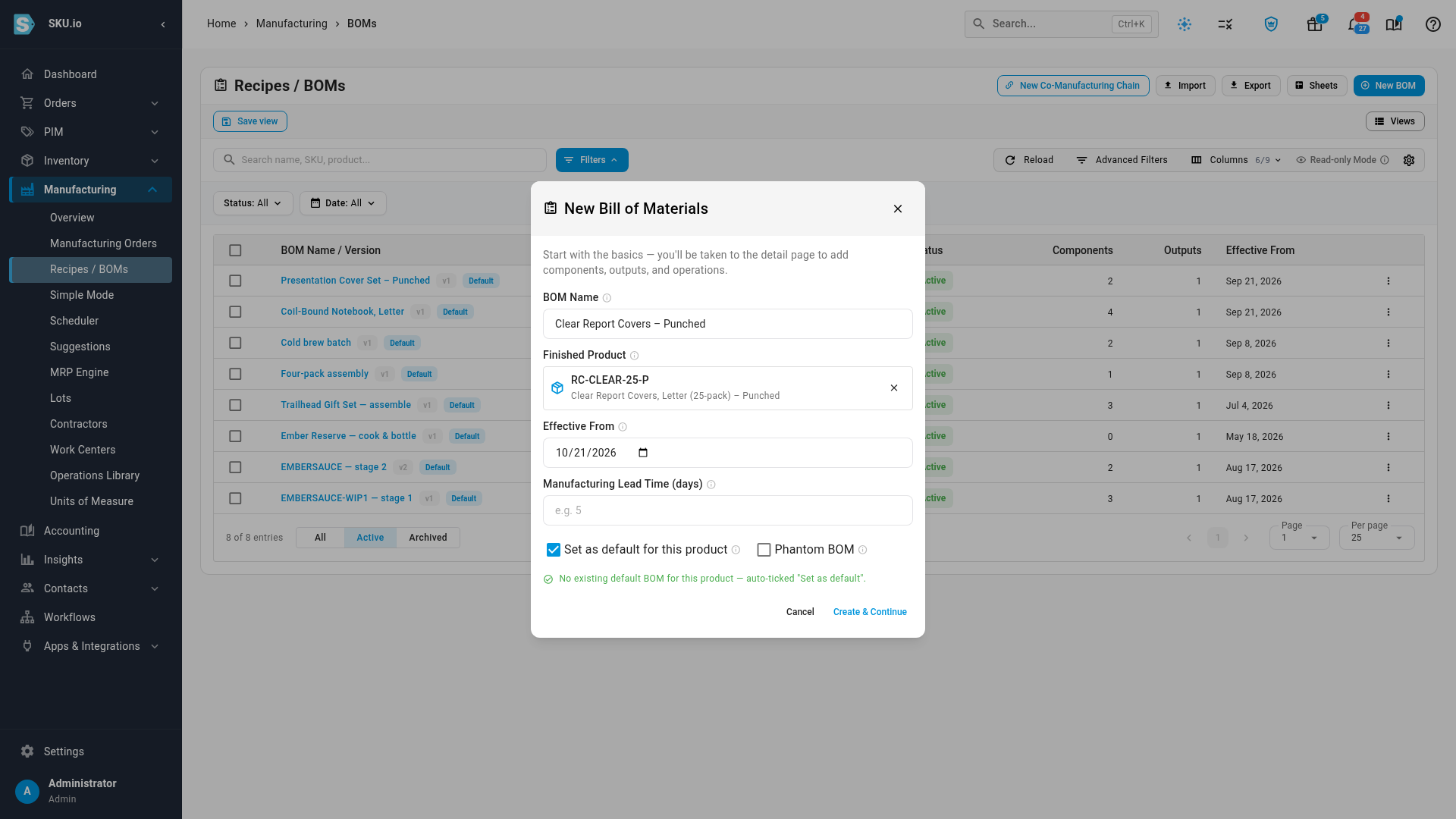
Enter a BOM Name and pick the customized product as the Finished Product. If the product has no default recipe yet, Set as default for this product is ticked for you.
-
Click Create & Continue, then select the Components tab.
-
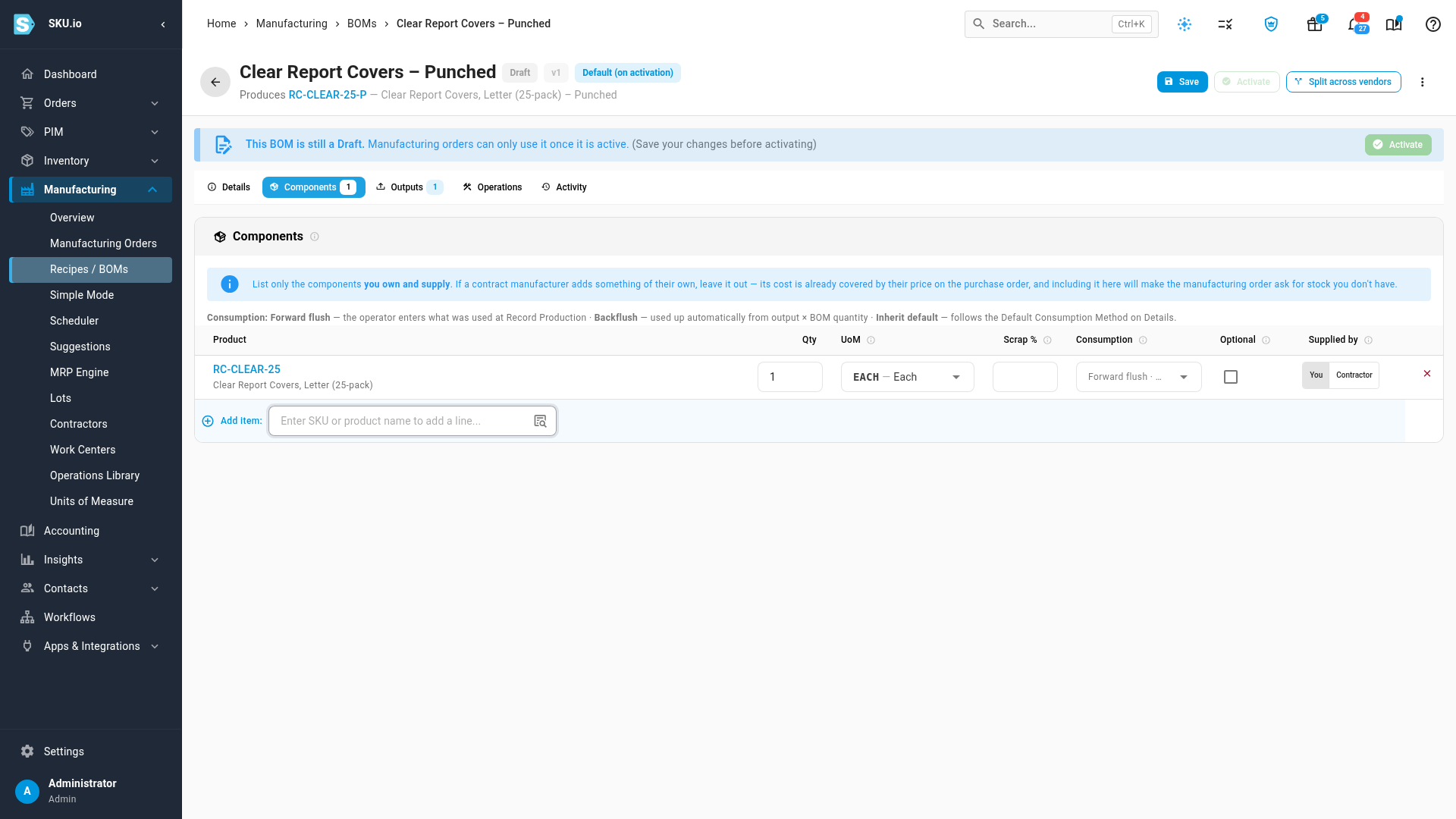
In Add item, type the stocked item's SKU and select it. Leave Qty at
1, so each customized unit uses one stocked unit.The customized product is listed too, greyed out, with the reason: … is this recipe's output — it can't be its own component.
-
Select the Operations tab and click Add Operation.
-
Click the Name field and pick the customizing step from the library, for example
Punch. Its Type, time and rate fill in. Per Unit multiplies the time by the quantity you make.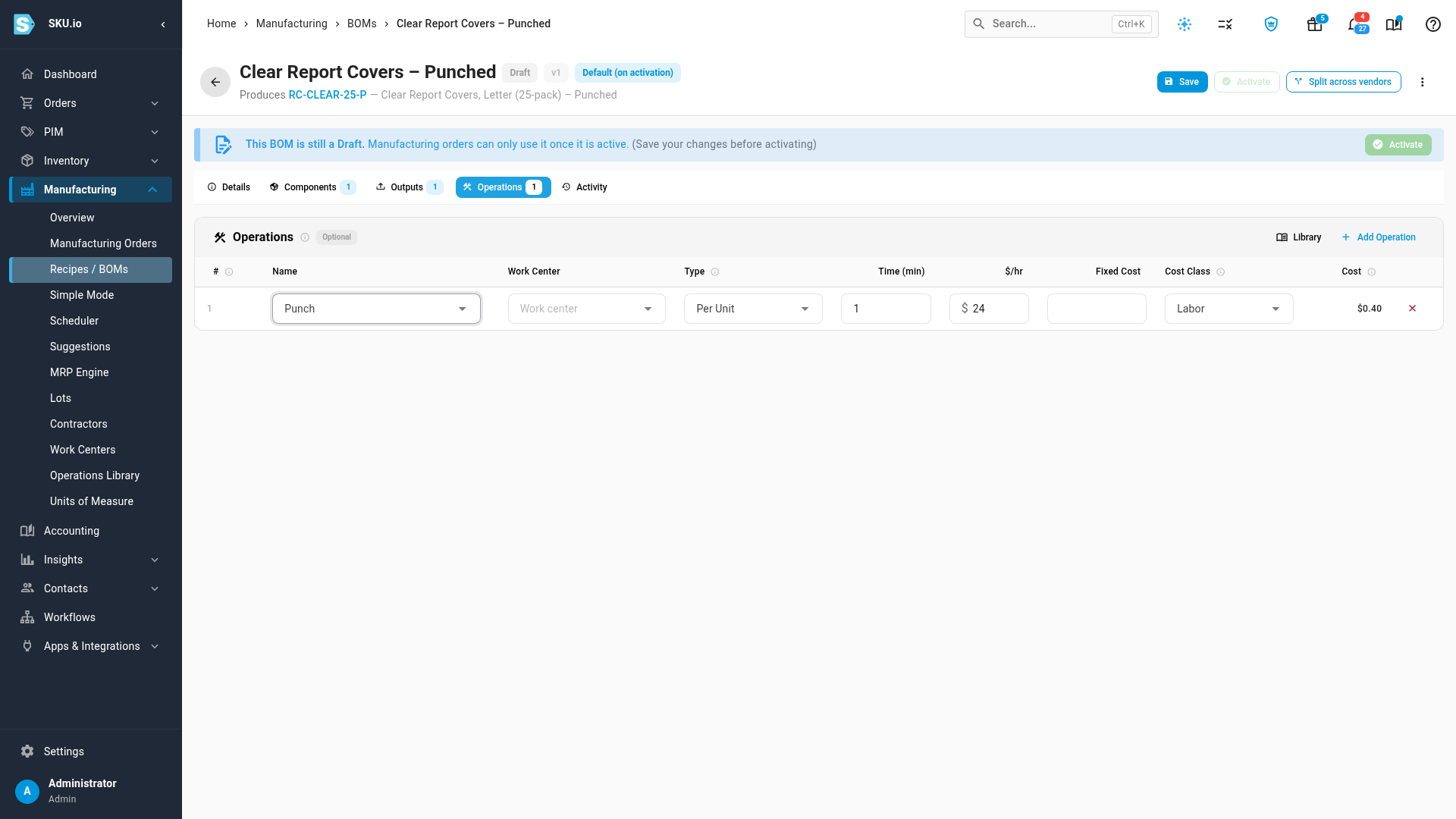
-
Click Save, then Activate, and click Activate again to confirm.
The stocked item keeps its own stock and sales. Each manufacturing order for the customized product takes units of the stocked item and turns them into units of the customized one.
Combine raw materials and a customizing step
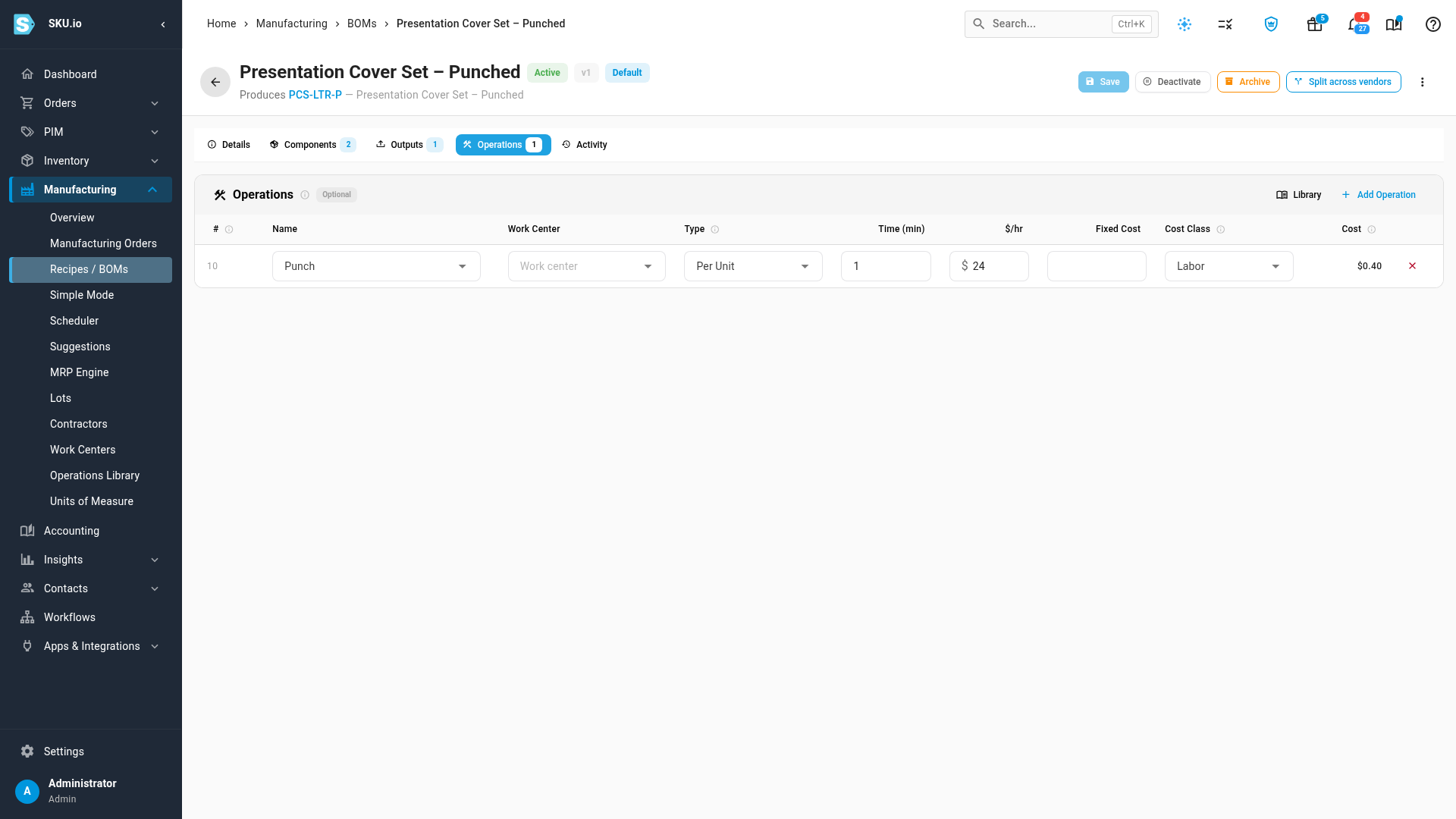
Set the recipe up as you would for raw materials, then add the step on the Operations tab the same way: Add Operation, then pick the step from the library. The example cover set uses two cover sheets as components, plus Punch.
Customize one order
Each manufacturing order copies the recipe's operations when you confirm it. You can then change the copy for this order. The recipe doesn't change.
-
Go to Manufacturing → Manufacturing Orders and click New Manufacturing Order.
-
Pick the Product. Its default recipe fills BOM / Recipe.
-
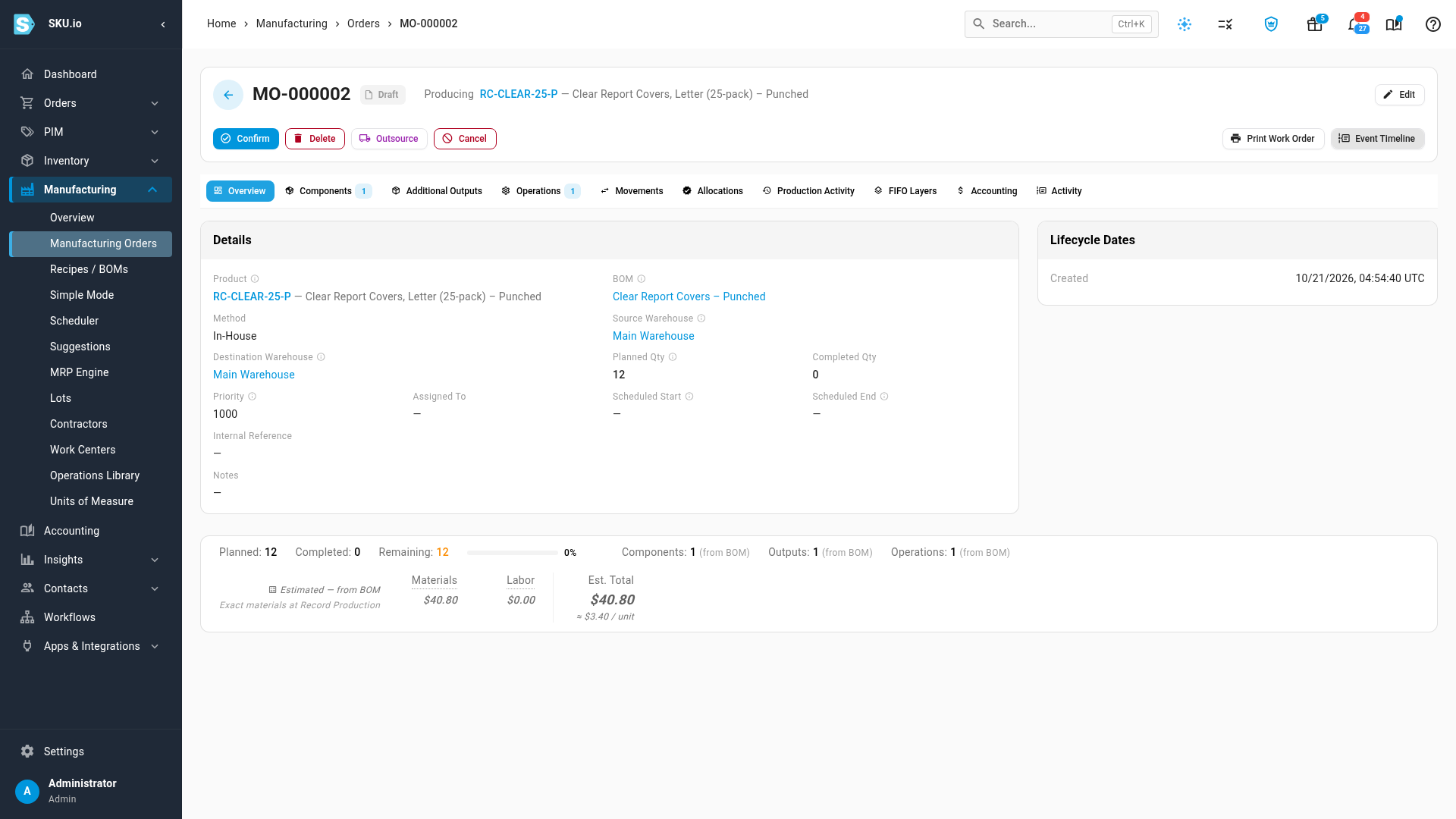
Enter the Planned Quantity, check the Source Warehouse and Destination Warehouse, and click Create Draft. The order opens in Draft.
-
Click Confirm, then Confirm again. The recipe's steps are copied onto the order, each marked From BOM. A draft order only previews them.
-
Select the Operations tab.
-
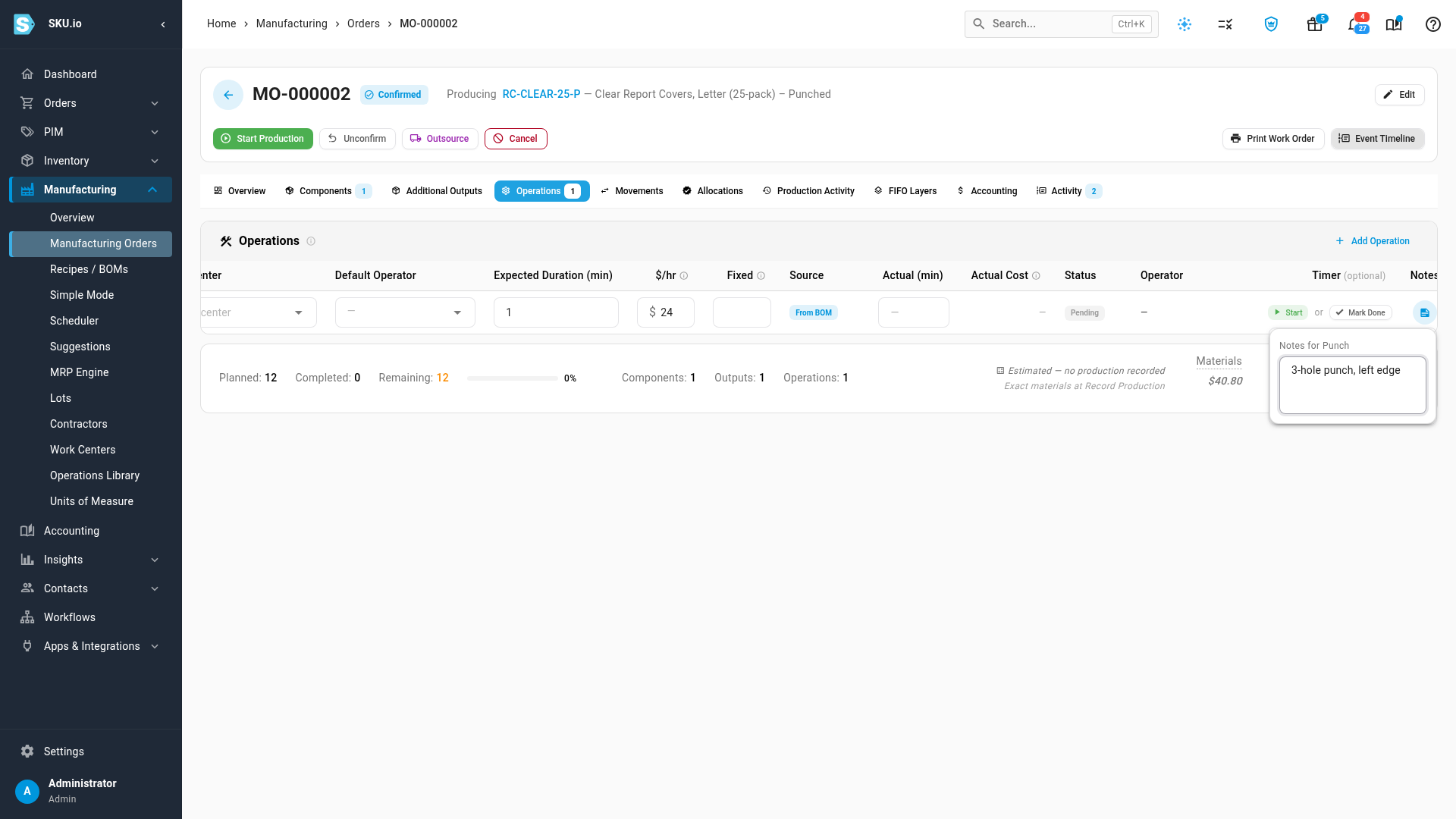
To record what this order needs, scroll across to the end of the step's row, click the notes icon, and type the note, for example the pattern to punch and which edge. The note saves when you click elsewhere on the page.
-
To change a step for this order, edit its Name, Type, Expected Duration (min) or $/hr in the row. A Modified chip marks a copied step whose name, type, time or rate you've changed. Notes don't count as a change.
-
To add a step only this order needs, click Add Operation. The new row is added at the bottom, with Manual as its Source. Type its name over the default one, then fill in its type and time.
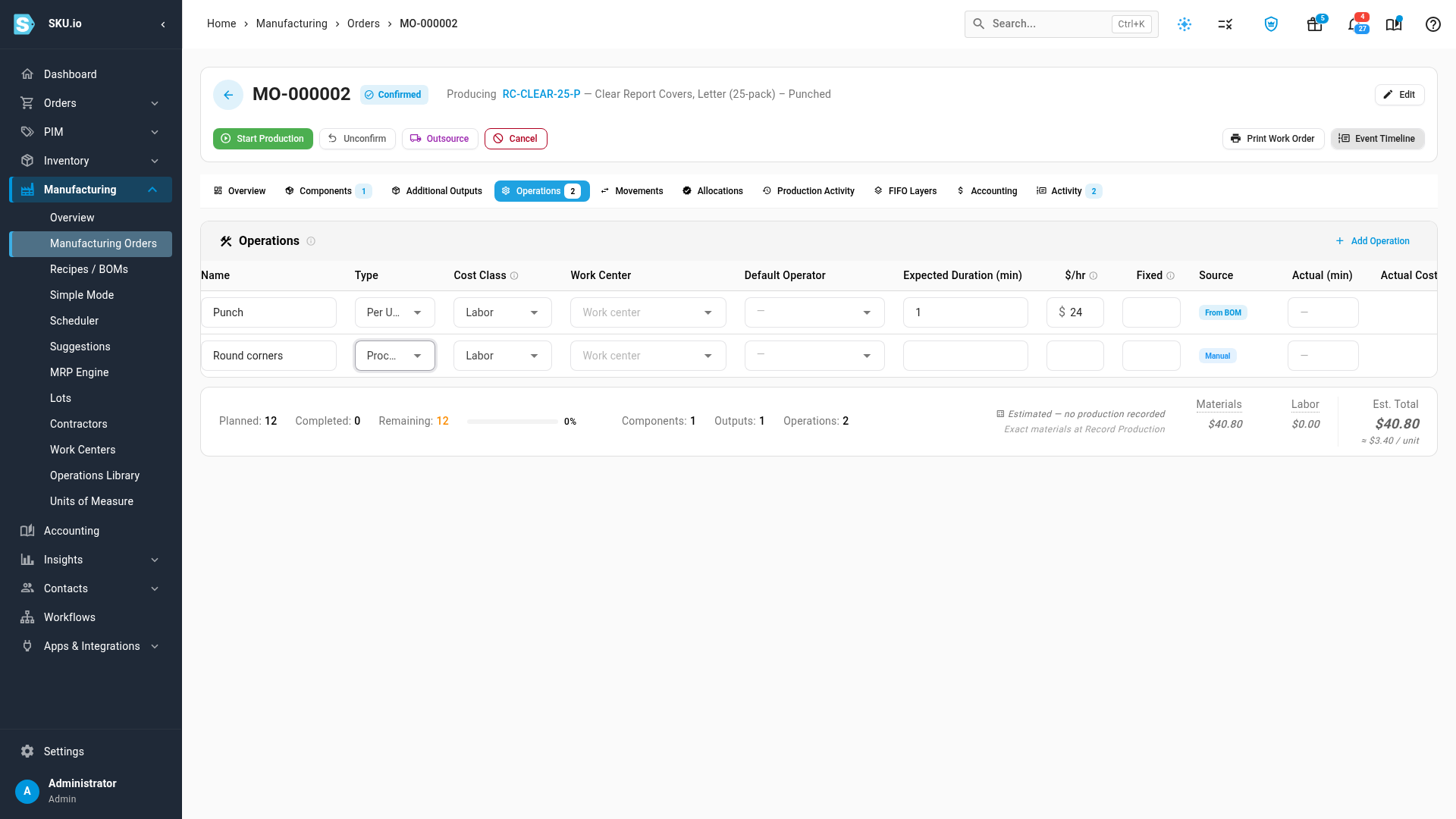
Changes on the order never flow back to the recipe, so the next order starts from the recipe again. Timing the steps and recording what was made are covered in Record operations and labor time and Build with a manufacturing order.
Next steps
- Add operations to a recipe: keep steps such as
Punchin the Operations Library. - Record operations and labor time: time each step on the order.
- Build with a manufacturing order: start production and record what was made.
- Create a recipe (bill of materials): every recipe setting.
Video transcript
You can make an item from raw materials, from an item you already stock, or from both at once. Open Manufacturing in the menu on the left, then choose Recipes. Each of these items is an ordinary recipe here. Open a recipe to see its parts. An item made from raw materials lists them as its components. This notebook uses a hundred sheets of paper, two covers and a binding coil. To customize an item you stock, give the customized version its own SKU. Then build that version a recipe. Go back to the list of recipes, in the Manufacturing menu on the left. Start a new recipe with the button at the top of the list. Give the recipe a name that says what it makes, so it's easy to find later. Then search for the customized product by its SKU, and pick it from the list as the finished product. Here, that's the punched version of a pack of report covers. Click Create and Continue, and the recipe opens as a draft. Then select the Components tab, where a recipe's parts are listed. In Add item, type the SKU of the item you stock, and wait for the matches. Both products match what you typed. The customized one is greyed out, because a recipe can't use its own output. Select the stocked item to add it as a component. It's now the only component, one per finished unit. Next, open the Operations tab. Click Add Operation, and a new step appears. Click its name, and pick the step that customizes the item. This Punch step comes from the Operations Library. The step's type, time and rate are filled in automatically. Per Unit means its time is multiplied by the quantity you make. Click Save to keep your changes, and wait for the confirmation. Then click Activate, at the top of the recipe. A dialog asks you to confirm, so click Activate again to make it live. The recipe is now active, and ready for manufacturing orders. Some items need both raw materials and a step. Go back to the list of recipes, in the Manufacturing menu on the left. Then open the recipe for this cover set, from the list. On Components, it lists two cover sheets, a front and a back. On Operations, it adds the same Punch step. So it's made from raw materials, then punched. Now make some for an order. In the Manufacturing menu on the left, open Manufacturing Orders. Click New Manufacturing Order, at the top of the list, and a dialog opens. Search for the customized product by its SKU, and pick it from the list of matches that appears. Its default recipe fills in on its own, so there's nothing to choose. Then enter the quantity for this order. The source and destination warehouses start on the ones you used last time. Check them, then click Create Draft to save the order. The order opens as a draft. Click Confirm at the top of the order. A dialog opens, so confirm again to lock in the order. Confirming copies the recipe's steps onto this order. Now open the order's Operations tab. Each copied step is marked as coming from the recipe. This copy belongs to this order alone. Scroll across to the end of the Punch row, and click the small notes icon there. Write what this order needs, for example the pattern to punch and which edge. The note saves as soon as you click elsewhere on the page. If one order needs an extra step, click Add Operation. A new step is added at the bottom of the list, and it belongs to this order only. Give it a name that says what the extra step is, so the shop floor knows. Its source shows Manual, and the recipe stays the same. One recipe serves every order. Only each order's own steps and notes change.