Move open order lines onto a configured product
Giving a configured SKU a product changes what later order lines get. Lines that arrived before that are handled in one of two ways:
| Line | What happens |
|---|---|
| Waiting line: held with no product, because the configured SKU had none | It links to the product the moment you map or create it, unless you untick Link N waiting lines. |
| Line on the base product: it came in before line options were on, or while the store was set to use the base product | It already has a product, so it only moves when you say so. |
This page covers the second kind. Moving a line keeps the tax and discount the channel charged, so the order total doesn't change. Only open orders are touched: closed and shipped orders never change.
Before you begin
- The configured SKU has a product. See Map or create configured products.
- You need the Sales Orders Edit permission (
sales_orders.update).
Move every open line for a configured SKU
- Go to PIM → Configurable Products.
- In the Lines on base product column, click the N on base · Re-link chip. To find the configured SKUs that have such lines, set the Has lines on base product filter.
- The dialog explains what moving does and lists each open line, with whether it can move.
- Click Move N lines to move the lines that can.
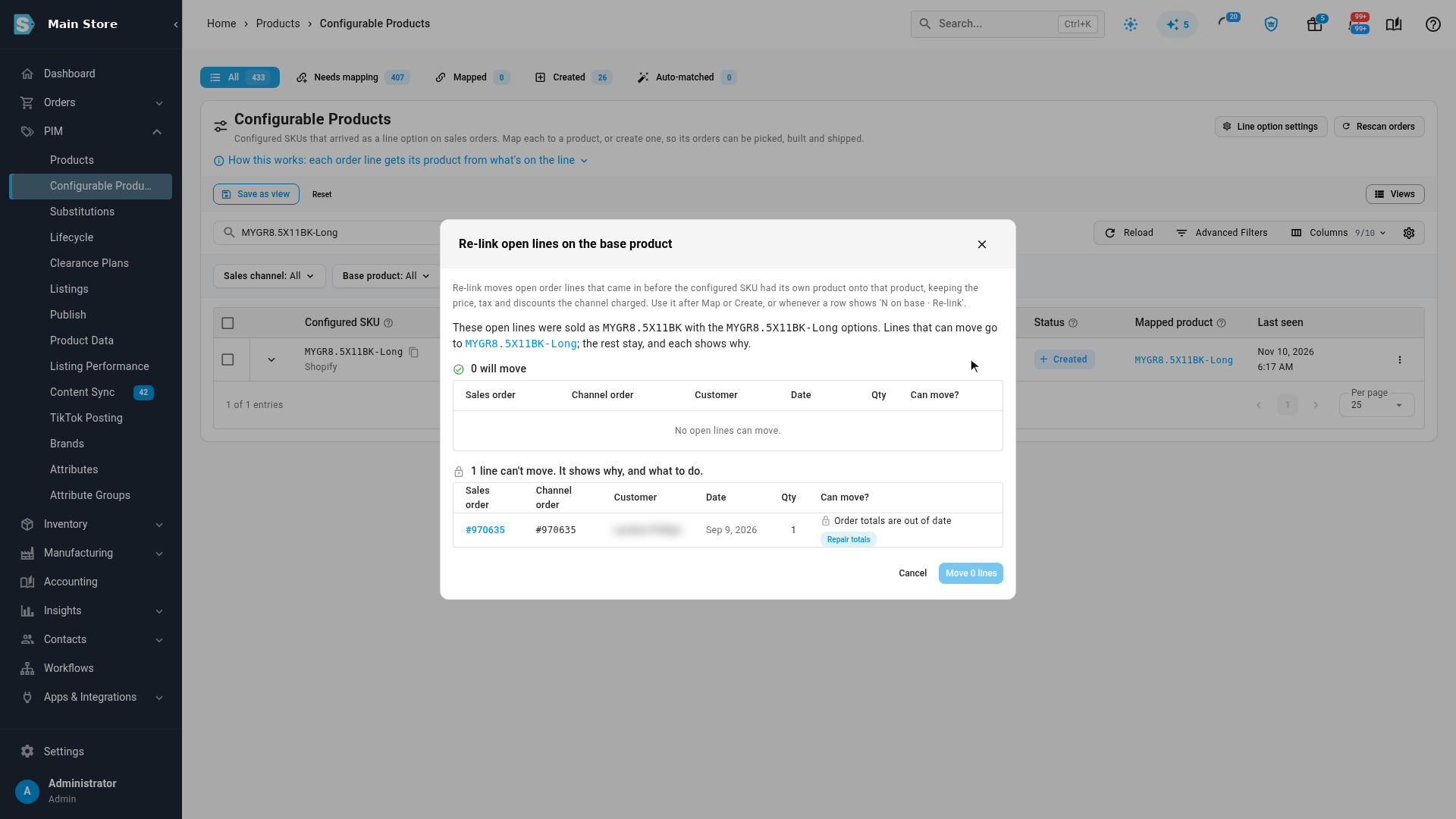
To move lines for many configured SKUs at once, tick them and click Re-link open lines in the bar that appears. Large batches run in the background; progress shows in the job tray.
You can also move lines while you map or create: Also move N open order lines sold as the base product onto the new product is ticked whenever there are such lines.
Move one line from the order
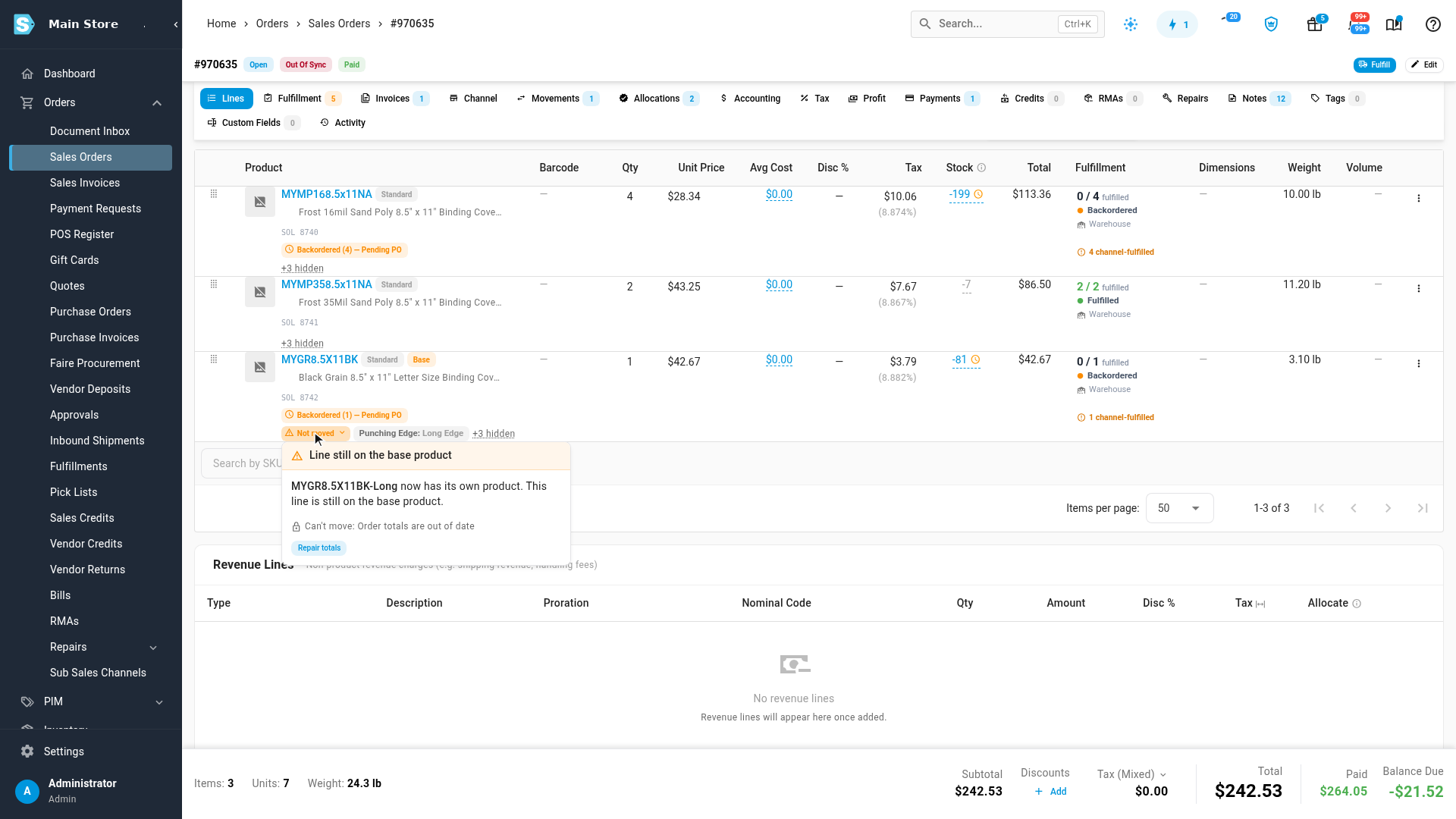
On the sales order, a line still on the base product after its configured SKU got a product shows an orange Not moved chip.
- Click Not moved.
- Click Move to the configured product.
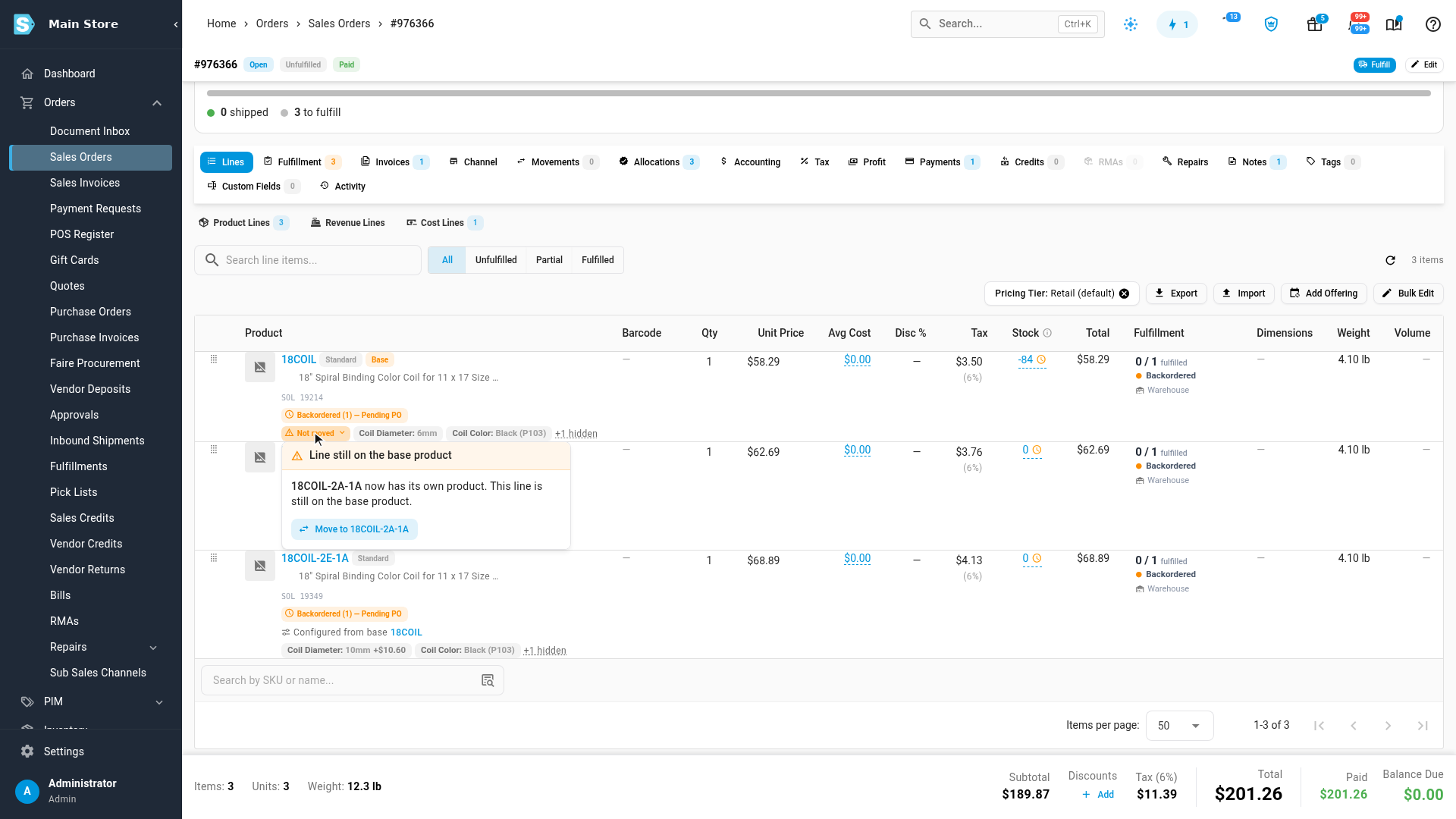
Once it moves, the line shows its own product and says which base it was configured from. A line whose configured SKU has no product yet shows Not mapped instead, with Map and Create product. Its popover says whether the line is held without a product or stands in on its base product.
Fix a line that can't move
A line that isn't safe to move stays on the base product and says why. A line can't move when it:
- has some units picked, packed or shipped;
- already has stock allocated to it;
- is invoiced, refunded or credited, or has cancelled or returned units;
- was sent to a 3PL or carrier and is waiting there;
- is on a drop-ship purchase order, or split across warehouses;
- has decoration details or a manufacturing order;
- is on an order whose totals are out of date.
For out-of-date totals, open the order, click Repair totals, then move the line. Every other reason means work on that line has already started as the base product. Open the order and decide there: let it ship as the base product, or substitute it by hand with Swap SKU on the line's menu (the line keeps its price).
The same list is under Why can't some lines move? on the Configurable Products screen.
Next steps
Video transcript
Orders that came in before you mapped the configured SKU are still on the base product. This chip shows how many; Re-link moves the open ones over. Each line shows whether it can move. All four can, so move them. When a line can't move, it tells you why, and what to do. This order's totals are out of date: use Repair totals on the order, then re-link. The full list of reasons is on the Configurable Products screen.