Set up line options
Line options bring the choices customers make at checkout onto your order lines. You set them up once, on one settings page: whether they're on, which option carries the configured SKU, what happens while a configured SKU has no product, what a new configured product copies from its base, and which options never print.
Before you begin
- You know which option on your store's order lines carries the configured SKU, if your store uses one. It's usually called
SKU. See How configurable products work. - Each listing's variant is mapped to its base product, as for any product you sell.
Switch line options on
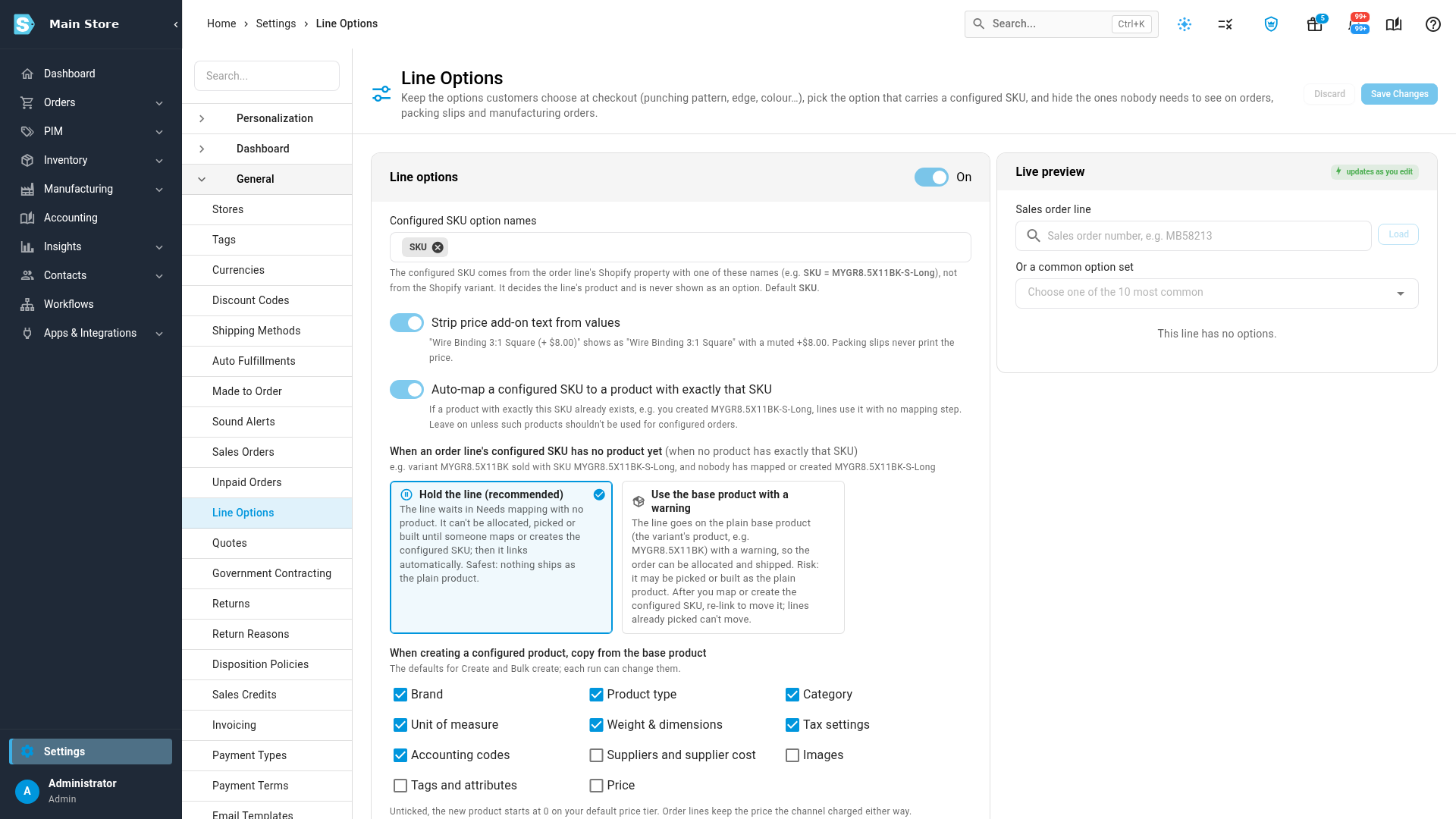
- Go to Settings, click the General card, and select Line Options.
- Switch Line options on.
- In Configured SKU option names, keep
SKUor type the name your store uses. The configured SKU decides the line's product and is never shown as an option. - Leave Strip price add-on text from values on, so "Wire Binding 3:1 Square (+ $8.00)" shows as "Wire Binding 3:1 Square". Packing slips never print the price.
- Leave Auto-map a configured SKU to a product with exactly that SKU on. If you already have a product whose SKU is exactly the configured SKU, lines use it with no mapping step.
- Under When an order line's configured SKU has no product yet, choose:
- Hold the line (recommended): the line waits with no product. It can't be allocated, picked or built until someone maps or creates the configured SKU; then it links automatically. Nothing ships as the plain product.
- Use the base product with a warning: the line goes on the base product, so the order can be allocated and shipped. After you map or create the configured SKU, you move the line yourself, and lines already picked can't move.
- Click Save Changes.
A held line doesn't hold up the rest of its order. The exception is a store with Require mapped products switched on in its own settings: then the whole order waits outside SKU.io until every configured SKU on it has a product.
Choose what a new configured product copies
Under When creating a configured product, copy from the base product, tick what every new configured product takes from its base. These are the defaults for Create and bulk create, and you can change them for any one run.
- Ticked at first: Brand, Product type, Category, Unit of measure, Weight & dimensions, Tax settings and Accounting codes.
- Unticked at first: Suppliers and supplier cost, Images, Tags and attributes and Price.
- Price, when you tick it, is either the base product's price, or the base price plus the option add-on prices from the order. Unticked, the new product starts at 0 on your default price tier. Order lines keep the price the channel charged either way.
Hide the options nobody needs
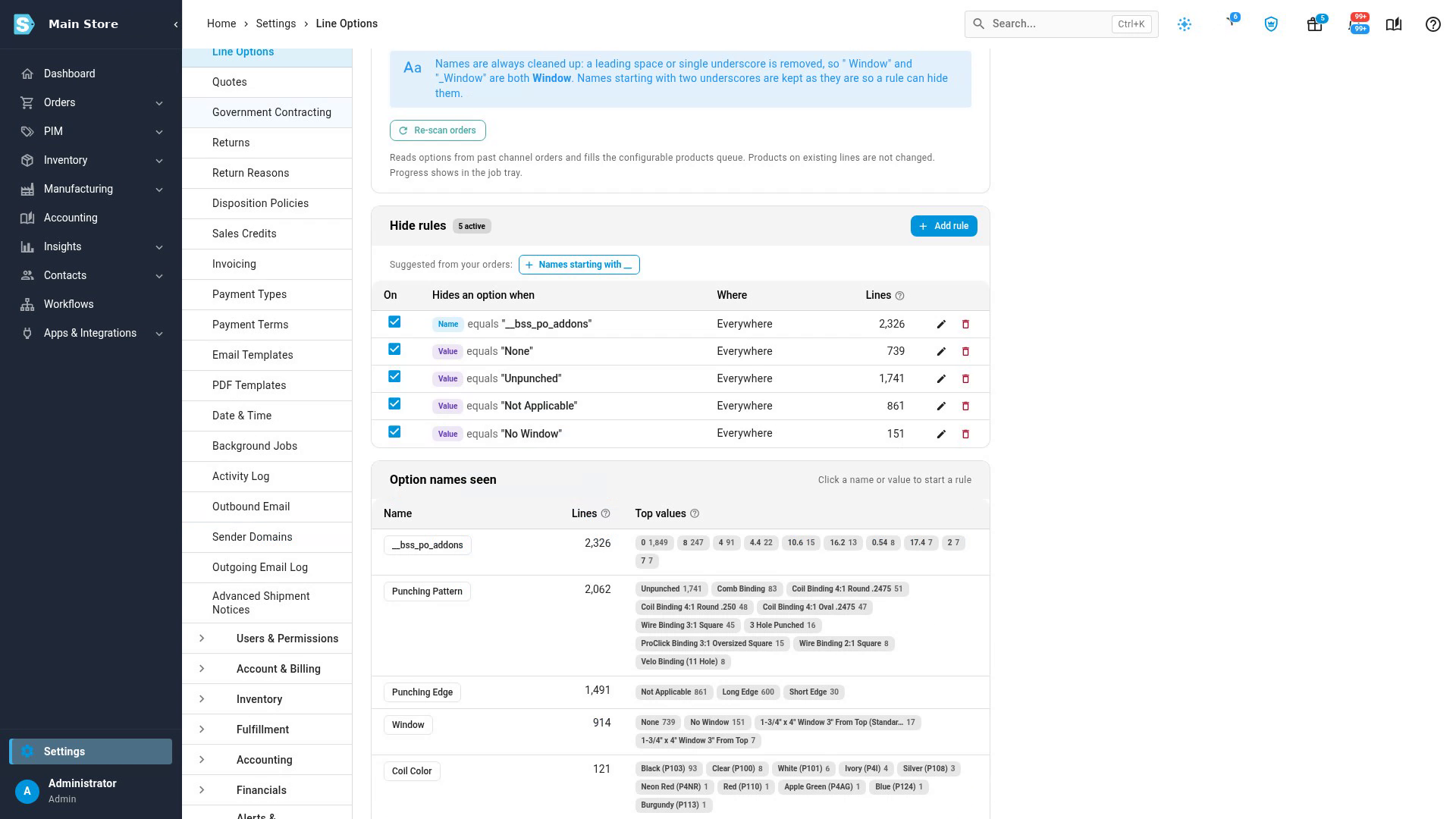
Hide rules keep options off the sales order, pick lists, packing slips and manufacturing orders. A rule hides an option by its name or by its value, for example any value that says None, Not Applicable or No Window, or an option your store's app adds for its own use. The configured SKU option is never printed.
- In Hide rules, click Add rule, or click a name or value under Option names seen to start a rule from it. A rule hides an option when its Name or its Value equals what you enter.
- Check the Live preview: enter a sales order number and click Load, or choose one of the most common option sets. It shows exactly what will print.
- Click Save Changes.
Each rule shows how many order lines it hides an option on. Untick On to switch a rule off without deleting it.
Ignore options that only mean something together
Some options mean nothing on their own. An edge with no punching pattern punches nothing, so a cover ordered as Punching Pattern: Unpunched · Punching Edge: Long Edge means the plain cover. Option rules tell SKU.io so, for all your orders.
- In Option rules, click Use the example, or Add rule to write your own. A rule reads: If option Punching Pattern is empty then ignore option Punching Edge.
- In Values that count as empty, list the values that mean nothing was chosen, such as None, Unpunched or Not Applicable. "Is empty" means the option is missing, blank, or one of these values.
- To put a line on its base product when nothing real is left, switch on If every remaining option is ignored or hidden, use the base product.
- Read the preview under the rules. Before you save, it shows how many configured SKUs and open lines the rules would change, with examples.
- Click Save Changes. New orders follow the rules from then on.
- To apply the rules to orders you already have, click Re-scan orders near the top of the page. Progress shows in the job tray.
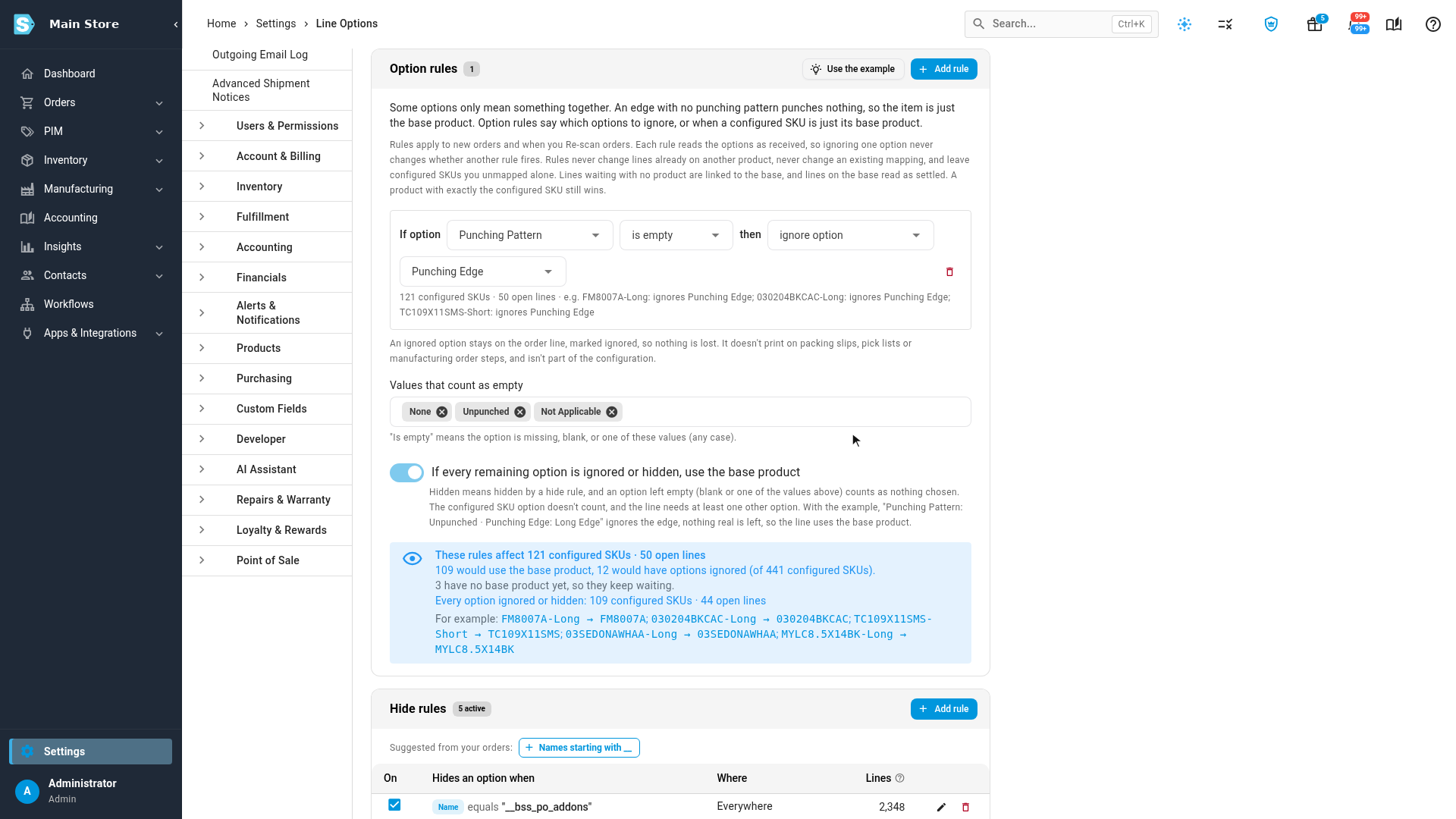
An ignored option stays on the order line, marked as ignored, so nothing is lost. It doesn't print, and it doesn't count as part of the configuration. Rules never move lines that are already on another product, and never change a configured SKU you've already mapped.
See which listings sell configured
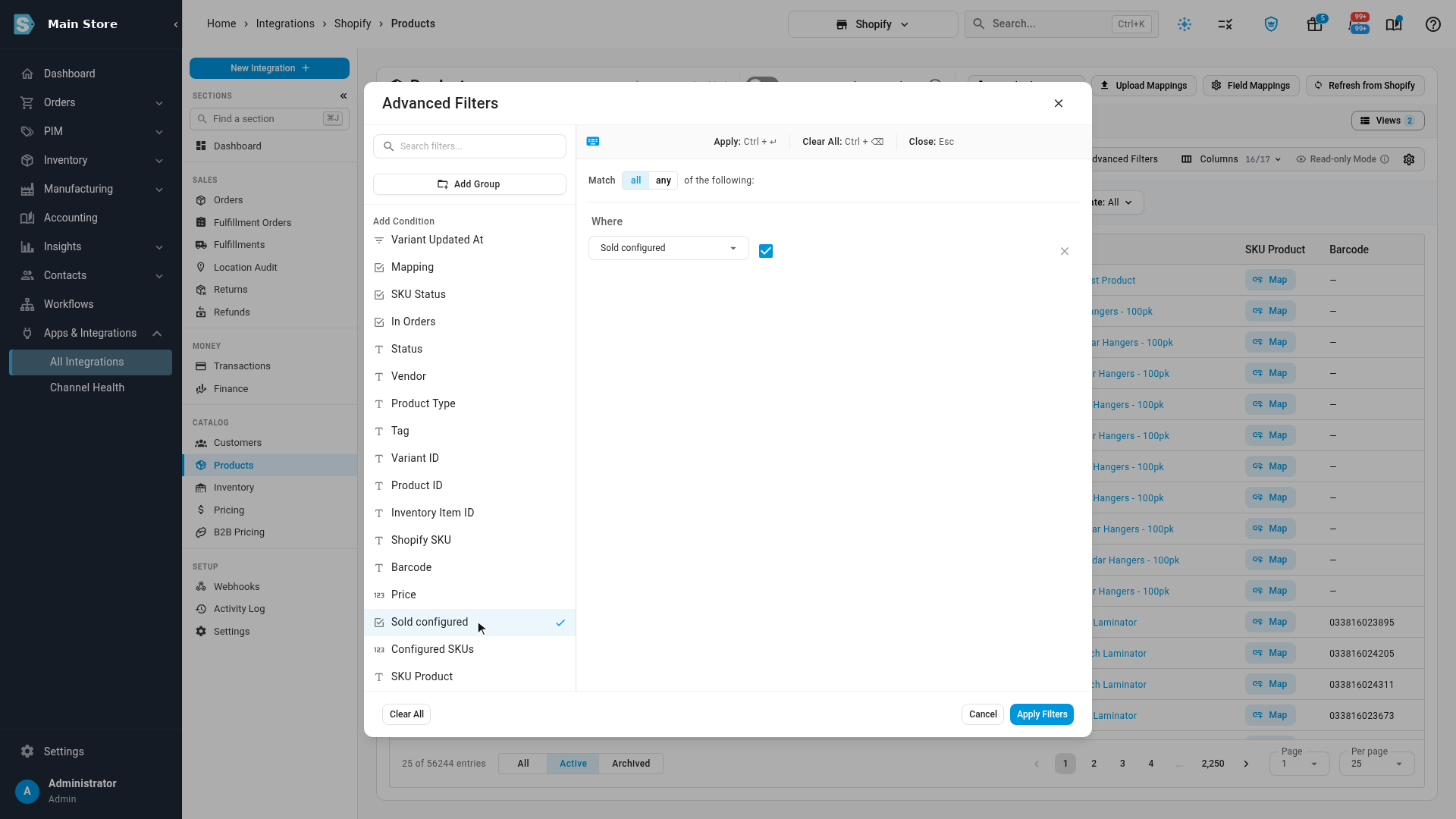
For a Shopify store, the integration's Products list shows which variants your customers ordered with a configured SKU. Go to Apps & Integrations → All Integrations, open your Shopify store, and select Products.
- Click Advanced Filters, add Sold configured, and click Apply Filters to list only those variants.
- Click Columns and turn on Configured SKUs to see how many configured SKUs each variant has been sold as.
Keep mapping each variant to its base product here. If you map a variant to a configured product, SKU.io warns you and suggests the base instead.
Next steps
- Map or create configured products: give each configured SKU a product.
- Print options on packing slips and pick lists
Video transcript
On Shopify Products you keep mapping each variant to its base product, as you do today. To see the variants your customers ordered with a SKU option, open Advanced Filters and add Sold configured. Then turn on the Configured SKUs column: each variant shows how many configured SKUs it has been sold as. Long tag lists stay on one line; hover to read them. Hide rules decide which options print. Anything that says None, the add-on your options app writes, Unpunched, Not Applicable and No Window stays off your orders, pick lists and packing slips. The SKU option itself is never printed. The preview shows exactly what will print on a real order. Some options only mean something together. An edge with no punching pattern punches nothing, and option rules handle that. Use the example adds the rule: if Punching Pattern is empty, ignore Punching Edge. It also turns on: if every remaining option is ignored or hidden, use the base product. Before you save anything, the preview shows what would change: a hundred and twenty one configured SKUs and fifty open lines. For example, FM8007A-Long would simply be FM8007A. Nothing changes until you click Save, and Re-scan orders then applies your rules to past orders.