Print options on packing slips and pick lists
Your pickers and packers need to see what the customer chose: the punching pattern, the colour, the engraving. Once line options are on, the standard packing slip and pick list print them under each item that has them. A custom template needs one block added.
Before you begin
- Line options are switched on, and your hide rules are set. See Set up line options.
- To edit a template, you need access to Settings → PDF Templates.
The standard packing slip and pick list
There's nothing to set up. Packing slips that use the standard item table print the options under each line that has them, and lines without options print as before.
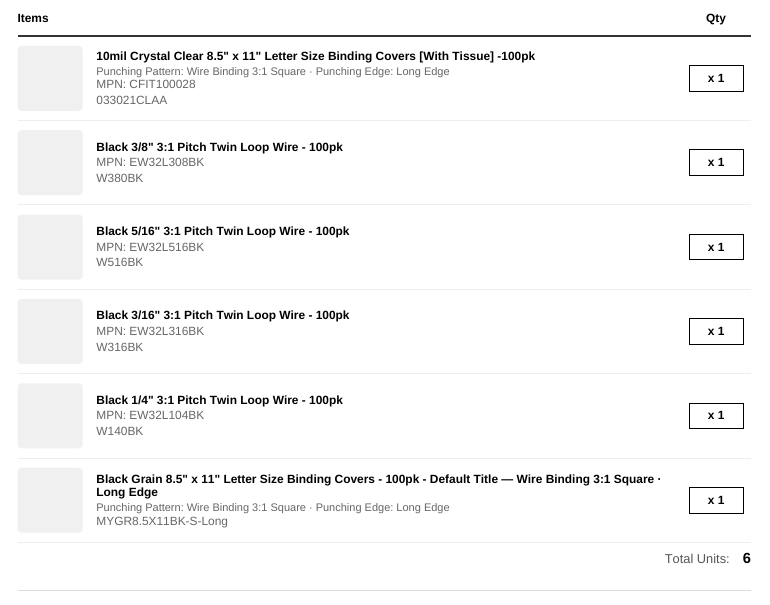
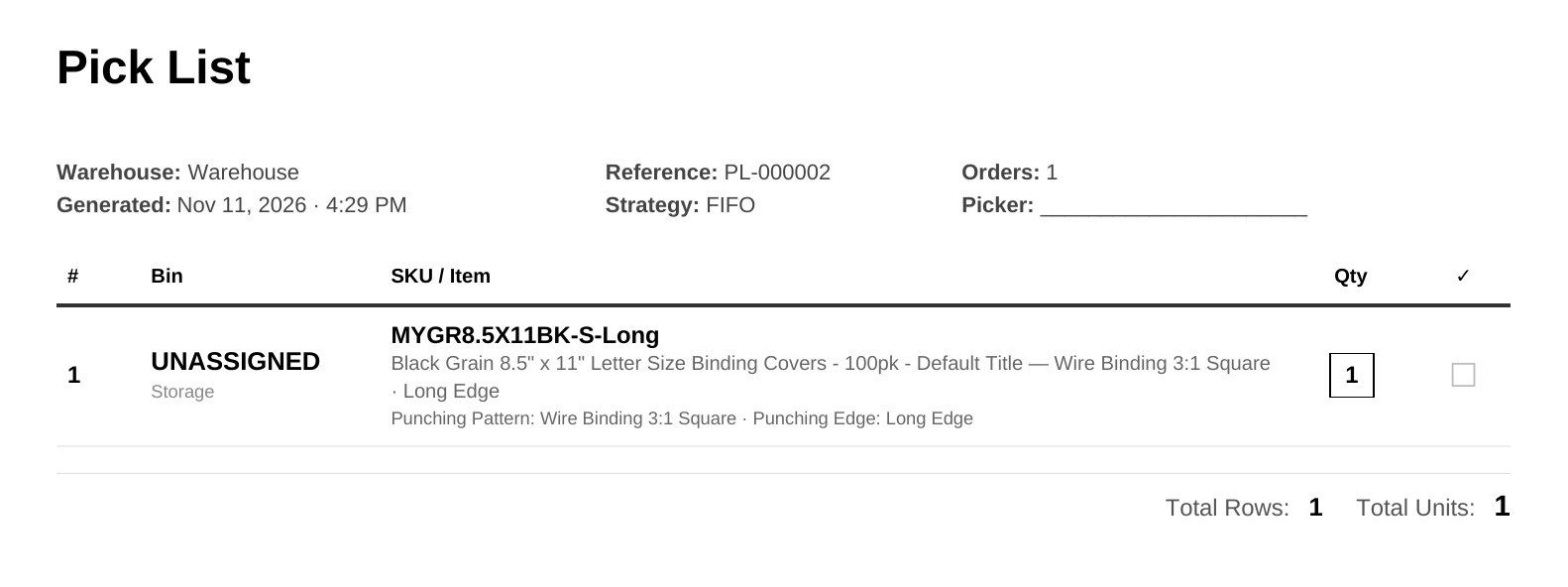
The standard pick list prints the options under each item too, and the pick screen shows them. The same SKU with different options prints as separate rows, so the picker grabs the right thing.
Options with no SKU of their own, such as a paper type, travel with the line in the same way: they show under the line on the order and print under the item.
Add the options to a custom template
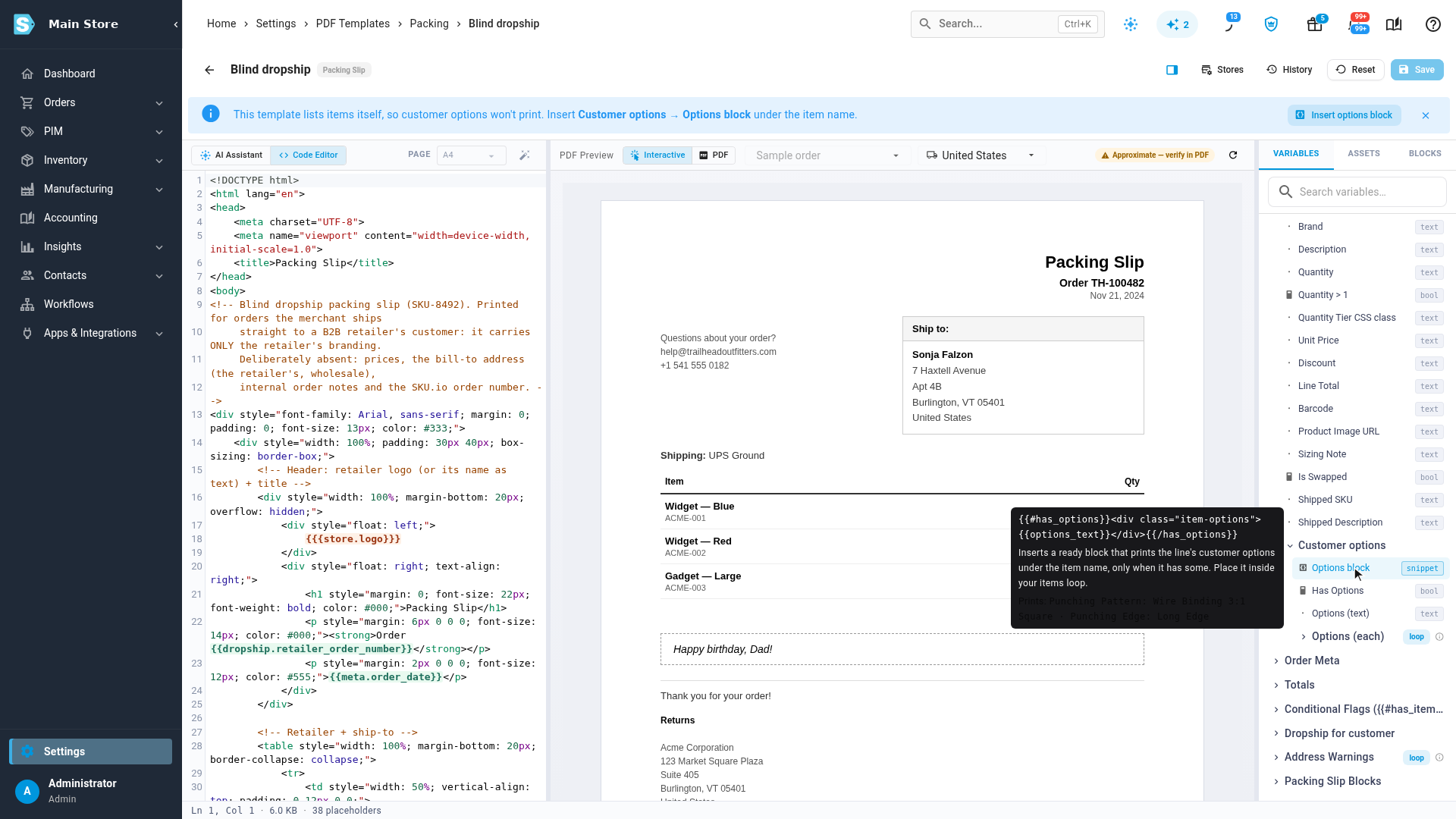
Templates that list the items themselves, such as a blind drop-ship slip, don't print options until you add them. The editor tells you so at the top.
- Go to Settings, click the General card, and select PDF Templates.
- Open the template.
- In the code, click at the end of the line with the item name.
- In the variables panel, open Items → Customer options and click Options block. It adds the options right under the item name.
- Check the preview, and click Save.
- Print a real order to confirm.
Keep options off the paper
Your hide rules in Settings → Line Options apply to every packing slip and pick list. The configured SKU option is never printed, and values such as None or Not Applicable stay off if you hide them. The rules' live preview shows exactly what prints for a real order. See Set up line options.
Next steps
Video transcript
The standard packing slip shows the options automatically, under each line that has them. Lines without options print as before. A custom slip, like this blind drop-ship slip, lists the items itself, so the editor tells you options won't print yet. Click at the end of the item name. Then, in the variables panel, open Items, Customer options, and click Options block. The options block now sits right under the item name. Save, and print an order to check. Your hide rules apply here too, so the SKU and Window None stay hidden. The pick list prints the options under each item as well, so the picker grabs the right thing. Some options have no SKU of their own, like the paper type on order nine seven six five one seven. Your customer's choice still travels with the line: it shows under the line on the order, and prints under the item on the packing slip, so the packer sees it.