Map or create configured products
Each configured SKU needs to know which product its order lines get. You decide once per configured SKU, on PIM → Configurable Products or straight from the order line, and every later order with that SKU goes to that product on its own.
You have three choices:
- Map points the configured SKU at a product you already have, for example covers you keep pre-punched in stock.
- Create makes a new product whose SKU is exactly the configured SKU, copying details from the base product and, if you make it, building its recipe.
- Use the base product (the Just the base tab) keeps its lines on the base product, for options that don't change what's picked, packed or made.
None of them changes the base product.
Before you begin
- Line options are switched on. See Set up line options.
- To create or map products, you need the Products Edit permission (
products.update). To move open order lines at the same time, you also need the Sales Orders Edit permission (sales_orders.update). - To build recipes as you create, your punching or finishing step is set up as an operation. See Add operations to a recipe.
Find the configured SKUs that need a product
- Go to PIM → Configurable Products.
- Select the Needs mapping tab. Each row is one configured SKU, with its base product, the options it came with, how many orders it appeared on, and its Waiting lines and Lines on base product.
- Click the arrow at the start of a row to see the option values as received and every order line with that configuration.
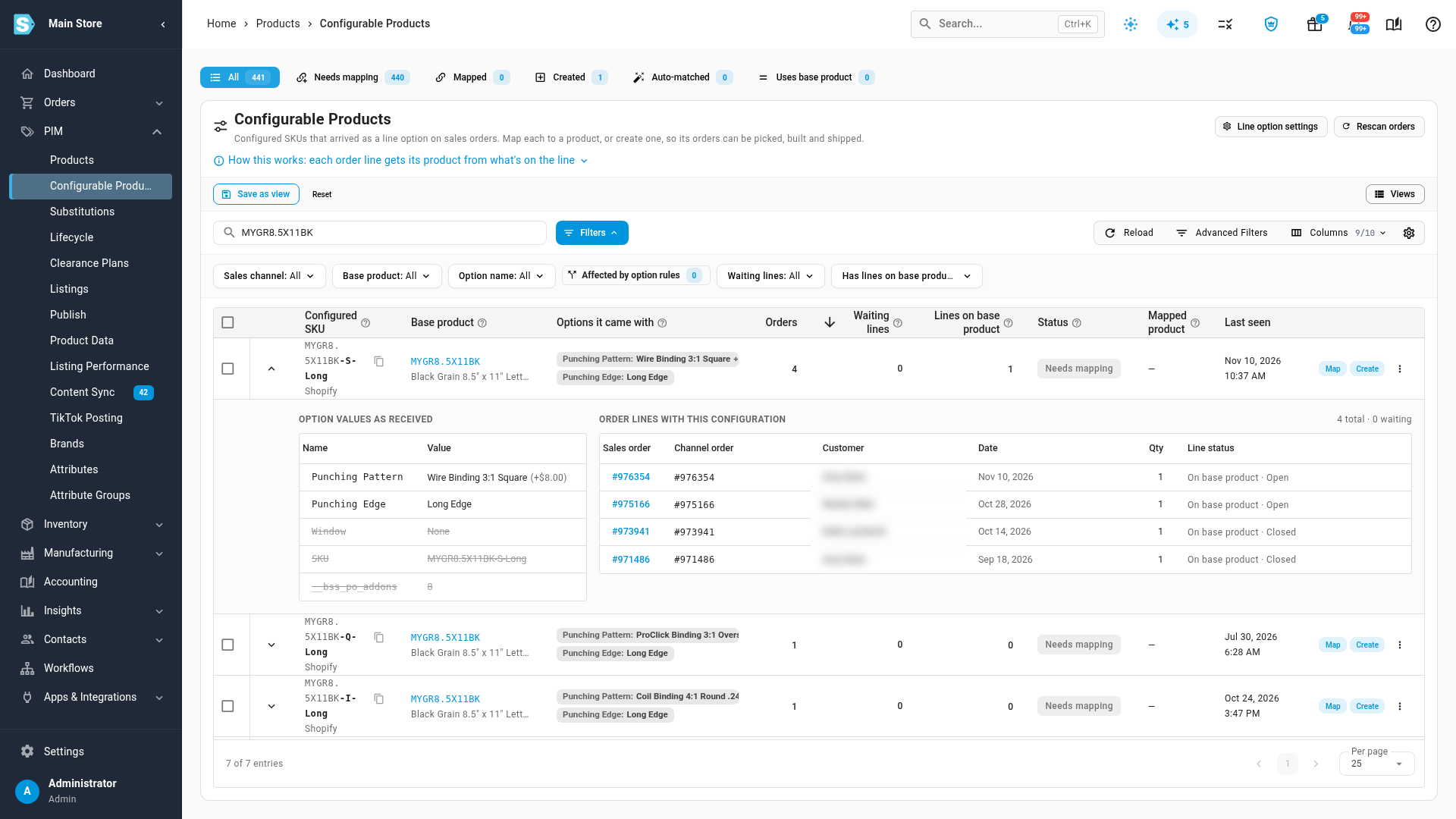
A new configured SKU also shows on its sales order line, with a Not mapped chip. Click the chip to Map or Create product from there.
Create a product for a configured SKU
- On the configured SKU's row, click Create. The drawer opens on its Create product tab.
- The SKU is filled in and locked, and the name is suggested from the base product plus the options. Change the name if you want.
- Leave Copy details from base product on, and open its list to change what this product takes from its base. The list starts from your settings, and the line underneath shows what will and won't be copied.
- If you make this item, leave Also create a recipe on. It builds the recipe for you: one of the base product as the component, plus a step. Pick the step from your operations, and under Options shown on this step, tick the options the person doing the work needs to see.
- If open order lines came in on the base product, Also move N open order lines sold as the base product onto the new product is ticked. Untick it to leave those orders as they are. Each line that moves keeps its price, discount and tax, so the customer is charged the same.
- Leave Link N waiting lines ticked to link the lines held without a product. Untick it only if you'll deal with those lines yourself.
- Click Create product & recipe (or Create product without a recipe).
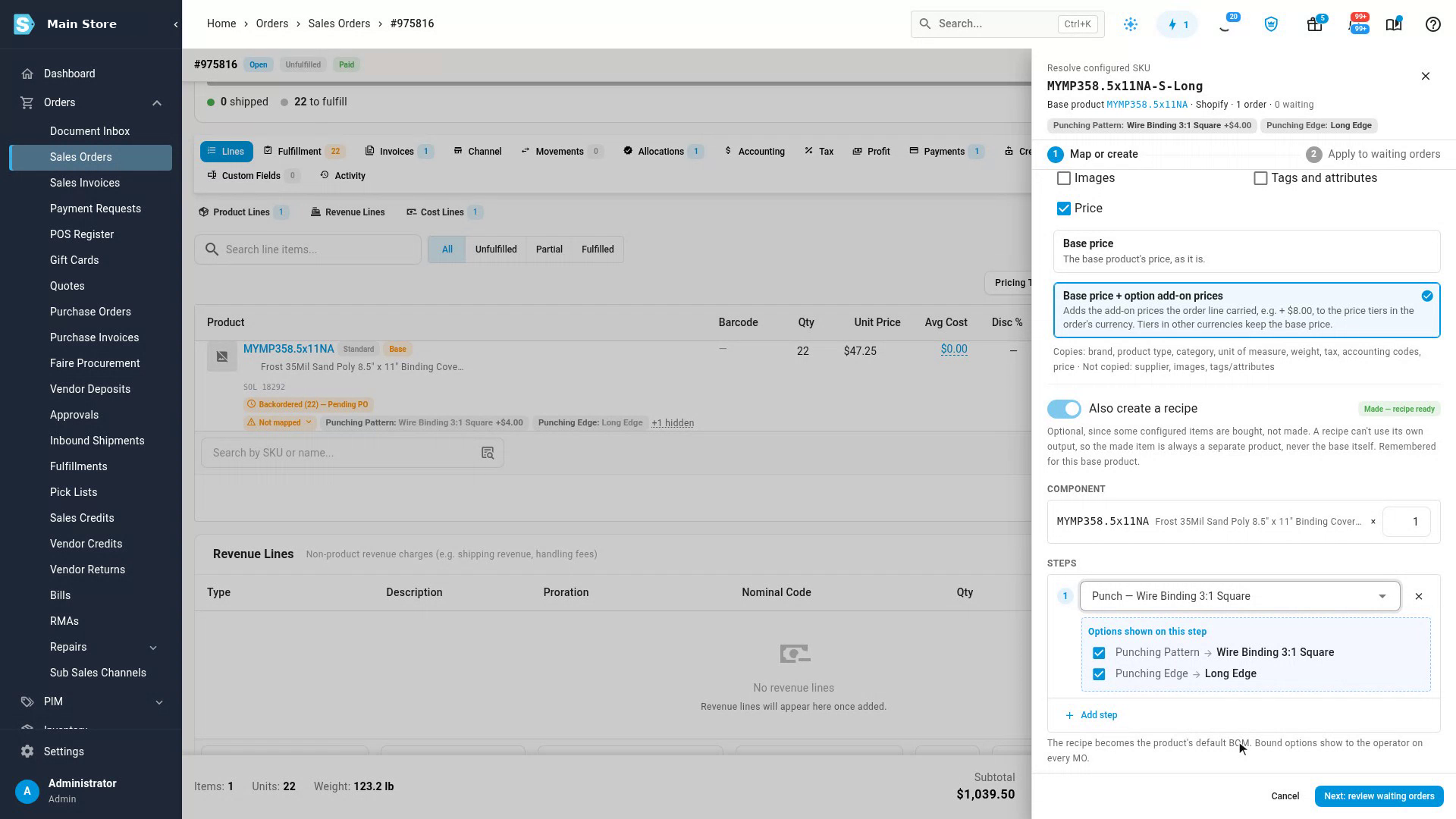
You can do the same from the order: click the line's Not mapped chip, then Create product. There it takes two steps: click Next: review waiting orders, check the lines it will link, then click Create & apply.
The order line now shows its own product, and says which base it was configured from.
Configured items you buy rather than make, such as coils from a supplier, need no recipe. Switch Also create a recipe off, and add the supplier and its cost on the product afterwards.
Create several at once
- On Configurable Products, tick the configured SKUs.
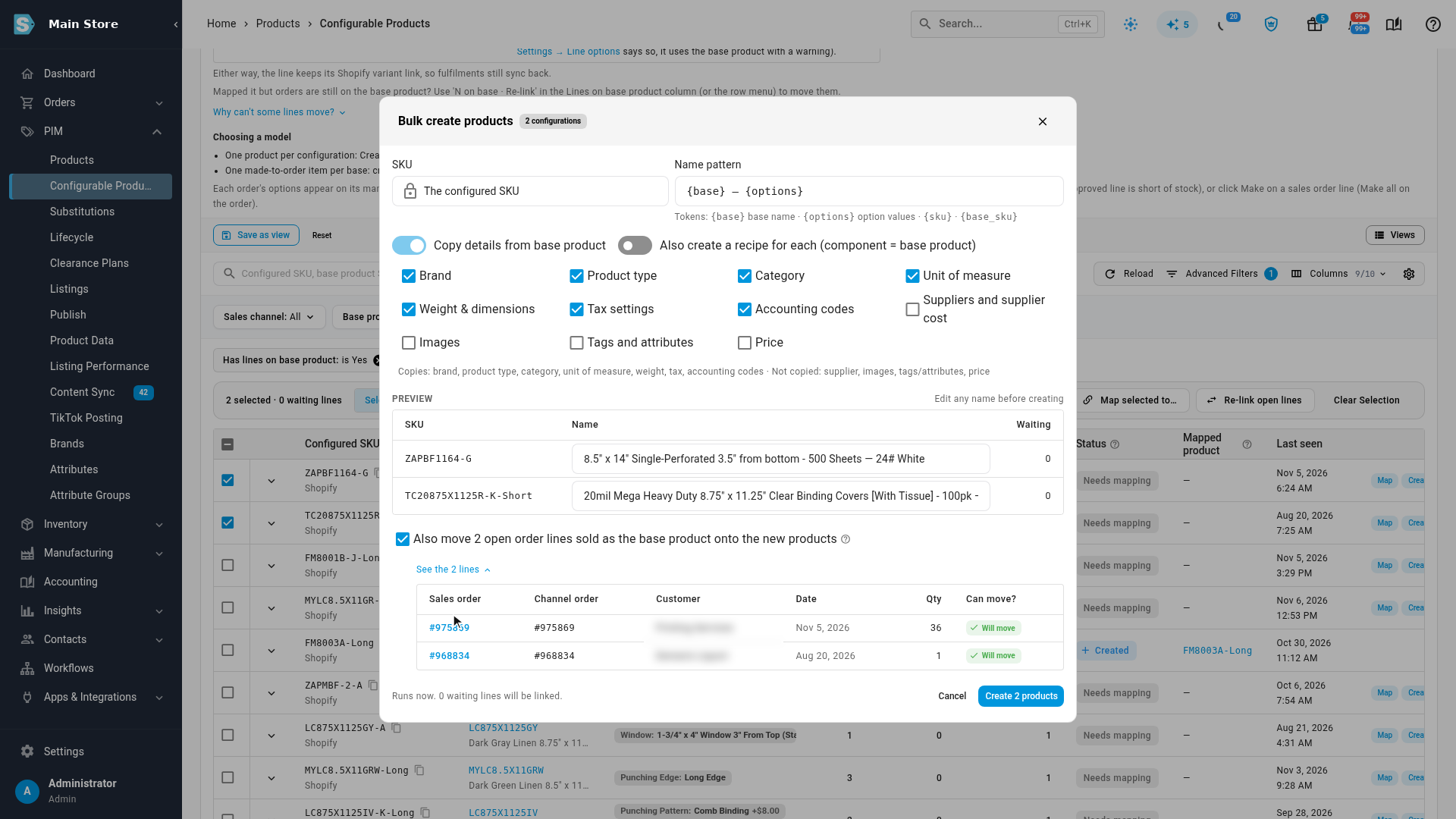
- In the bar that appears, click Bulk create products, or Bulk create with recipe for items you make. It makes one product for each, named from its base plus its options.
- Check Copy details from base product and the offer to move open lines, then confirm.
Map to a product you already have
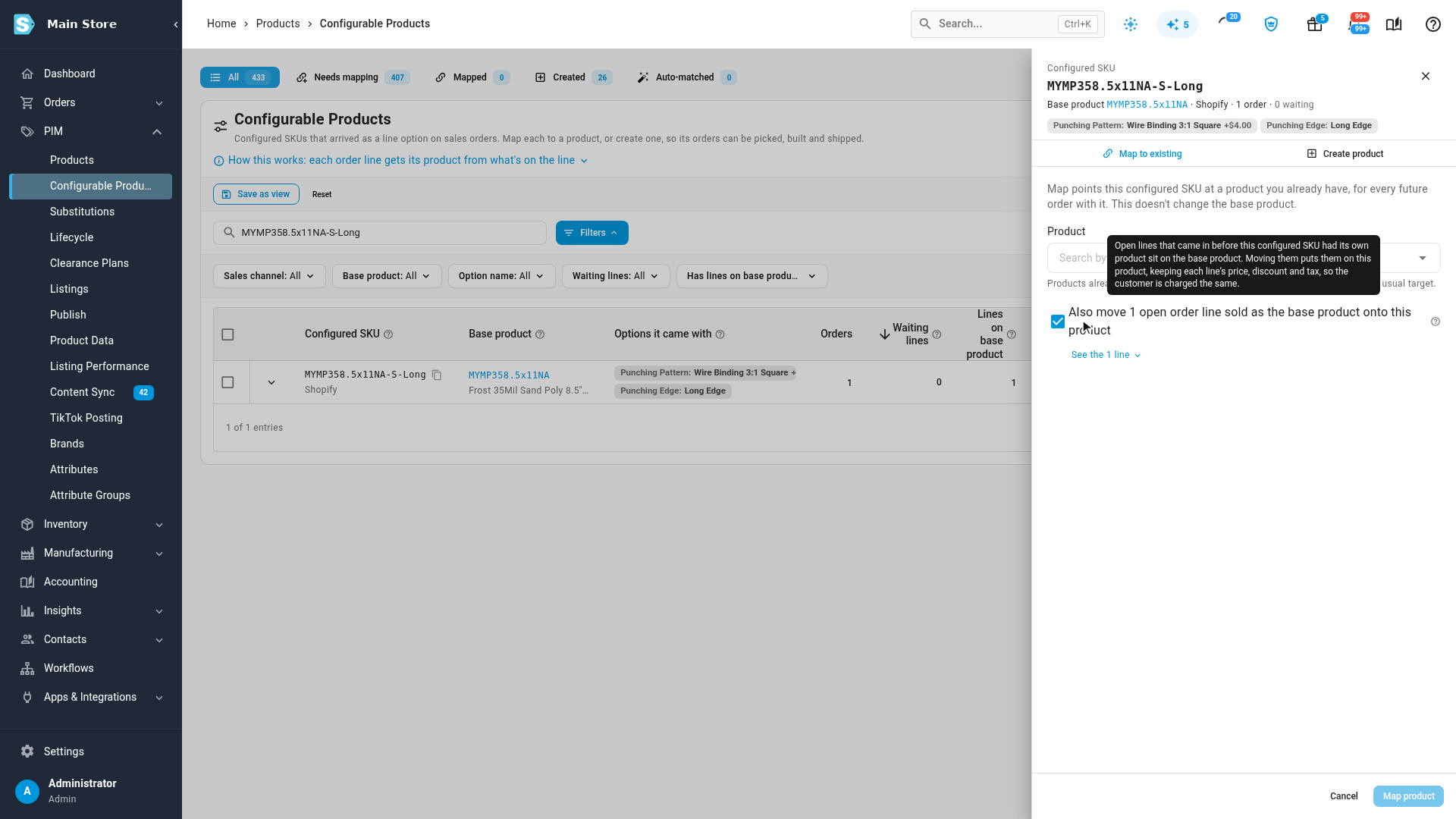
- On the configured SKU's row, click Map. The drawer opens on its Map to existing tab.
- Search for the product and select it.
- Check the offer to move open lines and Link N waiting lines, then click Map product.
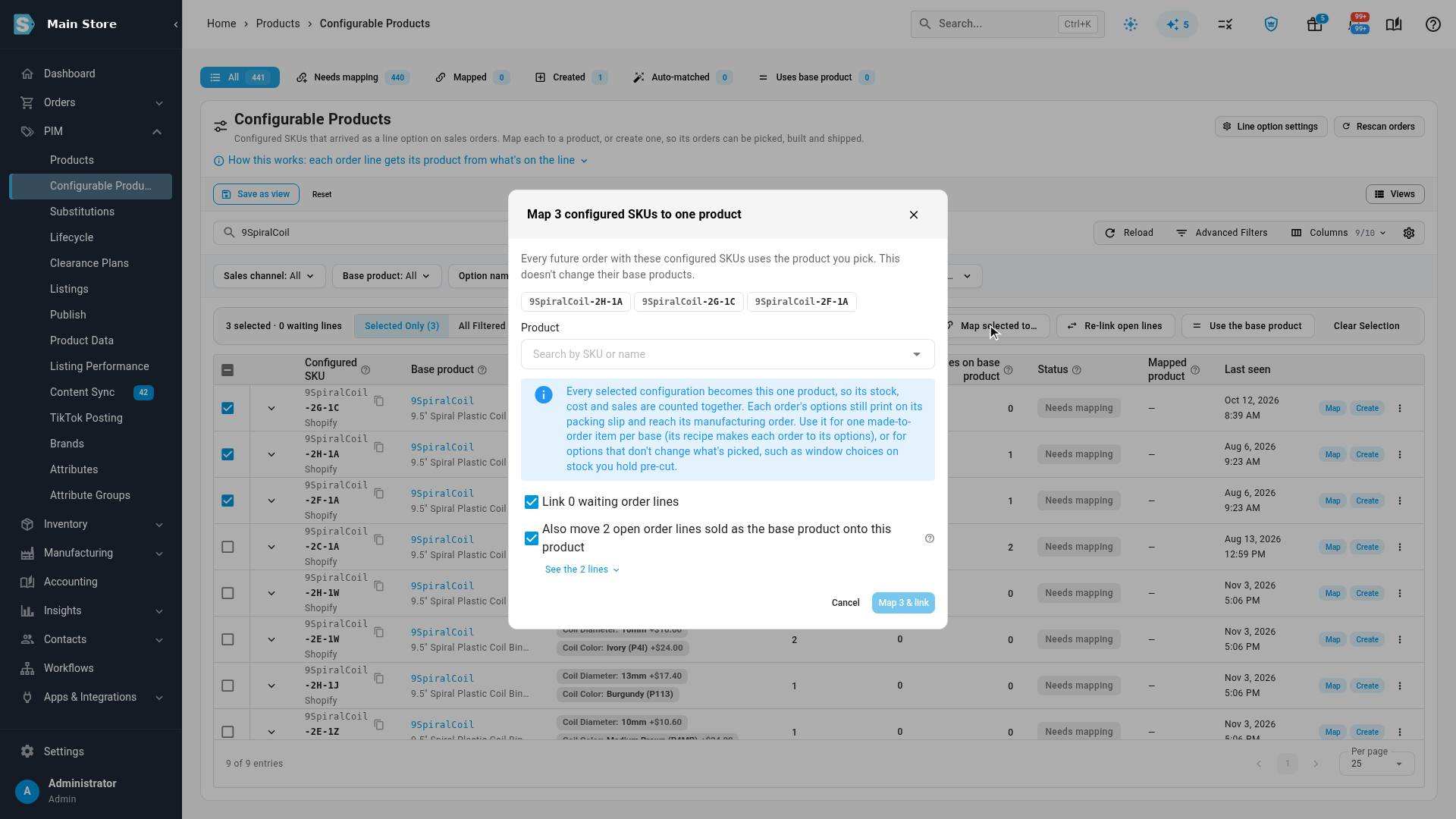
To point many configured SKUs at the same product, tick them and click Map selected to…. Use this for one made-to-order product per base: every selected configuration becomes that one product, so its stock, cost and sales are counted together. Each order's options still print on its packing slip and reach its manufacturing order.
If you map a variant to a configured product on your channel's products screen, SKU.io warns you and suggests the base product instead. Map variants to base products there, and configured SKUs here.
Keep a configured SKU on the base product
Some configured SKUs don't need a product of their own, for example a long edge with no punching, which is just the plain cover.
- Click the configured SKU to open it, and select the Just the base tab. Or choose Use the base product from the row menu.
- Read what it does, then click Use the base product.
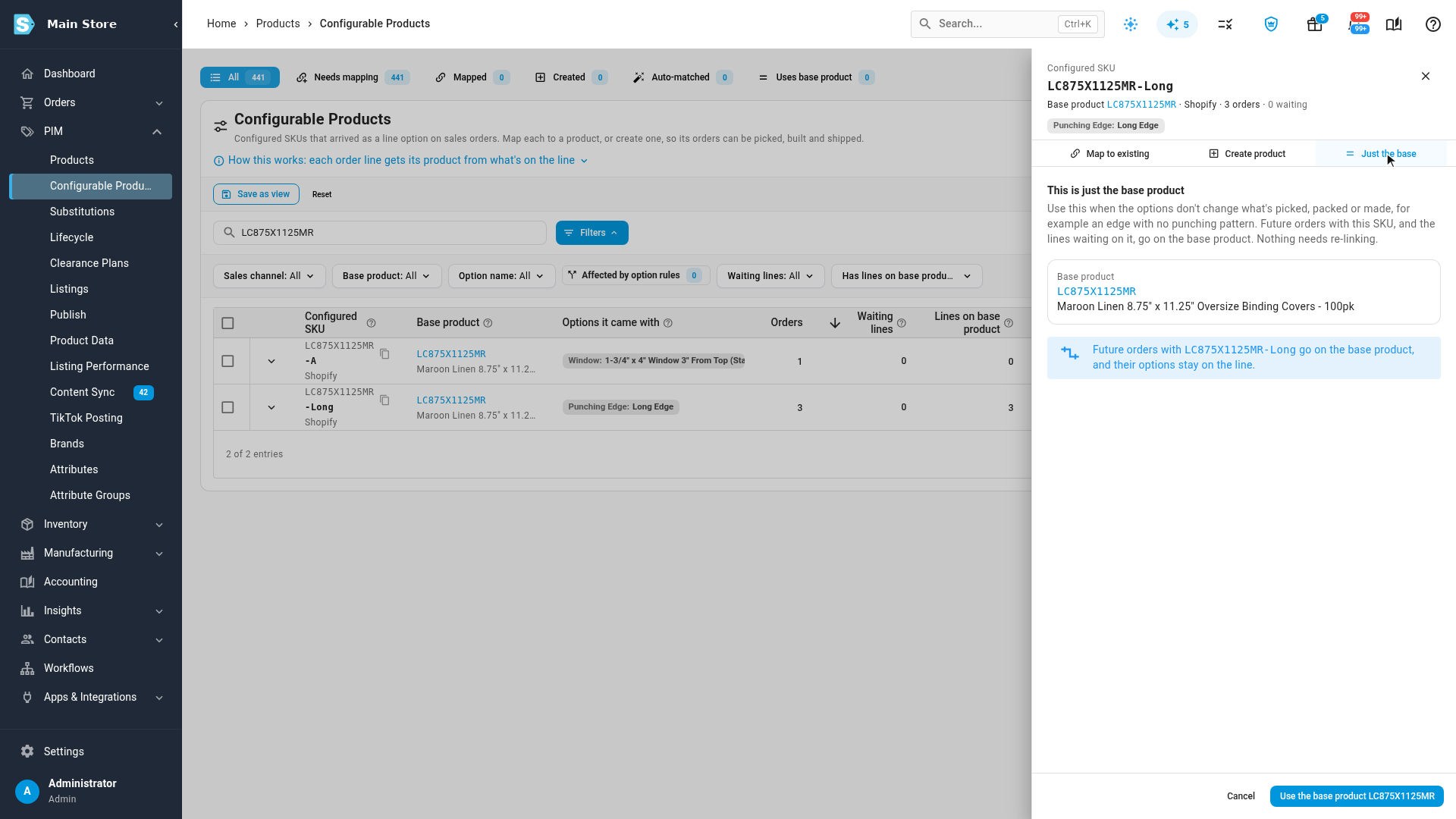
Future orders with that SKU, and any lines waiting on it, go on the base product, and the options stay on the line. The configured SKU shows Uses base product, and the Uses base product tab lists them all. To change your mind, choose Unmap from the row menu: it goes back under Needs mapping.
To make this decision for every configured SKU that matches a pattern, use an option rule instead. See Set up line options.
Next steps
Video transcript
Let's create it. Create product makes a new product whose SKU is exactly the configured SKU, so every later order with that SKU matches it on its own. You decide what the new product takes from the base product; the defaults come from your settings. Open the list to change it for this one, and the line underneath shows what will and won't be copied. Also create a recipe builds it for you: one of the base product, plus a punching step from your Operations Library. That step carries the customer's options onto the manufacturing order. Because this order was sold as the base product, it also offers to move the open line onto the new product, keeping its price, discount and tax. Create. The line is now on its own product, and says which base it was configured from. Coils are configured too, but you buy them rather than make them. On Configurable Products, filter to the configured SKUs that have lines on the base product, and search for the coils. Select two of them. Bulk create makes a product for each one in a single step, with no recipe, because they're bought. Creating the products also moves the open orders sold as the base coil onto the new products, keeping each line's price, discount and tax. That box is ticked, and we'll leave it on. Create. You can also decide this for one configured SKU at a time. L C eight seven five X eleven twenty five M R dash Long only carries a long edge, with no punching, so it's really just the plain cover. Open it and choose Just the base. This is for options that don't change what's picked, packed or made: future orders with this SKU, and any lines waiting on it, go on the base product, and the options stay on the line. Confirm, and its status reads Uses base product.