Copy a quote or start from a template
Many quotes look alike: the same 500 tote bags with a logo imprint and a setup fee, for a different customer each time. Instead of building each one from scratch, duplicate a quote you've already sent, or save it as a quote template and start every new quote of that kind from it.
- Duplicate makes a full copy of one quote, for the same customer, ready to change and send.
- A template keeps the lines, prices and terms but no customer. It's never sent or ordered. You use it to start quotes for any customer.
Before you begin
- To duplicate a quote, save a template or start a quote from one, your role needs Quotes → Create.
- To rename or change a template, your role needs Quotes → Edit. To delete one, it needs Quotes → Delete.
- Without the permission, the menu item or button is greyed out, and hovering over it says which permission to ask an administrator for.
Steps
Duplicate a quote
-
Go to Orders → Quotes and open the quote.
-
Click More, then Duplicate.
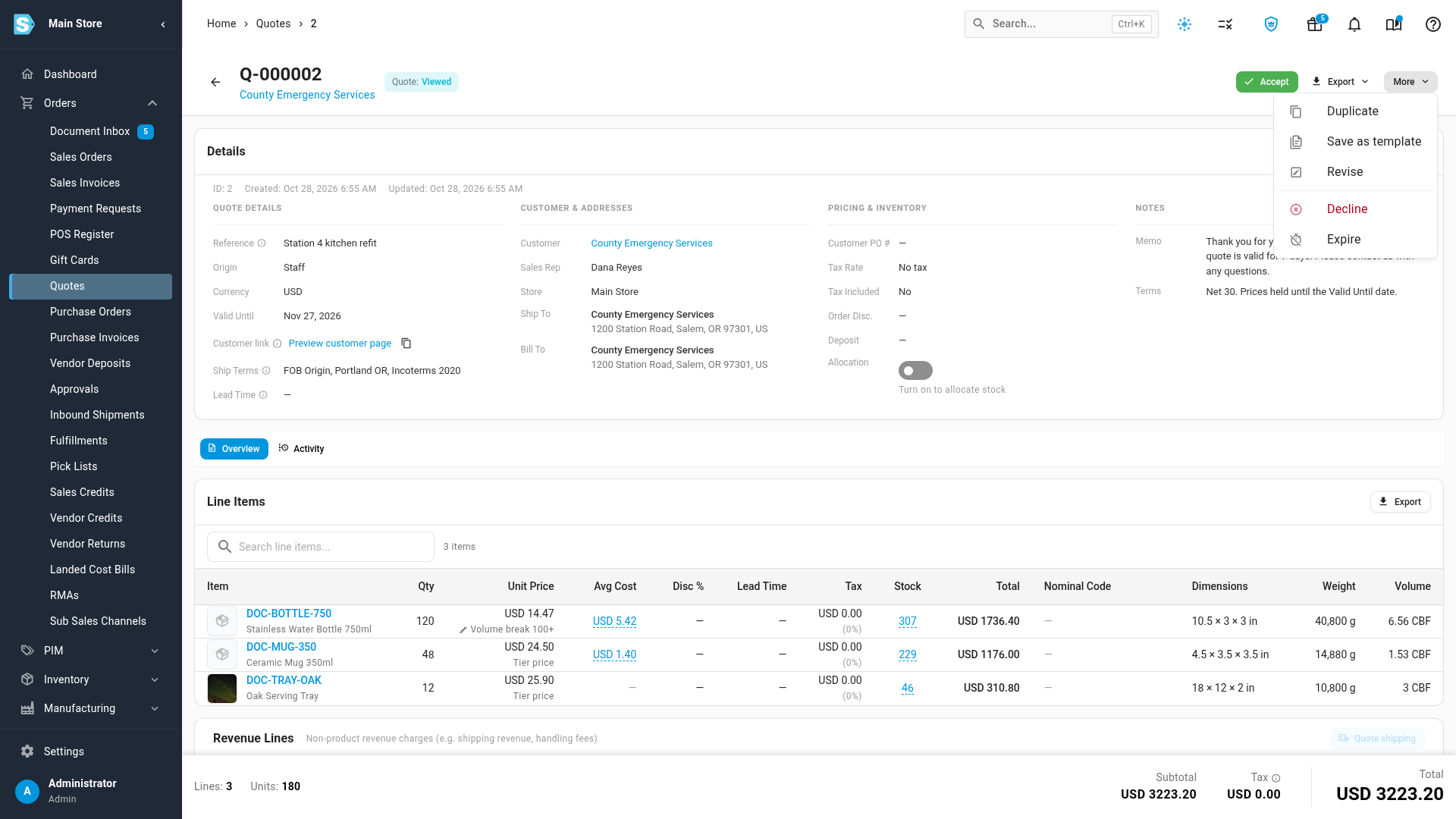
The copy opens as a new Draft with the next quote number, and Quote duplicated confirms it. Change what you need, then send it.
Save a quote as a template
-
Open the quote you want to reuse. It can be in any status.
-
Click More, then Save as template.
-
In Template name, type a name your team will recognize, such as "500 tote bags with logo imprint".
-
Click Save template. The button stays greyed out until you type a name. Saved as template and the name confirm it.
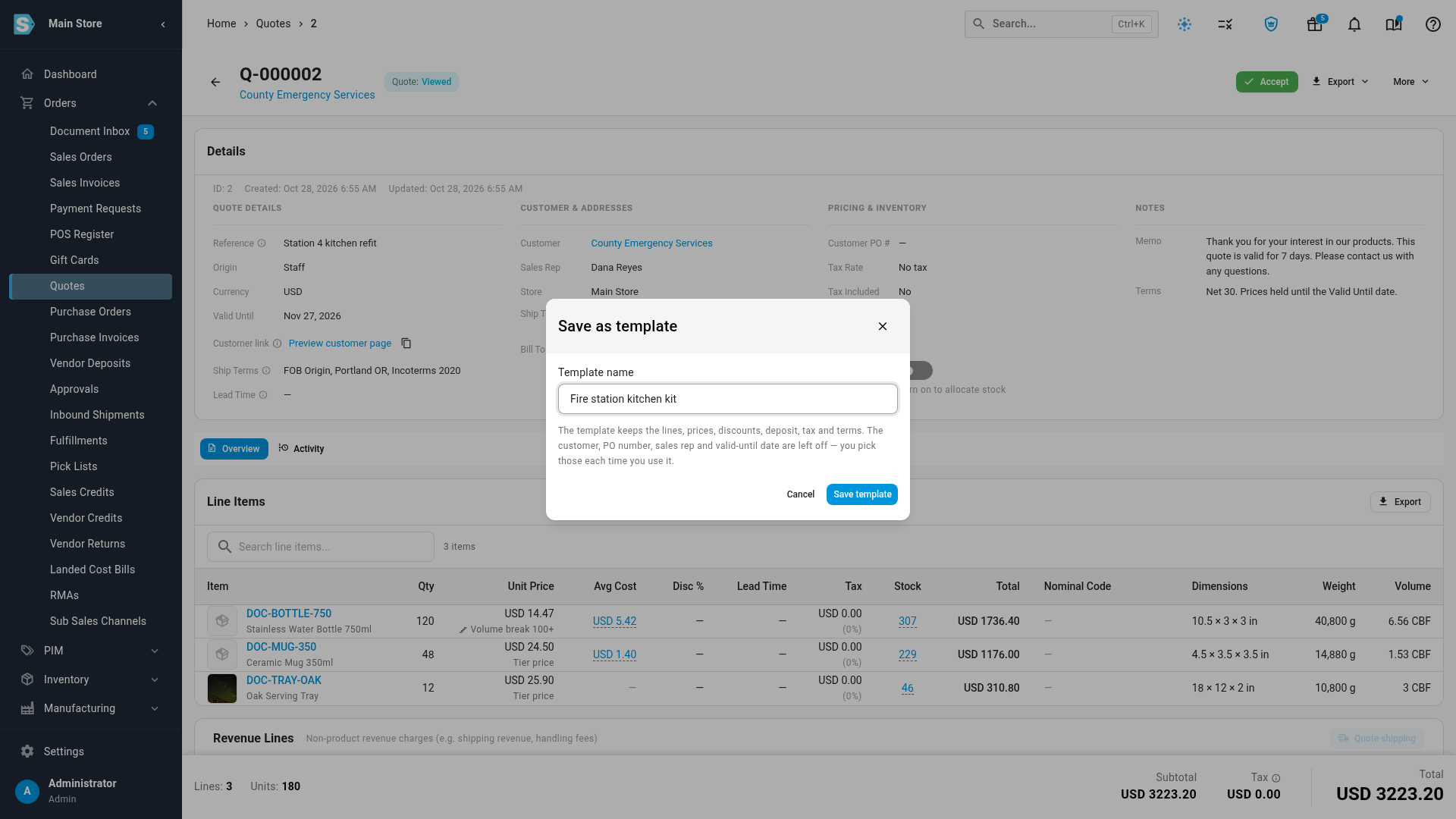
The quote you started from doesn't change, and you stay on it. The new template appears on the Templates tab.
Start a quote from a template
-
Go to Orders → Quotes and click the Templates tab.
-
Find the template. Type part of its name, or a SKU or description from its lines, in Search templates....
-
Click Use template on its row.
-
In Customer, search for and pick the customer.
-
In Valid Until, pick the date the quote expires, or leave it blank so sending sets it from your quote defaults.
-
Click Create Quote. The new draft opens, and a message confirms which template it came from.
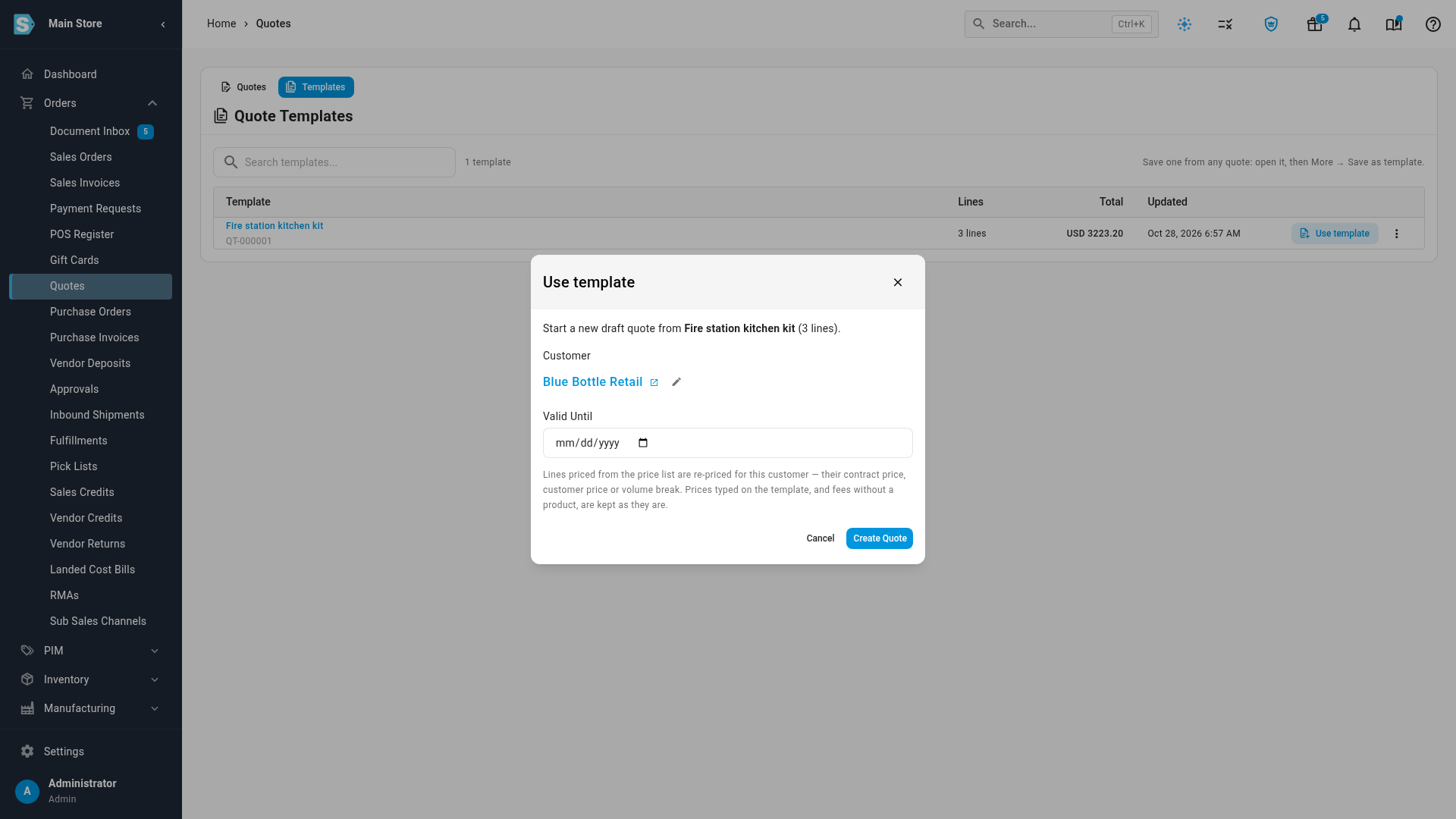
You can also start from a template in two other places:
- New Quote on the Quotes list: pick the template in Start from template, then the customer and Valid Until. The dialog hides the fields the template supplies.
- Use template at the top of an open template.
What a copy keeps
| Duplicate | Save as template | Start from a template | |
|---|---|---|---|
| Customer | Same customer | Left off | The customer you pick |
| Sales rep, ship-to and bill-to addresses, customer PO number | Copied | Left off | Left off. Add them with Edit on the new quote. |
| Store, currency, tax, memo, terms, shipping terms and lead time | Copied | Kept | Copied from the template |
| Discount and deposit | Copied | Kept | Copied from the template |
| Lines, quantities, line discounts, optional and pick-one lines | Copied | Kept | Copied from the template |
| Line prices | Copied as they are | Kept | Re-priced for the new customer, see below |
| Documents attached to the quote | Copied | Kept | Copied |
| Allocation switch | Copied | Kept | Copied |
| Valid Until | Left off | Left off | The date you pick, or none |
A copy never carries over what happened to the original: its status, when it was sent, viewed or accepted, its customer link, its versions, the customer's acceptance, payments or the lines already ordered. Every copy starts as a Draft.
A duplicated request for quote is still marked with the origin RFQ, so it shows under the Awaiting reply quick view until you send it.
How a template's prices change for each customer
When you start a quote from a template, each product line is priced the way it was priced on the template:
- Lines priced from the price list are looked up again for the new customer and quantity, so the customer gets their own contract price, customer price or volume break. See How quote prices are worked out.
- Prices you typed on the template, and lines without a product such as a setup fee, stay exactly as they are.
If the customer is tax-exempt, the new quote starts without tax, the same as any new quote for that customer.
Find, change and delete templates
The Templates tab lists every template:
| Column | What it shows |
|---|---|
| Template | The template's name, which opens it, and its template number, such as QT-000001. |
| Lines | How many lines it has. Hover to see the first few. |
| Total | The template's total. |
| Updated | When it was last changed. |
To change a template, click its name, or click the three-dot menu on its row and Edit template. The template opens like a draft quote, with a purple Template chip in the header. Change its lines and details as you would on a draft quote. Without Quotes → Edit, the menu item reads View template.
To rename a template, open it, click More, then Rename template. Type the new name and click Rename.
To copy a template, open it, click More, then Duplicate. The copy is another template, named after the original with (copy) at the end.
To delete a template, click the three-dot menu on its row, then Delete template, and confirm with Delete. Quotes you already started from it aren't affected.
What a template can't do
A template is a starting point, not an offer. It has no status, and a template page shows only Use template, Edit, Export, and More with Duplicate and Rename template. It's never sent, accepted, declined, expired, revised or ordered. If one of those is ever tried on a template, SKU.io refuses it with a message like "500 tote bags with logo imprint" is a quote template and cannot be sent. Create a quote from it first.
Templates also stay off the Quotes tab, so they never count in its totals or filters.
Next steps
- How quote prices are worked out: why a line shows the price it does.
- Create and send a quote: finish and send the quote you started.
- Add and edit quote lines: change the lines of a quote or template.
Video transcript
Many quotes look alike, so you can reuse one instead of building it again. In the left sidebar, open the Orders menu, and then choose Quotes from the list. Then click the number of the quote you want to reuse. After a moment, its details, lines and totals are all shown together, on one page. Click More, at the top right of the quote, to see the copy options. Duplicate makes a full copy of this quote. Save as template keeps it as a starting point for any customer. Choose Save as template, and a small dialog asks for a name. Type a name your team will recognize later. The template keeps the lines, prices and terms, but not the customer. Click Save template to keep it for later use. The original quote doesn't change, and you stay on the same page. To copy just this quote instead, click More again, and choose Duplicate. The copy is a brand new draft for the same customer, ready for you to change and send. To start a quote from your template, go back to the left sidebar, and choose Quotes again. Then click the Templates tab, at the top of the page. Every template your team saves is shown with its lines and total. Click Use template, at the right end of its row. In Customer, start typing the name of the customer you're quoting. Then pick them from the list that appears. Catalog prices are worked out again for this customer, with their own contract or volume pricing. Leave Valid Until blank, and sending the quote sets the expiry date. Click Create Quote, at the bottom right of the dialog. The new draft appears with the template's lines, ready to check and send.