Set the Incoterm on a purchase order
An Incoterm is the international trade rule that says where your supplier's job ends and yours begins: who books and pays the freight, who clears customs, who insures the goods, and the exact point where the risk of loss passes to you. Recording it on the purchase order (PO) keeps the agreement next to the order, prints it on the PO the supplier receives, and spells out every obligation so nobody has to look the rule up.
SKU.io ships with the eleven Incoterms 2020 rules from the International Chamber of Commerce (ICC), each with its full buyer-and-seller responsibility chart built in.
Before you begin
- You need the Update purchase orders permission to edit a PO.
- Agree the term and a named place with the supplier. The place — a port, terminal, or address — is part of the rule: FCA Yantian Terminal, Shenzhen and FCA Supplier's factory put the hand-over in different places.
Set the Incoterm on a purchase order
- Go to Orders → Purchase Orders and open the PO.
- Expand Order Details if it's collapsed, then click Edit (or press E).
- In Incoterm, start typing the code or name — for example,
FCA— and pick the rule. - In Named place, enter the agreed place — for example, Yantian Terminal, Shenzhen.
- Click Save.

The PO now shows the full term — FCA Yantian Terminal, Shenzhen, Incoterms 2020 — and the term prints on the PO document.
If the PO was already sent to the supplier, changing its Incoterm counts as a change the supplier hasn't seen. The PO shows Modified after sending until you re-send it. See Get a purchase order confirmed by the supplier.
Read who does what
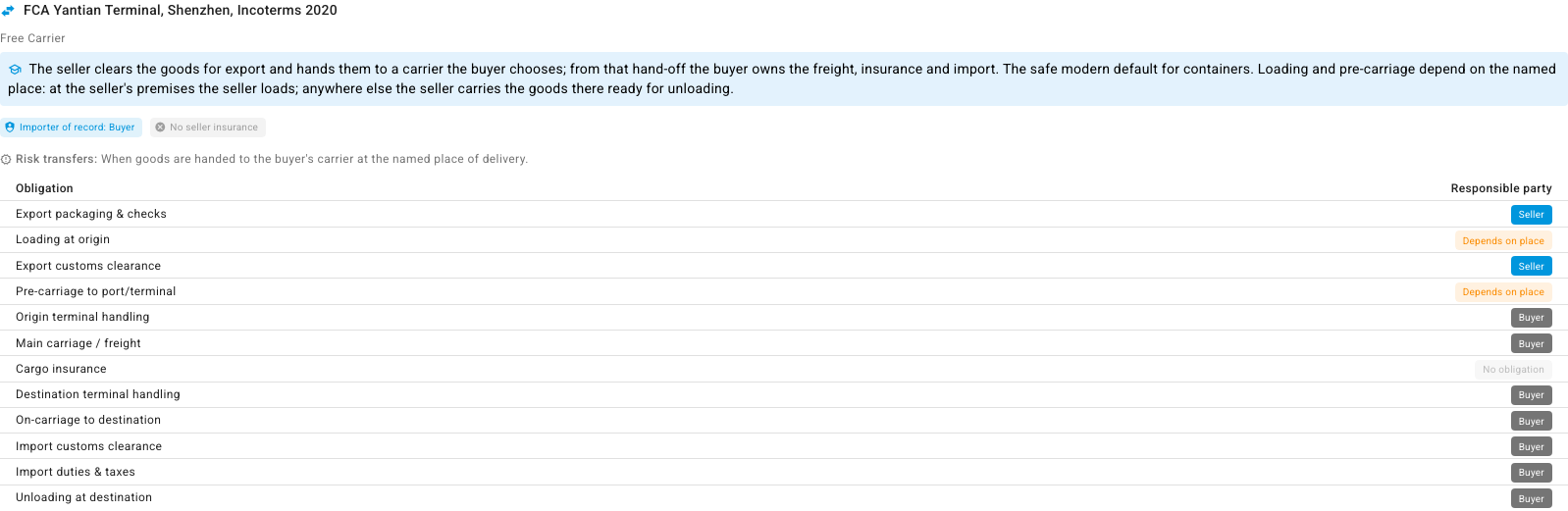
Under the PO's details, SKU.io explains the rule you picked:
- A one-sentence summary of how the rule works.
- Importer of record — whether you or the supplier clears the goods into your country and pays the duties.
- Whether the supplier must insure the goods (only CIF and CIP require it).
- Risk transfers — the exact moment the goods become your risk.
- An Obligation chart for twelve stages, from export packaging to unloading at your door, with the Responsible party for each: Seller, Buyer, No obligation, or Depends on place (under FCA, loading and pre-carriage depend on whether the named place is the seller's own premises).
Warnings to act on
SKU.io flags the common mistakes as you pick a term:
| Warning | What to do |
|---|---|
| "FCA must always be followed by a named place…" | Fill in Named place. Without it, the point where cost and risk pass is ambiguous. |
| Under DDP, the supplier is the importer of record | Confirm the supplier can clear customs and pay duties in your country before you agree to DDP. |
| DAT was renamed DPU in Incoterms 2020 | Switch the PO to DPU. |

The sea-only rules — FAS, FOB, CFR, and CIF — are meant for bulk cargo loaded straight onto a ship. For goods in shipping containers, the rule descriptions point you to FCA, CPT, or CIP instead.
Give a supplier a default Incoterm
If you always buy from a supplier on the same term, store it on the supplier so new POs start with it:
- Go to Contacts → Suppliers, open the supplier, and open the Settings tab.
- Click Edit.
- Under Purchasing Defaults, set Default Incoterm and Default Named Place.
- Click Save.

Manage the Incoterms list
The terms your team can pick from live under Settings → Purchasing → Incoterms. The list shows each term's Code, Name, Description, Transport Mode, Family, Importer of Record, Insurance, and whether it's a Standard ICC 2020 rule or a Custom one. Click a code to see its full detail page, including the responsibility chart.

- Standard rules — you can reword a rule's Name and Description for your team, but you can't change its code or its responsibilities.
- Custom terms — click Create Incoterm to add a term your industry uses that isn't an ICC rule. Fill in its Code, Name, Description, Transport Mode, Family, who clears export and import, Seller insurance, the Risk transfer point, and whether the seller pays the main carriage. A custom term shows its stated details on the PO instead of the twelve-stage chart.
- You can also add a custom term from the PO itself: type a code that doesn't exist in Incoterm and choose Create new incoterm.
- Export and Import move the list to and from a spreadsheet.
Next steps
- Edit a purchase order and its line items — the PO's other header fields.
- Approve and submit a purchase order — send the PO, with its term, to the supplier.
- Add landed costs to a PO — record the freight and duties your side of the term leaves you to pay.