Set a customer's payment terms and credit limit
Two settings on a customer decide how much credit you extend them and when they have to pay:
- Payment Terms — the default due-date deal for their orders. Every new order they place inherits it, and Receivables ages the balance against it.
- Credit limit — the most you're willing to have outstanding with them at any one time.
Together they give you a live picture: how much they owe, how much room is left, and whether the next order should go out at all.
Before you begin
| Requirement | Why it's needed |
|---|---|
| At least one payment term scoped to Sales or Both | Only those appear in the customer's terms dropdown. See Set up payment terms. |
| Permission to manage customer credit | Without it, the Credit section is hidden and the fields can't be changed. |
Set the terms and limit
- Go to Contacts → Customers and open the customer.
- Open the Settings tab and click Edit.
- Under Billing & Receivables, pick a Payment Terms value. The term's own rule is shown beneath it, so you can confirm you picked the right one.
- Under Credit, enter a Credit limit. Leave it blank for no limit.
- Click Save.
The Credit section then shows two live figures:
| Figure | What it means |
|---|---|
| Current exposure | Everything currently owed to you — unpaid balances on their open orders, less any open credits. |
| Available credit | The limit minus the exposure. This is the room left. |
Read their position at a glance
The customer's Overview tab carries the same picture in its top row: Outstanding, Overdue, Open Credits, Net Receivable, and Available Credit against the limit. An aging strip beneath breaks the balance down by how far past due it is.
For the order-by-order detail — each order, its due date, and its age — open the Receivables tab.
Paying on account at the register
Just above Credit you'll find Pay on account. It's a point-of-sale setting: turn it on and this customer can tender On Account at the register. That sale is marked paid straight away, and the amount is added to what they owe you, settled later from their Receivables tab under On-Account Charges.
It's one credit line, not two. The customer's exposure is everything they owe you, and the single credit limit covers the total:
| What they owe | Where it comes from | Where you settle it |
|---|---|---|
| Unpaid sales orders | Orders approved but not yet paid | Record a payment against the order |
| On-account charges | Register sales tendered On Account | Receivables tab → On-Account Charges |
So a customer sitting near their limit on unpaid orders has correspondingly less room at the register, and vice versa.
One thing worth knowing before you switch it on: leave the credit limit blank and on-account spend is unlimited. The register will keep accepting On Account with nothing to stop it.
If you don't sell at a register, you can ignore this setting entirely.
Put a customer on credit hold
Credit hold is a manual switch, next to the limit. Turn it on and this customer is treated as over their limit no matter what they owe — useful for a disputed account or one you've stopped shipping to while you sort out payment.
Whether a hold actually stops an order depends on your account's enforcement setting. See Manage credit holds on sales orders.
A hold stops all further credit: new sales orders are held, and On Account is refused at the register. It doesn't stop the sale itself — the register will still take cash or a card.
Mark a customer as tax exempt
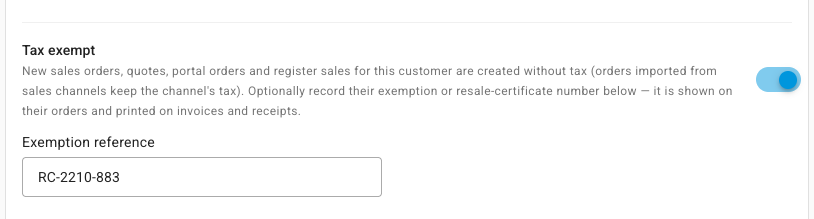
Resellers, non-profits and government buyers often don't pay sales tax. Record the exemption on the customer once, with their certificate number, and SKU.io leaves tax off the orders you create for them.
- Open the customer's Settings tab and click Edit.
- Under Billing & Receivables, turn on Tax exempt.
- In Exemption reference, enter their exemption or resale-certificate number. It's optional, but it's your record of why you didn't charge tax, and it's printed on their invoices and receipts.
- Click Save.
Where the exemption applies
| Where the order comes from | What happens |
|---|---|
| Sales orders you create: on the Sales Orders page, by duplicating an order, by import, through the API, or from an automation | The order is created with no tax on its lines, charges or the order itself. |
| Quotes | The quote starts with no tax. An order made from the quote keeps the quote's tax as it was accepted. |
| Customer Portal orders | The buyer isn't charged tax at checkout, and the order is created with no tax. |
| Point of sale register | The customer is charged no tax, whatever tax rate the register has selected. The Tax line reads Tax (exempt). See Sell at the point of sale. |
| Orders imported from a sales channel, such as Shopify or Amazon | Not applied. The order keeps the tax the channel charged, because the channel already collected it. |
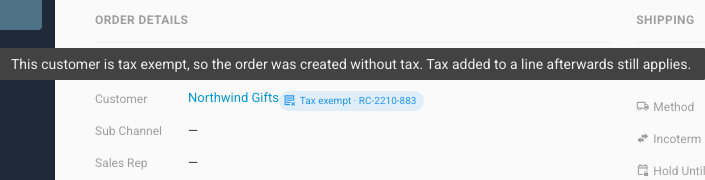
What you'll see: on the customer's sales orders, a Tax exempt chip with the reference sits under the customer's name. Hover over it for a reminder of how the exemption works.
The invoice PDF prints Tax exempt and the exemption number under the total. If you use your own sales order template, add the two fields from the Tax Exemption group in the template's Variables panel. See Sales Order template reference.

Charge tax on one order anyway
The exemption only decides how an order starts. To charge tax on one order, add it to the order's lines after the order is created. On a sales order, click Bulk Edit, then Tax, and pick the rate for every line. That tax applies even though the customer is exempt.
Turning the switch on or off changes only orders created after that. Orders and sales already made keep their tax. Changing an existing order's customer to an exempt customer doesn't remove tax already on its lines; remove it with Bulk Edit then Tax if it shouldn't be there.
How the terms reach an order
When an order is created, SKU.io works down this list and uses the first thing it finds:
- A payment term set directly on that order.
- The customer's default payment terms — what you set above.
- Your account-wide default sales term, if you've nominated one.
The resulting due date is stored on the order. Changing the customer's terms later moves the due date on future orders only — orders already placed keep the deal they were written under.
Next steps
- Manage credit holds on sales orders — act on an over-limit order.
- Set up payment terms — add a term that isn't in the list yet.
- Create & edit a customer — the rest of the customer record.
- Sell at the point of sale — how the register shows a tax-exempt customer.