Keep demurrage and other non-value charges out of inventory cost
A landed cost bill splits its charges across the goods it covers, so every line ends up in their unit cost. Some charges on a forwarder's bill add no value to the goods: demurrage, detention, late or penalty fees, and storage that has nothing to do with the shipment. Standard accounting practice keeps those out of inventory and expenses them in the period they happen.
Each cost category has a Capitalise into stock switch. Turn it off for a category, and its lines on a landed cost bill post to an expense account and are left out of the split. The other lines on the same bill still split into the goods as before.
Before you begin
- You manage cost categories under Settings → Financials → Cost Categories. See Manage cost categories.
- Have an expense account ready for these charges, such as Freight Penalties. A category that stays out of stock can't default to an asset, inventory, purchase clearing or accrual account.
- New accounts already have Demurrage, Detention and Storage categories with Capitalise into stock switched off, and invoice lines that say demurrage, port storage, detention, per diem or storage are matched to them. Give each one an expense account before you use it. Older accounts don't get these categories, so create or edit your own.
- This applies to landed cost bills: bills on a purchase order, inbound shipment or warehouse transfer. A bill with no purchase order is an expense bill, and never adds to stock.
Steps
-
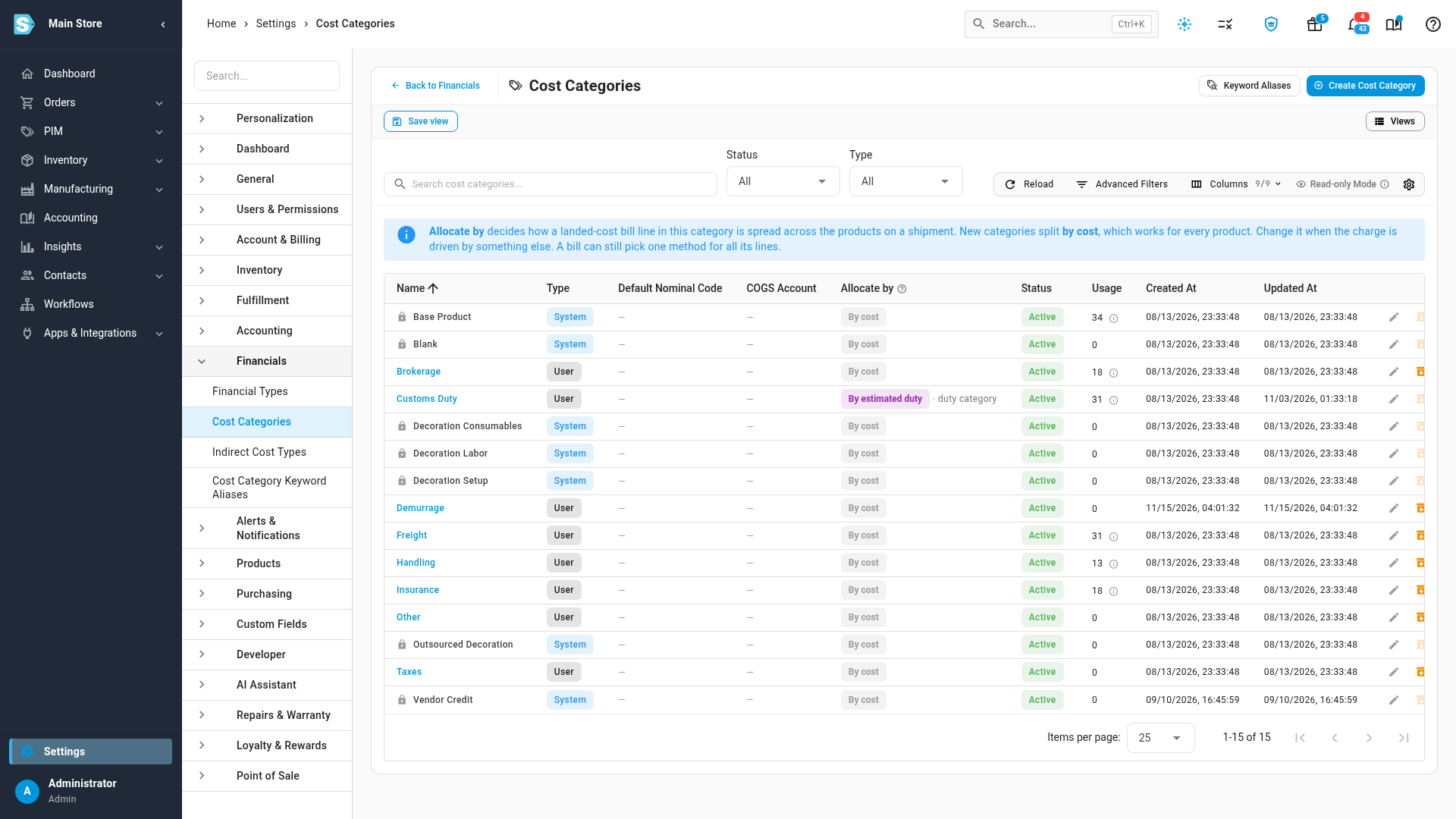
Go to Settings → Financials → Cost Categories.
-
Click the Edit pencil on the category for these charges, such as Demurrage. If you don't have one yet, click Create Cost Category and name it.
-
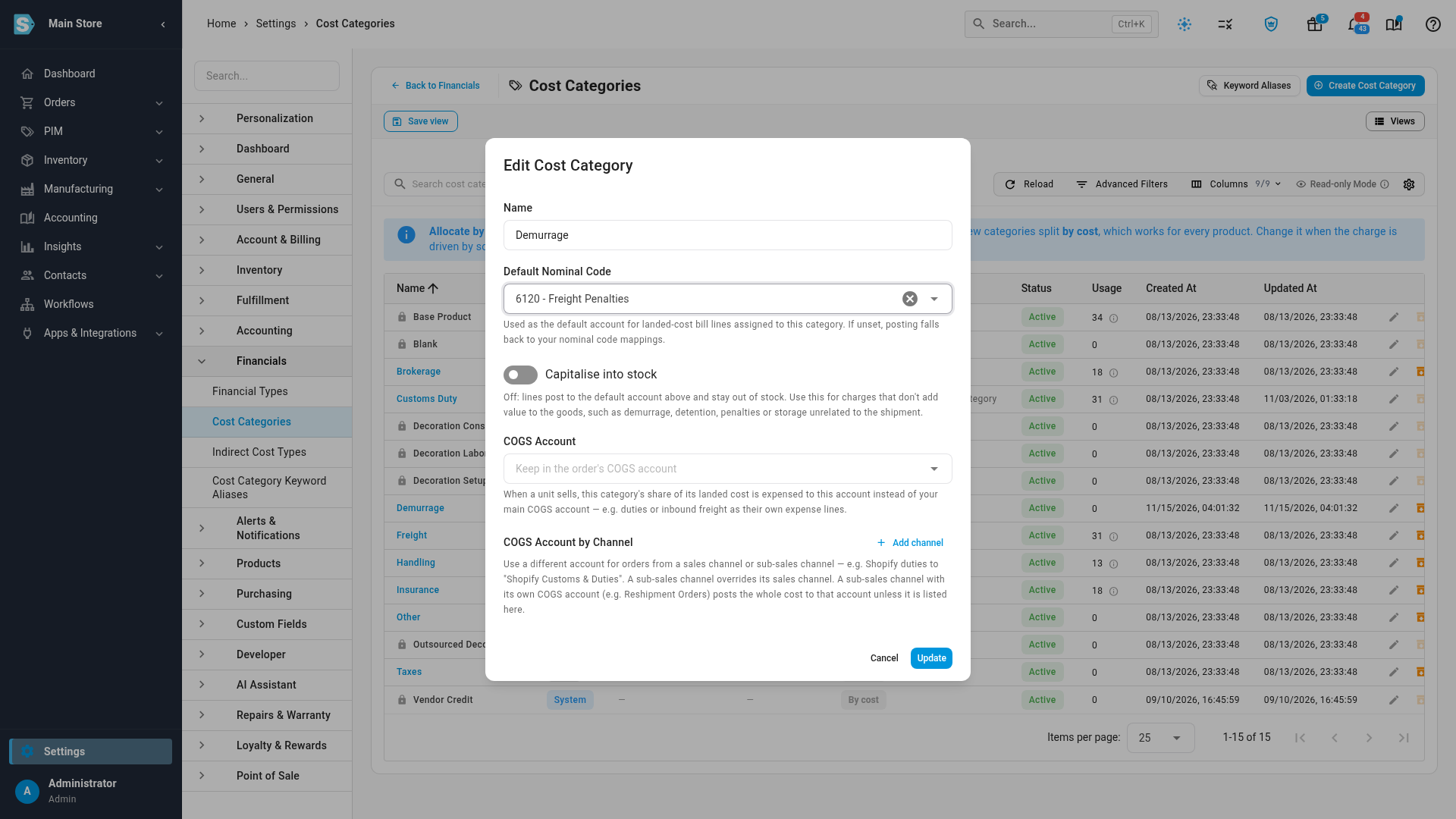
Turn off Capitalise into stock. The text under the switch changes to say that lines post to the default account and stay out of stock. Allocate by is hidden while the switch is off, because these lines are never split.
-
Under Default Nominal Code, pick the expense account these charges belong in. Until you do, the form shows Lines in this category need an expense account. Set a default account above, or pick one on each bill line.
-
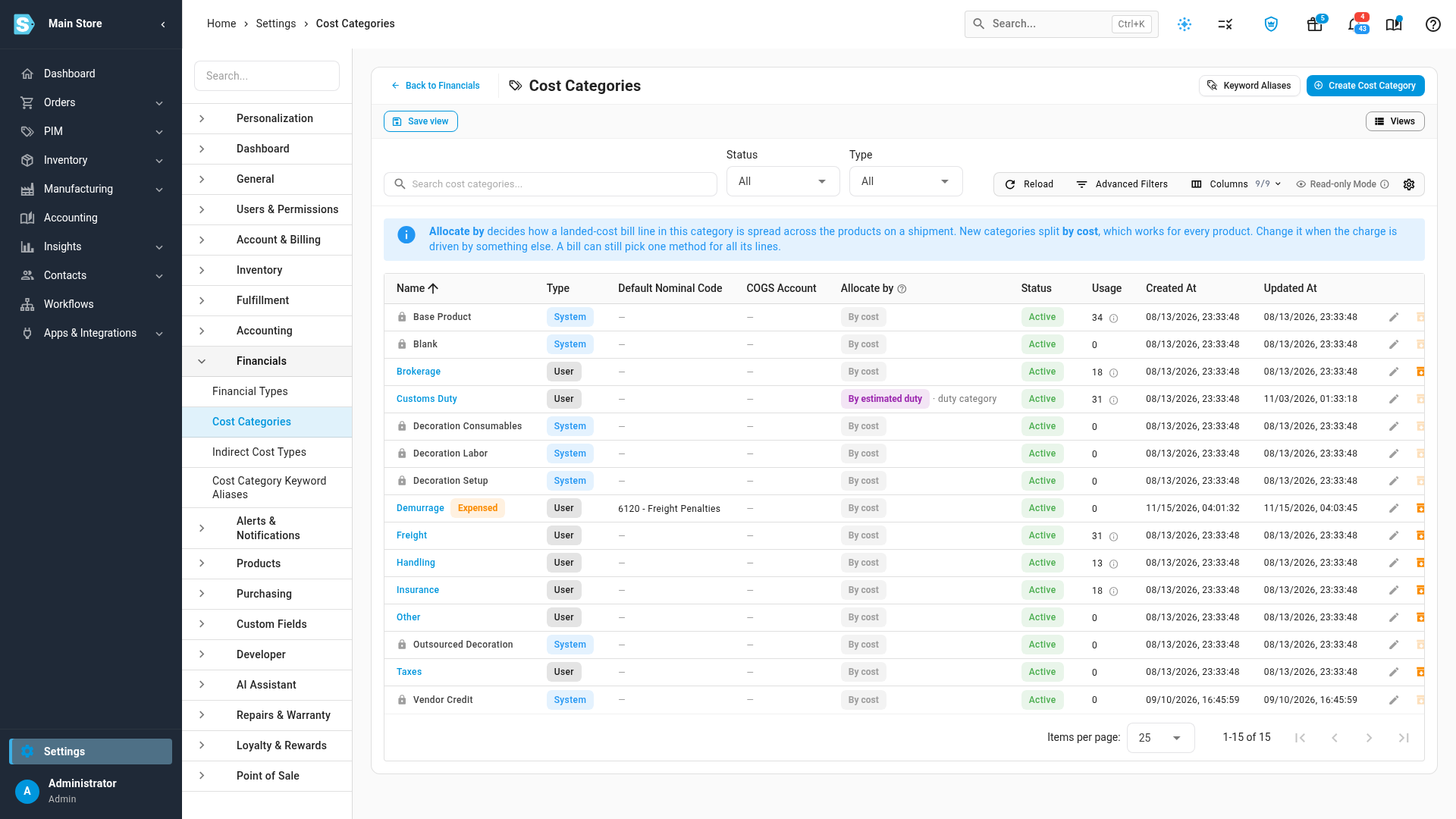
Click Update. The category's name now carries an Expensed chip in the list.
-
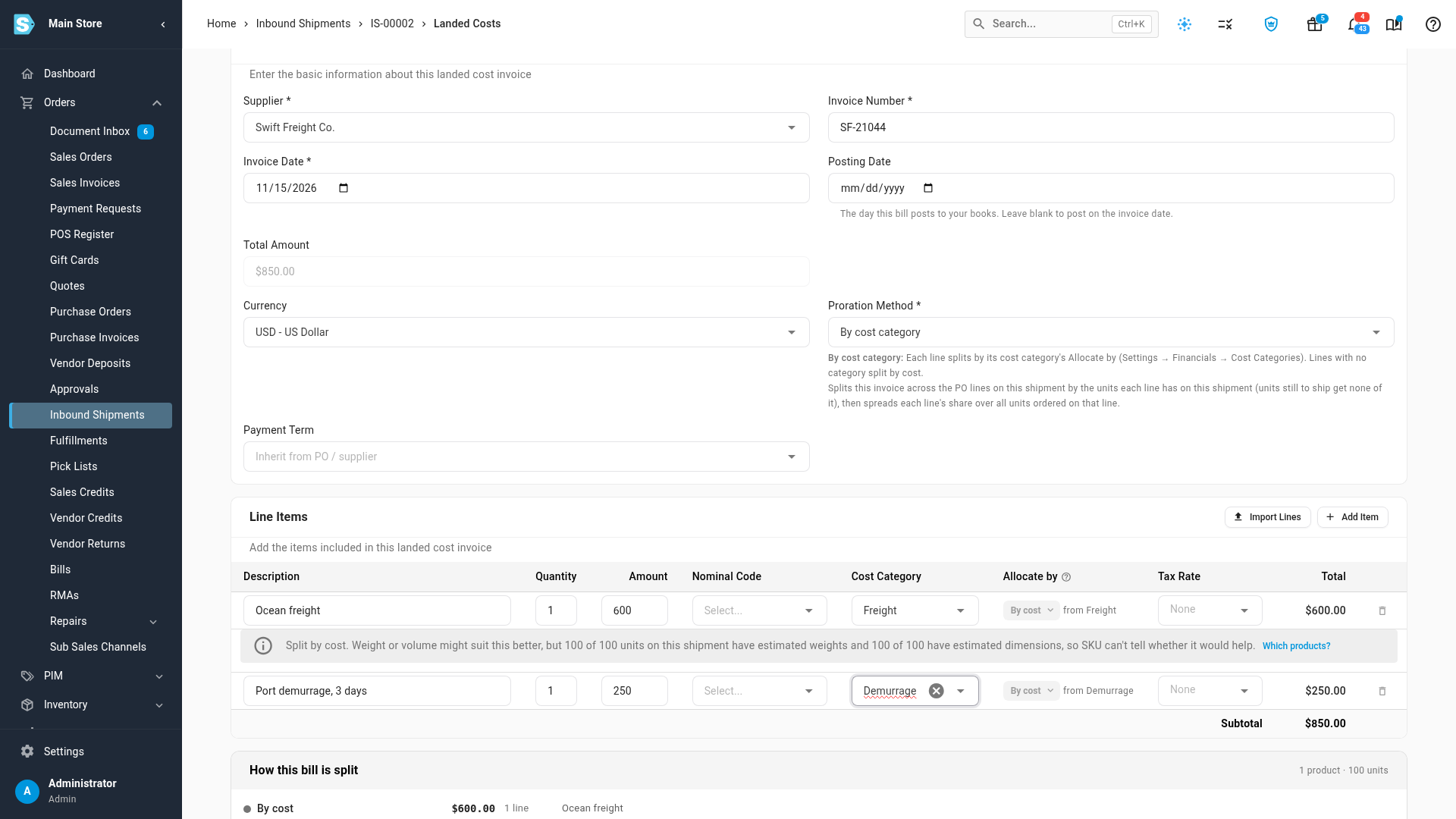
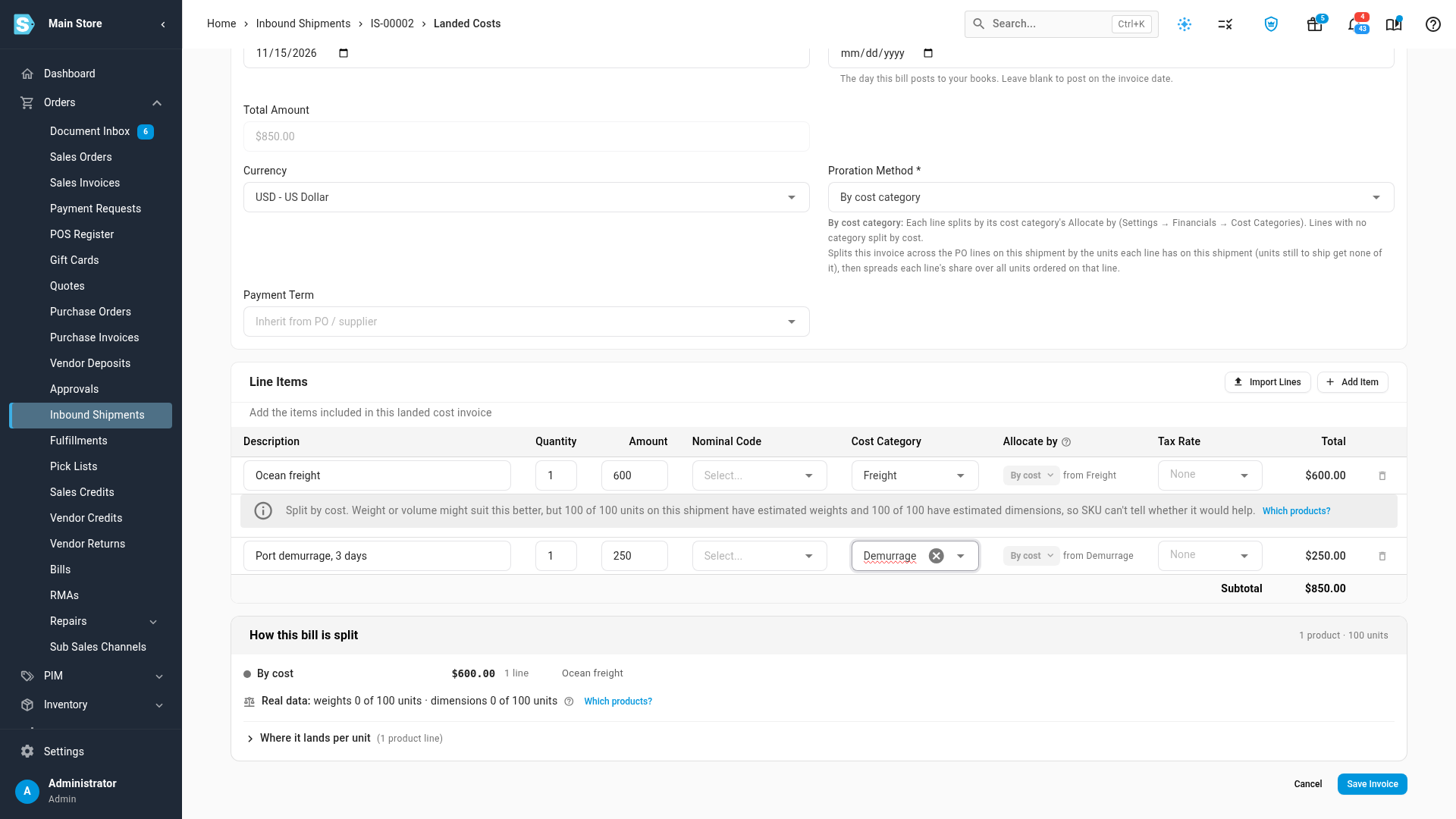
Enter the forwarder's bill as usual. For example, open the shipment under Orders → Inbound Shipments, select its Landed Costs tab and click Landed Cost. Choose the Supplier, type the Invoice Number, and add a line for each charge. Put the freight in your freight category and the demurrage in Demurrage.
-
Check How this bill is split. It spreads only the lines that go into stock; the demurrage line isn't listed. Click Save Invoice.
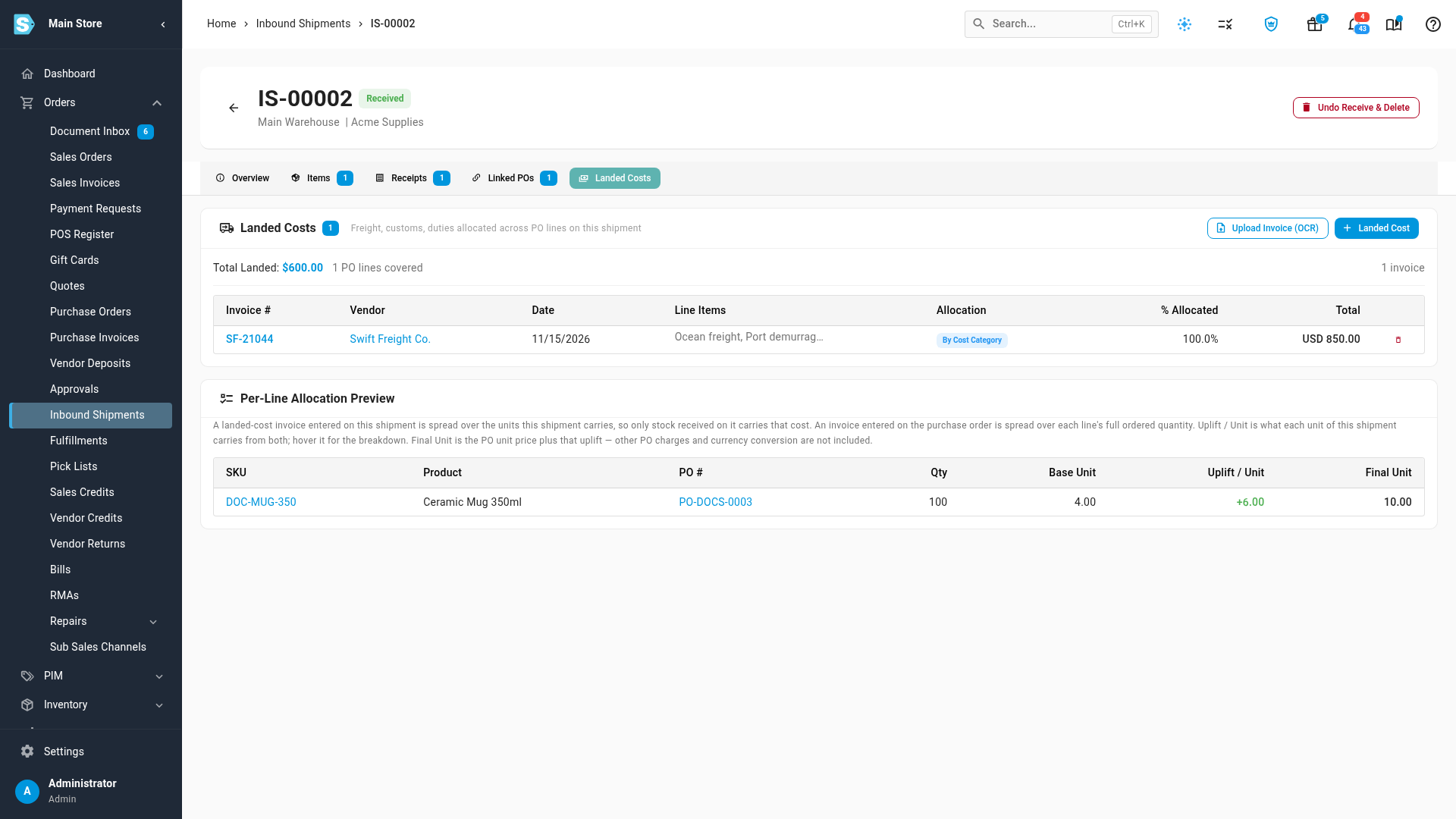
The shipment's Landed Costs tab counts only the freight in Total Landed, and Uplift / Unit shows the freight alone on each unit.
What you see on the bill
Open the bill from Orders → Bills:
- The demurrage line shows an Expensed chip next to its cost category. Hover over it to read Kept out of stock: this line posts to its expense account and isn't split into the goods.
- Cost Allocations splits the other lines only, so Total Allocated is less than the bill total by the expensed lines.
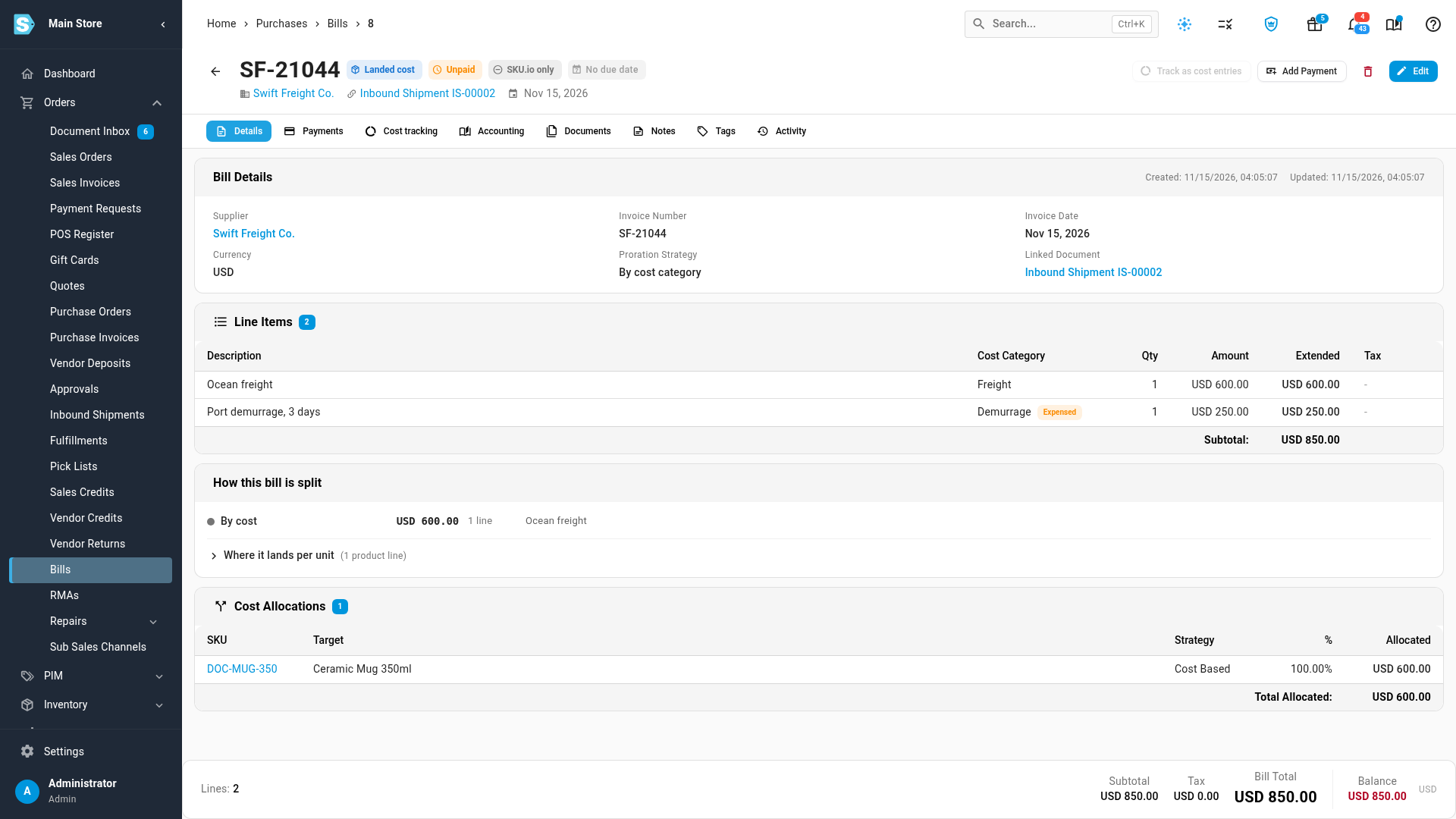
When the bill posts, the expensed line debits the category's expense account (or the account you picked on the line itself), and the freight goes into stock as usual.

If an expensed line has no account of its own and its category has no default account, the bill shows Needs an account in its header and under that line, and doesn't post until you pick one. It never falls back to an inventory or clearing account.
Categories you can't switch off
The switch is greyed out on the categories your stock is made of: Base Product, Vendor Credit, the decoration categories, and your customs duty category. Hover over it to read This category is part of what your stock costs, so it always adds to the goods' unit cost. A category that's switched off can't be chosen as your customs duty category.
Bills you saved before the change
Switching a category on or off never re-splits a bill you've already saved, so past unit costs don't move. Instead, a saved bill that splits differently from its categories now shows a note under Cost Allocations, for example Demurrage (250.00) is now set to stay out of stock, but this bill still splits it into the goods. Edit and save the bill to split it again without those lines. Open the bill, click Edit, then Save, to split it again. The note goes away once the bill is saved.

If you split a bill by hand, the amounts you allocate must add up to the lines that go into stock, not the bill total.
Next steps
- Record landed cost bills: how the other lines split
- Manage cost categories
- Enter an expense bill: for a charge with no purchase order at all
- FIFO layers & COGS
Video transcript
Some charges on a freight bill add nothing to the goods you bought. Demurrage, detention, and penalty fees are the usual examples. Accountants expense them, rather than adding them to inventory. To set that up, open Settings from the sidebar. Then open the Financials group, and choose Cost Categories from the settings it lists. The page lists every category, with the default account each one posts to. Click the edit button on the category for these charges. This example uses Demurrage. Under its default account, turn off the switch called Capitalise into stock. From now on, lines in this category stay out of the goods' unit cost. Instead, those lines post as an expense, to the category's default account. Next, give the category an expense account. Click Default Nominal Code, and start typing the name of your expense account. Then pick it from the list, such as a freight penalties account. Asset, inventory, and clearing accounts aren't allowed here. Click Update to save the category. In the list, an Expensed chip marks every category that stays out of stock. Now enter a forwarder's bill with a freight charge and a demurrage charge. Open Orders in the sidebar, and then choose Inbound Shipments from the list. From the shipments list, open the one that this freight bill is for. Select its Landed Costs tab. It lists the bills already on this shipment, with their totals. Then click Landed Cost, and the bill editor opens. Choose the forwarder who sent the invoice from the Supplier list. Then type the invoice number exactly as it appears on the bill. Today's date is filled in as the invoice date, and you can change it. Under Line Items, describe the first charge and enter its amount. This line is ocean freight, so put it in your freight category. Leave its quantity at one, and the row total updates as you type. Freight still goes into the goods' cost, as before. Click Add Item for the next charge. This one is three days of port demurrage, two hundred and fifty dollars. For its category, choose Demurrage. The subtotal shows the whole bill, eight hundred and fifty dollars. Under How this bill is split, only the freight is spread across the goods. The demurrage line isn't split, so your products never carry it. When everything matches the invoice, click Save Invoice at the bottom of the page. Saving takes a moment, and then the shipment opens again. Back on the shipment, the total landed cost is six hundred dollars, not eight hundred and fifty. Uplift per unit shows the freight alone, spread over each unit. To review the bill, open Orders, then Bills. Find the new bill in the list, and click its invoice number. On the bill, the demurrage line carries an Expensed chip next to its category. Cost Allocations totals the freight only, and the demurrage posts to its expense account. Changing a category never re-splits a bill you've already saved. Such a bill shows a note until you edit and save it again.