Track an expense bill as cost entries
An expense bill posts to your accounts, but on its own it doesn't tell your profit reports which products the cost belongs to. Track as cost entries turns the bill's lines into cost entries, which you then allocate to products, orders, or channels, by hand or with AI.
Tracking and allocating never touch your accounts. Only the bill itself posts, and only the bill is ever sent to Xero or QuickBooks.
Before you begin
- The bill must be an expense bill. A landed cost bill's Track as cost entries button is off, because its cost is already in inventory cost and would count twice.
- You need the Bills → Edit permission (
bills.update) to track, and Allocate with AI (cost_entries.ai_allocate) to use AI allocation. - AI allocation needs AI turned on for your account, with access to purchasing, inventory, and financial data. When it's off, you can still allocate by hand.
Steps
-
Go to Orders → Bills and open the expense bill.
-
Click Track as cost entries.
-
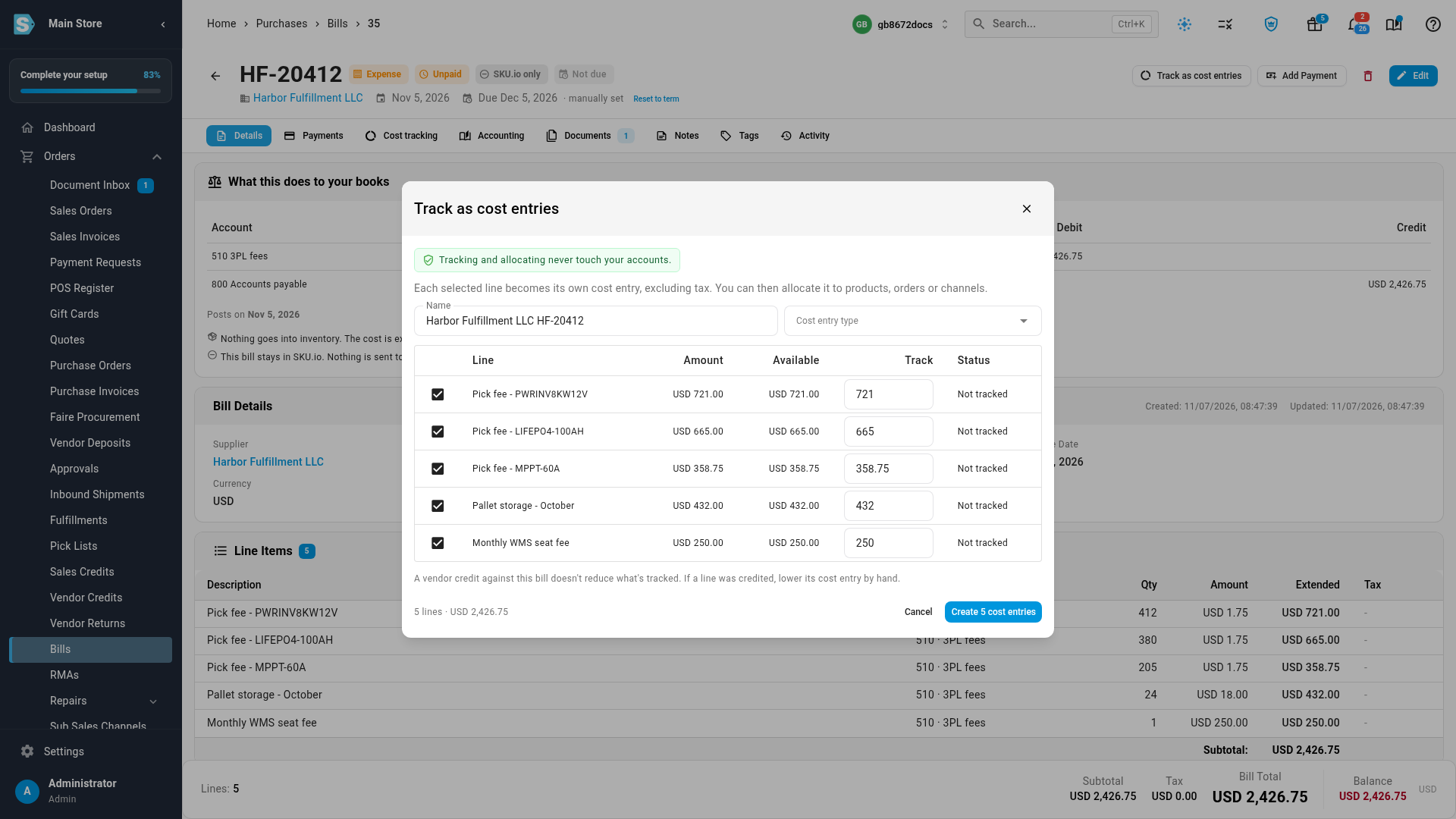
Select the lines to track. Each selected line becomes its own cost entry, for its amount before tax. Available shows how much of each line is left to track, and you can track less than all of it in Track.
-
Optionally change the Name and choose a Cost entry type.
-
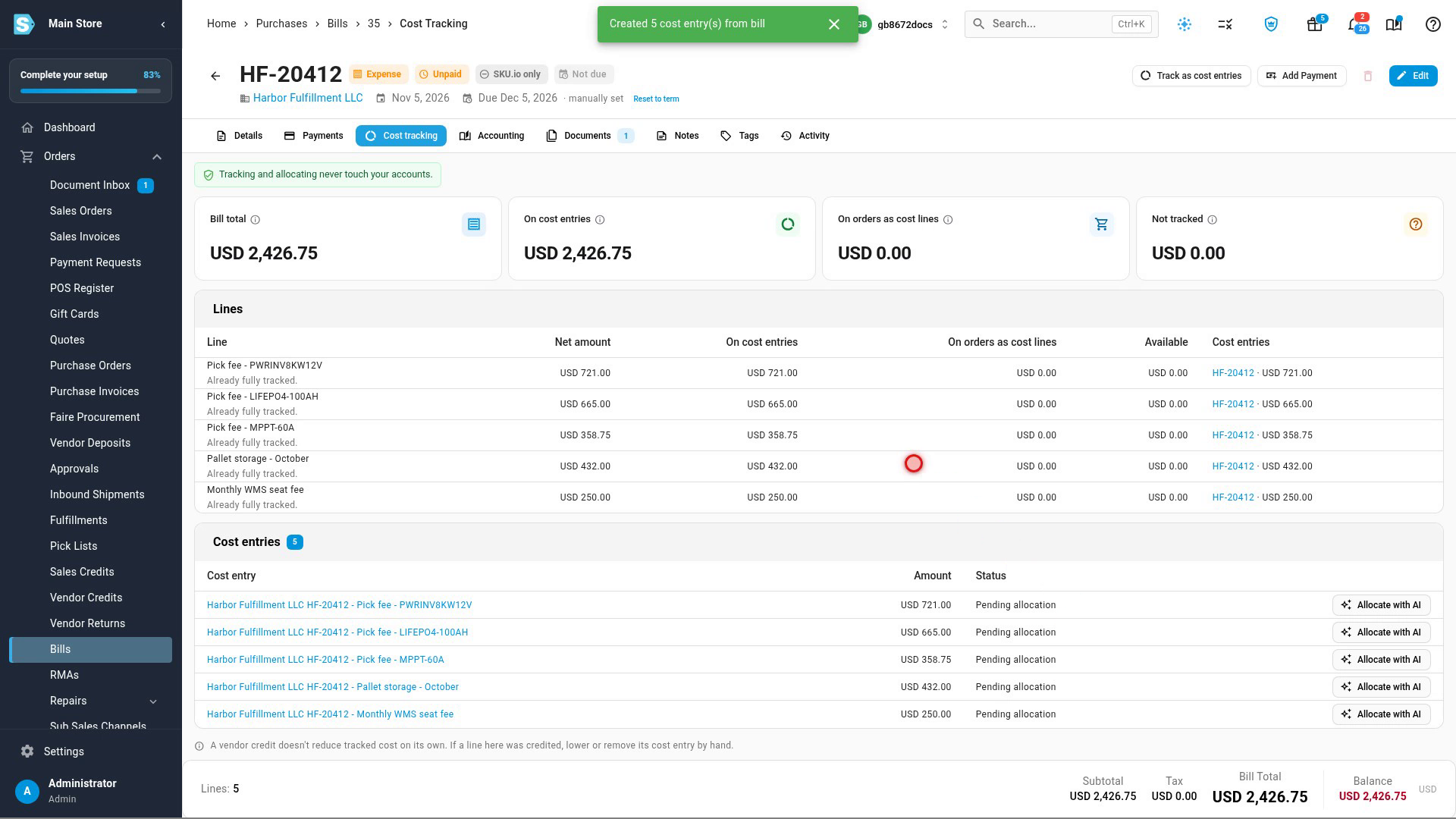
Click Create. The bill's Cost tracking tab opens.
-
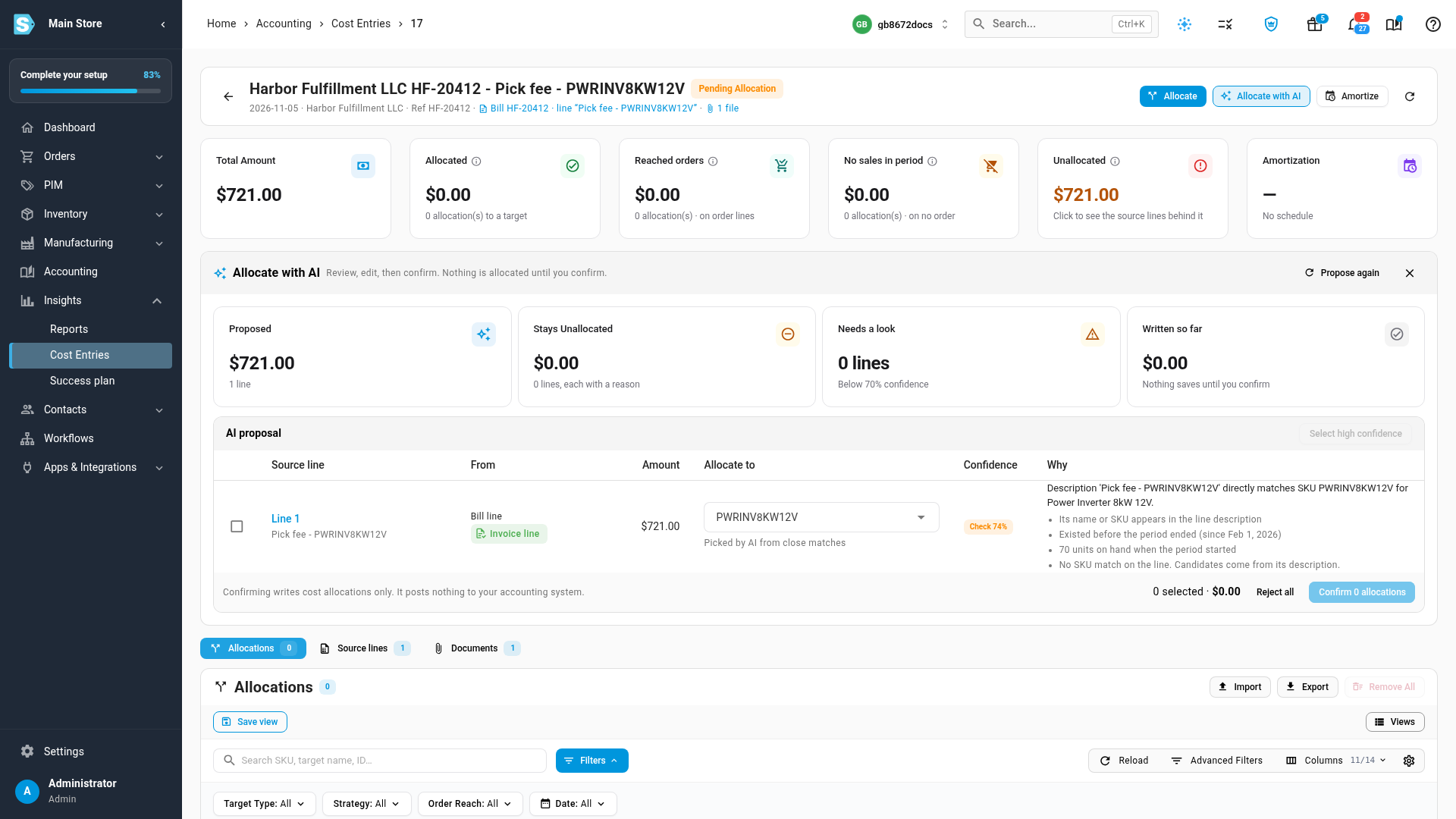
To allocate an entry, click Allocate with AI next to it. The entry opens and SKU.io prepares a proposal in the background.
-
Review the AI proposal. For each line it shows the product it would allocate to, a confidence, and Why: the evidence behind the choice.
-
Change a line's Allocate to product if it's wrong, or choose to leave it unallocated.
-
Select the lines to keep. High-confidence lines start selected; Select high confidence resets the selection to them.
-
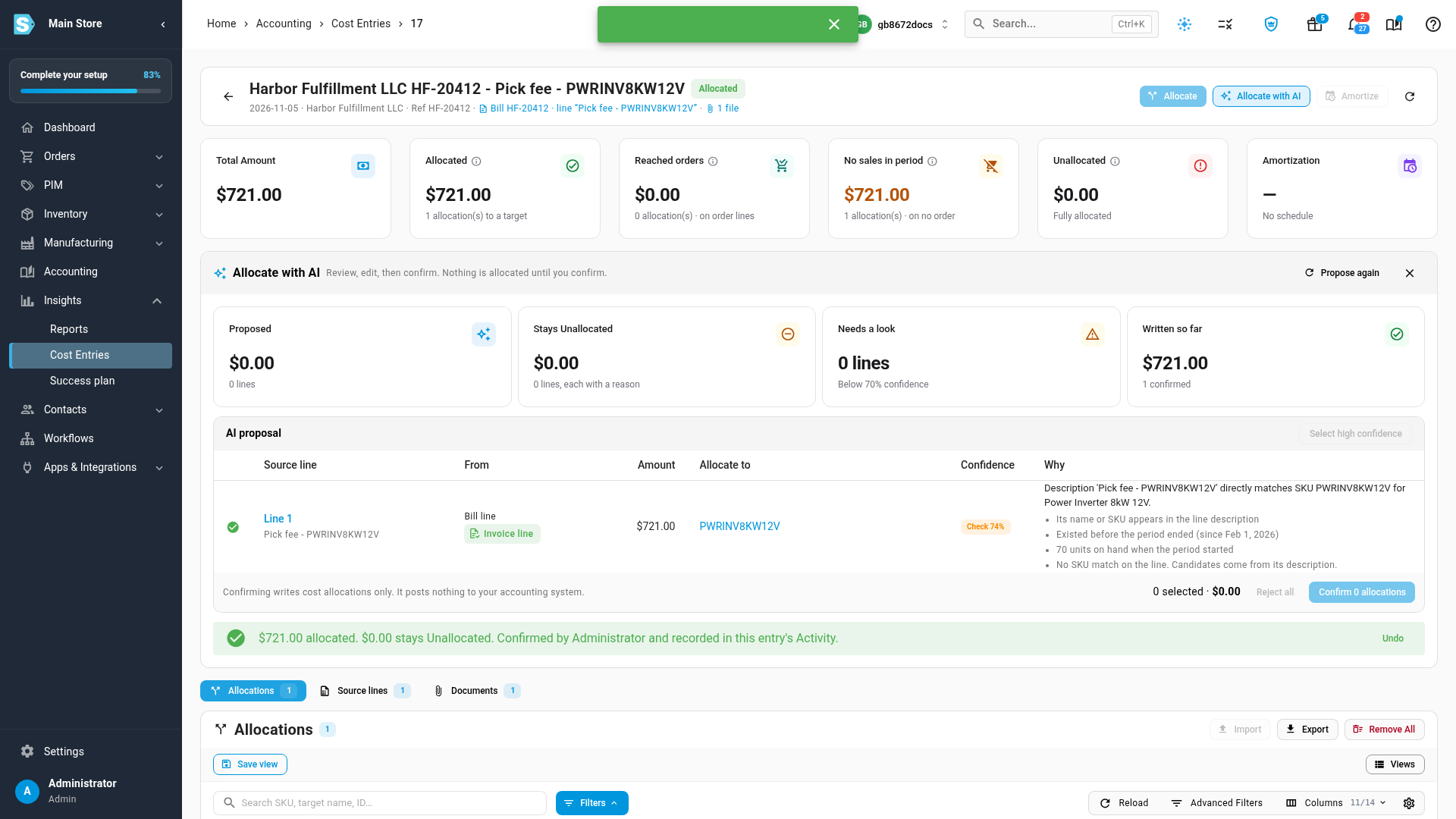
Click Confirm, and Confirm again in the box that asks. Only then are the allocations written. The entry shows what was allocated and what stays unallocated, with an Undo button.
A dollar counts once
- A bill line can't be tracked past its amount before tax. The cost entries made from it, plus any order cost lines tied to it, can never add up to more.
- A line that's already fully tracked, or already on an order as a cost line, can't be picked again, and says so.
- You can't lower a bill line below what's tracked from it, or delete a bill that has tracked cost. Remove the cost entries first.
- A vendor credit against the bill doesn't reduce what's tracked. If a line was credited, lower its cost entry by hand.
The Cost tracking tab totals it up: Bill total, On cost entries, On orders as cost lines, and Not tracked, then each line and the cost entries it became.
How AI proposes an allocation
AI works from the cost entry's source lines: the bill's lines, with the detail read from an uploaded invoice, or rows from a vendor file you import.
- Lines that name a SKU or a purchase order are matched directly.
- Every product is checked before it can be proposed. It must have existed by the end of the billed period and had stock, a movement, or a sale in it. A product archived before the period, with no activity in it, can't be proposed. No AI answer can get past this check.
- Only the lines without a clear match go to the AI model, which can only choose from the products that passed.
- Every proposal is checked again before you see it.
Confidence
| Band | Means | Starts selected? |
|---|---|---|
| High, 85% and up | Direct evidence: the line names the SKU or purchase order, and the product passes the check | Yes |
| Check, 70–84% | An indirect match | No |
| Low, below 70% | Spread by an estimate | No |
The confidence is about where the cost goes. The chip under From is about the amount: an Invoice line is a billed amount, while an Estimated split is SKU.io's estimate.
Lines AI leaves unallocated
| Reason | Example |
|---|---|
| Not yet created | The SKU was created after the billed period ended. |
| Not stocked | Archived before the period, with no stock or sales in it. |
| Account fee | A base or seat fee that no product caused. |
| No match | The line names no SKU or purchase order. |
| No period | The billed period is unknown, so the check can't run. |
| No detail | A provider bill line with no product. Upload the invoice to add detail. |
Undo, and bills that change later
- Undo, shown straight after you confirm, removes the allocations that confirmation wrote.
- If the entry's source lines change after a proposal, the proposal is out of date and Confirm is refused until you click Propose again.
- On Insights → Cost Entries, you can propose for many entries at once and confirm only their high-confidence lines. Both show a count before anything is saved.
Next steps
- Allocate a cost across products: allocate by hand, and the allocation strategies.
- Enter an expense bill: record the bill in the first place.
- Find bills in Xero or QuickBooks: bring in bills entered in your accounting system, then track them here.
Video transcript
Tracking an expense bill puts its cost into product profitability. Open Orders, then Bills, and select the bill. Click Track as cost entries. Each line you select becomes its own cost entry, excluding tax. As the note says, tracking and allocating never touch your accounts. Available shows what's left to track on each line. A dollar counts once, so a line already tracked, or already on an order, can't be tracked again. Click Create, and the Cost tracking tab opens. The tab shows the bill total, what's on cost entries, and what isn't tracked yet. Each line links to the cost entry it became. To spread an entry across your products, click Allocate with AI. AI proposes a product for each line, with its reasons and a confidence. It only picks products that existed and had stock or sales in the billed period. Nothing is allocated until you confirm. Lines below high confidence start unselected, so check them yourself. Select the line, click Confirm, and confirm again. The allocation is saved, and you can undo it straight after.