Capitalise estimated duty and reconcile the broker bill
Your customs broker's duty bill often arrives weeks after the goods do. Until then, the stock you have already received and started selling carries no duty in its cost, so your margins look better than they are. Capitalise estimated customs duty fixes that: when goods are received, SKU.io adds the estimated duty to their cost straight away. When the broker's bill arrives, you enter it against the shipment, and only the difference between the estimate and the bill moves.
This guide covers the setting, what it does in your books, receiving a shipment, entering the broker's bill, and checking every shipment in the Duty Reconciliation report.
Before you begin
- Add duty rates for the products you import, so receipts have an estimate to book. Check a purchase order's Est. duty column first.
- In your chart of accounts, have an accrued customs duty account (a current liability) and, ideally, a customs duty variance account (a cost account).
- Have a Customs Duty cost category. The broker's bill lines go in it.
- Add your customs broker as a supplier, so you can enter bills from them.
- To change the setting, you need access to Settings. The report needs access to the Duty Reconciliation report.
What happens in your books
Go to Settings → Purchasing → Landed Cost Estimates. The first card, What happens in your books, walks through a worked example in three steps.
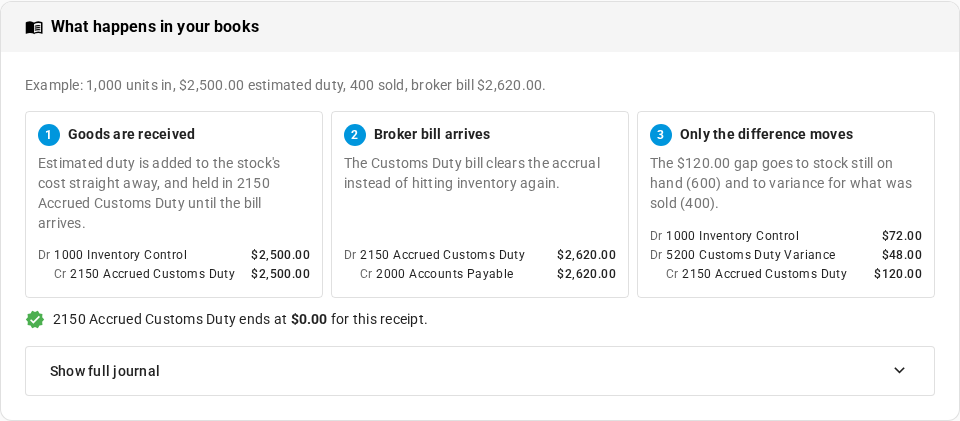
- Goods are received. The estimated duty is added to the stock's cost right away. The same amount is held in your accrued customs duty account, as money you owe but haven't been billed for.
- Broker bill arrives. The bill clears the accrued account, instead of adding to the stock's cost a second time.
- Only the difference moves. If the bill is more or less than the estimate, the difference is shared out. Units still on hand take their share in their cost. The share for units already sold goes to your customs duty variance account.
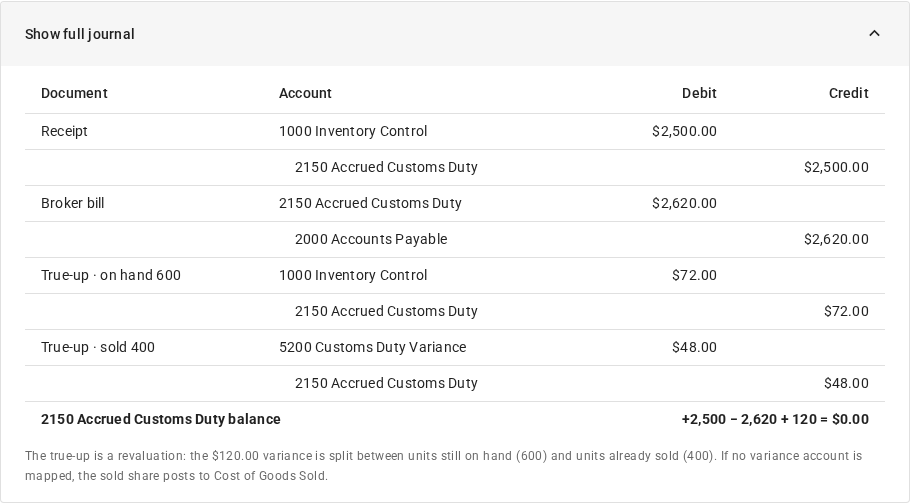
After step 3, the accrued customs duty account is back at $0.00 for that receipt. Click Show full journal to see every debit and credit in the example.
Choose the accounts
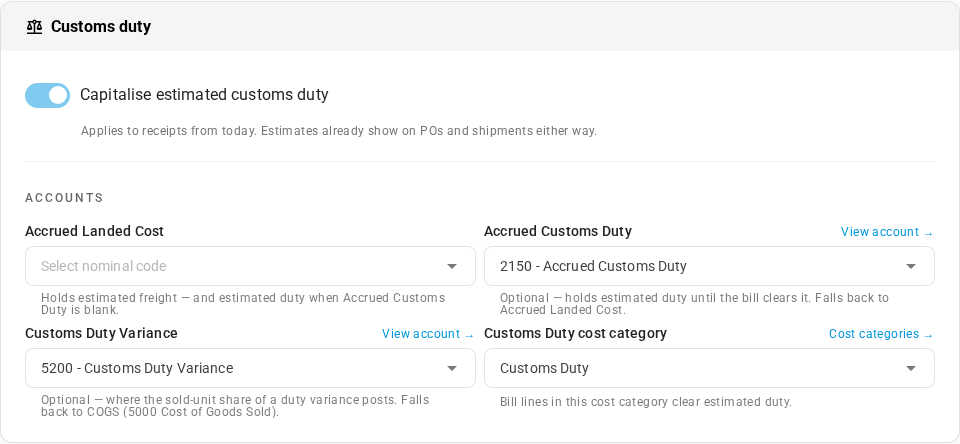
The Customs duty card holds the switch and the accounts it uses.
| Field | What it does |
|---|---|
| Accrued Customs Duty | Holds each estimate from receipt until the broker's bill clears it. If you leave it blank, estimated duty uses Accrued Landed Cost instead. |
| Accrued Landed Cost | Holds estimated freight, and estimated duty too when Accrued Customs Duty is blank. |
| Customs Duty Variance | Takes the share of a bill's difference that belongs to units already sold. If you leave it blank, that share goes to your cost of goods sold account. |
| Customs Duty cost category | Bill lines in this cost category are the ones that clear an estimate. A bill line in any other category doesn't. |
View account → beside a field opens that account in the ledger. Cost categories → opens your cost categories.
While any capitalised estimate is still waiting for its bill, you can't change the accrued account it was held in, or the Customs Duty cost category. Changing them would split one estimate across two accounts. Enter the outstanding bills first, or wait until they're cleared.
Turn on capitalisation
- Turn on Capitalise estimated customs duty.
- Click Save changes.
The setting applies to goods you receive from today. Shipments received earlier keep their estimate, for the report, but it isn't in their stock cost. Estimates still show on purchase orders and shipments whether the setting is on or off.
The switch is greyed out? It stays off until you choose an Accrued Customs Duty or Accrued Landed Cost account, because the estimate needs somewhere to be held. Hover over the switch to see why, then choose an account. Ledger settings → under the switch opens your account mappings.
You can turn the setting off at any time. Receipts already booked keep what they did.
Once you have received goods with the setting on, a note on this card counts the receipt lines whose estimate hasn't been cleared by a bill yet. See them in Duty reconciliation → opens the report.

Receive the shipment
Receive goods the way you always do. For example, from an inbound shipment:
- Go to Orders → Inbound Shipments, and open the shipment.
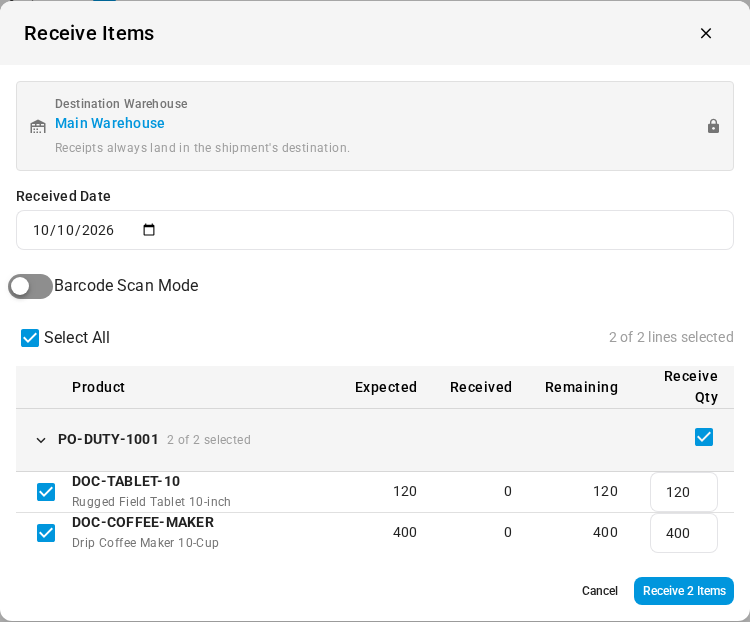
- Click Receive Items.
- Check the Receive Qty for each line, then click Receive 2 Items, the blue button at the bottom of the dialog. It counts the lines you selected.
The shipment's Customs card now shows four tiles:
| Tile | What it shows |
|---|---|
| ESTIMATED | The shipment's estimated duty, and the date the rates were read for. |
| BOOKED AT RECEIPT | The estimate frozen when the goods were received, with added to stock cost when it went into the stock's cost. A shipment received before you turned the setting on says not added to stock cost. |
| BILLED | The actual duty from the broker's bill. Until then it says awaiting the Customs Duty bill. |
| VARIANCE | The bill minus the booked estimate, in money and as a percentage. |
The chip at the top right of the card says Awaiting bill until a duty bill is entered.
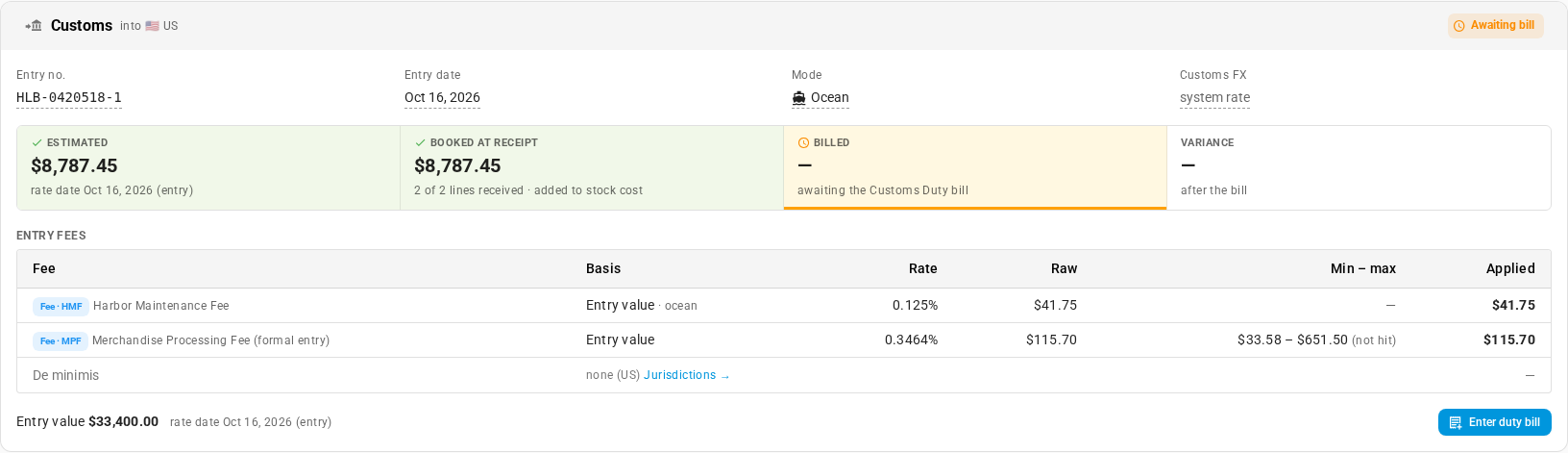
The booked estimate doesn't change after receipt, even if you later edit a duty rate. That way the bill is always compared with the figure that went into stock cost.
Enter the broker's duty bill
- On the shipment's Customs card, click Enter duty bill. The Add Landed Cost Invoice form opens, with By estimated duty chosen as the Proration Method and one line in the Customs Duty cost category. The line under the field says what the method does: By each line's booked duty estimate. Use it for a Customs Duty bill. Every method in the Proration Method list carries a one-line description like this one.
- Choose your customs broker as the Supplier.
- Type the bill's Invoice Number, and check the Invoice Date.
- In the line's Amount, enter the duty on the broker's bill.
- Click Save Invoice.
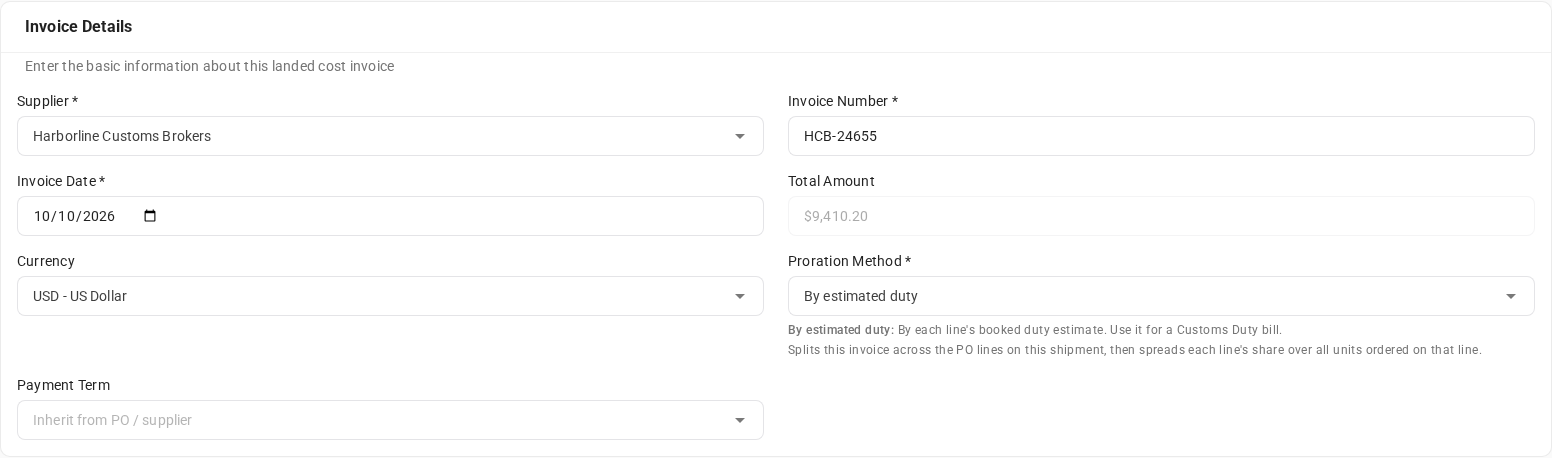

If the bill reaches SKU.io another way, for example through the Document Inbox, link it to the shipment and put its duty line in the Customs Duty cost category. Only bill lines in that category clear an estimate.
Why split by estimated duty
A broker's bill is one total for the whole customs entry. By estimated duty shares that total out in proportion to each line's booked estimate. A line that carried most of the estimated duty takes most of the bill, and a duty-free line takes nothing. So each line's variance compares like with like.
Splitting by quantity or by value instead would give a duty-free line part of the bill, and make every line's variance wrong, even when the total is right. Each line's share is then spread over all the units ordered on that line, so units received on a later shipment carry the same cost.
After you save, the Landed Costs tab shows the bill and a banner comparing the booked estimate with the actual duty.

Check actual duty and variance
On the Overview tab, the Customs card now shows the BILLED amount, with a link to the bill, and the VARIANCE. The chip at the top says Cleared.
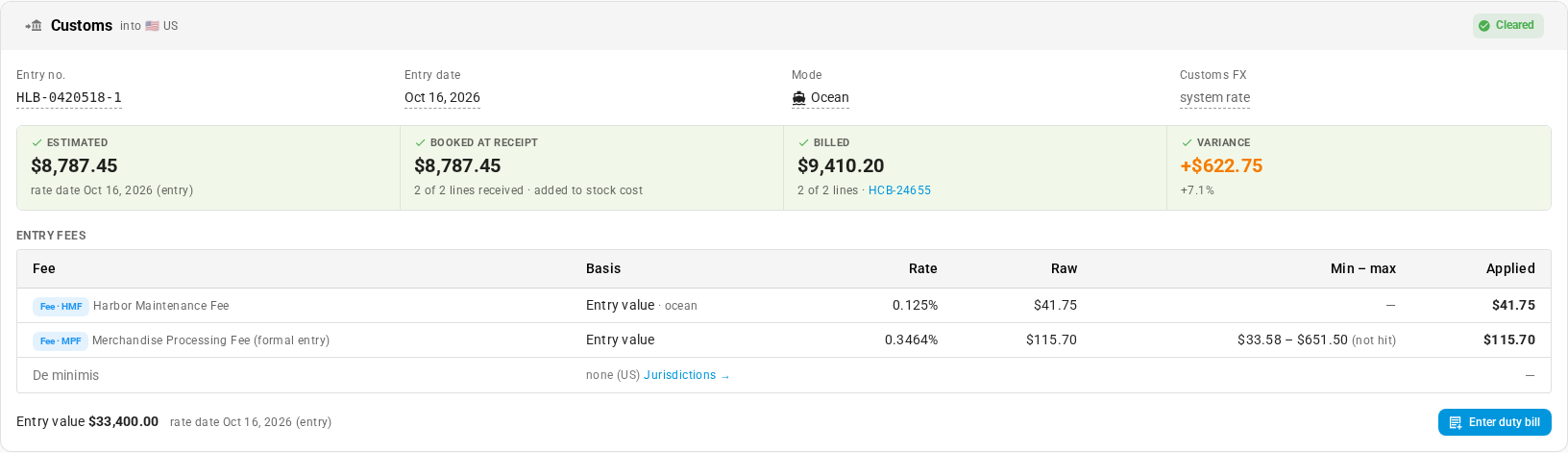
The Items tab shows the same thing for each line:
| Column | What it shows |
|---|---|
| Est. duty | The line's current estimate, and its share of the line's value. |
| Booked est. | The estimate frozen when the line was received. |
| Actual duty | The line's share of the duty bill. |
| Variance and Var % | Actual duty minus the booked estimate. |
| Duty status | Awaiting bill or Cleared. |
| Bill | The duty bill the actual came from. |

A positive variance means the bill was higher than the estimate. If several shipments of the same product come in over the estimate, the rate is probably out of date. Check it in Set up duty rates.
Reconcile every shipment in the Duty Reconciliation report
Go to Insights → Reports, and choose Duty Reconciliation.
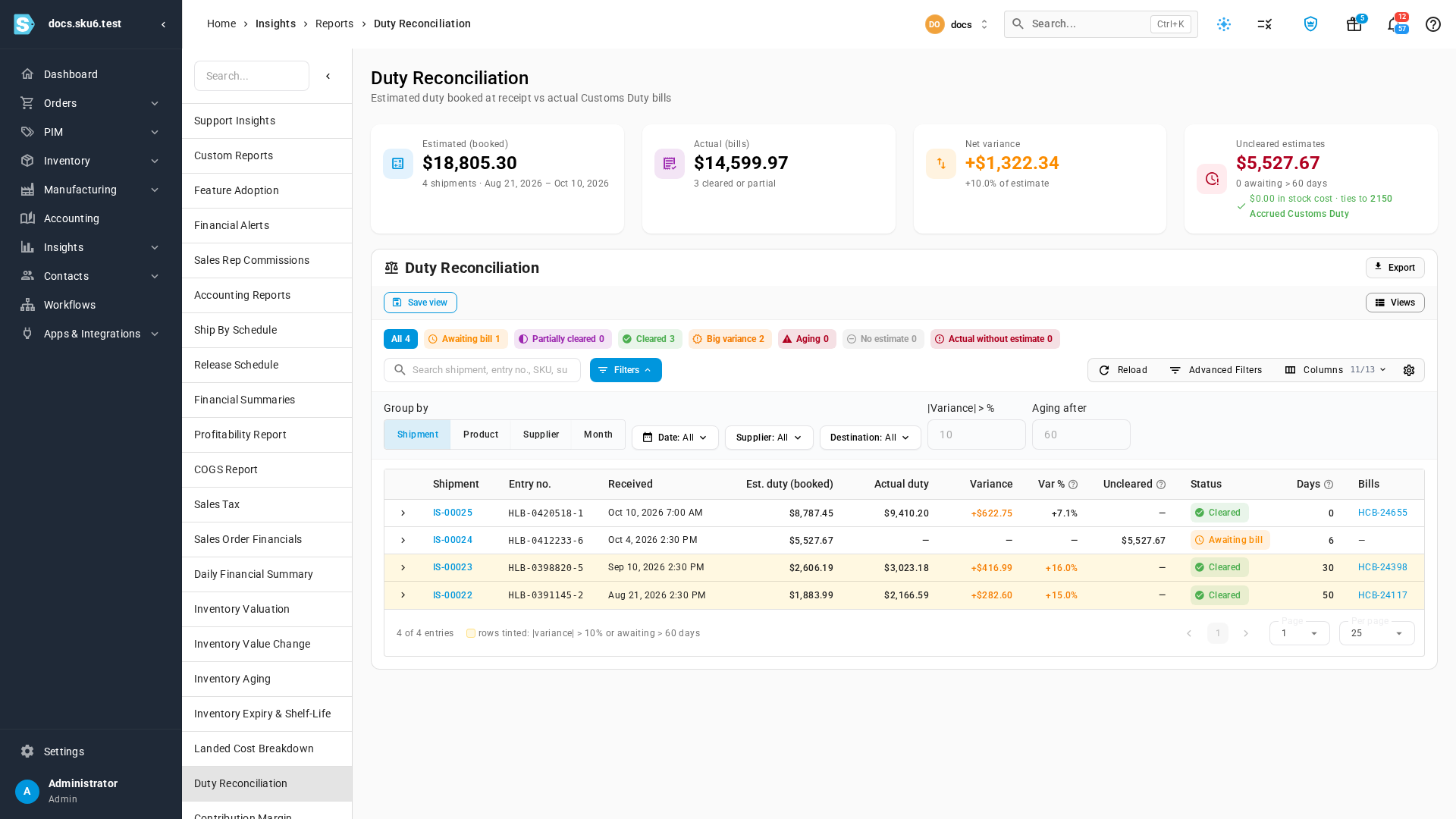
The cards at the top total everything the filters include:
| Card | What it shows |
|---|---|
| Estimated (booked) | The duty booked at receipt, with the number of shipments and their date range. |
| Actual (bills) | The duty billed so far, and how many rows are cleared or partly cleared. |
| Net variance | Actual minus booked for the billed receipts, in money and as a percentage of the estimate. |
| Uncleared estimates | Booked estimates with no duty bill yet, and how many have waited longer than your aging limit. |
Under Uncleared estimates, a line such as ties to 2150 Accrued Customs Duty confirms that the uncleared estimates that went into stock cost match the balance of your accrued customs duty account. If they don't match, a message above the table says why:
- GL tie-out pending — a receipt or bill is still being posted to the ledger. Reload in a minute.
- GL tie-out incomplete — a receipt or duty bill failed to post, or never got a ledger entry. The message names the shipments and links to the ledger outbox.
- GL tie-out mismatch — everything has posted and the figures still differ. This usually means a duty bill was posted to the accrued account without being linked to a shipment.
Statuses
The tabs above the table filter it by status. Each tab shows how many rows it holds.
| Status | Meaning |
|---|---|
| Awaiting bill | Duty was booked at receipt, and no duty bill has been entered. |
| Partially cleared | Some of the row's receipts have a duty bill, and some don't. |
| Cleared | Every receipt in the row has a duty bill. |
| Big variance | The variance is more than your |Variance| > % limit (10% unless you change it). |
| Aging | Still awaiting a bill after your Aging after limit (60 days unless you change it). |
| No estimate | Received, but no duty could be estimated. Usually a missing HS code or rate. |
| Actual without estimate | A duty bill was entered for goods that had no booked estimate. |
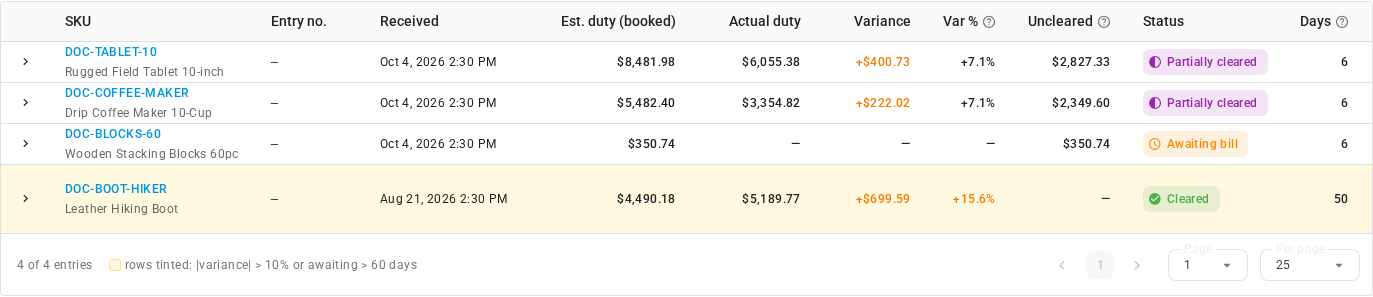
Rows over the variance limit, or past the aging limit, are tinted so they stand out. Click › at the start of a row to see its receipts, one per product.
Group, filter, and export
-
Group by turns each row into a Shipment, a Product, a Supplier, or a Month. By product shows which items are most often billed above their estimate.
-
Filter by Date, Supplier, or Destination, or search for a shipment, entry number, SKU, supplier, or purchase order.
-
|Variance| > % and Aging after set the limits for the Big variance and Aging tabs and the row tint.
-
Click Save view to keep a combination of filters and grouping for next time.
To export, click Export and choose Excel (.xlsx) or CSV. The file holds the rows you're looking at, with the current grouping, filters, and status tab. Up to 1,000 rows download straight away. A larger export runs in the background, and you'll find the file in the job tray when it's ready.
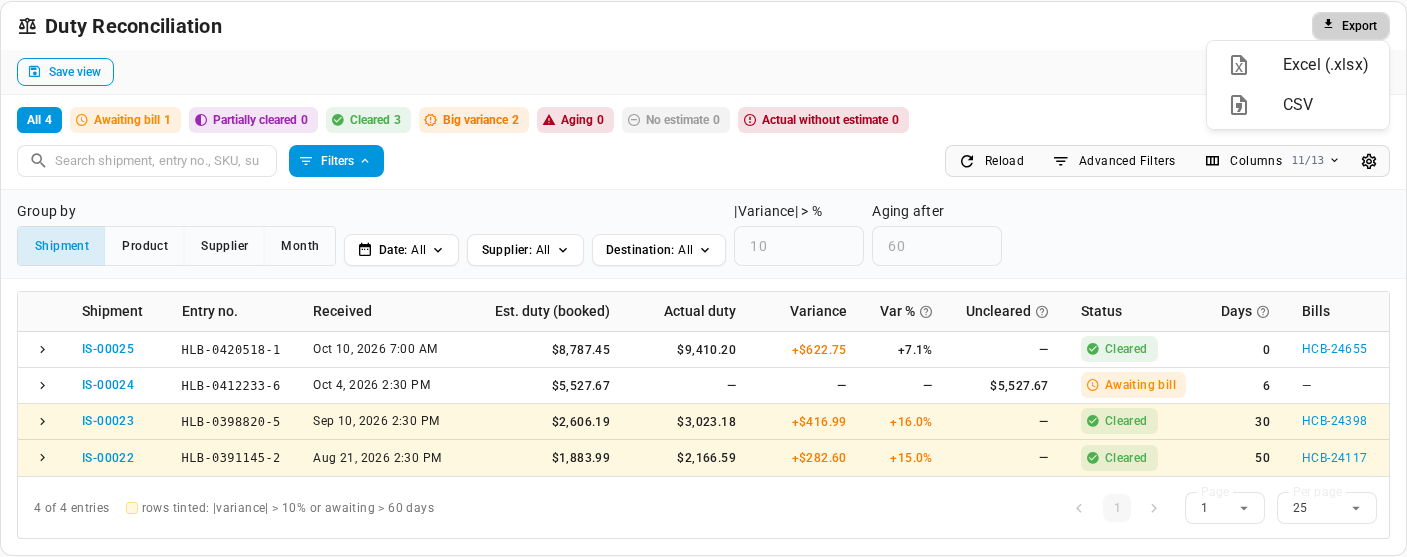
| Column | What it holds |
|---|---|
Shipment | The row: the shipment number. Named SKU, Supplier, or Month when you group by those. |
Entry no. | The customs entry number. |
Supplier | The supplier. |
Destination | The country the goods were imported into. |
First received / Last received | The first and last receipt in the row. |
Received qty | The units received. |
Est. duty (booked) | The duty booked at receipt. |
Actual duty | The duty billed. |
Variance / Variance % | Actual minus booked, in money and as a percentage of the booked estimate. |
Uncleared | Booked duty still waiting for a bill. |
Status | The row's status. |
Days since receipt | Days since the first receipt. |
Bills | The duty bills, by invoice number. |
Next steps
- Estimate duty on purchase orders and shipments: see and adjust the estimate before the goods arrive.
- Set up duty rates: update a rate when bills keep coming in above the estimate.
- Keep duty rates accurate: see which rates your broker bills say are drifting, and check them.
- Record landed cost bills: bring broker bills in through the Document Inbox.
- Duties & Tariffs: every guide in this chapter.
Video transcript
SKU.io can put the estimated import duty into stock cost the day goods arrive, not weeks later when the bill does. To set it up, go to Settings, at the bottom of the sidebar. Open the Purchasing group, which lists every purchasing setting. Then choose Landed Cost Estimates, near the bottom. The first card explains what happens in your books. Step one, goods are received. Their estimated duty goes into stock cost, and is held in an accrued customs duty account. Step two, the broker bill arrives, and clears that account. Step three, only the difference moves. Stock still on hand takes its share, and sold units take theirs. The accrued account ends at zero. Below, the Customs duty card holds the accounts. Accrued Customs Duty holds each estimate until its bill arrives. Customs Duty Variance takes the difference for units already sold. And bill lines in the Customs Duty cost category are what clear the estimates. The switch stays off until an accrued account is chosen. Turn on Capitalise estimated customs duty. Then click Save changes, at the top of the page. The setting applies to every shipment you receive from today. Shipments received earlier keep their estimate, but it stays out of stock cost. Now receive a shipment. Go to Orders in the sidebar, then choose Inbound Shipments. Then open a shipment that is still on its way to your warehouse. It opens on the Overview tab. Click Receive Items, the green button at the top. Check the quantities, then click Receive 2 Items, the blue button at the bottom. The Customs card now shows the estimate booked at receipt. Its caption confirms it was added to stock cost. The chip at the top says Awaiting bill, until the broker's bill is entered. When the broker's bill arrives, click Enter duty bill. The bill is already set to Customs Duty, split by estimated duty. Choose your customs broker as the supplier, typing the first few letters of its name. Next, type the invoice number from the broker's bill. Then enter the duty it charged in the line's amount. The note under the method field explains this split, by each line's booked duty estimate. A line that carried most of the duty takes most of the bill, so each variance is fair. When it all looks right, click Save Invoice. The banner compares the booked estimate with the actual duty. Now go back to the Overview tab of the shipment. The Customs card shows what was billed, and the variance, here about seven percent over. The chip at the top now says Cleared. The Items tab shows the same for each line, with its duty status. To check every shipment at once, go to Insights, then Reports. Scroll down the long list of reports, and choose Duty Reconciliation. The cards total the booked estimates, the actual bills, and the net variance. Uncleared estimates are still waiting for a bill. The line below checks them against your accrued customs duty account. In the table, each row shows one shipment and where its bill stands. Group by turns each row into a product, a supplier, or a month. By product, you can see which items keep billing over their estimate. The status tabs narrow the list, for example to big variances. Rows past your limits are tinted, so they stand out. And Export saves what you see as a spreadsheet.