Find bills in Xero or QuickBooks
If your team keeps entering bills in Xero or QuickBooks Online, those bills never reach SKU.io's cost tracking or payables on their own. Find bills in Xero (or QuickBooks) lists the bills SKU.io doesn't know about, lets you decide what each one is, and brings them in as read-only copies. Nothing is ever created, edited, or voided in your accounting system.
Bills in your accounting system are often just a number and a total. Where you have the real invoice, upload it: SKU.io keeps its detail for cost tracking while the amounts stay exactly as your accounting system has them.
Before you begin
- Connect Xero or QuickBooks Online, and turn on its nightly copy of your bills. The review reads that copy, so it makes no calls to your accounting system.
- You need the Find bills in Xero / QuickBooks permission (
bills.review_provider). - To read uploaded invoices, invoice reading (OCR) must be on. Without it, a file you add is attached and nothing is read from it.
Steps
-
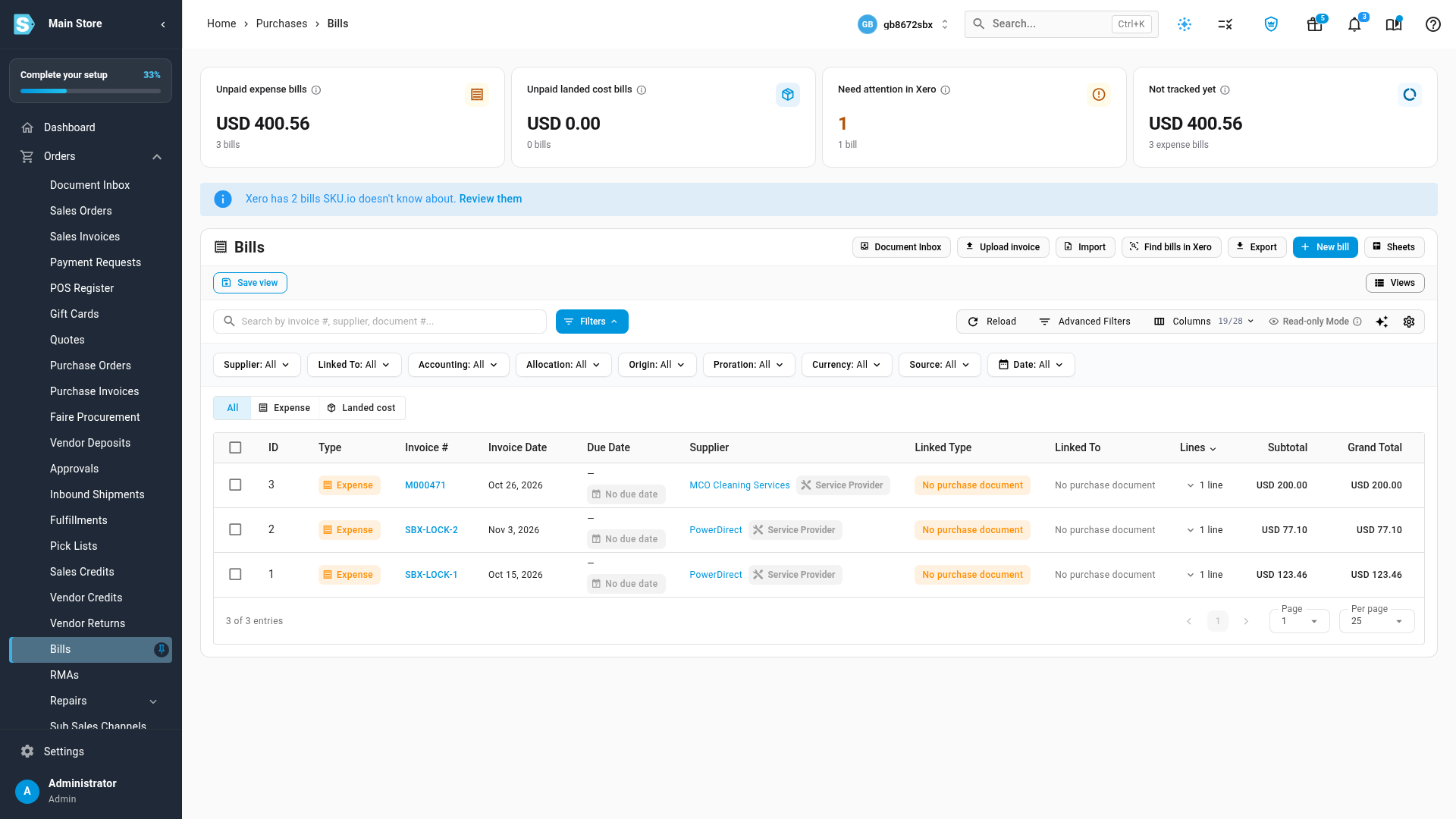
Go to Orders → Bills. When your accounting system has bills SKU.io doesn't know about, a banner says how many. Click Find bills in Xero, or Review them in the banner.
-
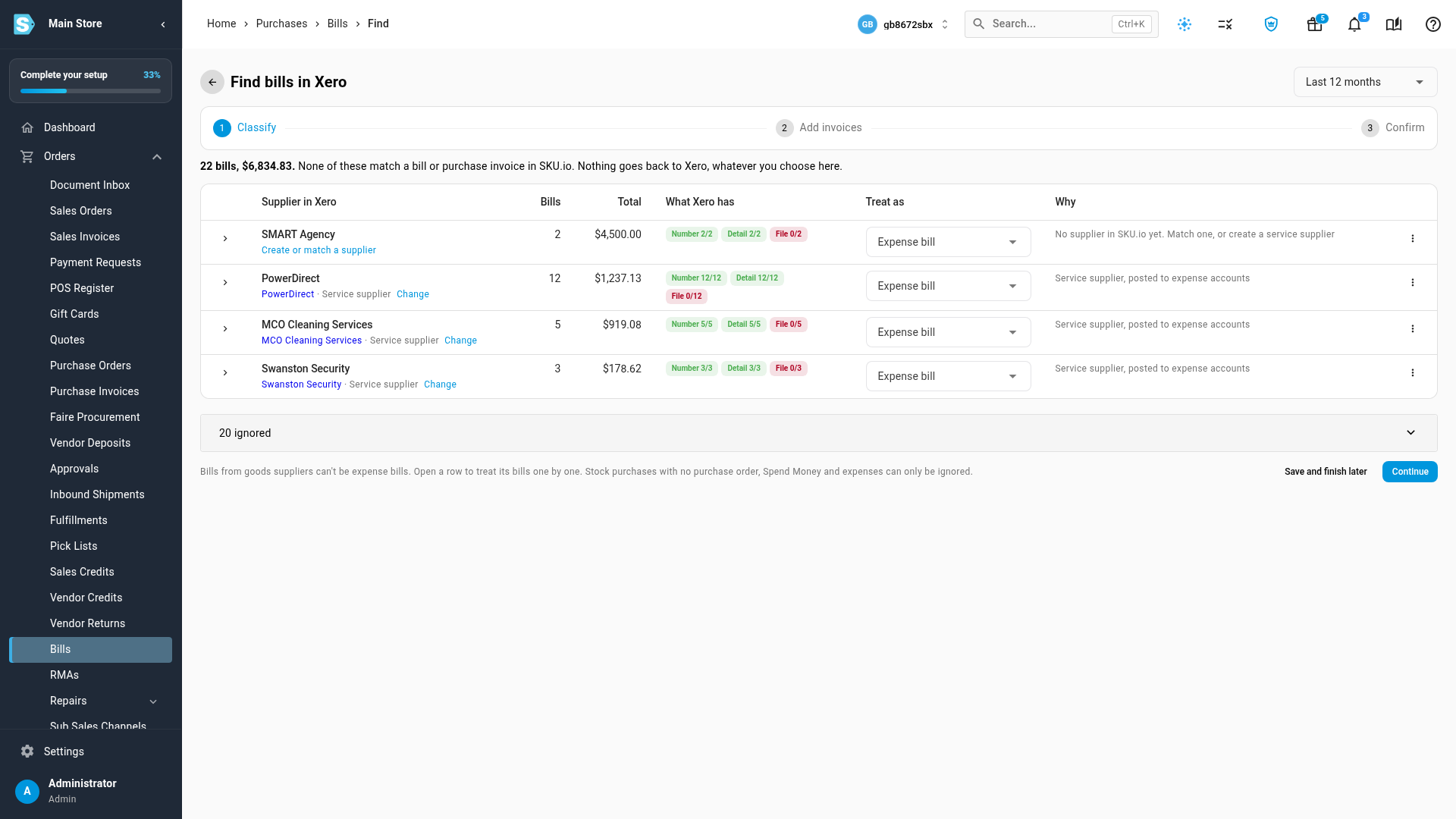
Pick a date range at the top right if you need one: Last 12 months (the default), This year, Last 2 years, or Last 3 years.
-
On Classify, read each supplier's row: its bill count and total, What Xero has (how many bills carry a Number, line Detail, and a File), and Why, the reason for the suggestion.
-
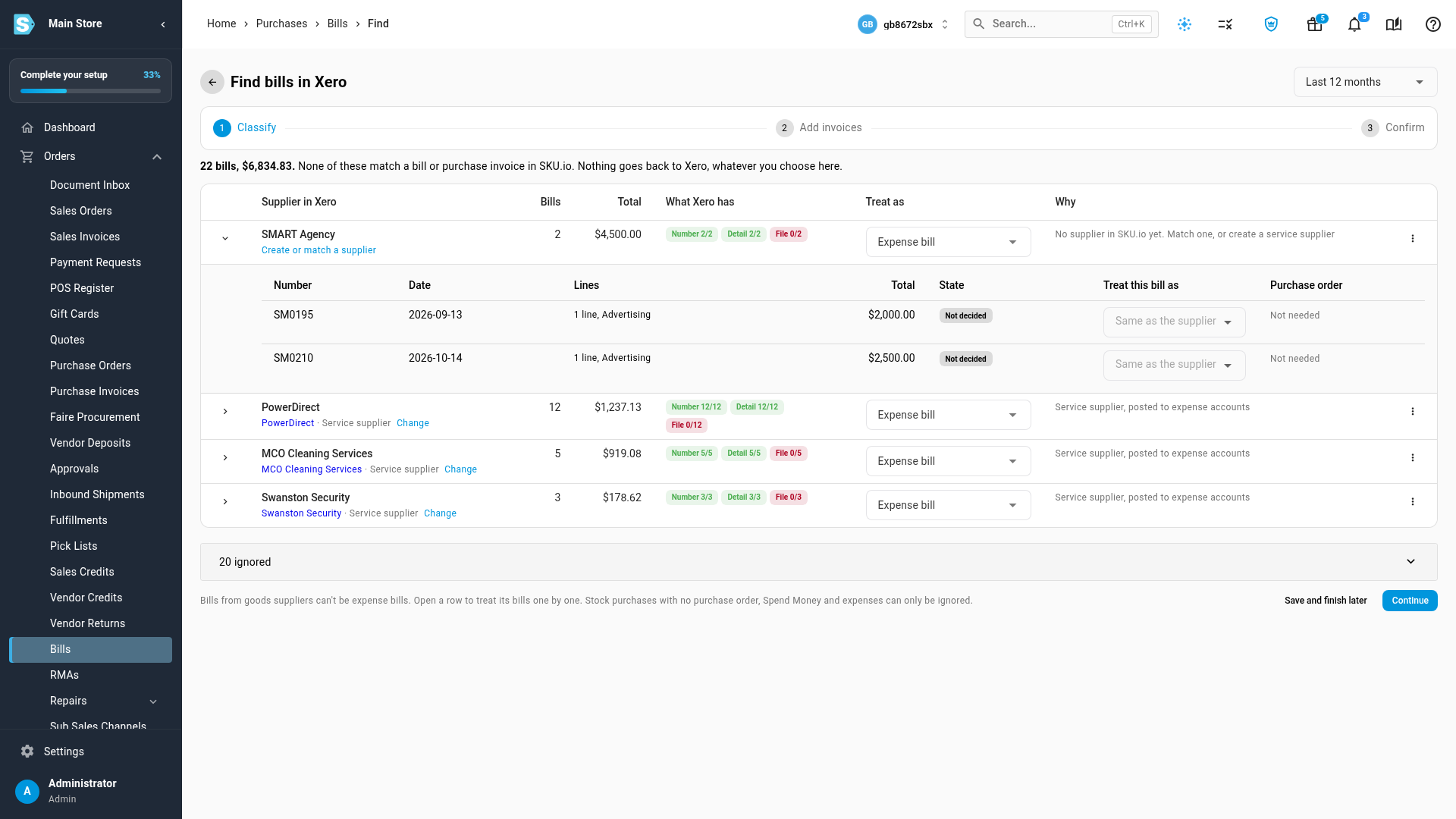
Under Treat as, choose Expense bill, Purchase invoice, or Ignore for each supplier. To treat bills one by one, open the supplier's row and use Treat this bill as.
-
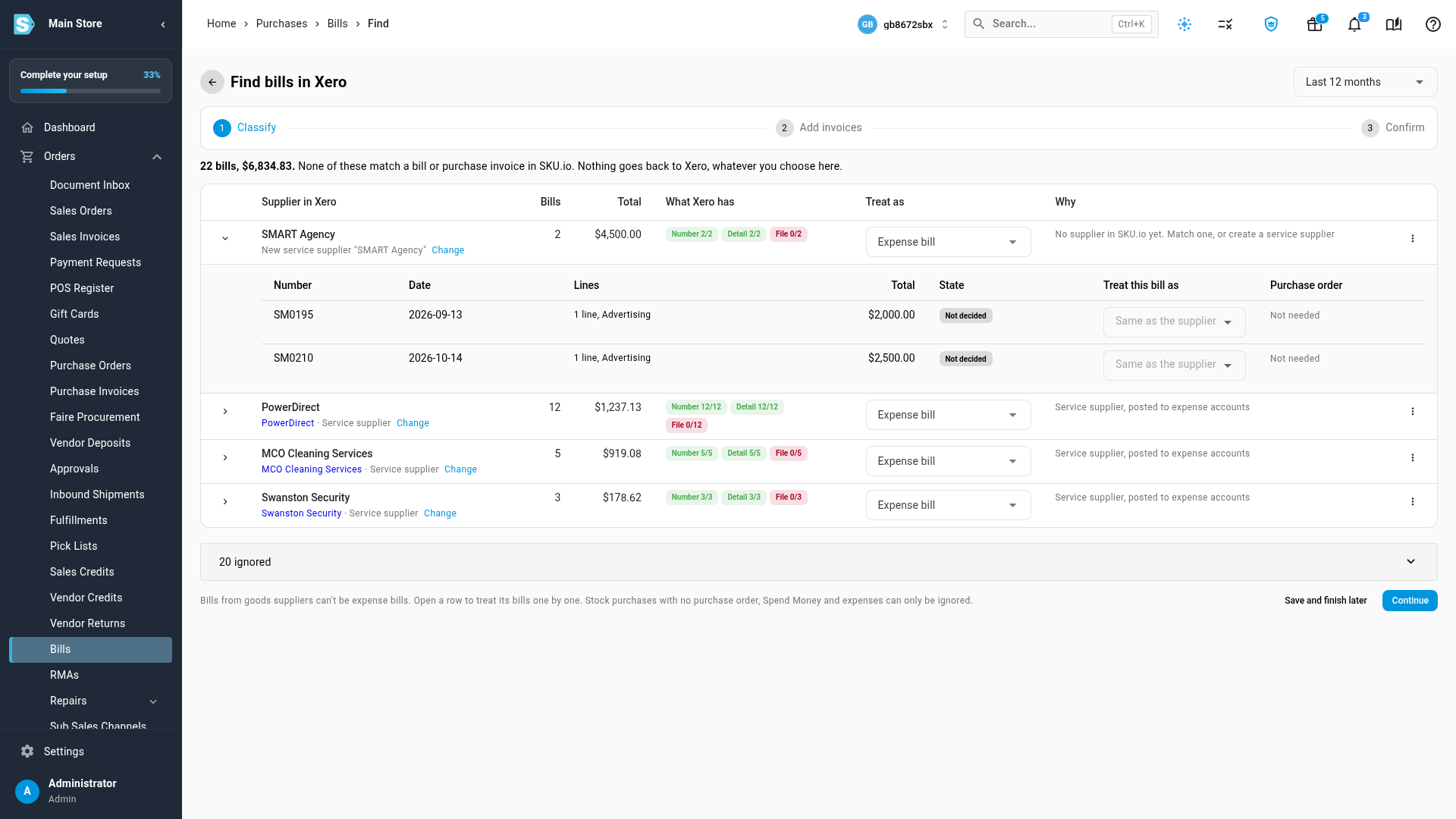
For a supplier with no SKU.io supplier yet, click Create or match a supplier. Match one you have, or create a service supplier from the contact. SKU.io remembers the match for every bill from that contact.
-
Click Continue. To stop part-way, click Save and finish later and pick up where you left off next time.
-
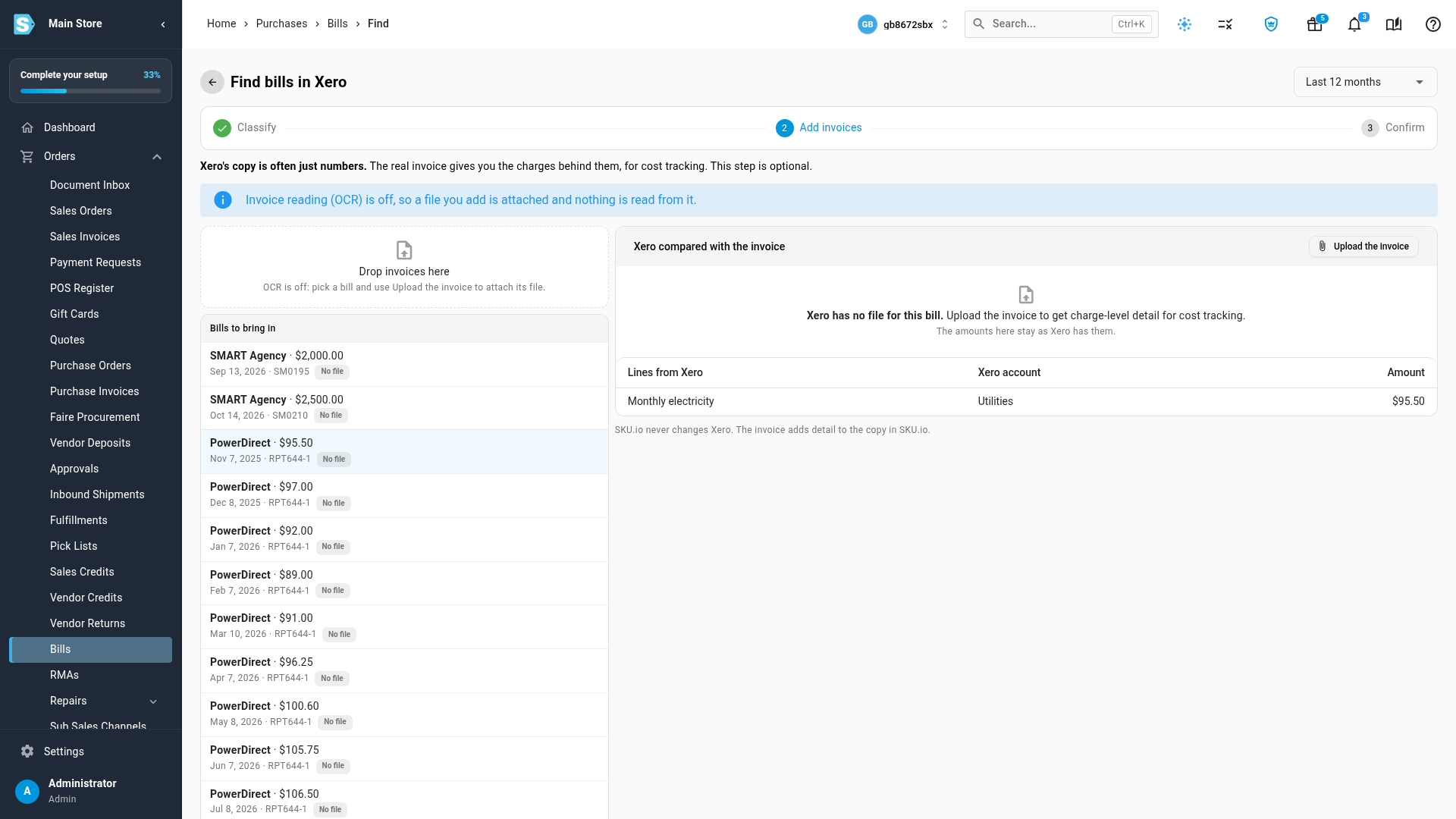
On Add invoices, select a bill to compare it with its invoice, and click Upload the invoice to add the real one. You can also drop many invoices at once: each is read and matched to its bill by supplier, number, and total. This step is optional; click Skip for now to leave it.
-
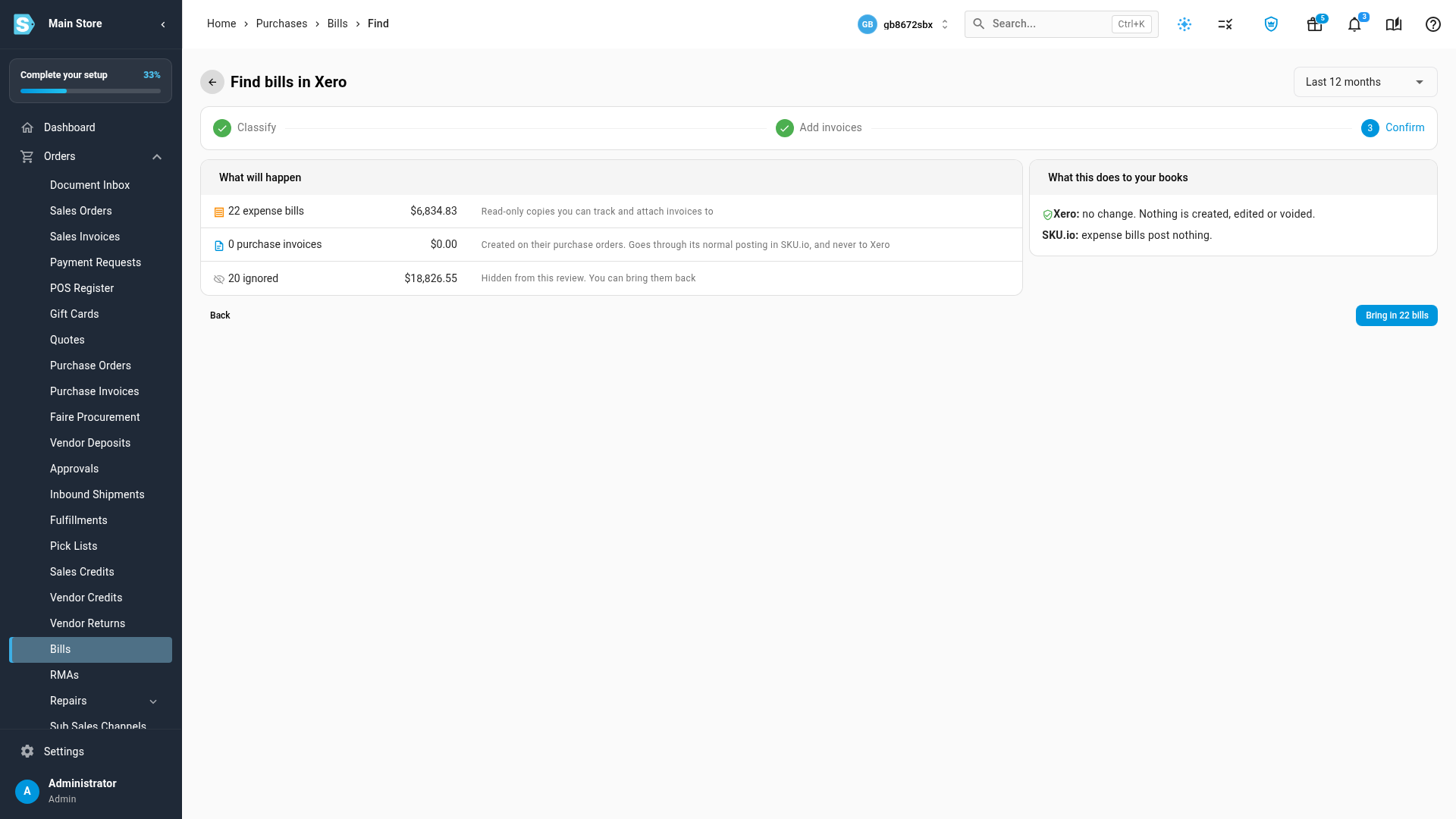
Click Continue. Confirm shows how many bills become expense bills and purchase invoices, how many are ignored, and what this does to your books.
-
Click Bring in. The bills arrive in the background; follow them in the job tray. When it finishes, the Bills list shows the ones that came from your accounting system.
Choosing how to treat a bill
| Treat as | Use it for | What you get |
|---|---|---|
| Expense bill | A service supplier's bill: rent, software, a 3PL's fees | A read-only copy that you can track as cost entries and attach invoices to. It posts nothing in SKU.io. |
| Purchase invoice | A goods supplier's bill for a purchase order you've received | A purchase invoice on that order. It's suggested when a received, uninvoiced order has the same total. Never sent back to your accounting system. |
| Ignore | Anything else | Hidden from the review. Bring it back from the ignored list at any time. |
- Expense bill is off for goods suppliers, and says why.
- Purchase invoice needs a received purchase order to invoice.
- Use Always ignore this supplier, in the row's menu, for a contact whose bills never belong in SKU.io.
- Stock purchases with no purchase order, Spend Money, and QuickBooks Expenses can only be ignored. A provider bill can't become a landed cost bill here, because your accounting system has already expensed it.
When the invoice and your accounting system disagree
| On the invoice | Result |
|---|---|
| The bill has no number | The number is filled in from the invoice, in SKU.io only. Until then it shows a placeholder. |
| The same total | Accepted. |
| A different total | You're warned, and your accounting system's amount stays. Fix it there, keep the file and flag the bill, or discard the file. |
| More detail than your accounting system has | Saved as detail for cost tracking. The bill's lines don't change. |
Bills brought in from your accounting system
A bill brought in this way stays your accounting system's bill. SKU.io's copy shows Booked in Xero (or QuickBooks):
- Its amounts, lines, accounts, dates, and supplier are read-only. Correct them in your accounting system.
- Documents, notes, tags, cost tracking, and AI allocation all work as usual.
- Add Payment is hidden: paid and amount due come from your accounting system.
- Every night SKU.io refreshes it from your accounting system: payments, amount due, lines, and totals follow along. A bill voided there shows Voided in Xero, and its cost entries stay until you remove them.
- SKU.io never moves a bill to another supplier or currency on its own. When that changes in your accounting system, the review lists the bill under "bills changed in Xero since they were brought in". Click Keep SKU.io's to keep SKU.io's record, or delete SKU.io's copy and bring the bill in again with the new details.
- Deleting it removes SKU.io's copy only, and the bill returns to the review. You can't delete a copy that has tracked cost.
Next steps
- Choose how expense bills sync: set Keep entering in Xero so nobody enters these bills twice.
- Track an expense bill as cost entries: put the cost of bills you brought in into product profitability.
Video transcript
Some teams keep entering their bills in their accounting system. SKU.io can find those bills, and bring them in without changing a thing there. Start from Orders in the sidebar, and then choose Bills. This list holds every supplier bill, for expenses and for landed costs, in one place. When your accounting system has bills that SKU.io is missing, a blue banner above the list counts them. Click Find bills in Xero, and the review opens on its first step, Classify. Each supplier from your accounting system gets one row, with its bill count and its total. What Xero has shows how complete those bills are. The Why column explains each suggestion. Your accounting system never changes, whatever you decide in this review. Each supplier has a Treat as list with three choices. Its bills can become expense bills or purchase invoices, or be ignored completely. A purchase invoice needs a received purchase order to invoice, so it's off here. Service bills like these stay as Expense bill. To decide bill by bill instead, use the arrow on the left of the supplier's row. This Xero contact has no supplier in SKU.io yet, and every bill needs one. Click Create or match a supplier under its name. You can match a supplier you already have, or create a new service supplier from the contact. Here, we create one, and SKU.io remembers it for every bill from this contact. Suppliers you ignore wait in the ignored list at the bottom, and you can bring any of them back. Save and finish later keeps your progress for another day. When every supplier has a choice, click Continue to save them and move on to the next step. The second step adds invoices, and you can skip it entirely. Select a bill on the left to compare your accounting system's copy with its invoice. Uploading the real invoice keeps its detail for cost tracking in SKU.io. The amounts always stay exactly as your accounting system has them. Click Continue again to reach the last step, and see what will happen. Expense bills come in as read-only copies that you can track. In Xero, nothing is created, edited, or voided. When you're ready, click Bring in, and the bills arrive in the background.