Import landed cost bills
When a forwarder or broker sends a statement covering many shipments, or you're moving months of bills from another system, import them from a spreadsheet instead of entering each one. The importer on Orders → Landed Cost Bills has three import types:
| Import type | Use it to | One row per |
|---|---|---|
| Import Bills | create bills and update existing ones, with their lines | bill line |
| Import Bill Allocations | set how much of a manual bill each product carries | allocation |
| Import Bill Payments | record payments against bills | payment |
Each imported bill is created the same way as one you type in: it's linked to its purchase order, inbound shipment, or warehouse transfer, its cost is spread by its proration strategy, and the landed cost reaches your inventory.
Before you begin
- You need the Purchase Orders → Create permission to import bills. Without it the Import button is hidden. Importing allocations or payments, and updating bills that already exist, also needs Purchase Orders → Edit.
- Every company you're billed by must already exist as a service provider (a freight forwarder, customs broker, or similar), not as the supplier of the goods. See Create and edit a supplier.
- The purchase orders, inbound shipments, and warehouse transfers your bills cover must already exist. The importer finds them by number.
- Cost categories, tax rates, payment terms, currencies, nominal codes, and payment methods in your file must already exist too. The importer matches them by name and never creates them.
Import bills
-
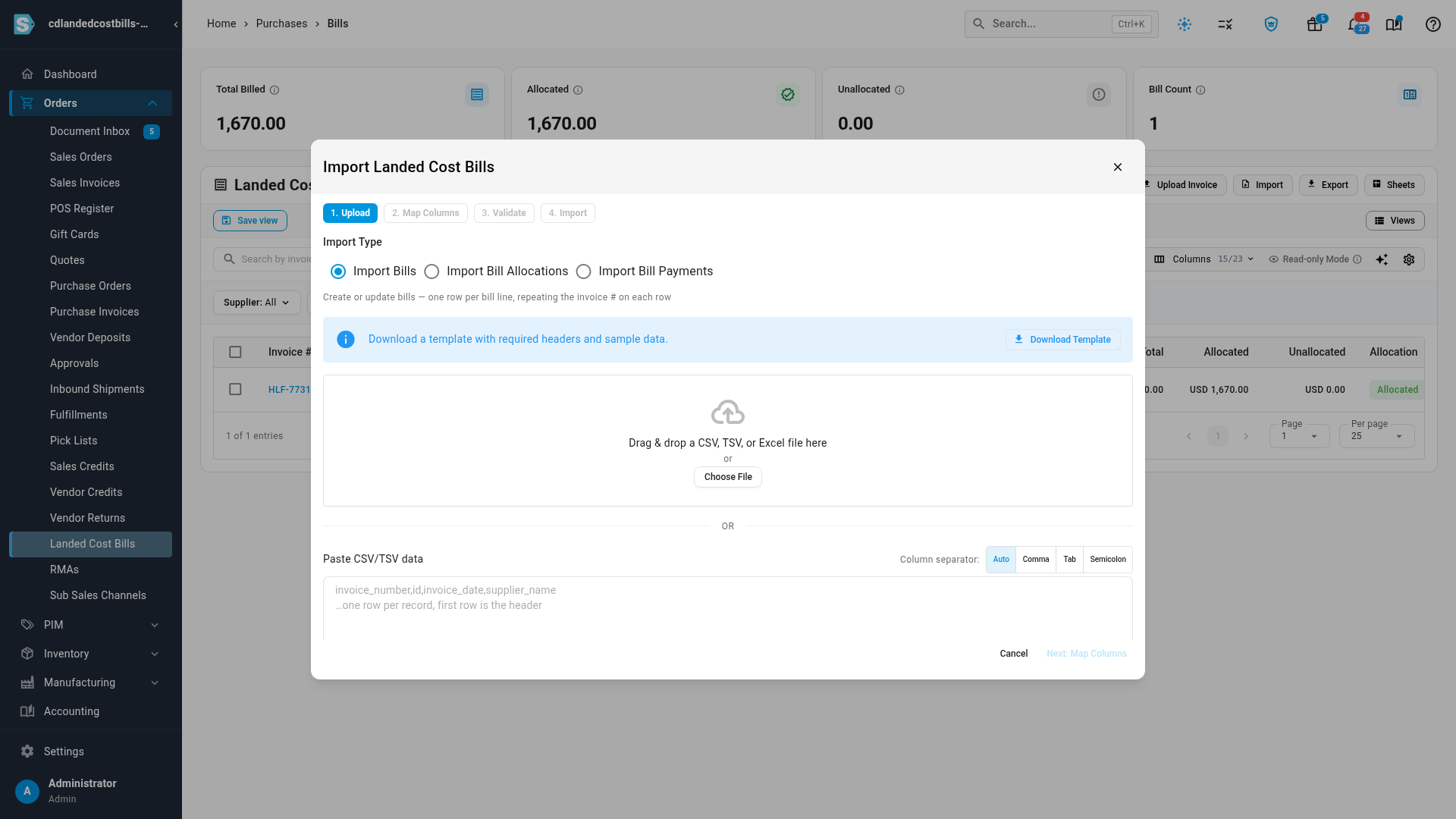
Go to Orders → Landed Cost Bills and click Import, next to Export.
-
Under Import Type, leave Import Bills selected, and click Download Template. The template has three sheets:
- Import Here: the columns below, with sample rows built from your own suppliers and purchase orders. Green headers are required for a new bill.
- Field Guide: what each column means, whether it's required, and an example.
- Reference Data: your service providers, link types, proration strategies, currencies, payment terms, cost categories, tax rates, and nominal codes, spelled exactly as the importer expects them.
-
Fill in one row per bill line. Rows that share an invoice number become one bill, so repeat the invoice number and the bill's details (supplier, date, linked document) on every row of the same bill.
-
Drop your file on the upload area, click Choose File, or paste the rows into Paste CSV/TSV data. CSV, TSV, TXT, XLSX, and XLS files all work. Click Next: Map Columns.
-
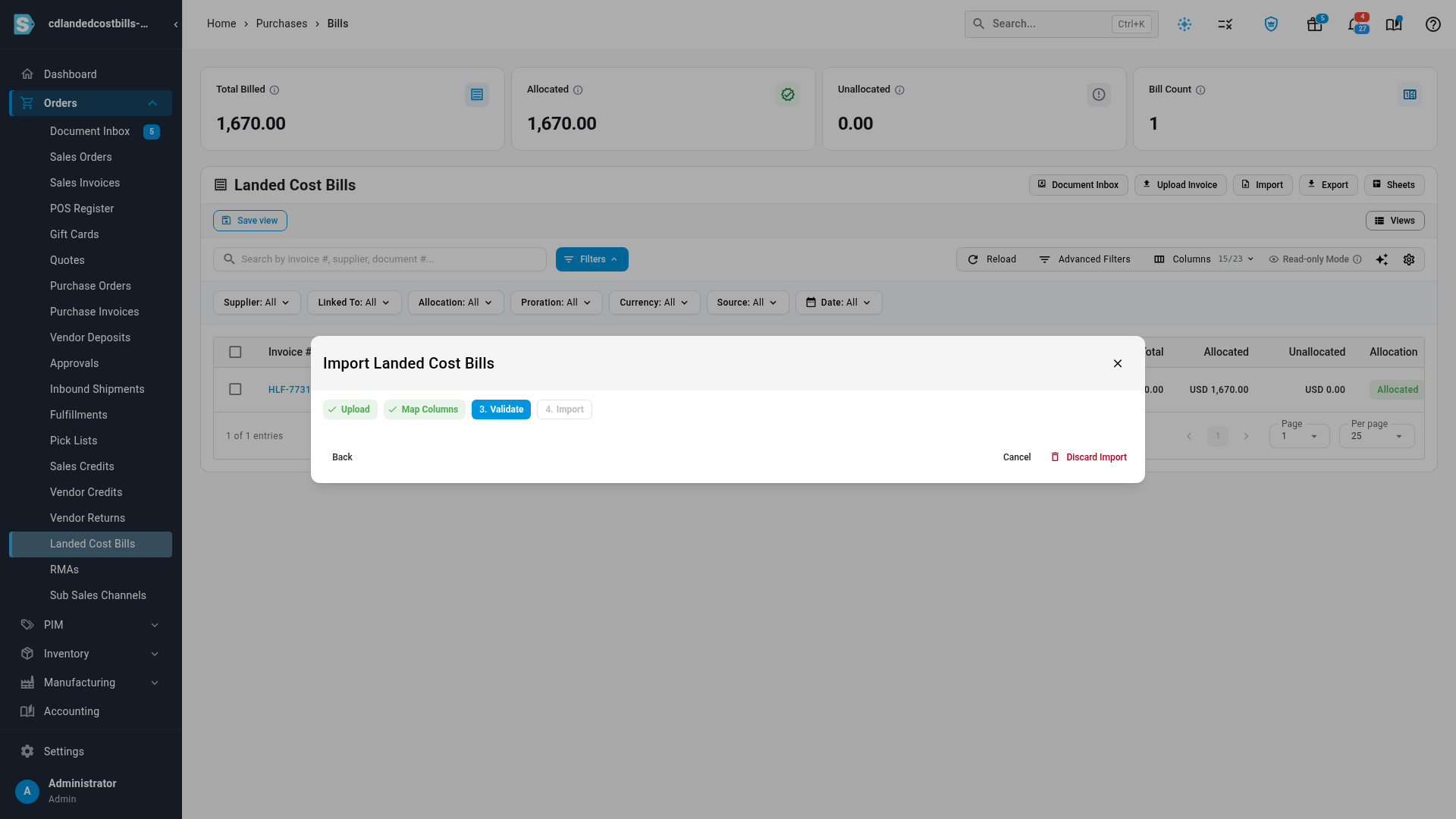
Check that each column maps to the right field. Columns named like the template or the bills export are matched for you. Click Next: Validate.
-
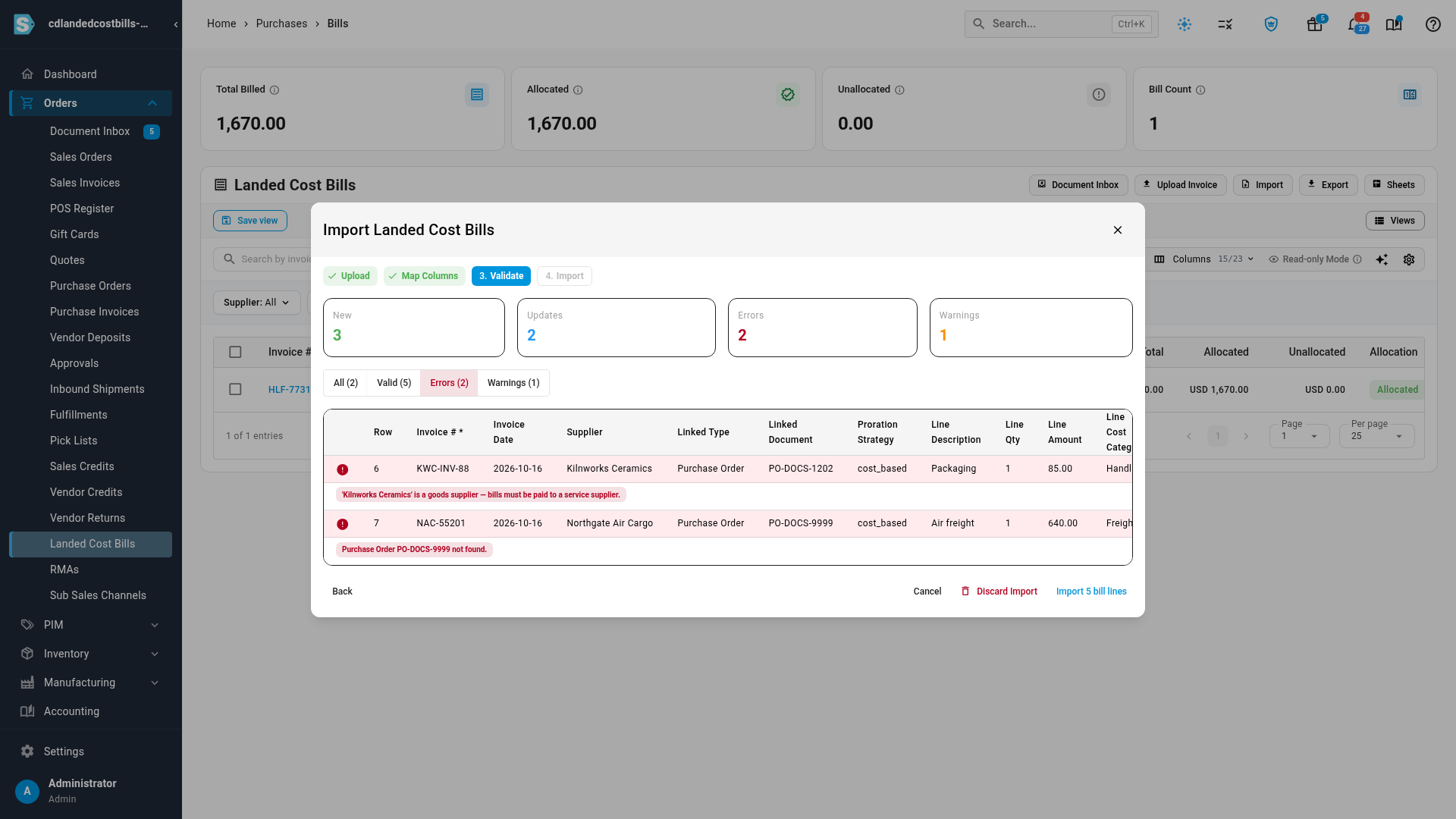
SKU.io checks every row and counts what will happen: New, Updates, Errors, and Warnings. Use All, Valid, Errors, and Warnings to filter the rows. A bill is all or nothing: if any row of a bill has a problem, every row of that bill shows the error and none of it is imported.
-
Fix the rows with errors in your file and upload it again, or carry on: only valid rows are imported. Click Import. The button shows how many bill lines will be imported.
-
The import runs in the background, and you can follow it in the job tray. When it finishes, the dialog says how many bills were created and updated, and the bills list refreshes.
Bill columns
Repeat these on every row of a bill. On an update, a blank cell keeps the bill's current value.
| Column | Required for a new bill? | Format | Notes |
|---|---|---|---|
id | No | A bill ID number | Leave blank for new bills. When filled in, that exact bill is updated (and its invoice number can be changed). |
invoice_number | Yes | Text | The supplier's invoice number. Rows with the same number form one bill. If a bill with this number already exists, it's updated; otherwise a new bill is created. Invoice numbers are unique across all your bills. |
invoice_date | Yes | YYYY-MM-DD or MM/DD/YYYY | A date in a locked accounting period is refused. |
supplier_name | Yes | A service provider's name | Matched without regard to capitals. Must be a service provider, never a goods supplier. |
supplier_email | No | Email address | Use it when two suppliers share a name. If two suppliers share the email too, add the exact name as well. |
link_type | Yes | Purchase Order, Warehouse Transfer, or Inbound Shipment | What the bill's cost lands on. An import can't move an existing bill to a different document. |
link_reference | Yes | A document number | The purchase order, warehouse transfer, or inbound shipment number, for example PO-1001. |
currency_code | No | A currency code, for example EUR | Blank uses your default currency on a new bill. |
currency_rate | No | A number greater than 0 | Blank uses the currency's current rate. Re-supplying a bill's existing currency without a rate keeps the bill's original rate. Changing an existing bill's currency always takes the new currency's current rate. |
payment_term | No | A payment term name, for example Net 30 | Sets the due date. Blank uses the supplier's default term. |
proration_strategy | No | cost_based, revenue_based, weight_based, volume_based, quantity_based, specific_line, duty_estimate_based, or manual | How the cost is spread over the document's lines. Blank is cost_based. specific_line splits the cost equally across every line. For manual, set the amounts with Import Bill Allocations. Until you do, the bill stays unallocated, and validation warns you. |
Line columns
| Column | Required? | Format | Notes |
|---|---|---|---|
line_description | Yes | Text | Must be unique within the bill (capitals don't count as different). On an update, lines are matched to the bill's existing lines by description. |
line_quantity | No | A whole number of 1 or more | Blank is 1. |
line_amount | Yes | A number of 0 or more | The unit amount in the bill's currency, rounded to the cent. |
line_cost_category | No | A cost category name, for example Freight | See Manage cost categories. |
line_tax_rate | No | A tax rate name | |
line_nominal_code | No | A code, or a code and name, for example 5010 Freight In | Blank lets the account be chosen automatically when the bill posts. |
On an update, the lines in your file become the bill's complete set of lines: a line that's no longer in the file is removed, and validation warns you which ones. A row with only bill columns and no line columns updates the bill's details and leaves its lines alone. On an existing line, a blank cost category, tax rate, or nominal code keeps the line's current value.
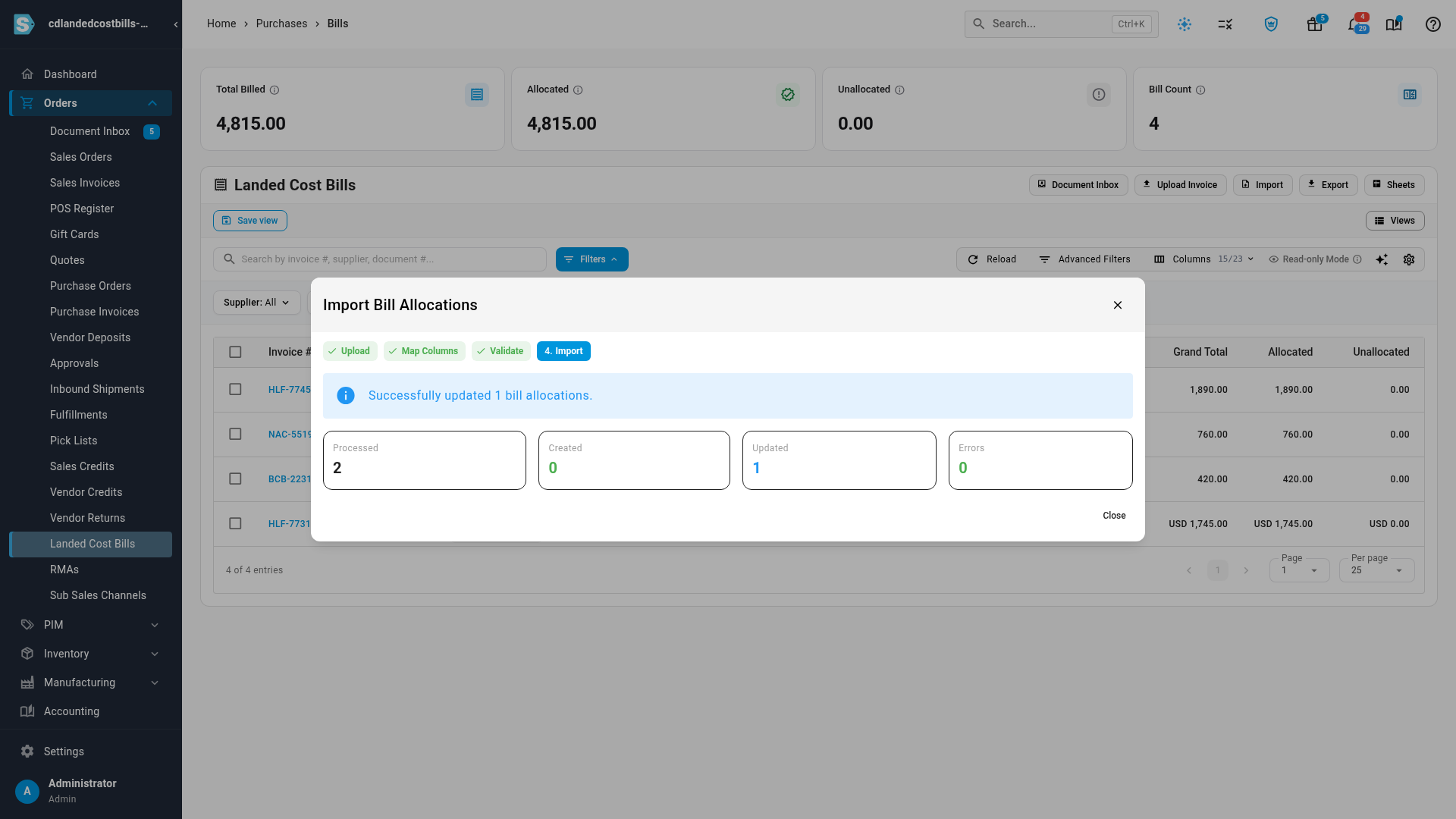
Import bill allocations
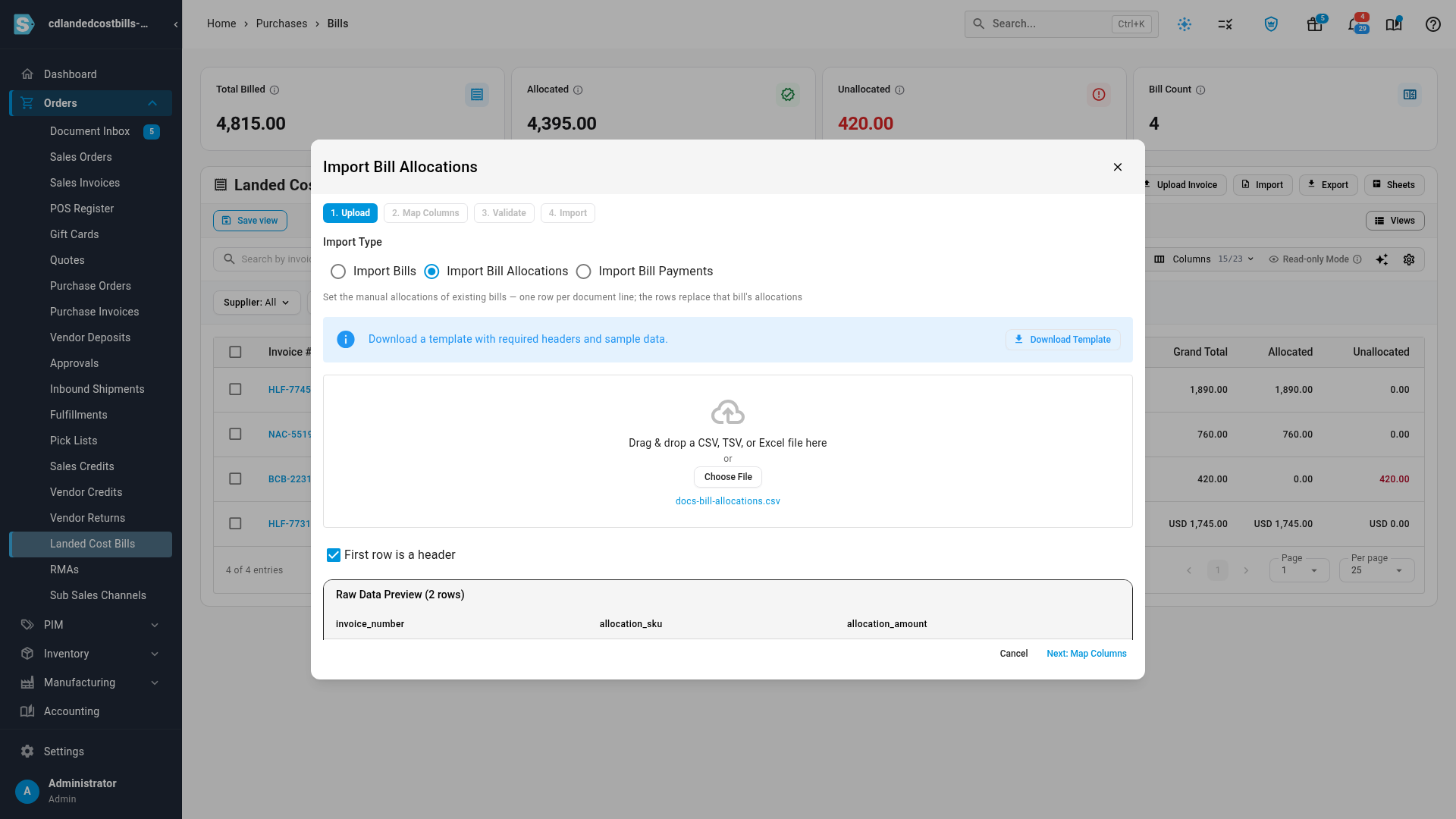
A bill with the manual proration strategy carries exactly the amounts you give each product on
its purchase order, inbound shipment, or warehouse transfer. To set them for many bills at once,
click Import, choose Import Bill Allocations under Import Type, then upload, validate,
and import the same way.
| Column | Required? | Format | Notes |
|---|---|---|---|
id | No | A bill ID number | Picks the exact bill. Otherwise the bill is found by invoice number. |
invoice_number | Yes | Text | The bill must already exist. Import it first with Import Bills. |
allocation_sku | Yes, unless allocation_line_id is filled in | A SKU on the bill's linked document | For an inbound shipment, a SKU on one of its purchase order lines. |
allocation_line_id | Only when the SKU is on more than one line | A document line ID | Picks the exact line. It wins over allocation_sku. |
allocation_amount | Yes | A number of 0 or more | How much of the bill's subtotal (before tax) that line carries. |
- The rows for a bill replace all of its allocations, and make it a manual bill. Validation warns you when a bill is switching from another proration strategy.
- All of a bill's allocations together can't be more than its subtotal. If they're less, the rest stays unallocated and validation warns you.
- Two rows for the same document line are added together.
Import bill payments
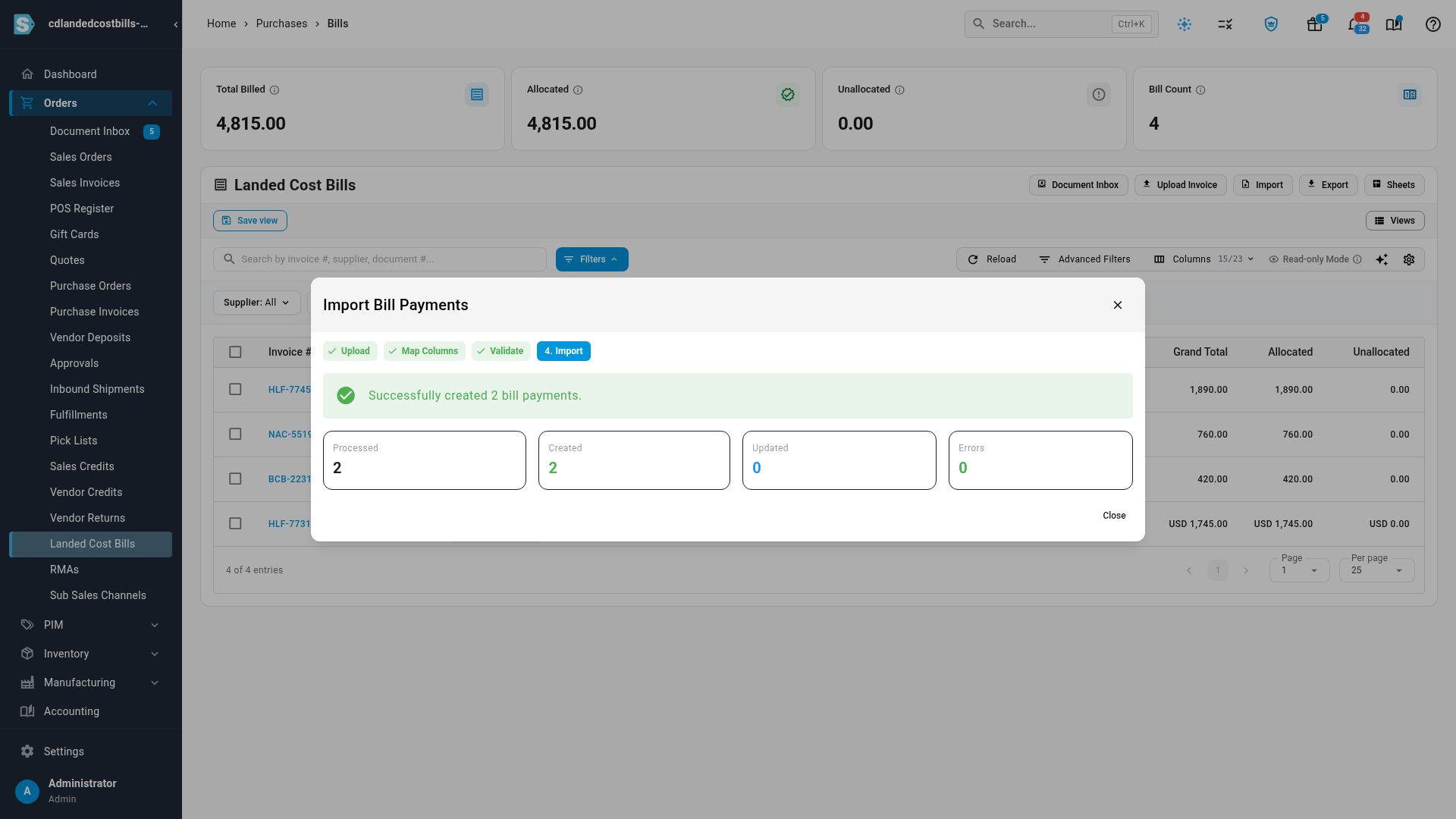
To record many payments at once, for example from a remittance file, click Import and choose Import Bill Payments under Import Type.
| Column | Required? | Format | Notes |
|---|---|---|---|
id | No | A bill ID number | Picks the exact bill. Otherwise the bill is found by invoice number. |
invoice_number | Yes | Text | The bill being paid. |
payment_date | No | YYYY-MM-DD or MM/DD/YYYY | Blank is today. |
amount | Yes | A number greater than 0 | In the bill's currency. |
payment_method | Yes | A payment method name | Must already exist, for example Wire Transfer. |
reference | No | Text | Your payment reference. |
- A row with the same bill, payment method, and reference as an existing payment updates that payment instead of adding another. Keep the reference filled in, and you can import the same remittance file twice without paying a bill twice. Without a reference, every import adds a new payment, and validation warns you.
- A payment can't be more than what's still owed on the bill. This is checked across the whole file, so two rows for the same bill can't overpay it together. A bill that's already paid in full can't take another payment.
- The bill's paid status updates as each payment is recorded.
Edit bills in Google Sheets
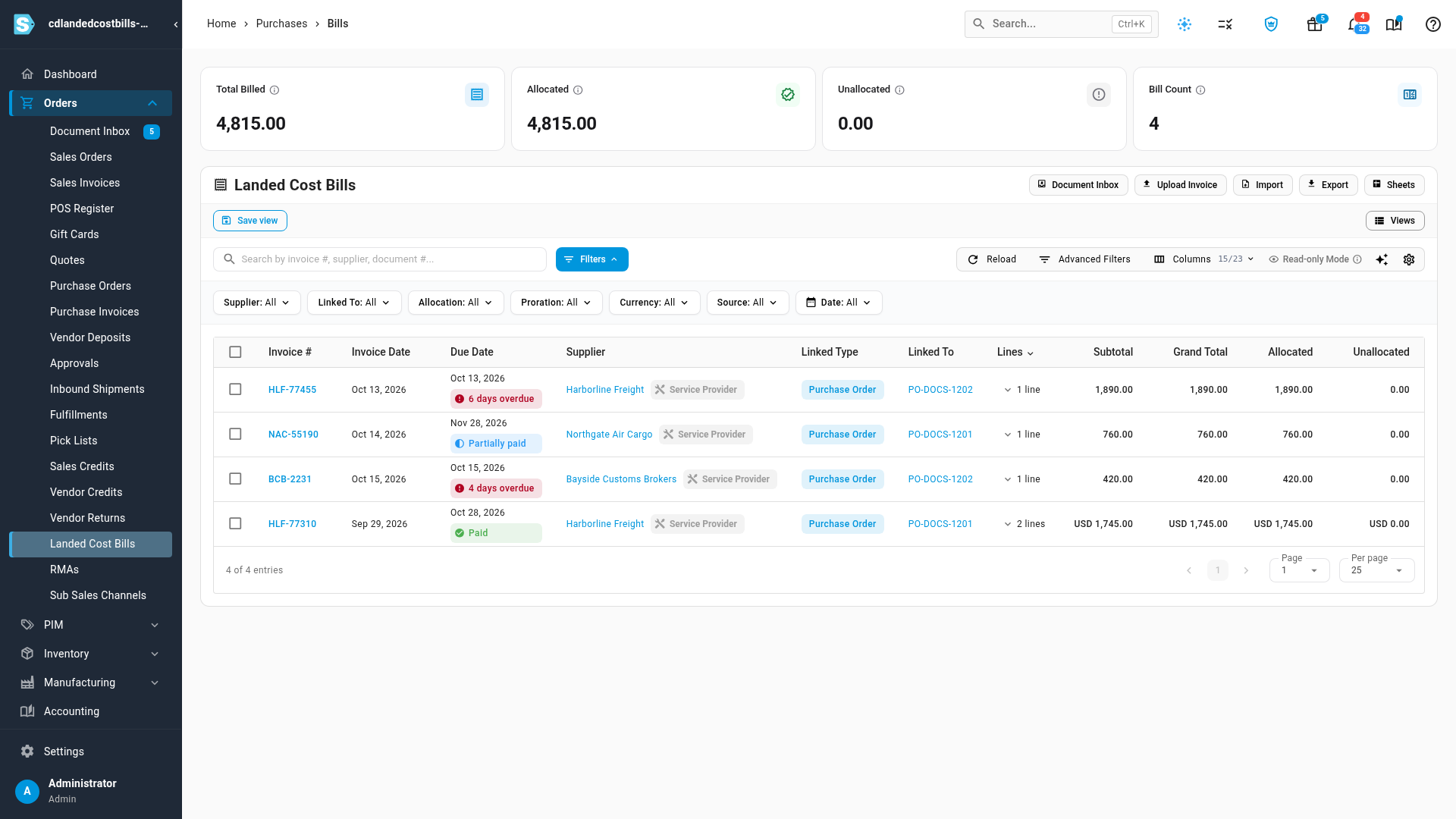
Click Sheets on the Landed Cost Bills page to open your bills in Google Sheets, one row per bill. Edit the invoice number, date, supplier, linked document, currency, FX rate, or proration strategy, then choose Pull & review to bring the changes back. They go through Import Bills, so you check them on the Validate step before anything is saved. Totals and statuses in the sheet are there for reference and aren't imported, and a pull never changes a bill's lines. See Open a list in Google Sheets for connecting your Google Account and the other push and pull options.
Edit bills in bulk with an export
- On Orders → Landed Cost Bills, click Export and choose Bills with Line Items. For
bills with the
manualproration strategy, the export adds one row per allocation, using the Allocation SKU, Allocation Line ID, and Allocation Amount columns. - Edit the file. To remove a line from a bill, delete its row.
- Import it with Import Bills. Its ID column makes each row update its own bill, and an unchanged bill is left exactly as it was. To update manual allocations, import the same file again with Import Bill Allocations: it reads the allocation columns and ignores the rest.
What gets blocked
Validation stops a bill from importing, and says why, when:
- The bill is dated in a locked accounting period, or its new date would be.
- The bill has payments, and the imported total would be less than what's already been paid.
- The file would move an existing bill to a different purchase order, transfer, or shipment.
- Two groups of rows in the file would end up as the same bill or the same invoice number.
- You can't edit bills (you don't have the Purchase Orders → Edit permission).
The importer checks again when it writes each bill, so a change someone makes after you validate is never overwritten by stale data. If a bill changed in the meantime, its blank cells keep the newer values.
Next steps
- Record landed cost bills: upload one supplier invoice and review what was read from it.
- Add landed costs: how each proration strategy splits a bill.
- Manage cost categories: the categories your bill lines are sorted into.
- Open a list in Google Sheets: push a list to a sheet and pull your edits back.