Use learned freight rates
Your past freight bills already say what freight costs you. SKU.io can read them and propose a rate for each supplier, transport mode and destination, such as "Lotus Ceramics, ocean to the US: 11.7% of goods value". You check the shipments behind the rate, then use it, and SKU.io prices new estimates from it. You can also have it update itself each month as new bills come in.
Before you begin
- Enter the freight bills for your received shipments and purchase orders, and link each bill to its shipment or purchase order. See Enter a freight bill and mark it final.
- Turn on the freight categories your bills use. Only bill lines in those categories count as freight. See Turn on freight estimates.
- Set the transport mode on your shipments, or a Default Transport Mode in each supplier's Purchasing Defaults so new shipments start with it. Rates are learned per mode, so shipments with no mode are pooled together.
- To learn rates and use them, you need permission to add freight rates (
freight_rates.create). To dismiss a learned rate or leave a shipment out, you need permission to change freight rates (freight_rates.update).
Steps
- Go to Settings → Purchasing → Freight Rates.
- Click Learn from bills. SKU.io reads your bills in the background, and you see Learning from your bills.
- Click the Learned tab.
- Find the supplier you want, and check its Confidence.
- Click Bills to see the shipments and bills the rate was learned from.
- Turn off Use for any shipment that shouldn't count. The rate is worked out again without it.
- Click Use this rate.
- Choose the day the rate starts in Use from.
- Optionally, turn on Keep up to date automatically.
- Click Use rate.
The rate joins the Rates tab with the source Learned. Goods already received keep the rate they used.
Read the learned rates
The Learned tab lists one learned rate for each supplier, transport mode and destination. Its title is Freight Rates Learned From Bills.
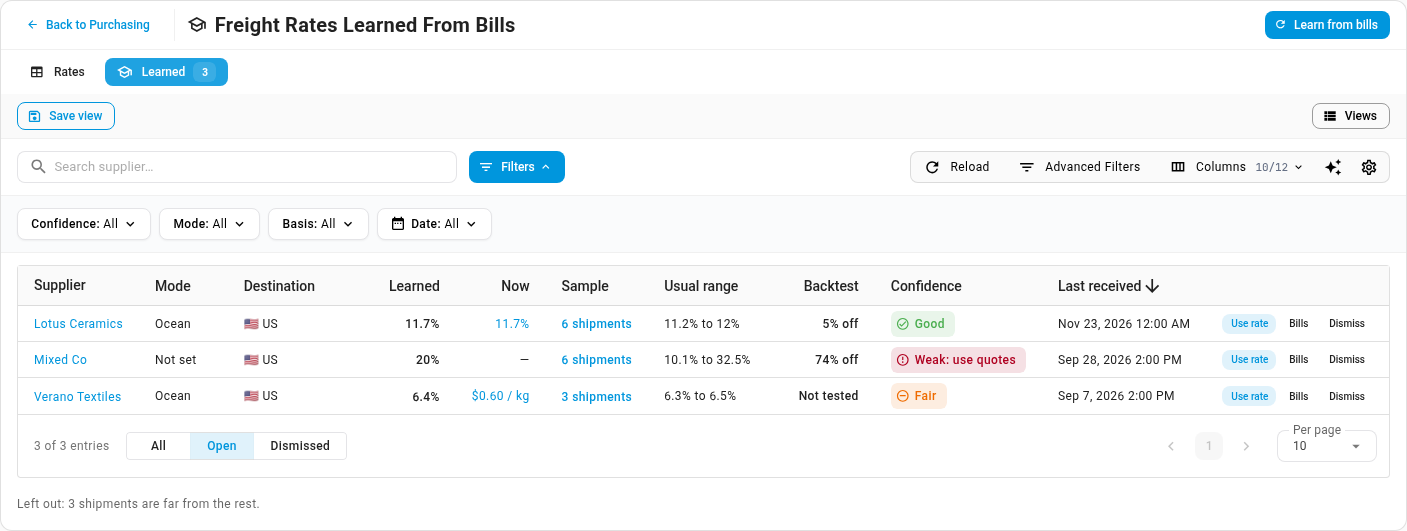
| Column | What it shows |
|---|---|
| Supplier, Mode, Destination | What the rate is for. Not set means the shipments had no transport mode. |
| Learned | The rate SKU.io worked out. |
| Now | The rate you use for this supplier today, if any, such as $0.60 / kg. Click it to open that rate. |
| Sample | How many shipments the rate was learned from, such as 6 shipments. |
| Usual range | How far the shipments usually sit from the rate, such as 11.2% to 12%. |
| Backtest | How far off the rate would have been on earlier shipments, such as 5% off. Not tested means there were too few shipments to test it. |
| Confidence | Good, Fair or Weak: use quotes. |
| Last received | When the newest shipment in the sample was received. |
Each row has Use rate, Bills and Dismiss. Use the Confidence, Mode, Basis and Date filters to narrow the list, and the All, Open and Dismissed buttons to show dismissed rates.
Below the list, Left out: tells you which shipments weren't used and why, such as "Left out: 3 shipments are far from the rest."
Confidence
| Confidence | Means | What to do |
|---|---|---|
| Good | On earlier shipments, the rate was within 25%. | Use it. |
| Fair | Within 50%, or there were too few shipments to test it. | Use it, and check it against the next few bills. |
| Weak: use quotes | More than 50% off. This supplier's freight varies too much for one rate. | Get a quote for each shipment instead. See Add a freight quote. |
A learned rate for shipments with no transport mode is often Weak, because ocean and air freight are mixed together. Its drawer says "Set the transport mode on recent shipments for a better rate." Set the mode on those shipments, and SKU.io learns a rate for each mode instead.
How a rate is learned
SKU.io looks at each received shipment and its linked freight bills. A purchase order whose bills are linked to the order, not to a shipment, counts as one shipment. For each one, it compares the freight billed with the goods value, weight, volume and units.
For each supplier, mode and destination, it then:
- Takes the latest 6 shipments it can learn from. It needs at least the number in Learn from at least, 3 by default, on the Freight tab of Settings → Purchasing → Landed Cost Estimates.
- Tries a rate as a percentage of goods value, per kg, per CBM and per unit. For each, it tries the typical shipment (Median shipment) and all shipments added up (All shipments together).
- Tests each one on earlier shipments only, as if it had been in use then.
- Keeps the one that was least wrong month by month. On a tie, it keeps the percentage of goods value.
When there are too few earlier shipments to test, it uses the typical percentage of goods value. The Backtest shows Not tested, and the confidence is never better than Fair.
Shipments are taken in the order they were received, not the order their bills were entered. So entering a year of old bills in one go learns the same rate as entering them as they came. When a bill changes, is moved to another shipment, or a receipt changes, the shipments it touches are worked out again. A deleted duplicate bill stops counting.
Shipments that are left out
| Reason | What it means |
|---|---|
| No supplier | The shipment has no supplier. |
| Several suppliers | The shipment has goods from more than one supplier, so its freight can't be put down to one. |
| No goods value | There's nothing to compare the freight with. |
| Freight is more than the goods | The freight billed is more than the goods cost, which is usually a mistake on the bill or its link. |
| Outlier | The shipment's freight, as a share of goods value, is far from the shipments received around the same time. SKU.io judges this once there are 5 or more shipments. A shipment within 10% of the typical share is never an outlier. |
| No freight category | Its bills have no lines in a freight category. Review uncategorised lines opens them so you can choose a category. |
| Excluded by a person | Someone turned off Use for it. |
Check the shipments behind a rate
Click Bills on a learned rate. The drawer shows the Rate and how it was worked out, the Sample, the Usual range and the Backtest, with how many shipments it was tested on. Below that, a line shows what the rate would change on your open shipments, such as "On 4 open shipments: $3,179.50 now, $2,234.70 with this rate."
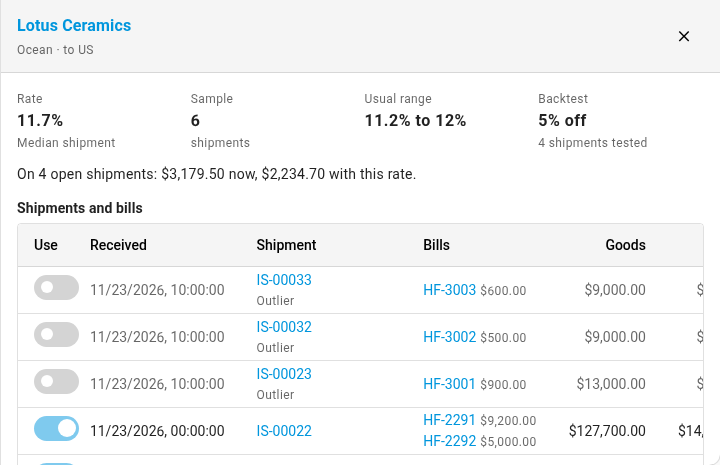
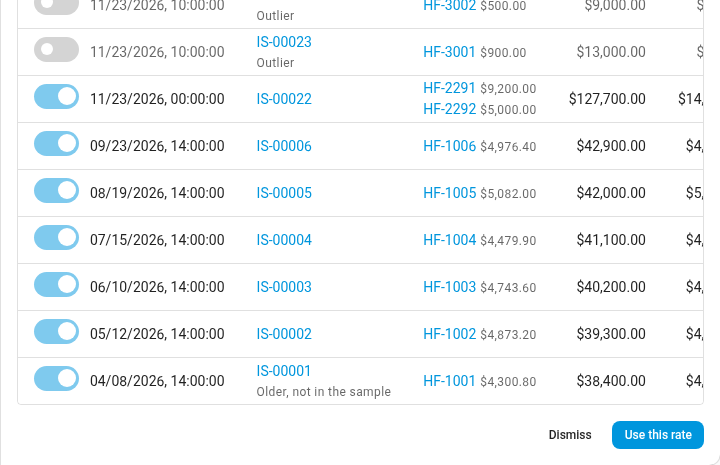
Shipments and bills lists each shipment, when it was Received, its Bills, its Goods value, its Freight and the % of goods. A shipment marked Outlier or another reason was left out. Older, not in the sample means a shipment that is older than the 6 used.
To leave a shipment out, turn off its Use switch. The rate is worked out again, and a note tells you how it changed. The shipment is then listed under Left out by a person: below the learned rates. Click Put back there to use it again. You can't turn on a shipment that SKU.io left out for a reason of its own, such as Outlier.
Use a learned rate
Click Use rate on the list, or Use this rate in the drawer. The Use this rate dialog sums up the rate and what it replaces, such as "Lotus Ceramics: 11.7%, 6 shipments, usually ±3.9%. It replaces 11.7% (#1)."
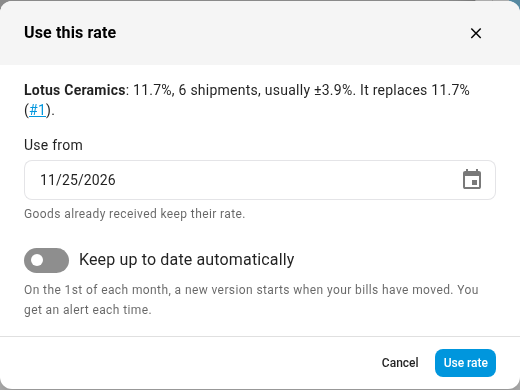
- Use from is the day the rate starts. It can't be before today, because goods already received keep their rate.
- Keep up to date automatically updates the rate each month. See below.
Click Use rate. SKU.io adds the rate to the Rates tab with the source Learned, and ends the rate it replaces the day before. If the supplier already has a rate starting on or after that day, you see "Rate #N for this supplier already starts on … Choose a later date." If new bills changed the learned rate while the dialog was open, you see "The bills behind this rate changed. Check the new figures, then use it."
Dismiss a learned rate
When you don't want a learned rate, click Dismiss, then Dismiss again to confirm. It moves to the Dismissed view. It comes back when two or more of its shipments change, such as when new bills arrive.
Keep a learned rate up to date
When Keep up to date automatically is on, SKU.io checks the rate on the 1st of each month, in your account's time zone. It starts a new version from that day only when:
- the learned rate has moved by more than Flag a rate that drifts above, 10% by default, on the Freight tab of Settings → Purchasing → Landed Cost Estimates, and
- it was learned from at least 6 shipments.
A new version never changes goods already received. Each time it happens, the people who can change freight rates, and admins, get the Freight Rates: Updated Automatically alert, listing each supplier with its old and new rate. To choose who gets it, see Choose which alerts your team gets.
On the Rates tab, a rate that keeps itself up to date has a tooltip on its source: Kept up to date automatically. To turn it on or off later, open the rate and use the Keep up to date automatically switch in its drawer.
Rate accuracy and drift
The Accuracy column on the Rates tab shows how each rate compares with the freight bills on closed shipments, the ones whose final freight bill is in. It looks at the rate's last 6 closed shipments.
| Accuracy | Means |
|---|---|
| Good ±4.7% (for example) | The bills have been close to the estimates, or, for a learned rate not yet judged on its own bills, this is how it did on the bills it was learned from. |
| On target | The bills match the estimates. |
| 8% low or 8% high (for example) | The rate is drifting: bills came in that much above or below the estimates, by more than Flag a rate that drifts above. |
| Not tested yet | No shipment at this rate has had its final freight bill yet. |
Hover over the chip to see how many closed shipments it's based on.
When a rate is drifting:
- The freight reconciliation report lists it under Rates off their bills:. See Reconcile freight estimates.
- The month-end close check Freight rates match freight bills fails, with how many rates drift more than your threshold. When freight estimates aren't posted, the check is skipped.
- Click Learn from bills to get a fresh learned rate from the newest bills, then use it.
Next steps
Video transcript
SKU.io can work out freight rates from the freight bills you've already entered. To see them, go to Settings, which sits at the very bottom of the sidebar. In the settings menu, open the Purchasing group. Then choose Freight Rates from that group, and wait while the list of rates loads. Learn from bills reads your bills again, whenever you want fresh rates. Open the Learned tab, next to Rates, to see what it found. Each row is a rate for one supplier, transport mode, and destination. Learned is the rate from your bills, and Now is the rate you use today. Backtest shows how close it would have come on earlier shipments. Confidence grades each rate as Good, Fair or Weak, at a glance. Below the list, a note names the shipments that were left out. To see where a rate came from, click Bills on its row. The drawer shows the rate, its sample, and its backtest result. It also shows what the rate would change on shipments still in progress. Below, Shipments and bills lists every shipment the rate learned from. Each shipment has a Use switch. Turn it off to leave a shipment out. To use a learned rate, close the drawer and click Bills on its row. When the rate looks right, click Use this rate, at the foot of the drawer. Choose the day the new rate starts. Goods already received keep their old rate. Turn on Keep up to date automatically to refresh it monthly from new bills. Then click Use rate, and the learned rate replaces the one in use. The Now column shows the new rate.