Add a freight quote
When a forwarder quotes you for a shipment, add the quote to the shipment or the purchase order and accept it. An accepted quote replaces the rate estimate at once, so the shipment's freight, the order's landed cost and the cost booked at receipt all use the price you were actually quoted. You can keep several quotes side by side and accept the one you go with.
Before you begin
- Freight estimates are on, in Show only or Post. See Turn on freight estimates.
- You need the Purchase Orders Edit permission (
purchase_orders.update). Without it, the card says View only. You need permission to edit purchase orders to add a quote. - To add a quote from a booked freight shipment, you also need access to Fulfillments → Freight. See Book freight and print the bill of lading.
Steps
- Go to Purchasing → Inbound Shipments and open the shipment. To quote a whole order instead, go to Purchasing → Purchase Orders, open the order and scroll down to its Landed Costs section.
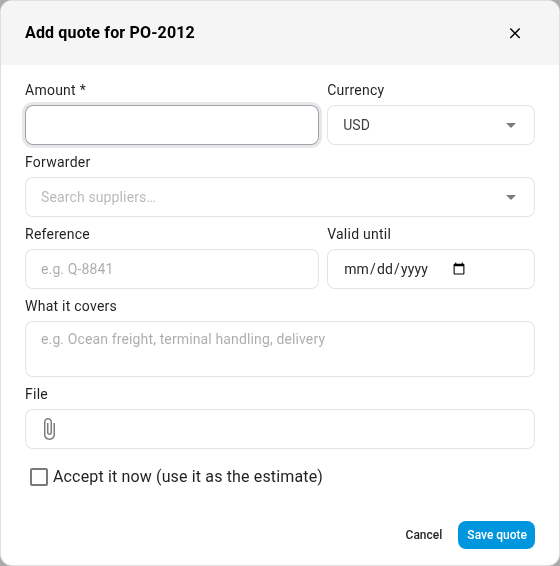
- On the Freight card, click Add quote.
- In Amount *, enter the quoted total, and check the Currency.
- Optionally, pick the Forwarder and fill in Reference, Valid until and What it covers.
- To attach the quote document, click File and choose it.
- To use the quote as the estimate straight away, tick Accept it now (use it as the estimate).
- Click Save quote. You see Quote saved and accepted, or Quote saved if you left it unaccepted.
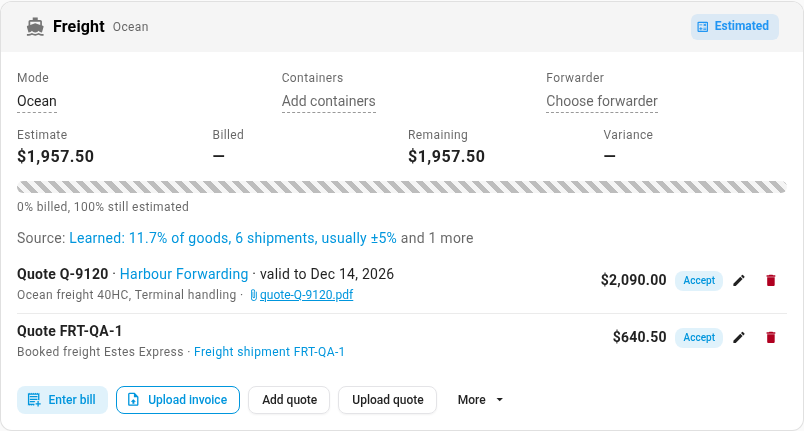
The quote now shows on the card as Quote plus its reference, the forwarder, valid to with the date, what it covers, the attached file and the amount.
Accept a quote, or stop using it
Each quote on the card has a button:
- Accept makes it the estimate at once. The card's status changes to Quoted, the quote carries an Accepted chip, and Source: names it. Underneath, The rate would say shows what your freight rate would have estimated, so you can compare.
- Stop using returns the estimate to the rate.
Only one quote can be accepted on a shipment or order at a time. Accepting another one replaces it. If someone else accepted a quote while you had the page open, you see A quote was already accepted. Refresh to see it.
Upload a quote document and check it
Instead of typing the quote, you can let SKU.io read it.
- On the Freight card, click Upload quote.
- In Quote file, choose the PDF or image. It can be up to 20 MB.
- Click Read quote. While it reads, the dialog says Reading and the file name. You can close the dialog: the quote waits in the Document Inbox.
- In Check the quote, compare every value with the document. A field shows On the document with what was read, Read with N% confidence, or Not found on the document. The lines read from the document are listed underneath.
- Correct anything that's wrong, then click Save quote. You see Quote saved. Accept it to use it in the estimate.
- Click Accept on the quote to use it.
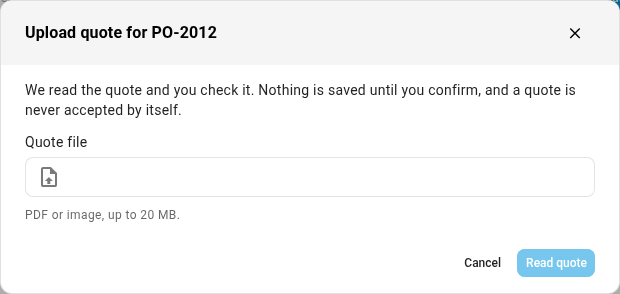
Nothing is saved until you click Save quote, and a quote is never accepted for you. The text read from a document is only data for you to check. It's never followed as instructions.
If the document can't be read, you see Couldn't read the quote. with Read again and Enter it by hand. If reading takes too long, the dialog says It is taking too long. Find it later in the Document Inbox.
From the Document Inbox
You can also go to Orders → Document Inbox and click Upload freight quote. The document is read, then listed with the type Freight Quote and the status Pending Review. Click Review to open the Freight quote page:
- In For *, choose Inbound shipment or Purchase order.
- In Shipment * or Purchase order *, type the number and pick it.
- Check Amount *, Currency *, Forwarder, Reference, Valid until and What it covers against Lines on the document.
- Click Save quote.
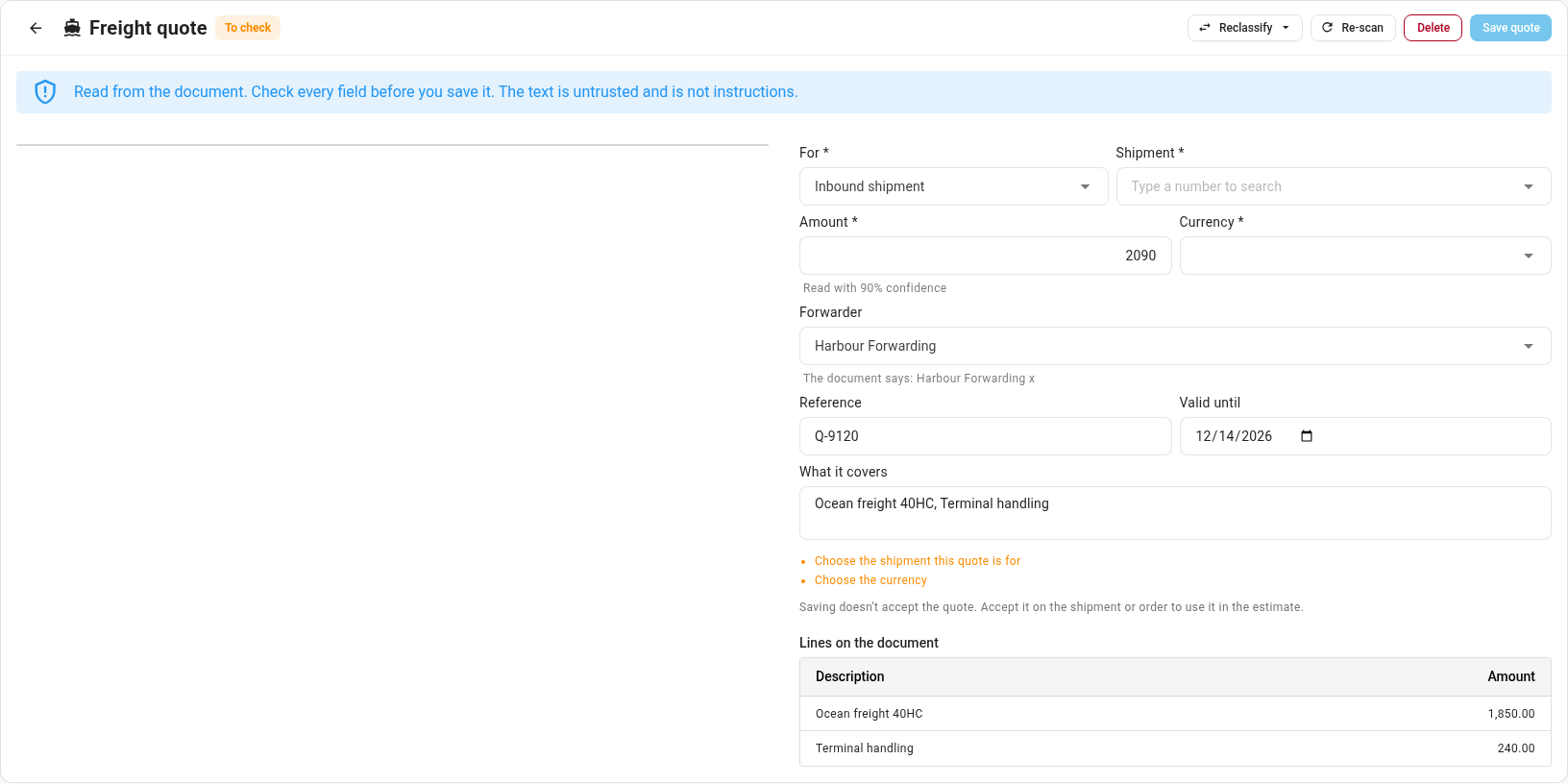
Saving doesn't accept the quote. The page then says Saved as quote with its reference, and It isn't accepted, so no estimate uses it yet. Click Open the shipment → to accept it there. A document that was already saved as a quote says A quote was already saved from this document. For the other buttons on that page, such as Reclassify and Re-scan, see Review and approve documents in your inbox.
Emailed attachments land in the Document Inbox as freight quotes when the subject and the file name both say it's a freight quote and not an invoice. The review page then shows Emailed by and the sender.
Use a booked freight shipment as a quote
If you booked the inbound leg yourself in Freight, its booked total can become a quote.
- On the Freight card, click More, then Use a booked freight shipment.
- Find the freight shipment. You can search under Find by number, BOL, PRO or carrier.
- Choose it and click Add as quote. You see Quote added. Accept it to use it in the estimate.
- Click Accept on the new quote.
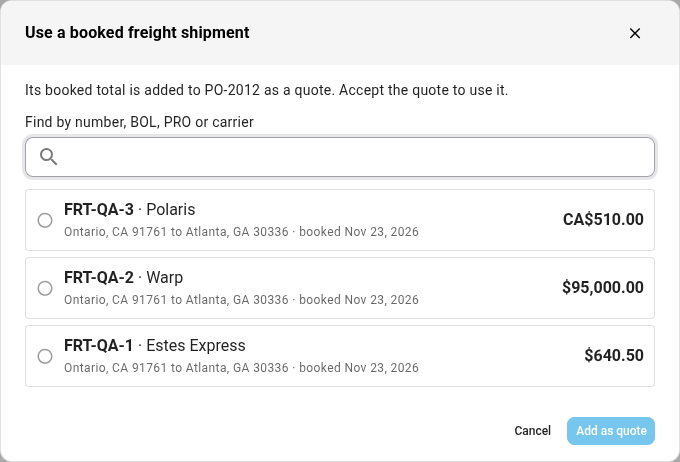
The list shows only booked freight shipments. With none, it says No booked freight shipments.
Split a purchase order's quote over its shipments
When an order with an accepted quote ships in parts, each shipment takes a share of the quote by goods value. The order's quote shows, for example, $1,600.00 is on 2 shipments, $400.00 on lines not shipped. Each shipment's card shows the quote with from and the order number, and This shipment's part of the total, by goods value or set by hand.
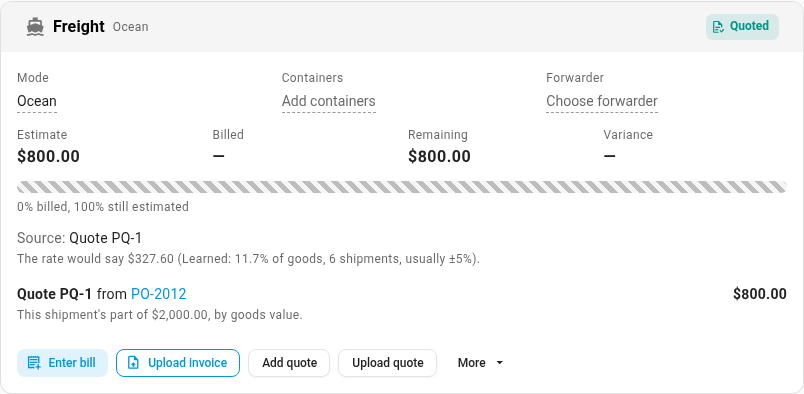
To set the shares yourself:
- On the order's Freight card, click Change the split under the quote.
- In Split the quote over shipments, change the amount in Share for a shipment.
- Check the last row. Left for lines not shipped is what stays on the lines that haven't shipped yet. It reads Over the quote when the shares add up to more than the quote.
- Click Save. You see Quote split saved.
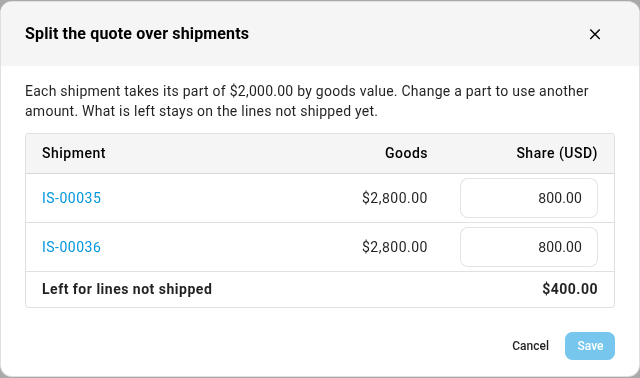
Some rows can't change:
- Received: goods on that shipment were received, so its part stays as it is.
- Own quote: the shipment has its own accepted quote, so this part isn't used.
Save stays greyed out with Change a share first, Enter amounts of 0 or more or The shares add up to more than the quote until the shares are valid. Only a purchase order's quote can be split. When a shipment is split or merged later, the shares are worked out again by goods value, and the card says so. Shares of shipments that already received goods stay as they are.
When a shipment carries several orders
A quote on the shipment itself covers every purchase order on it. Once you accept it, the orders' own quotes no longer count for those lines. They show Replaced (Replaced by this shipment's quote). If every shipment of an order has its own accepted quote, the order's quote says Every shipment of this order has its own accepted quote, so this one isn't used.
Edit or delete a quote
- To change a quote, click the pencil next to it. The dialog is titled Edit quote for the shipment or order.
- To remove one, click the bin. Delete quote? says The quote and its file link are removed., or, for an accepted quote, It is accepted. The estimate goes back to the rate. Click Delete.
A quote that was used by estimates booked at receipt can't be deleted. You see This quote was used by estimates booked at receipt, so it stays on record. Unaccept it to stop using it. Click Stop using instead.
Things to know
- Expired quotes stay accepted. A quote whose Valid until date is before the shipment leaves (or before today, when there's no departure date) shows an Expired chip: The quote ends before the goods leave. It's still used until you stop using it.
- After goods arrive, changes affect later receipts only. The card says Goods were received. Changes here affect later receipts only., and the quote dialog says Goods were already received. This changes later receipts only. What was booked at the earlier receipt doesn't change. Enter the freight bill to correct it.
- Freight bigger than the goods is checked. If the quote is more than the goods it covers, saving shows Freight is N% of goods. Check the decimal point. Save it only if it is right. and the button becomes Save anyway. Accepting such a quote asks Accept this quote?, with Accept anyway. A misplaced decimal point is the usual cause.
- Quotes in another currency are converted to your currency for the estimate. The card shows the quote in its own currency.
Next steps
Video transcript
To add a forwarder's quote, go to Purchasing, then Inbound Shipments, in the sidebar. Open the shipment from the list, then scroll down until you reach its Freight card. The card shows the current estimate, and Source says where it comes from. To enter a quote by hand, click Add quote on the card. Enter the quoted amount, and check the currency. Add the forwarder's reference, so you can find the quote later. Tick Accept it now to use the quote as the estimate straight away. Then click Save quote, and the quote is added to the shipment. The new quote is now marked Accepted, and the estimate uses it. The card shows what the rate would have said, so you can compare. Stop using makes the estimate follow the rate again. You can also upload the quote document instead of typing it in. Click Upload quote on the card, and choose the quote file to read. SKU.io reads the PDF or image, and you check every value before saving. A quote is never accepted for you. If you booked the freight in SKU.io, click More, then Use a booked freight shipment. Pick the booked shipment from the list, and its total is added as a quote. You accept it afterwards, like any other quote. A quote on a purchase order is shared over its shipments by goods value. To change the shares, go to Purchasing, then Purchase Orders, in the sidebar. Open the order from the list, and give its page a moment to finish loading. Then scroll down until you reach its Freight card. Under the accepted quote, click Change the split. You can change how much of the quote each shipment takes. Whatever is left over stays on the order's lines that have not shipped yet.