Reconcile freight estimates
At month end you want two answers: are the freight estimates close to the bills, and does what's still estimated match your books? The Freight Reconciliation report answers both. It sets every received shipment's freight estimate beside its freight bills, flags the ones that are far off, and compares the estimates still open with your Accrued Landed Cost account.
Before you begin
- You need access to the Freight Reconciliation report.
- Rows appear once goods with a freight estimate or a freight bill are received. With freight estimates Off, the report says Freight estimates are off. Turn them on to see estimates beside bills. See Turn on freight estimates.
- The tie-out to your books needs the ledger turned on and an Accrued Landed Cost account chosen.
Steps
- Go to Insights → Reports.
- Choose Freight Reconciliation, under the financial reports.
- Read the cards at the top: Estimated, Billed, Net variance and Open estimates vs the books.
- Check that Open estimates vs the books says Matches, followed by your accrued landed cost account.
- Click the Big variance tab to see the shipments whose bills are far from the estimate.
- Under Group by, click Supplier or Mode to see whether one supplier or one way of shipping keeps billing over or under.
- To keep a copy, click Export and choose Excel (.xlsx) or CSV.

The cards
| Card | What it shows |
|---|---|
| Estimated | The freight estimated at receipt for the rows shown, and how many rows, for example 27 shipment rows. |
| Billed | The freight billed against them, and how much of the estimates is still to bill, for example $12,784.35 still to bill. |
| Net variance | Billed minus estimated, over estimates that are closed, and that as a percentage of those estimates. It says nothing closed yet until an estimate is closed. |
| Open estimates vs the books | The estimates still open, compared with the balance of your Accrued Landed Cost account. See Tie the estimates to your books. |
The first three cards follow the filters and the status tab you've chosen.
Tie the estimates to your books
Your Accrued Landed Cost account should always hold exactly the freight estimates that are still open. The Open estimates vs the books card checks that.
| What it says | What it means |
|---|---|
| Matches 2150 Accrued Landed Cost | The open estimates equal the account balance. The account name links to it in the ledger. |
| Books $12,900.00, difference $115.65. | They don't agree. Look for a journal posted to the account by hand, or a bill that isn't in a freight category. |
| Entries are still queued for… | Some receipts or bills haven't posted to the ledger yet. Reload in a few minutes. |
| Entries are missing on… | Some receipts have no ledger entry. View ledger outbox → shows which. |
| No Accrued Landed Cost account is mapped. | Choose the account on the Freight tab of Landed Cost Estimates. |
| The ledger isn't on, so there are no books to compare. | Turn the ledger on to use the tie-out. |
When freight and duty use the same accrued account, the card can't tell them apart in the ledger, so it adds the open duty estimates in too. The help icon beside the card's title then says Freight and duty share this account, so open duty is counted too.
Status tabs
The tabs above the table filter the rows, and each shows how many rows it holds.
| Tab | Shows shipments that… |
|---|---|
| All | have a freight estimate, a freight bill, or both. |
| Awaiting bill | have an estimate and no freight bill yet. |
| Partially billed | have bills that clear part of the estimate. |
| Closed | have their estimate closed, by a final bill or a release. |
| Big variance | have a variance bigger than the Variance > % threshold. |
| Billed, no estimate | have freight bills but no estimate, for example goods received before freight estimates were on. |
Variance > % is 10 unless you change it. Rows whose variance is more than this % of the estimate are tinted and listed under Big variance. Default 10%. The note under the table repeats the threshold beside a tinted swatch.
Group the rows
Group by sums the rows by Shipment (the default), Supplier, Mode or Month. Grouped rows have an arrow: click it to see the shipments inside. On a shipment row, the arrow shows each product and purchase order on it.
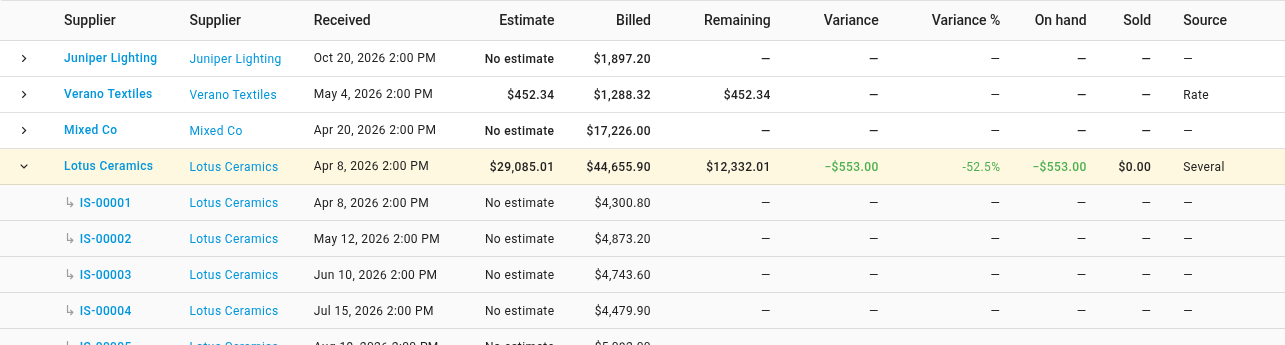
A grouped row shows only its newest shipments. When it has more, it says The newest 10 of 24 shipments. Group by shipment to see them all.
Columns
| Column | What it shows |
|---|---|
| Shipment | The shipment, or the supplier, mode or month you grouped by. |
| Supplier | The supplier. |
| Received | When the goods were received. |
| Estimate | The freight estimated at receipt. No estimate when there wasn't one. |
| Billed | The freight billed so far. |
| Remaining | The part of the estimate no bill has cleared yet. |
| Variance | Billed minus estimated, once the estimate is closed. Positive means the bills came in over. |
| Variance % | The variance as a percentage of the estimate. |
| On hand | The share of the variance that went into the cost of units still in stock. |
| Sold | The share that went to units already sold, through your Freight Variance account, or cost of goods sold if you haven't mapped one. |
| Source | Where the estimate came from: Learned rate, Rate, Quote or Override. A group with more than one shows Several. |
| Final | A Final chip when a bill was marked as the final freight bill. |
| Status | Awaiting bill, Partially billed, Closed or Billed, no estimate. |
| Bills | The freight bills, each linking to the bill. |
Right-click a row for View Inbound Shipment, View Supplier and View Bill.
Filters
Besides the tabs and Variance > %, you can filter by:
- Date: when the goods were received.
- Supplier.
- Mode: Ocean, Air, Truck, Rail or Courier.
- Source: Quote, Rate or Override. Rate includes learned rates.
- Search: a shipment, SKU, supplier or purchase order.
If nothing matches, the table says Nothing matches these filters. with Clear filters.
Rates that drift from their bills
When a rate's recent bills keep coming in above or below it, a row of chips appears above the table, headed Rates off their bills:. Each chip names the supplier and mode, for example Lotus Ceramics · ocean: bills run 14.0% above the rate (6 shipments), and links to the rate. The threshold is Flag a rate that drifts above on the Freight tab of Landed Cost Estimates.
The month-end close checklist has a matching check, Freight rates match freight bills: No freight rate in use has drifted from the freight billed on its recent shipments. It's skipped when freight estimates aren't posted. To update a drifting rate, see Use learned freight rates.
Export
Click Export, then Excel (.xlsx) or CSV. The export runs in the background. The message says Export started. Track it in the job tray., and the file waits in the job tray when it's ready.
On a very large account, the report first says Adding up the shipments. This takes a few seconds the first time. If it can't finish, it says It is taking too long. Choose fewer shipments, or export. Narrow the date range or the supplier, or export instead.
See each receipt line in the Accrued landed cost report
The Freight Reconciliation report works by shipment. To see each receipt line's estimate and what has cleared it, use the Accrued landed cost report under Accounting → Reports. Choose Freight & landed cost under Component to see only freight. Its Cleared column shows Accrual that bills have cleared. Freight clears bill by bill, so part of a line can be cleared; a minus means credits are larger than the bills. See Release an estimate when no bill is coming.
Next steps
- Find missing freight: make sure every received shipment has its freight before you reconcile.
- Enter a freight bill and mark it final: close an estimate with its last bill.
- Freight statuses and sources: every reconciliation status and source.
Video transcript
At month end, check your freight estimates against the bills. To open it, go to Insights, then Reports, in the sidebar on the left. Scroll down the list of reports until you reach Freight Reconciliation. Click it, and the report opens with its summary cards on top. The cards total the freight estimated at receipt, and the freight billed. Net variance shows how far the bills landed from the estimates that are closed. The last card compares what's still estimated with your accrued landed cost account. Here it matches, to the cent. Each row is one shipment, with its estimate, its bills and what remains. Click Big variance to see shipments whose bills are far from the estimate. The limit is ten percent unless you change it, and those rows are tinted. Here, one shipment's final bill came in well under its estimate. Group by sums the rows by supplier, mode or month. By supplier, you can see who keeps billing over or under the estimate. Click the arrow on a row to see its shipments. To keep a copy, click Export, and choose Excel or CSV. The file is ready in the job tray when the export finishes.