Read freight on orders and shipments
Every inbound shipment and purchase order has a Freight card. It shows what freight is expected before the bill arrives, where that figure comes from, and how much of it is billed so far. On a purchase order, each line also shows its share of the freight, so you see the full landed cost per unit while you order.
Before you begin
- Freight estimates are on, in Show only or Post. When they're off, the card says Freight estimates are off and offers Turn on freight estimates to anyone who can change the setting. See Turn on freight estimates.
- An estimate needs an accepted quote or a freight rate that matches. See Add a freight quote and Set up freight rates.
- To change anything on the card, you need the Purchase Orders Edit permission (
purchase_orders.update). Without it, you can read the card but its buttons are disabled.
Steps
- Go to Purchasing → Inbound Shipments and open the shipment.
- On the Overview tab, find the Freight card. Its header shows the mode and containers, such as Ocean · 1 × container, and a status chip.
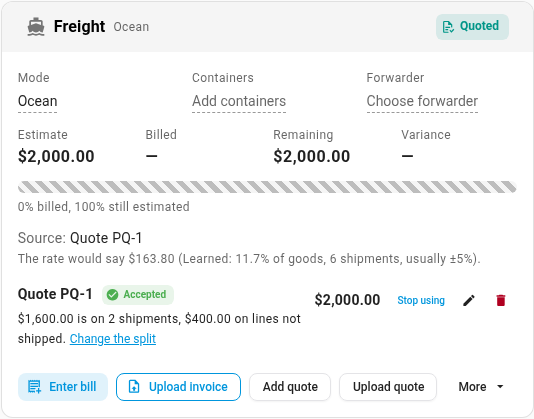
- Read Estimate, Billed, Remaining and Variance, and the progress text under them.
- Read Source: to see where the estimate comes from. When it names a rate, click it to open the rate.
- Check the bills table to see which freight bills have arrived.
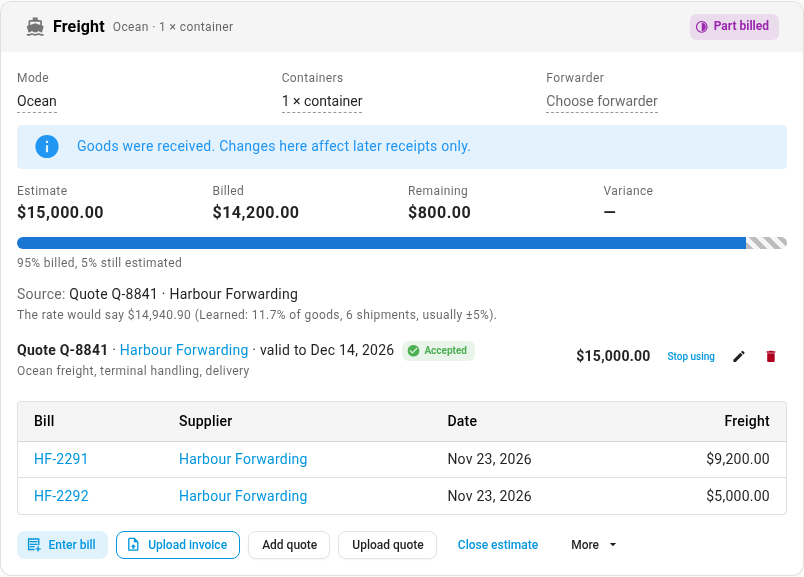
What the Freight card shows
The plan. Mode (Ocean, Air, Truck, Rail or Courier), Containers (a count and a type, such as 20GP, 40GP, 40HC, 45HC, 20RF, 40RF or LCL) and Forwarder. Click a value, or Set mode, Add containers or Choose forwarder, to change it. You see Freight plan saved. A new shipment starts with the Default Transport Mode in its supplier's Purchasing Defaults. See Create & edit a supplier. Rates priced per container need the number of containers: until you add them, the card says Add the number of containers to use the rate per container.
The figures.
| Figure | What it shows |
|---|---|
| Estimate | The freight expected for this shipment or order. No estimate when nothing applies. It's never shown as $0.00 for a missing estimate. |
| Billed | The freight on bills entered so far |
| Remaining | What's still estimated, not yet billed |
| Variance | Billed against the estimate, once the estimate is closed: Over the estimate, Under the estimate or As estimated. , which was not booked is added when the estimate never went into stock cost. Credited more than billed appears when credit notes outweigh the bills. |
The bar underneath says how far billing has got, such as 95% billed, 5% still estimated, $553.00 not booked, or the amount over the estimate or closed.
The source. Source: names what the estimate uses:
- a quote, such as Quote Q-8841 · Harbour Forwarding
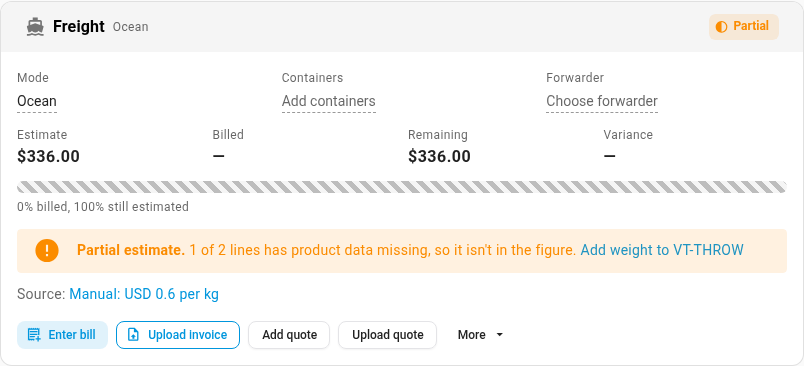
- a rate you set up, such as Manual: USD 0.6 per kg
- a rate learned from your bills, such as Learned: 11.7% of goods, 6 shipments, usually ±5%
- Override, when someone set the amount by hand
and 1 more means the lines use more than one source. When a quote is the source, The rate would say shows what the rate would have estimated.
Quotes and bills. The quotes on the shipment, with Accept or Stop using, and a table of the freight bills: Bill, Supplier, Date and Freight. A bill that closed the estimate carries a Final chip. Bills show whatever the mode is.
Buttons. Enter bill, Upload invoice, Add quote, Upload quote, Close estimate (or Undo close) and More, which has Override, Use a booked freight shipment, No freight expected and Recalculate.
Status chips
The chip in the card's header gives the state at a glance, for example Estimated, Quoted, Partial, Part billed, Billed or Seller pays. For the full list, see Freight statuses and sources.
Other things the card can say
| The card says | What it means |
|---|---|
| No freight estimate | No accepted quote and no rate matches. Use Add quote, Add rate or No freight expected. |
| Partial estimate. | Some lines are missing product data, so they aren't in the figure. Use the Add weight to or Add dimensions to link for the product. Some lines have no matching rate. means a line has no rate at all. |
| The rate is in a currency and there is no exchange rate for the date. | Add the exchange rate under Currencies. |
| Goods were received. Changes here affect later receipts only. | What was booked at receipt stays as it is. Correct it with the freight bill. |
| Recalculating… | A change is being applied. See When the estimate is recalculated. |
| Couldn't load freight for this shipment. | Click Retry. |
On a purchase order
Go to Purchasing → Purchase Orders and open the order.
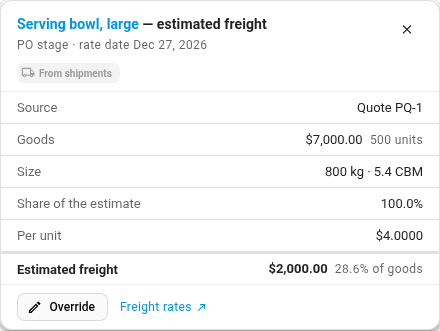
On each line. The Product Lines table has Est. freight (for example $2,000.00 · 28.6%, the line's freight and its share of the line's goods value), Est. duty and Landed / unit. The cell can also show Overridden, Partial, Recalculating… or Fix. Click it for the breakdown: the stage and rate date, Source, Goods, Size, Share of the estimate, Exchange rate for foreign currency, Per unit and Estimated freight. From there, Override changes the line's amount, and Freight rates opens the rates. Received units say These units were received, so their estimate is frozen. Enter the freight bill instead.
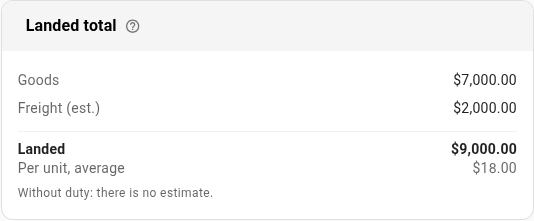
In the Landed Costs section. At the bottom of the order, Landed Costs shows + est. freight (not billed) apart from the landed cost bills. Next to it are the order's Freight card and the Landed total card: Goods, Freight (est.), Duty (est.), Landed and Per unit, average. The landed total is goods plus estimated freight and duty for the product lines. It isn't billed and isn't part of the order total.
The order's Freight card covers the lines that haven't shipped yet, and shows how an accepted order quote is split over its shipments. See Add a freight quote.
On a shipment's Landed Costs tab
The shipment's Landed Costs tab has an Estimated vs billed freight strip with Estimate, Billed and Remaining. Under it, the Estimated landed cost accrual card shows the freight booked at receipt line by line. See Enter a freight bill and mark it final.

Override the estimate
When you know the freight better than the rate does, for example after agreeing a price with the forwarder by phone, set it by hand.
- On the Freight card, click More, then Override.
- Enter the amount. Each amount shows what was Calculated, or Nothing calculated.
- On a shipment or order with several lines, you can enter Total to spread over the lines and click Spread. It shares the total by each line's estimate, or by goods value when there is none.
- Enter the Reason *.
- Click Save. You see Freight override saved, and Source: becomes Override.
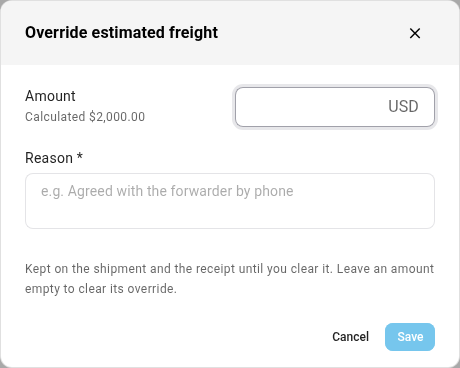
The override is kept on the shipment and the receipt until you clear it. An override on an order carries forward to its shipment, flagged Override carried forward. The line's breakdown shows Overridden to the amount, what was calculated, and the reason. To remove an override, leave its amount empty and save, or click Clear override. You see Override cleared. Amounts are whole cents only: anything finer shows Enter the amount in whole cents.
Once everything is received, you can't override any more: Everything was received, so the estimates are frozen. Enter the freight bill instead.
Mark that no freight is expected
When the supplier delivers for free, or you collect the goods yourself, tell SKU.io so the shipment stops counting as missing freight.
- On the Freight card, click More, then No freight expected.
- Choose a reason: Included in supplier price, Seller pays, Own truck or Other.
- For Other, say why in the Note. It's required.
- Click Save. You see Marked as no freight expected.
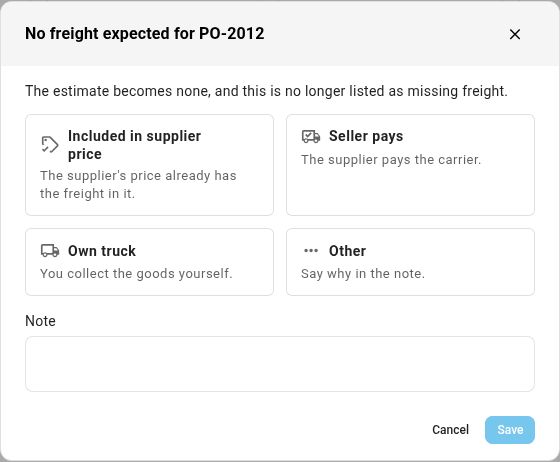
The estimate becomes none, and the shipment no longer appears in missing freight. The card says No freight expected. with the reason. To undo it, click Expect freight.
On a shipment, this covers every line. On a purchase order, it covers the order's lines, except where a shipment has its own quote.
When the seller pays the freight
The incoterm decides who pays the main carriage. When the seller pays, as with DDP or CIF, nothing is estimated. The card shows Seller pays and Seller pays main carriage. Nothing is estimated.
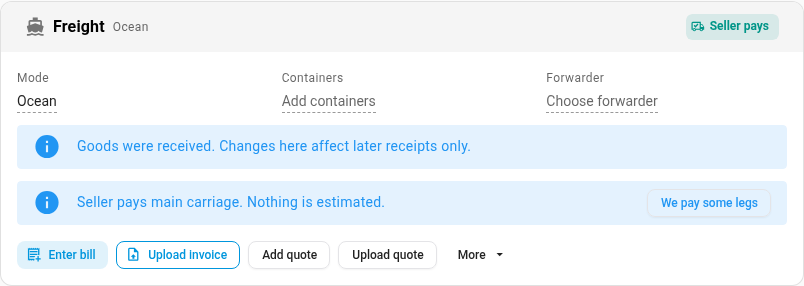
If you still pay part of the journey, such as the last leg to your warehouse, click We pay some legs. The card says You pay some legs, so freight is estimated. To go back, click Seller pays all.
A purchase order without an incoterm uses its supplier's default, and the line's breakdown flags Supplier's incoterm. With no incoterm anywhere, you're assumed to be the buyer who pays, flagged No incoterm, buyer assumed.
When the estimate is recalculated
Open estimates follow your changes. After you save a change to a quantity, a rate, a product's weight or size, the supplier, an exchange rate or the way freight is allocated, the estimate is worked out again. While that runs, the card and cells show Recalculating…. Large orders and shipments are recalculated in the background.
To recalculate yourself, click More, then Recalculate. You see Freight recalculated, or Couldn't recalculate freight.
Freight already booked at a receipt never changes this way. Correct it with the freight bill.
Where else freight estimates appear
- Product page. In the Landed cost tile, the Freight part uses the freight rate that applies to the product, labelled with its source. With no rate, it says No freight rate.
- Inventory Planning report. Est. Landed Cost and Reorder Landed Cost add the freight rate that applies, and duty, to the supplier price. With no freight rate, they use the product's landed cost percentage instead. These figures are for planning only. Both columns are hidden by default.
- Cash flow forecast. On a purchase order's Cash flow tab, choose Forecast. Under Cost outflows still to pay, the Freight & duty rows start at what the freight and duty estimates still expect: Freight and Duty start at what their estimates still expect. Change them if you know better. With no estimate, the row says so, for example No duty estimate. Enter an amount if you expect one.
Next steps
- Add a freight quote
- Enter a freight bill and mark it final
- Find missing freight
- Add landed costs to a purchase order
Video transcript
To see a shipment's freight, go to Purchasing, then Inbound Shipments, in the sidebar. Open the shipment from the list, and its details page loads. The Freight card sits on the Overview tab, with a status chip in its header. Its plan shows the mode, the containers and the forwarder. Estimate is the freight expected for this shipment. The Billed figure adds up the freight bills entered so far. Remaining is the part that is still only estimated. The bar underneath shows how far billing has got. Source says where the estimate comes from: here, an accepted quote. Under it, The rate would say shows what the freight rate would have estimated. The table lists every freight bill entered for the shipment so far. A purchase order shows the estimated freight on each of its lines. To see it, go to Purchasing, then Purchase Orders, in the sidebar. Open the order from the list, then scroll down until you reach its product lines. The estimated freight cell shows an amount, and its share of the line's goods value. Click the amount, and its breakdown opens with the estimate's source. Share of the estimate is the line's part, and Per unit divides it by units. The breakdown goes away again when you click outside it. At the bottom of the order, Landed total adds freight and duty to the goods. Per unit, average shows the landed cost of each unit, before any bill arrives. When you know the freight better than the rate, click More, then Override. Enter the amount and a reason, then save it to keep your figure. The override stays on the shipment and the receipt until you clear it. If no freight bill is coming, click More, then No freight expected. Choose a reason, such as freight included in the supplier's price. The estimate becomes none, and it is no longer listed as missing freight.