Set up freight rates
When a purchase order or inbound shipment has no accepted freight quote, SKU.io prices its freight estimate from your freight rates. Each rate says what freight costs, such as 11.5% of the goods value or $4,200 per container, and which supplier, transport mode, lane or product it applies to, from a given date. This guide covers the Freight Rates page: adding a rate, how SKU.io picks one, starting a new version, archiving, and testing a rate before you rely on it.
You don't have to type every rate. SKU.io can work rates out from the freight bills you've already entered. See Use learned freight rates. To load a whole rate card from a spreadsheet, see Import and export freight rates.
Before you begin
- You need permission to view freight rates (
freight_rates.index) to open the page. Adding a rate needs thefreight_rates.createpermission, changing one needsfreight_rates.update, and archiving one needsfreight_rates.delete. - Rates are used only when freight estimates are on. See Turn on freight estimates.
- For Per kg rates, give your products a weight. For Per CBM rates, give them dimensions.
- Make sure each warehouse you receive into has an address with a country. That country is the shipment's destination.
Steps
- Go to Settings → Purchasing → Freight Rates.
- Click Add rate.
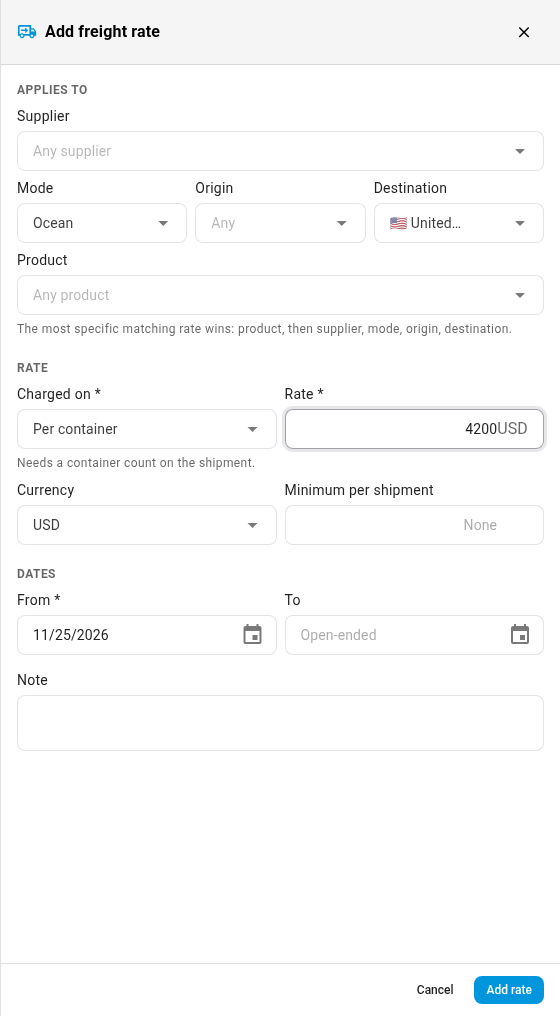
- Under APPLIES TO, choose the Supplier, Mode, Origin, Destination and Product the rate is for. Leave a field on Any to cover everything.
- Under RATE, choose what the rate is Charged on.
- Enter the Rate.
- For an amount rate, check the Currency.
- Optionally, enter a Minimum per shipment.
- Under DATES, set From to the day the rate starts. Leave To empty for an open-ended rate.
- Optionally, add a Note, such as where the rate came from.
- Click Add rate.
The rate joins the list, and you see Freight rate added. Open estimates that the rate affects are recalculated in the background. Estimates already booked at receipt keep what they booked.
The Freight Rates page
Go to Settings → Purchasing → Freight Rates. The page has two tabs: Rates, the rates you use, and Learned, the rates SKU.io has worked out from your bills. The header has Learn from bills, Test a rate, Import, Export and Add rate.
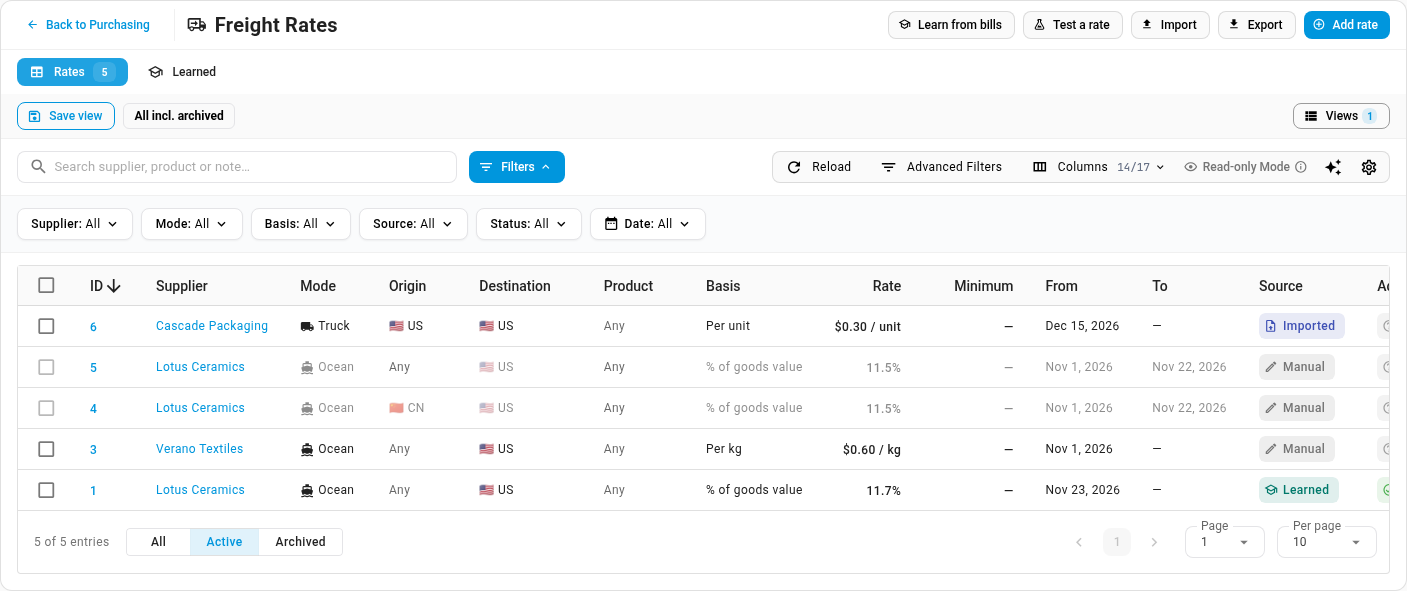
Each row is one rate:
| Column | What it shows |
|---|---|
| ID | The rate's number. Click it to open the rate. |
| Supplier, Mode, Origin, Destination, Product | What the rate applies to. Any means the rate covers every value. |
| Basis | What the rate is charged on, such as % of goods value or Per kg. |
| Rate | The rate itself, such as 11.5%, $0.30 / unit or $0.60 / kg. |
| Minimum | The least the rate charges on one shipment. |
| From, To | The dates the rate applies. An empty To means it has no end date. |
| Source | Manual (added on this page), Learned (accepted from your bills) or Imported (from a file). |
| Accuracy | How the rate compares with the freight bills on closed shipments, such as Good ±4.7% or Not tested yet. See Rate accuracy and drift. |
| Status | Active (in force today), Scheduled (starts later), Expired (ended) or Archived. |
Note, Updated and Created are hidden. Add them from Columns.
To narrow the list, use the Supplier, Mode, Basis, Source, Status and Date filters, or search by supplier, product or note. The All, Active and Archived buttons under the list choose whether archived rates show.
When you have no rates yet, the page shows No freight rates yet, with Learn them from your bills, Add a rate and Import.
Choose what a rate is charged on
Charged on decides how SKU.io turns the rate into an amount. The hint under the field tells you what each basis needs.
| Charged on | The rate is | What it needs |
|---|---|---|
| % of goods value | A percentage of what the goods cost. Up to 1,000%. | A value on the goods. Goods with no value get no freight from a percentage. |
| Per kg | An amount for each kilogram. | A weight on every product. |
| Per CBM | An amount for each cubic metre. | Dimensions on every product. |
| Per unit | The same amount for each unit. | Nothing extra. |
| Per shipment | One amount for the whole shipment. | Nothing extra. |
| Per container | An amount for each container. | A container count on the shipment's freight plan. |
Per shipment and Per container rates are charged once per shipment and shared across its lines.
When a line is missing the data its best rate needs, such as a Per kg rate on a product with no weight, SKU.io uses the next rate that matches. When no other rate matches, the line has no estimate and the shipment's freight shows as partly estimated. Add the missing weight, dimensions or container count to fix it.
Amount rates are in the rate's Currency. SKU.io converts them at the exchange rate on the date of the estimate. When that date has no exchange rate, it uses today's.
Minimum per shipment
Minimum per shipment is the least a rate charges on one shipment. It applies to everything that rate charges on the shipment, not to each line. When it applies, the minimum is spread across the lines the same way as the rest of the freight, and the estimate shows Minimum applied.
How SKU.io picks a rate
A rate applies to a line when every field it names under APPLIES TO matches the line. A field left on Any matches everything. SKU.io compares:
- Supplier: the purchase order's supplier.
- Mode: the shipment's transport mode.
- Origin: the country of the supplier's warehouse. If the supplier has no warehouse, it's the supplier's address. If that has no country, it's the product's country of origin.
- Destination: the country of the warehouse you receive into.
- Product: the line's product.
When several rates match, the most specific one wins. A rate for a product beats a rate for a supplier, then mode, then origin, then destination. The drawer reminds you: "The most specific matching rate wins: product, then supplier, mode, origin, destination."
When two rates match equally well, the one that starts latest wins, and the estimate shows Two rates match. A rate with nothing set under APPLIES TO is your default rate: it prices everything that has no better match.
Start with one default rate, such as a percentage of goods value. Then add rates for the suppliers and lanes you know better. Every shipment gets an estimate, and the specific rates take over where they apply.
Overlapping dates
Two rates for the same supplier, product, mode, origin and destination can't cover the same days. When you try to save one that does, the drawer says Another rate covers these dates., with a link to open the other rate or start a new version of it. End the other rate first, or change the dates.
Change a rate
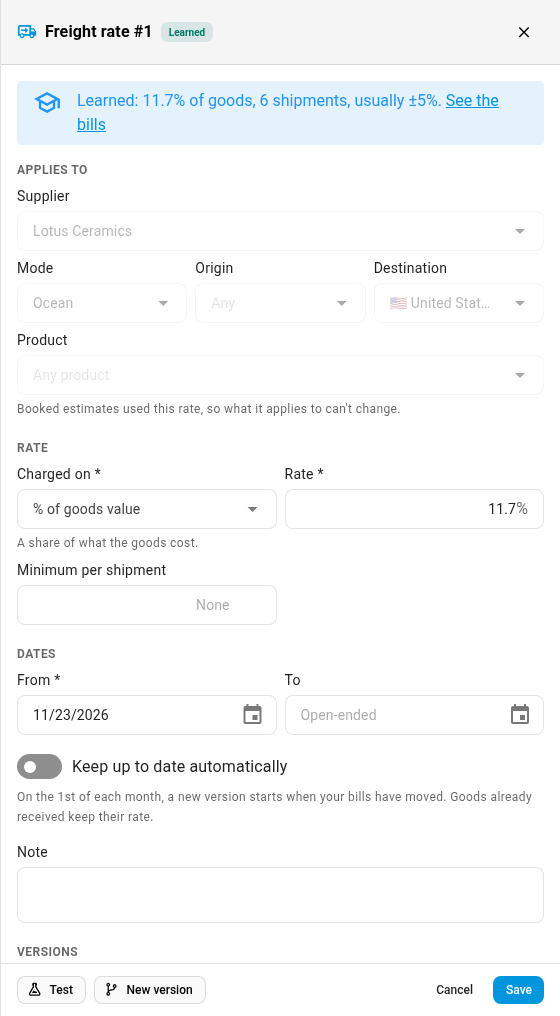
- Click the rate's ID.
- Change what you need.
- Click Save.
You see Freight rate saved. In grid view, you can also change a rate's cells straight in the list.
When a rate saves as a new version
Once goods have been received at a rate, their estimates are booked. That rate's history has to stay as it was, so you can't change its figures in place. The drawer for such a rate says "Booked estimates used this rate, so what it applies to can't change", and the APPLIES TO fields are locked.
When you change its Charged on, Rate, Currency, Minimum per shipment or From date, the drawer shows This saves as a new version. The date field becomes New version from, and the button becomes Save as new version.
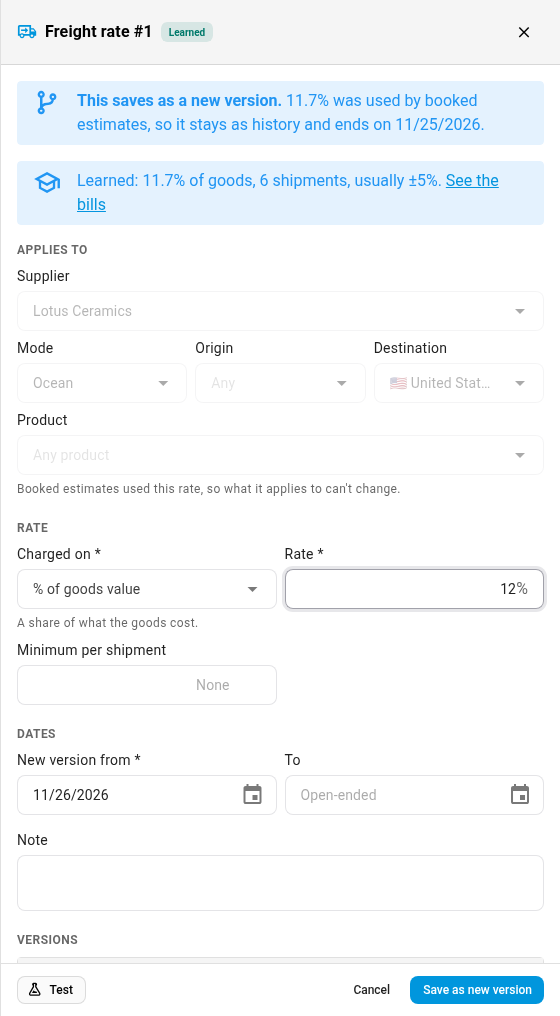
- Choose the day the new version starts in New version from. It must start after the old version's start date.
- Click Save as new version.
The old version ends the day before the new one starts and stays as history. You see Saved #N as a new version. Goods already received keep the rate they used. You can still change a booked rate's To date and Note in place.
To start a new version on purpose, click New version at the bottom of a rate's drawer, or choose New version from the rate's row menu. The drawer's VERSIONS list shows every version of the rate, with its dates and status. HISTORY shows who changed what. Click Show history to load it.
Archive a rate
- Open the rate's row menu.
- Click Archive.
- Click Archive again to confirm.
Archived rates stop matching new estimates. To bring one back, show archived rates, open its row menu and click Unarchive. It's used for estimates again from its dates.
You can't archive a rate that booked estimates used. Its menu item says "Used by booked estimates. Give it an end date." Set its To date instead.
To archive or unarchive several rates, tick them and use the bar above the list. Rates used by booked estimates are skipped when you archive. Rates whose dates overlap a live rate are skipped when you unarchive.
Test a rate
Test a rate shows which rate a shipment would use, and what it would cost. Nothing is saved.
- Click Test a rate. Or, to test one rate, open its row menu and click Test this rate, which fills in that rate's supplier, mode and lane.
- Choose the Supplier, Mode, Origin, Destination and Product.
- Enter the Goods value.
- Enter the Weight, Volume, Units or Containers the rate needs.
- Check the Date. It defaults to today.
- Click Calculate.
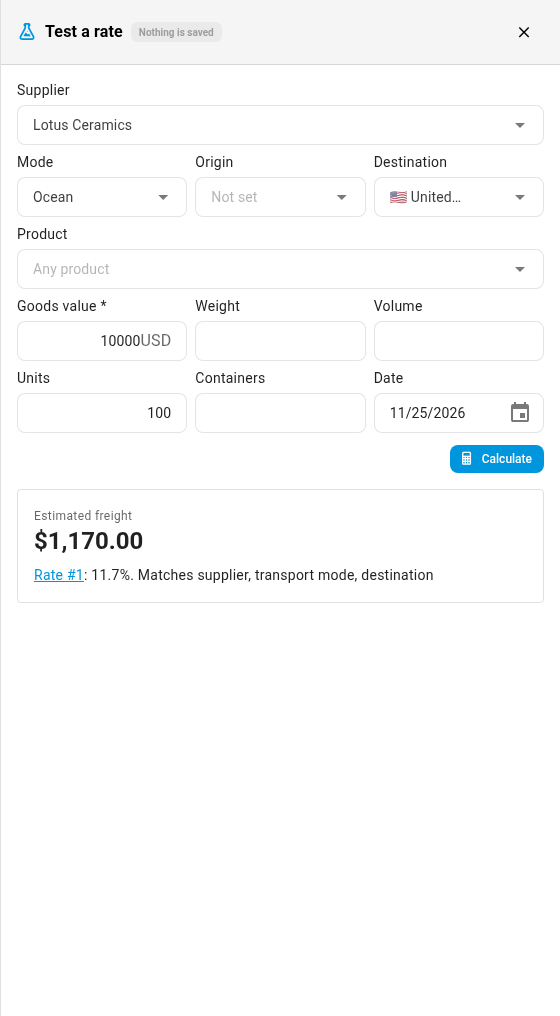
The result shows the Estimated freight, the rate that matched and why, such as "Matches supplier, transport mode, destination". Below it, Also matched, but less specific or older lists the rates that lost. The result also tells you when:
- The minimum was applied.
- The best match was missing data, so the next rate was used.
- Two rates match equally, so the newest one was used.
- The amount was converted from another currency.
No freight estimate means no rate matches these details. No exchange rate means a rate matches, but its currency has no exchange rate on that date.
Next steps
- Import and export freight rates
- Use learned freight rates
- Read freight on orders and shipments
- Freight statuses and sources
Video transcript
SKU.io prices inbound freight estimates from your freight rates. To open them, go to Settings, which sits at the very bottom of the sidebar. In the settings menu, open the Purchasing group. Then choose Freight Rates from that group, and wait while the list of rates loads. Each row is one rate: its supplier, route, basis, amount and dates. Source says whether you entered it, imported it, or it was learned from bills. To add a rate, click Add rate, at the top right of the list. Under Applies to, click the Mode field and pick which kind of freight it covers. Leave a field on Any to cover everything. Here, the rate covers ocean freight, with the United States as its destination. Next, click Charged on, and choose what the rate is charged on. It can be a share of the goods value, or a fixed amount. That amount can be per kilogram, cubic metre, unit, shipment, or container. Here, choose Per container, for a price on each container shipped. The hint under the field tells you what each one needs. Enter the rate, and your own currency is filled in for you. A minimum per shipment is optional. Set the day the rate starts, under From. Leave To empty for a rate with no end date. Then click Add rate, at the bottom of the drawer, to save it. The new rate joins the list. Once goods are received at a rate, its figures can't change in place. Click the rate's number in the list, and in its drawer, type a new figure. A note appears to tell you this saves as a new version. It starts from the date you choose under New version from. Goods already received keep the old rate, and you save with Save as new version. Click Cancel to leave the rate as it is. You can test which rate a shipment would use. Click the menu button at the end of a rate's row. Then choose Test this rate, to open the rate tester. Enter the goods value of the shipment you have in mind, then click Calculate. You see the estimated freight, the rate that matched, and the reason.