Buy Walmart and Amazon marketplace labels
Walmart and Amazon sell their own shipping labels for the orders they send you: Ship with Walmart for Walmart orders, and Amazon Buy Shipping for Amazon orders you ship yourself. SKU.io can buy them for you in a label batch or one order at a time, next to your own label accounts. An Amazon order on a Buy Shipping label keeps its A-to-z claim protection, and Amazon confirms the shipment itself.
Before you begin
- A Walmart or Amazon store is connected. Marketplace labels work for seller-fulfilled Walmart US orders and for Amazon orders you ship yourself (merchant-fulfilled). Walmart Fulfillment Services and FBA orders ship from the marketplace's own warehouses, so there's no label to buy.
- Your Walmart account is enrolled in Ship with Walmart, and the order's ship node is one of your fulfillment centers in Walmart Seller Center (Settings › Shipping Profile). See Buy a Ship With Walmart label.
- You have a default box. Amazon Buy Shipping and Ship with Walmart both need box dimensions. Set a Default box under Settings → Fulfillment → Shipping Labels → Packages, or choose a box in the batch's Package option.
- A label account is connected for your other orders. Orders from other channels, and orders a marketplace can't label, still use your EasyPost, Shippo, ShipStation, Starshipit, ShipRush, Shiptheory or Shippit account.
- Your role has the Fulfillment Orders Ship permission (
fulfillment_orders.ship). See Control who can act on fulfillment orders.
A marketplace label is charged to your Walmart or Amazon seller account, not to your label account. Watch your first live Walmart and Amazon purchases closely: check that each label's cost and service look right in your Walmart and Amazon accounts before you buy a full day's batch.
Steps
-
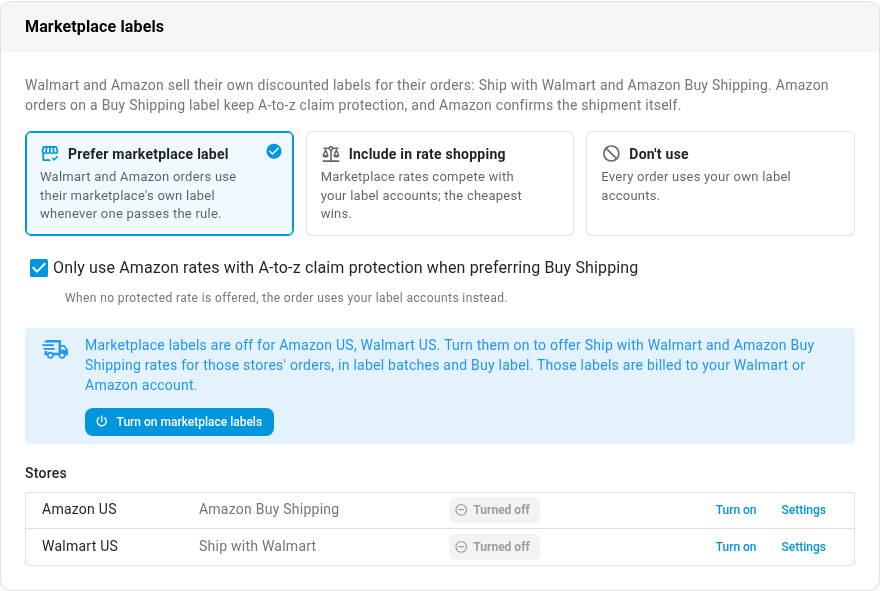
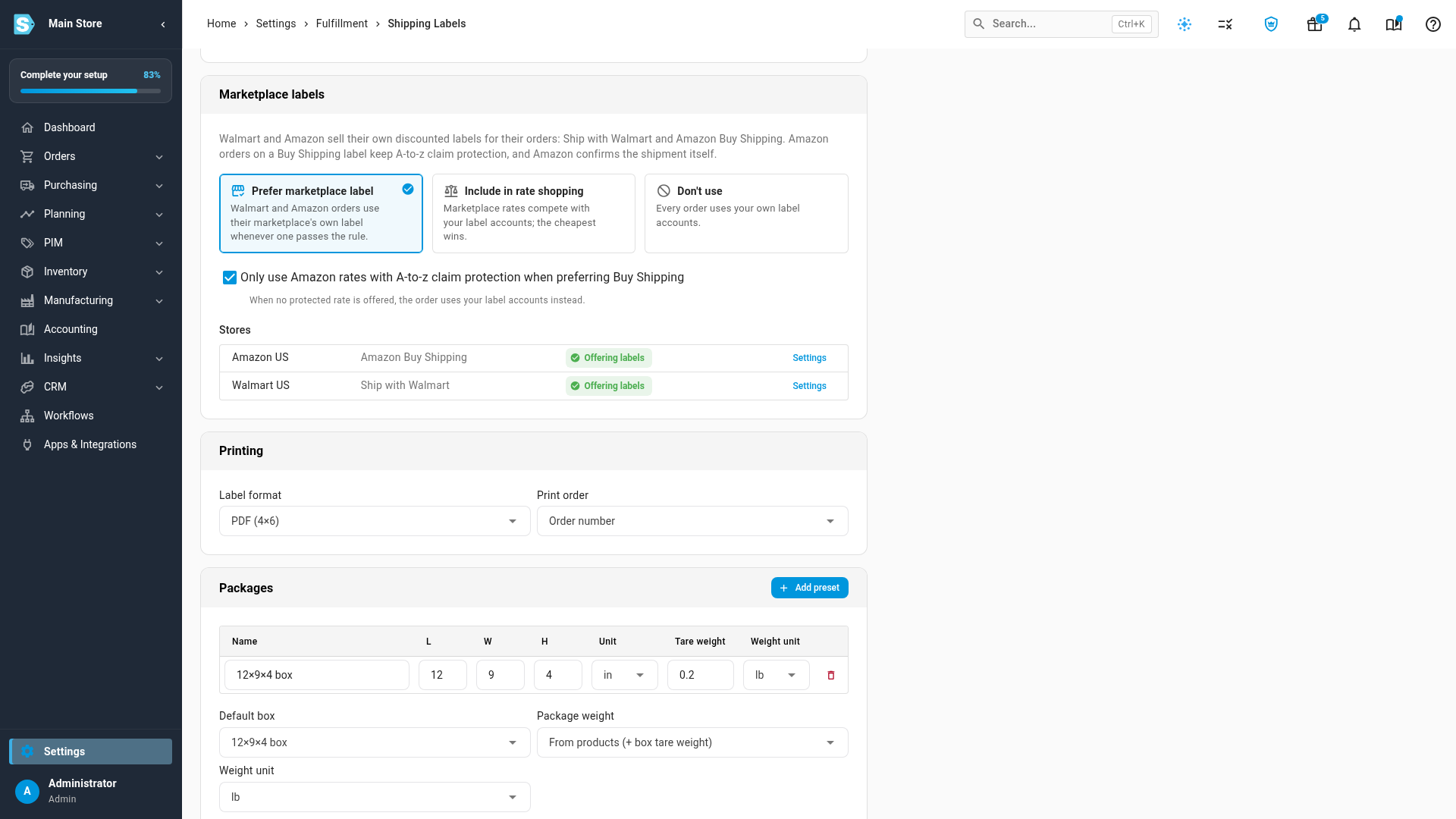
Go to Settings → Fulfillment → Shipping Labels, and scroll down to Marketplace labels.
-
Click Turn on marketplace labels. Each store in the Stores list now shows Offering labels. To turn on one store only, click Turn on in that store's row.
-
Leave the rule on Prefer marketplace label and Only use Amazon rates with A-to-z claim protection when preferring Buy Shipping checked, or change them (see Choose how batches use marketplace labels). If you change either one, click Save Changes.
-
Go to Orders → Fulfillments, click the Label Batches tab, and click New batch.
-
In Warehouse, choose the warehouse the orders ship from, and click Create batch & get rates.
-
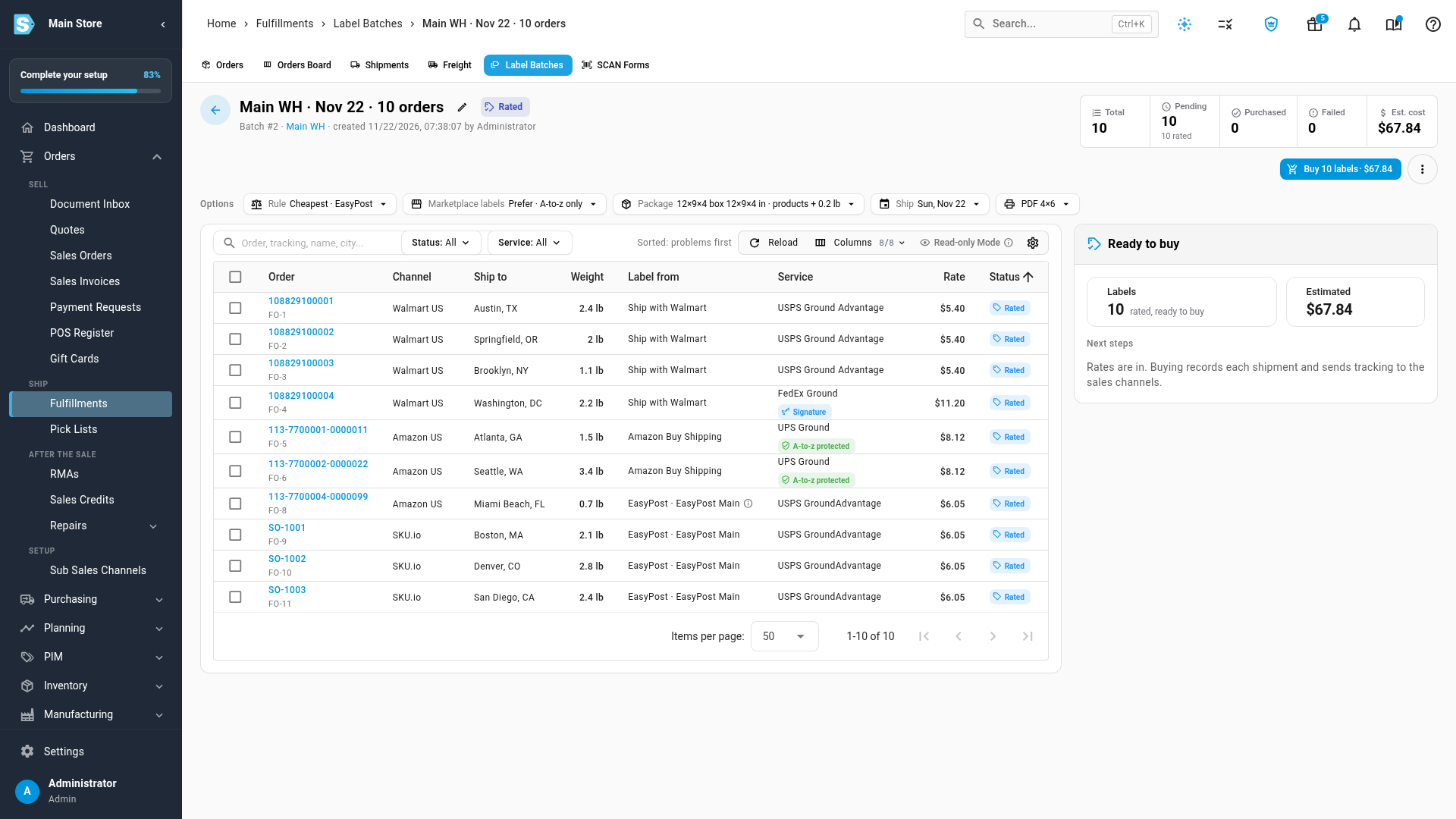
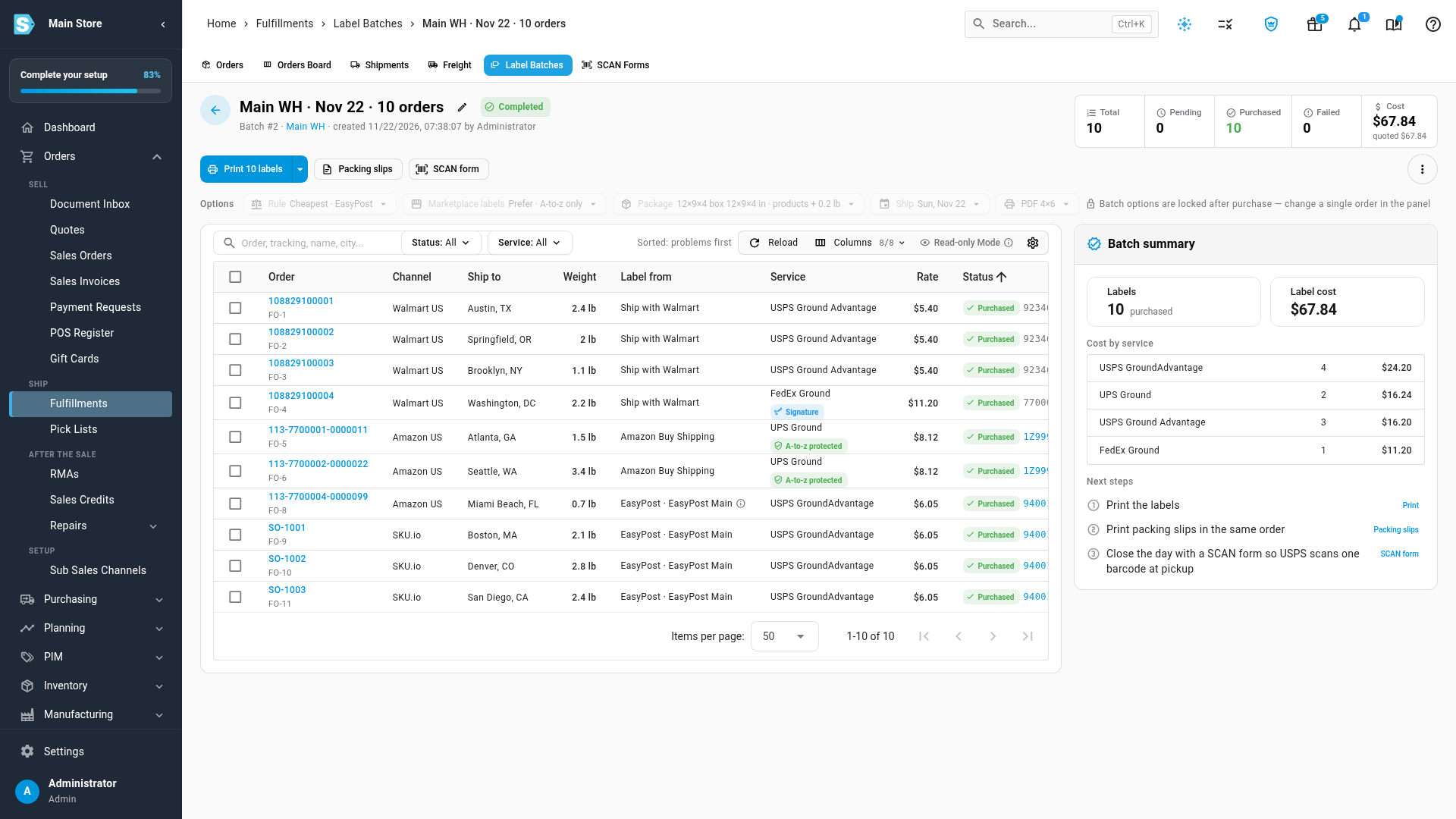
Check the Label from column. Walmart orders show Ship with Walmart, Amazon orders show Amazon Buy Shipping, and every other order shows the label account it was rated on.
-
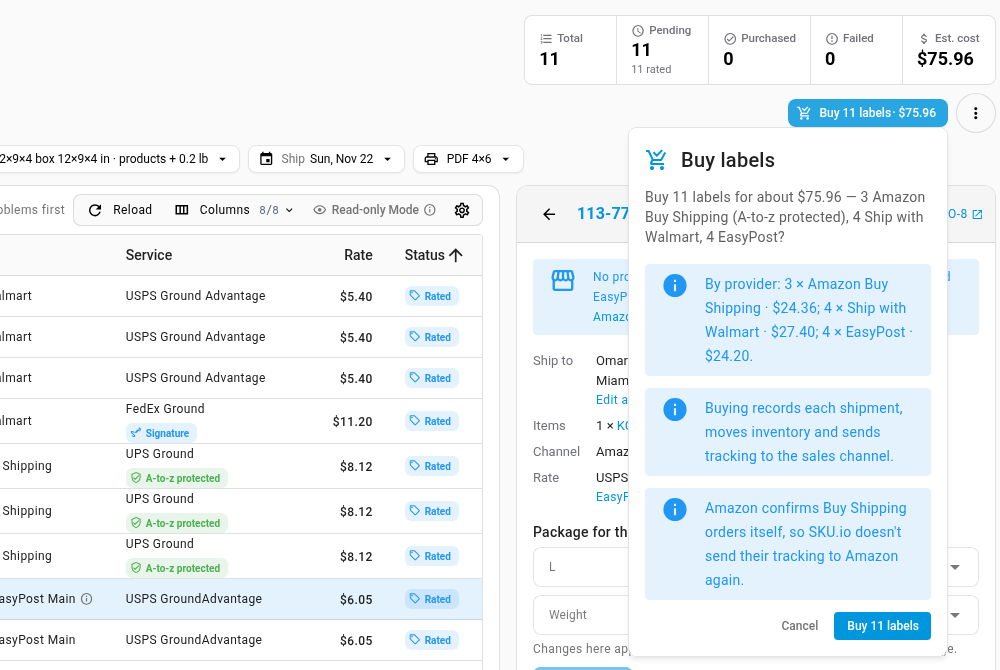
Click Buy labels. The confirmation breaks the cost down by provider, for example "3 × Amazon Buy Shipping · $24.36; 4 × Ship with Walmart · $27.40; 4 × EasyPost · $24.20". Click Buy labels in the confirmation to start.
-
Wait for the batch to show Completed, then click Print labels. Ship with Walmart labels print as PDF, even in a ZPL batch.
Turn on one store from its own settings
The Marketplace labels card switches stores on in one click. You can also turn each store on or off in its own settings:
-
Walmart: open the Walmart store's Settings, then the Shipping tab. Under Labels you buy in SKU.io, switch on Offer Ship with Walmart rates when buying labels in SKU.io (Label batches and Buy label), and click Save Changes.

-
Amazon: open the Amazon store's Settings, then the Orders tab. In the Buy Shipping card, switch on Offer Amazon Buy Shipping rates when buying labels in SKU.io (Label batches and Buy label). The switch saves at once. Click Check access to confirm Amazon lets SKU.io buy labels for this store: it asks Amazon for rates on your newest unshipped order and never buys a label.
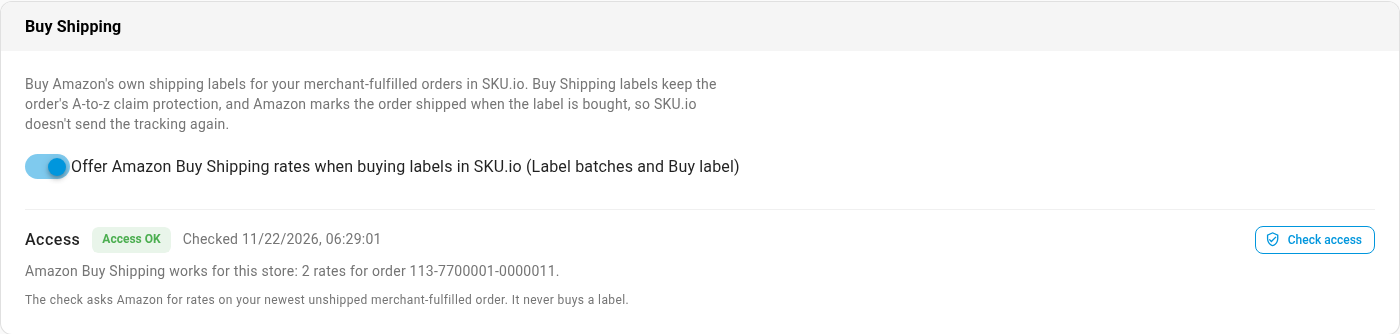
The Settings link in each store's row of the Marketplace labels card opens these pages. Stores connected before marketplace labels were released start with them turned off; stores you connect later start with them on.
Choose how batches use marketplace labels
The rule in the Marketplace labels card is the default for every new batch:
| Rule | What it does |
|---|---|
| Prefer marketplace label (default) | Walmart and Amazon orders use their marketplace's own label whenever one passes the rule. Other orders use your label accounts. |
| Include in rate shopping | Marketplace rates compete with your label accounts, and the cheapest rate wins. |
| Don't use | Every order uses your own label accounts. |
Only use Amazon rates with A-to-z claim protection when preferring Buy Shipping keeps Amazon orders on rates that carry A-to-z claim protection. When Amazon offers no protected rate for an order, the order uses your label accounts instead.
To change the rule for one batch, click the Marketplace labels option above the orders, choose the rule, and click Apply. Allowed services and the fixed service in the batch rule apply to your label accounts only; marketplace rates follow the marketplace rule.
Read the Label from column and its chips
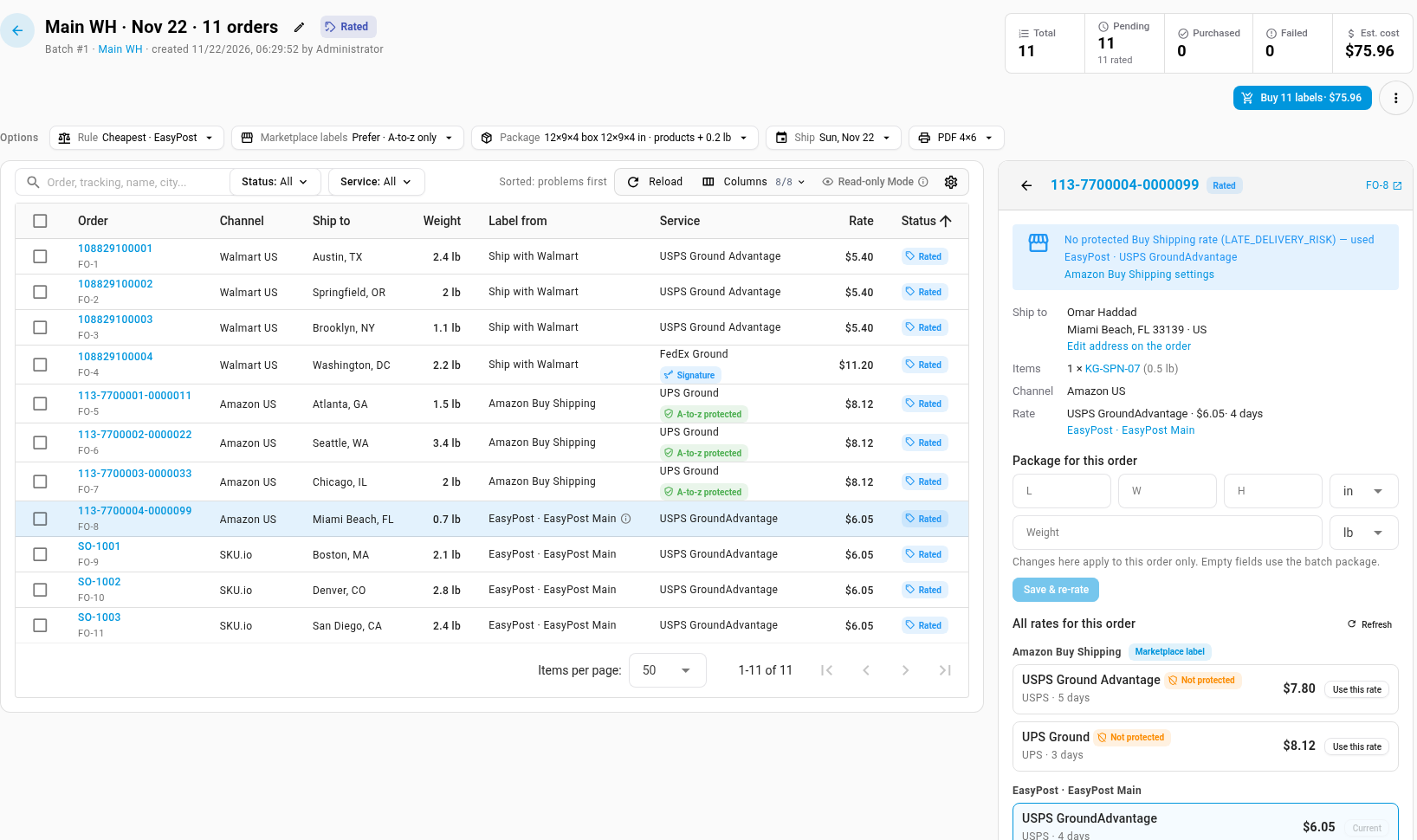
| You see | It means |
|---|---|
| Ship with Walmart | The order is rated on a Ship with Walmart label from its Walmart store. |
| Amazon Buy Shipping | The order is rated on an Amazon Buy Shipping label from its Amazon store. |
| A label account, such as EasyPost · EasyPost Main | The order uses your own label account. On a Walmart or Amazon order, an info icon beside it says why no marketplace label was used: for example, that Amazon offered no protected rate, and which of your rates was used instead. |
| A-to-z protected (green chip) | Amazon covers A-to-z claims and late deliveries on this rate. |
| Not protected (orange chip) | Amazon doesn't protect this rate. Point at the chip to see Amazon's reason, such as late-delivery risk. |
| Signature chip | The order needs a signature on delivery, and the price includes it. |
Click any order to open its panel. The note at the top repeats the reason, and All rates for this order lists the marketplace's rates under its own heading, with their chips, next to your label accounts' rates. Click Use this rate to pick a different one for that order.
Buy one order's label
You can buy a marketplace label for a single order without a batch:
-
Go to Orders → Fulfillments, and open the fulfillment order.
-
Click Buy label.
-
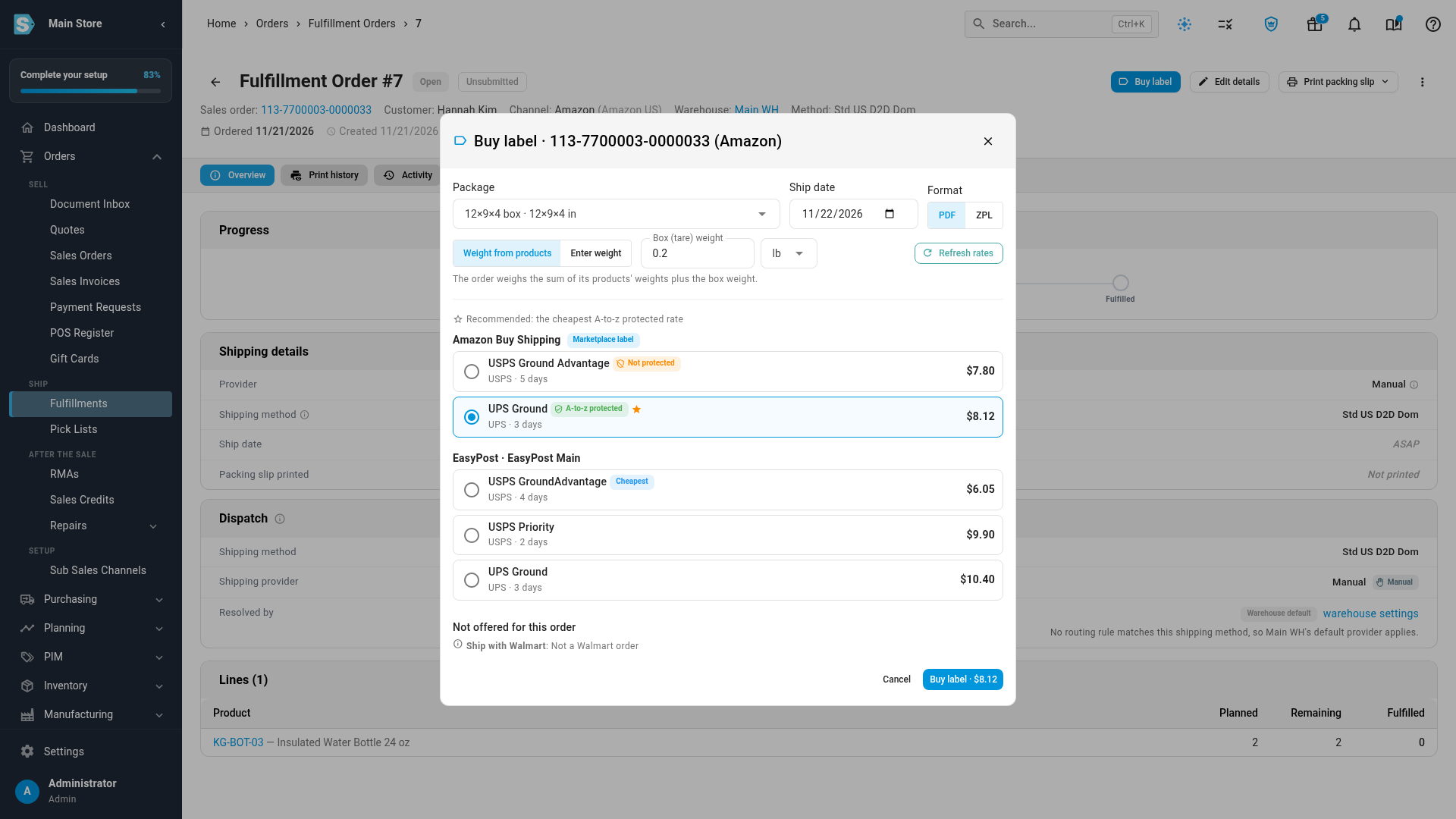
Check the Package, Ship date and Format, and click Get rates. Rates are grouped by where they come from: the marketplace's label first, then each label account. SKU.io preselects the recommended rate, such as "the cheapest A-to-z protected rate", and Not offered for this order says why a provider can't label it.
-
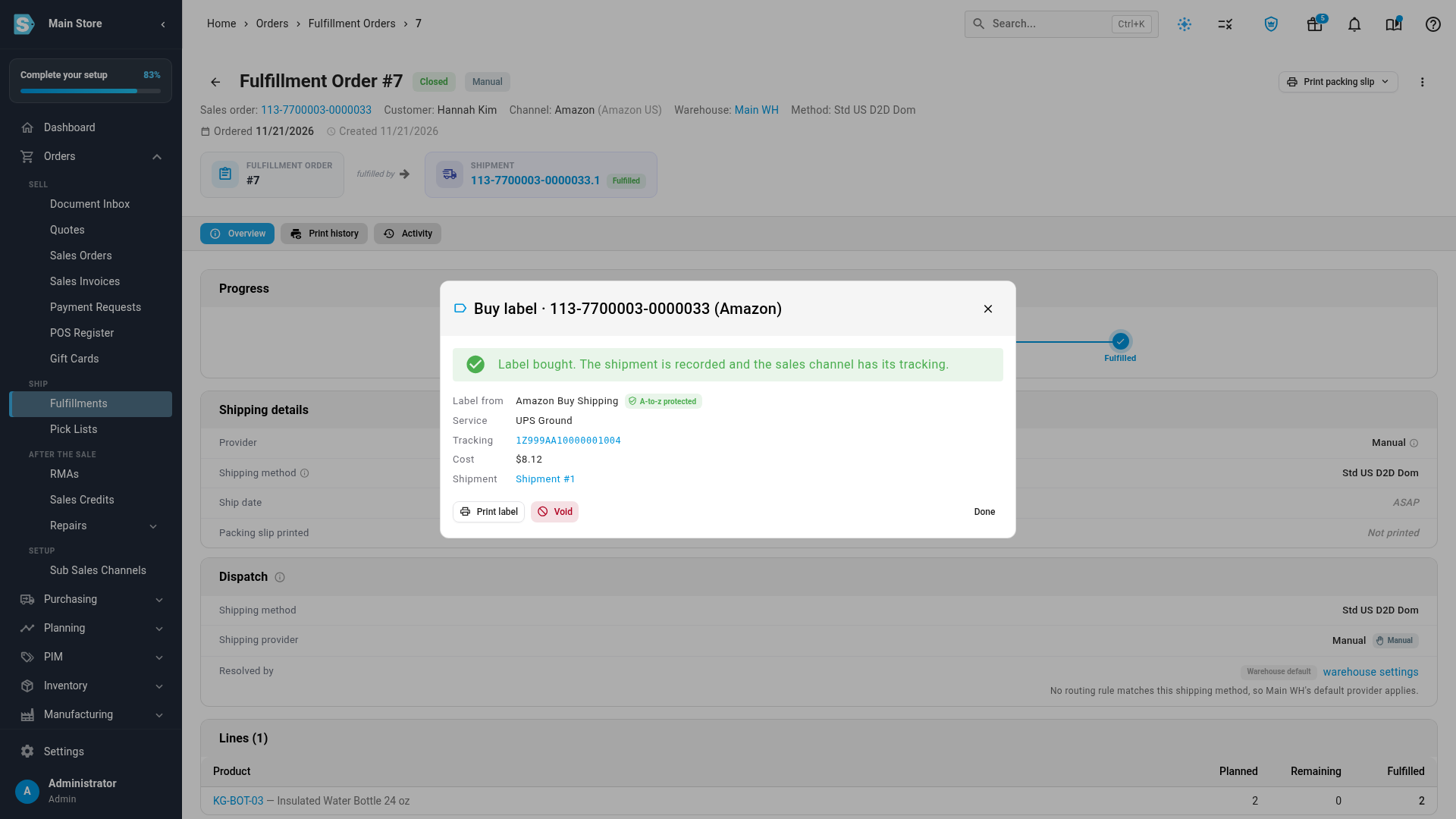
Click Buy label. The dialog shows the label's service, tracking number and cost, with Print label and Void.
What buying a marketplace label does
For each order, SKU.io records the shipment with its tracking number and label cost, and moves the stock out of the warehouse, the same as any label. Tracking reaches the marketplace in two ways:
- Walmart: SKU.io sends the tracking number to Walmart, as it does for any Walmart order.
- Amazon: Amazon marks the order shipped when the Buy Shipping label is bought, so SKU.io doesn't send the tracking again.
Void a marketplace label
Open the order in the batch (or click Buy label on the fulfillment order) and click Void, then confirm. The label is cancelled with Walmart or Amazon, and the order reopens so it can ship again. Walmart can't void a label after the carrier has scanned it.
SCAN forms
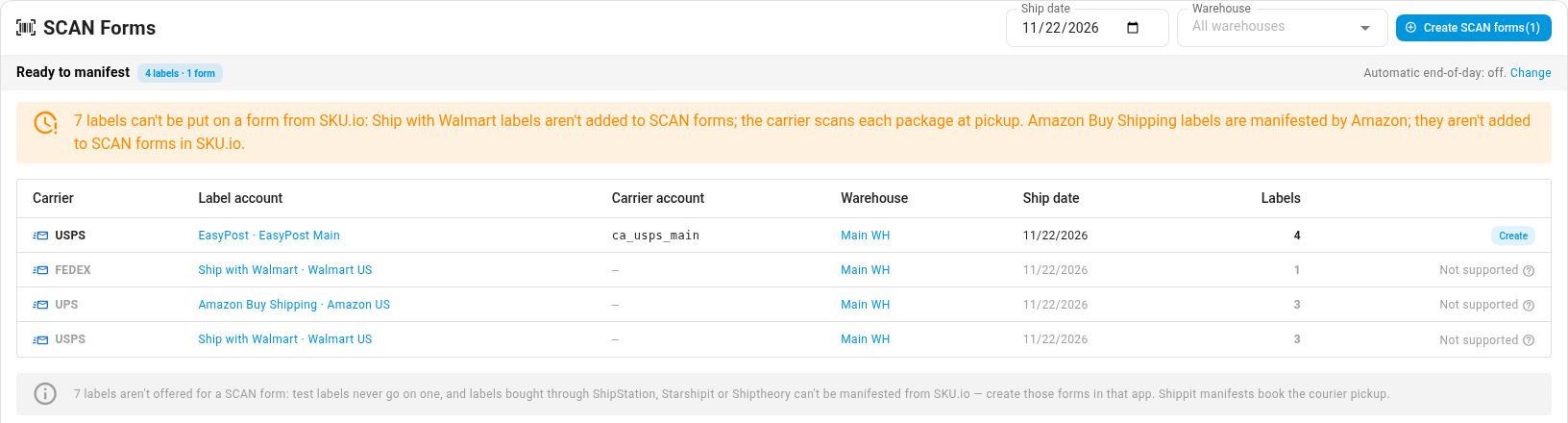
Marketplace labels never go on a USPS SCAN form. The SCAN Forms tab lists them as Not supported: the carrier scans each Ship with Walmart package at pickup, and Amazon manifests its Buy Shipping labels itself.
If an order isn't offered a marketplace label
The order panel, or Not offered for this order in the Buy label dialog, gives the reason. The common ones:
| Message | What to do |
|---|---|
| "Amazon Buy Shipping needs box dimensions — choose a box in Package" | Choose a box in the batch's Package option, or set a Default box in Shipping Labels settings. |
| "Ship with Walmart needs the package weight and box dimensions. Choose a box in Package, then rate again." | Same fix: choose a box, then get rates again. |
| "Ship with Walmart labels can only be bought for today's ship date." | Set the ship date to today. |
| "This order ships from Walmart ship node …, which isn't one of your fulfillment centers." | Add that ship node in Walmart Seller Center under Settings → Shipping Profile. |
| "Amazon Buy Shipping isn't enabled for this app yet" | Amazon refused Buy Shipping for SKU.io. Click Check access in the store's Buy Shipping settings to see Amazon's answer, and contact SKU.io support. The order uses your label accounts meanwhile. |
| "Amazon Buy Shipping isn't available through the API for … orders" | Amazon doesn't offer Buy Shipping through its API for that marketplace. Use your label accounts. |
| "This fulfillment order is merged with other orders …" | A marketplace label covers one marketplace order. Ship merged orders with your label accounts. |
Next steps
- Buy shipping labels in a batch
- Create USPS SCAN forms
- Buy a Ship With Walmart label from a Walmart order
- Ship Amazon merchant-fulfilled orders
Video transcript
First, switch on marketplace labels for your stores. Open Settings, at the bottom of the menu on the left. Each group of settings here covers one area of the app. Expand the Fulfillment group to see the settings for warehouses, shipping and dispatch. Then choose Shipping Labels, a little further down the list of fulfillment settings. This page holds the defaults for every label batch you create.
Scroll down to Marketplace labels. Walmart and Amazon sell their own labels for the orders they send you. Any store connected before this release starts as Turned off. Click Turn on marketplace labels. Each store now shows Offering labels. These labels are billed to your Walmart or Amazon account.
The rule decides how label batches use these labels. Prefer marketplace label is the default, so Walmart and Amazon orders use their marketplace's label. Include in rate shopping lets the cheapest rate win. Don't use leaves every order on your own label accounts. Keep Only use Amazon rates with A-to-z claim protection checked to keep that protection.
To buy one order's label, open Orders, then Fulfillments. In the list of open orders, open the order you want to ship. On the fulfillment order, click the Buy label button. The dialog starts from your default box and today's ship date, so click Get rates. Rates are grouped by where they come from, with the marketplace's own label first. SKU.io preselects the recommended rate, which here is the cheapest rate with A-to-z claim protection.
When the rate looks right, click Buy label at the bottom of the dialog. The label is bought, the shipment is recorded, and Amazon has its tracking. From here you can print the label, or void it to reopen the order.
To ship many orders at once, click Done to close the dialog. Then open Orders, then Fulfillments, and click the Label Batches tab. Click New batch, at the top right of the list. In Warehouse, type a few letters of its name, then pick your shipping warehouse from the list. The green badge shows how many open orders match. Then click Create batch and get rates. SKU.io rates every order in the background, across Walmart, Amazon and your label accounts.
The Label from column shows where each order's label comes from. Walmart orders get Ship with Walmart, and Amazon orders get Amazon Buy Shipping. A green tag marks an Amazon rate with A-to-z claim protection. The Signature tag means the price includes a signature the order requires. If no Amazon rate is protected, the order is rated on your own label account. The info icon says why.
When the rates look right, click Buy labels at the top right. The confirmation breaks the cost down by provider. Amazon confirms Buy Shipping orders itself, so SKU.io doesn't send that tracking again. Click Buy labels in the confirmation to start buying. SKU.io buys each label in the background, and you can follow the progress in the job tray. When the batch completes, every order shows Purchased, with its tracking number.
Marketplace labels are never added to a SCAN form for the carrier. To see this, open the SCAN Forms tab. Ship with Walmart and Amazon Buy Shipping labels show Not supported in this list. Watch your first live Walmart and Amazon purchases closely, and check each label's cost.