Book freight and print the bill of lading
Booking reserves the truck with your freight account at the rate you picked. SKU.io gives the load a bill of lading straight away. When the load is linked to a shipment, it also writes the bill of lading number, PRO and carrier onto the shipment, so the retailer's ship notice carries them.
Before you begin
- The load needs current rates. See Get a freight quote. Stale or expired rates can't be booked until you re-quote.
- Your role needs the Book freight permission. Without it, Book is greyed out with You need the Book freight permission.
- A booking on a production account is billed to that account. Warp needs a payment card on your Warp account before it books.
Book a rate
- Open the freight load, on its page or in the quote drawer.
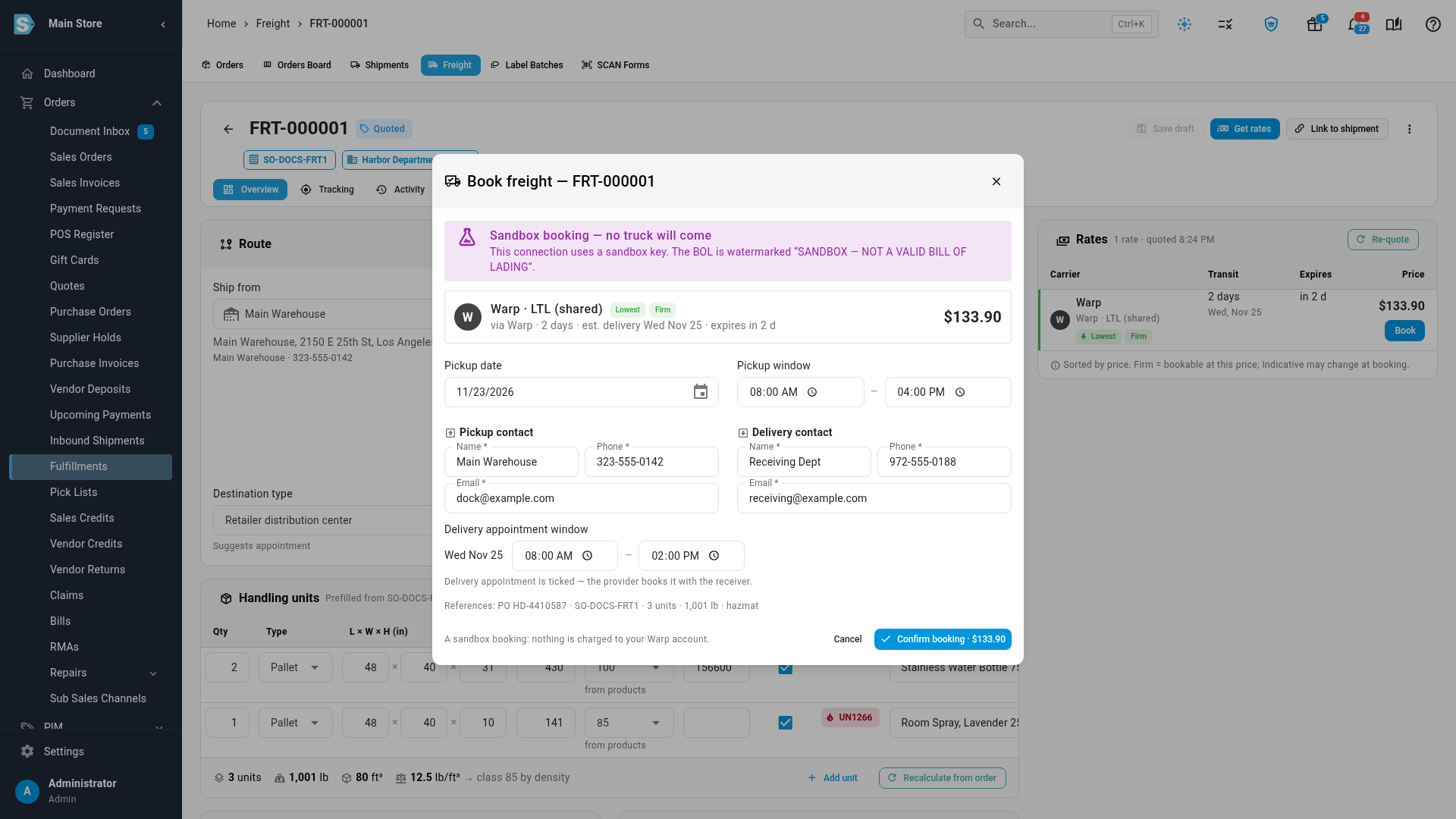
- In Rates, click Book on the rate you want. The Book freight dialog shows the rate, its price, transit and expiry.
- Check the Pickup date and Pickup window.
- Check the Pickup contact and Delivery contact: Name, Phone and Email are required. They're filled in from the warehouse and the order's ship-to; fill in anything the order didn't have.
- If the delivery needs an appointment, set the Delivery appointment window. The provider books the slot with the receiver.
- If the dialog says This load was routed by the retailer, book only when the retailer allows prepaid freight on this order, and tick The retailer approved prepaid freight for this order. See Book freight for a retailer ship notice.
- Click Confirm booking.
The booking takes a few seconds. On a sandbox account, a Sandbox booking — no truck will come banner reminds you that nothing is charged.
What you get
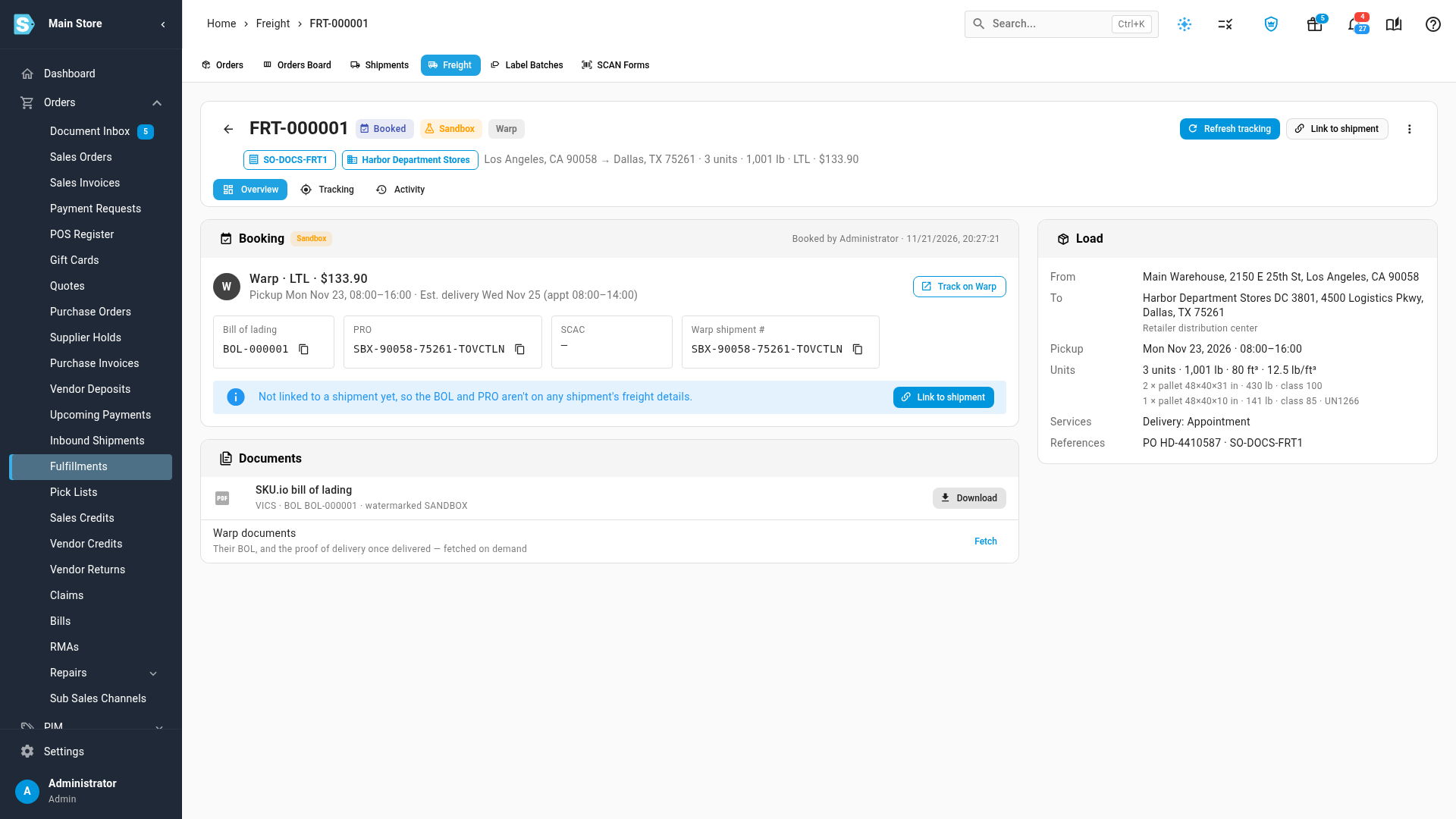
The load turns Booked, and its Booking card shows:
- the carrier, mode, price, and who booked it when
- the Bill of lading, PRO, SCAC and the provider's shipment number, each with a copy button
- the pickup date and window, and the estimated delivery (the delivery date and time, once delivered)
- Track on Warp, to open the shipment on the provider's site
The booking is also recorded on the load's Activity tab and on the sales order's activity.
When the load is linked to a shipment, the card says Written to shipment … freight details ✓: the bill of lading, PRO, SCAC and transport method M (motor) are now on that shipment. If its ship notice had already been sent, SKU.io leaves the shipment alone and tells you to send the retailer the new bill of lading and PRO another way. A sandbox booking never changes the shipment.
Print the bill of lading
Under Documents:
- SKU.io bill of lading: click Download for the VICS-style straight bill of lading, ready to print and sign at pickup. It lists the shipper, consignee and carrier, each PO with its package count and weight, the handling units with their class, NMFC item and hazmat details, your services and special instructions, and the 24-hour emergency phone for hazmat. When Warp is the carrier, the freight terms print as Prepaid. A sandbox load is watermarked SANDBOX — NOT A VALID BILL OF LADING.
- Warp documents: click Fetch to get the provider's own bill of lading, and its proof of delivery once delivered.
You can change the bill of lading's layout in Settings → PDF Templates → Bill of Lading. To print many at once, use Download BOLs on the Freight list. See Work the Freight list.
Link the load to a shipment
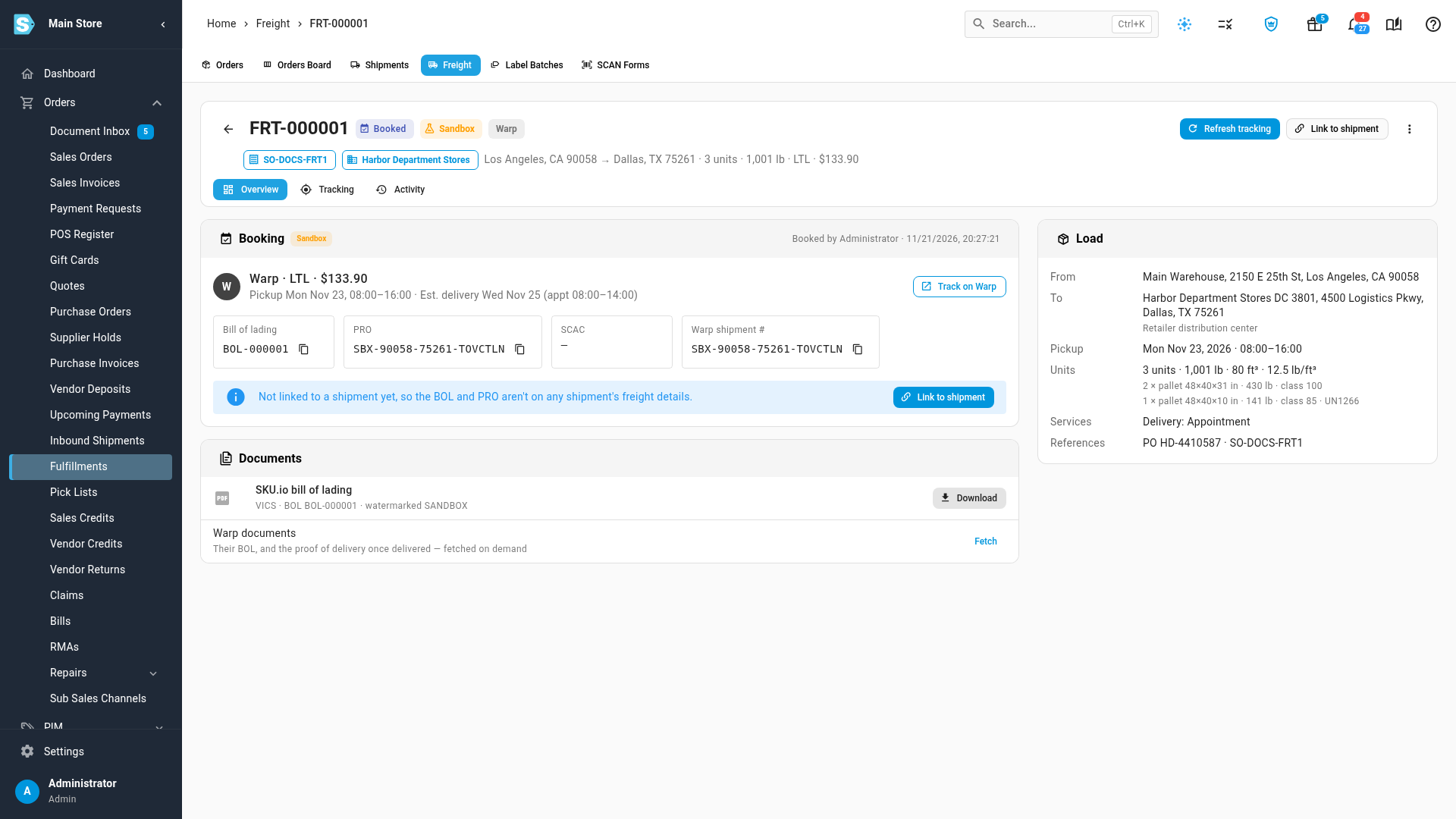
A load booked from an order before the order had a shipment isn't on any shipment's freight details yet. The Booking card says so.
- Once the order has a shipment, click Link to shipment.
- Pick the shipment the truck carries. When the order has exactly one, it's already picked.
- Click Link shipment.
SKU.io writes the bill of lading, PRO and SCAC to that shipment's freight details. A shipment can have only one booked truck. If another load already holds it, cancel that one first.
If the booking doesn't confirm
If the provider doesn't answer in time, the load turns Booking unconfirmed and shows We didn't hear back from Warp. Don't book again, because that could book two trucks. Click Check status: SKU.io asks the provider whether the booking went through, and either shows it as booked or lets you book again.
Other messages you might see when booking:
| Message | What to do |
|---|---|
| Warp needs a payment card on your account before it books | Add a card in your Warp account, then book again. The quote stays valid. |
| Warp is holding this booking for your account owner to approve | The booking is over your Warp account's confirmation limit. Approve it from Warp's email, then click Check status. |
| This rate expired at … | Get new rates, then book. |
| This shipment already has a truck | Cancel the other load first. |
Next steps
Video transcript
Once a load has rates, pick the one you want. Rates are sorted by price, with the cheapest marked Lowest. Firm means you can book at this price. Click Book, and the booking dialog opens. Check the pickup date and window, and the pickup and delivery contacts. They're filled in from your warehouse and the order. This delivery needs an appointment, so set the window the receiver can take it. This is a sandbox account, so no truck will come. Click Confirm booking. Warp books the truck while you wait, which takes a few seconds. The load is now Booked. The booking card holds the bill of lading number, the PRO number, and the carrier, each with a copy button. Pickup and estimated delivery are here too. Under Documents, download the SKU.io bill of lading, ready for the driver to sign. It lists the order's PO, the pallets, the hazmat details and your emergency phone. Fetch gets the provider's own documents too. This load was booked from the order before it had a shipment. Once the order has one, click Link to shipment, and SKU.io writes the bill of lading, PRO and carrier code onto it for the ship notice.