Get a freight quote
Price a pallet shipment before you book it. Start from a sales order or a shipment, and SKU.io prefills the route, the pallets, the freight class and the services. Or start blank to price a load before an order exists. Get rates asks every connected freight account at once, so you compare their rates in one table.
Before you begin
- Connect a freight account.
- Give your products a weight and size, and ideally a freight class. See Set up products for freight.
- For a load with hazmat products, set the hazmat emergency phone in Settings → Freight.
- Your role needs the Get freight rates permission.
Quote from a sales order
- Open the sales order.
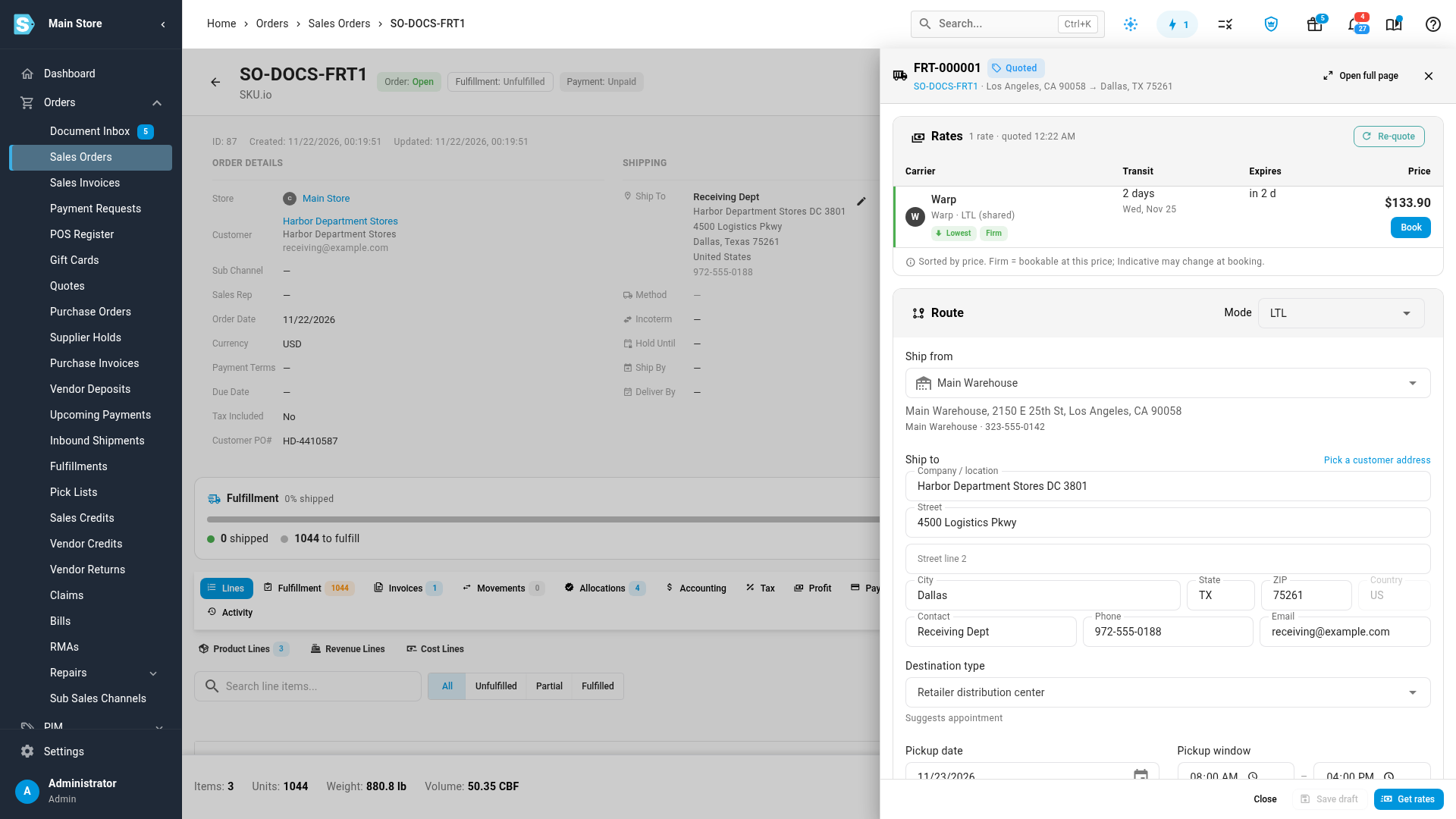
- Click More, then choose Get freight quote. A Freight quote drawer opens and builds the load from the order.
- Check what SKU.io filled in:
- Ship from is the order's warehouse, and Ship to is the order's shipping address.
- Customer PO # is the order's customer PO, and Shipper reference is the order number.
- Handling units stack the order's open lines onto pallets of your default size. Each pallet takes the highest freight class among its products, and hazmat products get a pallet of their own.
- If something is missing, such as a product's weight, Check the prefill lists it.
- Click Get rates. The rates appear at the top of the drawer.
- To see and edit the whole load, click Open full page. The quote is saved and opens on its own page as a freight load, such as FRT-000001.
The order's Fulfillment tab has a Freight card listing its freight loads, with its own Get freight quote button.
Quote from a shipment
On a shipment's Overview, the Freight card has Quote freight. The load ships from the shipment's warehouse to its ship-to, and when the shipment is packed, its cartons are grouped onto pallets. On a retailer (SPS Commerce) shipment, the Book freight button in the Cartons tab's Freight details card opens the same quote. See Book freight for a retailer ship notice.
Start a blank quote
Go to Orders → Fulfillments → Freight and click New freight quote. Fill in the route and the handling units yourself. A blank quote is never linked to an order, so its rates can expire but never go stale.
Check the load
On the load's page, the Overview tab has the whole quote. You can change any of it until the load is booked.
Route
- Mode: LTL, Full truckload (53' dry van) or Compare all, which prices every mode the provider offers side by side.
- Ship from: a warehouse, or Other address…. Ship to: type an address, or use Pick a customer address.
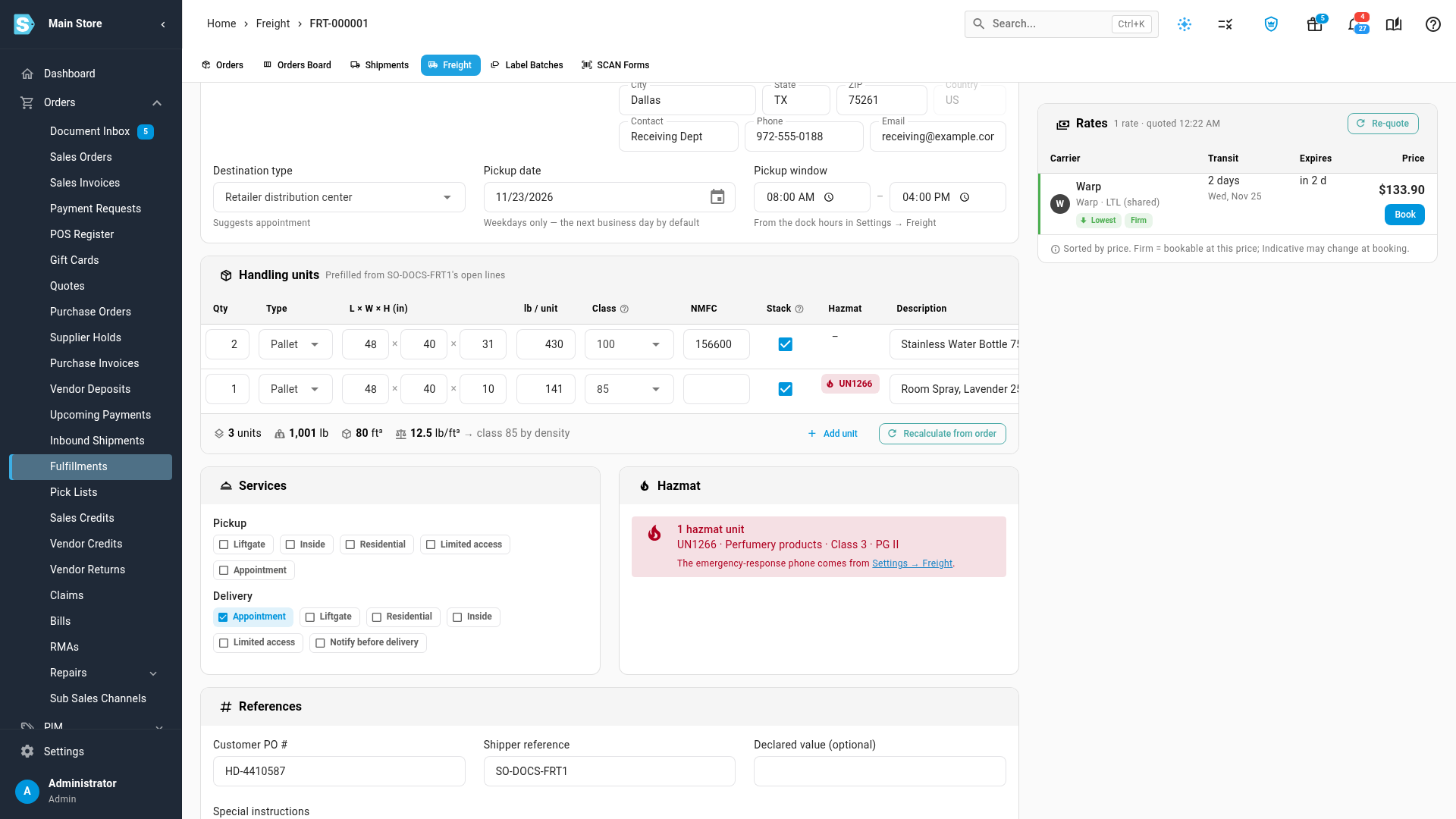
- Destination type ticks the delivery services that kind of stop usually needs. A Retailer distribution center suggests Appointment, and a Residence suggests Residential, Liftgate and Notify before delivery. Suggested services carry a suggested tag. You can untick them. See the full list in Freight reference.
- Pickup date is the next business day by default. Carriers don't pick up on weekends. Pickup window comes from your dock hours.
Handling units
- One row per kind of unit: Qty, Type, L × W × H (in), lb / unit, Class, NMFC, Stack, Hazmat and Description. Add unit adds a row.
- The totals show units, weight, cube and density, with the class that density suggests. Carriers re-class a load whose density points to a different class than the one you declare, and that changes the price.
- Recalculate from order rebuilds the pallets from the linked order or shipment.
- LTL pallets must be 85 in tall or less. A unit with no weight or size can't be quoted.
Services: tick the Pickup and Delivery services the stops need. A service the provider can't add shows an alert icon with the reason.
Hazmat: lists the hazmat units with their UN number, class and packing group. The emergency phone comes from Settings → Freight.
References: Customer PO #, Shipper reference, Declared value (optional) and Special instructions, which print on the bill of lading.
Click Get rates (or Re-quote once it has rates) after any change.
Read the rates
The Rates panel lists rates cheapest first.
| Column | What it shows |
|---|---|
| Carrier | The carrier and the provider, with badges: Lowest, Fastest, Firm (bookable at this price) or Indicative (may change at booking) |
| Mode / vehicle | LTL, full truckload or another vehicle |
| Transit | Days in transit, and the estimated delivery date |
| Expires | When the rate runs out. It turns red under 15 minutes. |
| Price | The all-in price, with Book |
- A rate with a Whole truck warning came back as a dedicated truck because the provider has no LTL service on that lane. You can still book it.
- No rates for this lane means the provider doesn't serve it. Try another mode or pickup date.
- A provider that failed shows its message and Retry.
- Fix these before getting rates lists what's missing, such as a ZIP code, a handling unit or the hazmat emergency phone.
When the rates look right, book one.
Next steps
Video transcript
The quickest way to price freight is from the sales order itself. On the order, click More, and choose Get freight quote. SKU.io builds the load from the order. It ships from the order's warehouse, to its ship-to address, with the customer's PO number. The order's open lines are stacked onto pallets, with each pallet's freight class taken from its products. The hazmat product gets a pallet of its own. When the load looks right, click Get rates at the bottom of the drawer. Every connected freight account is asked at once, and its rates come back within a few seconds. They appear at the top of the drawer, above the load. Each rate shows its price, transit time, delivery date and when it expires. To see the whole load, click Open full page. Destination type sets the delivery services a stop usually needs. A retailer distribution center gets an appointment, marked suggested. Check the handling units before you book. The totals show weight, cube and density, with the class that density suggests. A declared class that doesn't match the density is what carriers re-class. Recalculate from order rebuilds the pallets if the order changes. Mode picks LTL, a full truckload, or Compare all, which prices every mode side by side. Pick one and click Re-quote to price it. You can also start a blank quote from the Freight list with New freight quote, before an order exists.