Track a freight load
Once a truck is booked, SKU.io follows it for you. Every load that's booked or moving is checked with its provider every 30 minutes, and each update lands on the load's timeline. When the load is linked to a shipment, the carrier pickup and delivery dates update the shipment too.
Before you begin
- The load must be booked. See Book freight and print the bill of lading.
- Your role needs the View freight permission.
Follow a load
- Go to Orders → Fulfillments → Freight and open the load. You can also open it from the sales order's Fulfillment tab, or the shipment's Freight card.
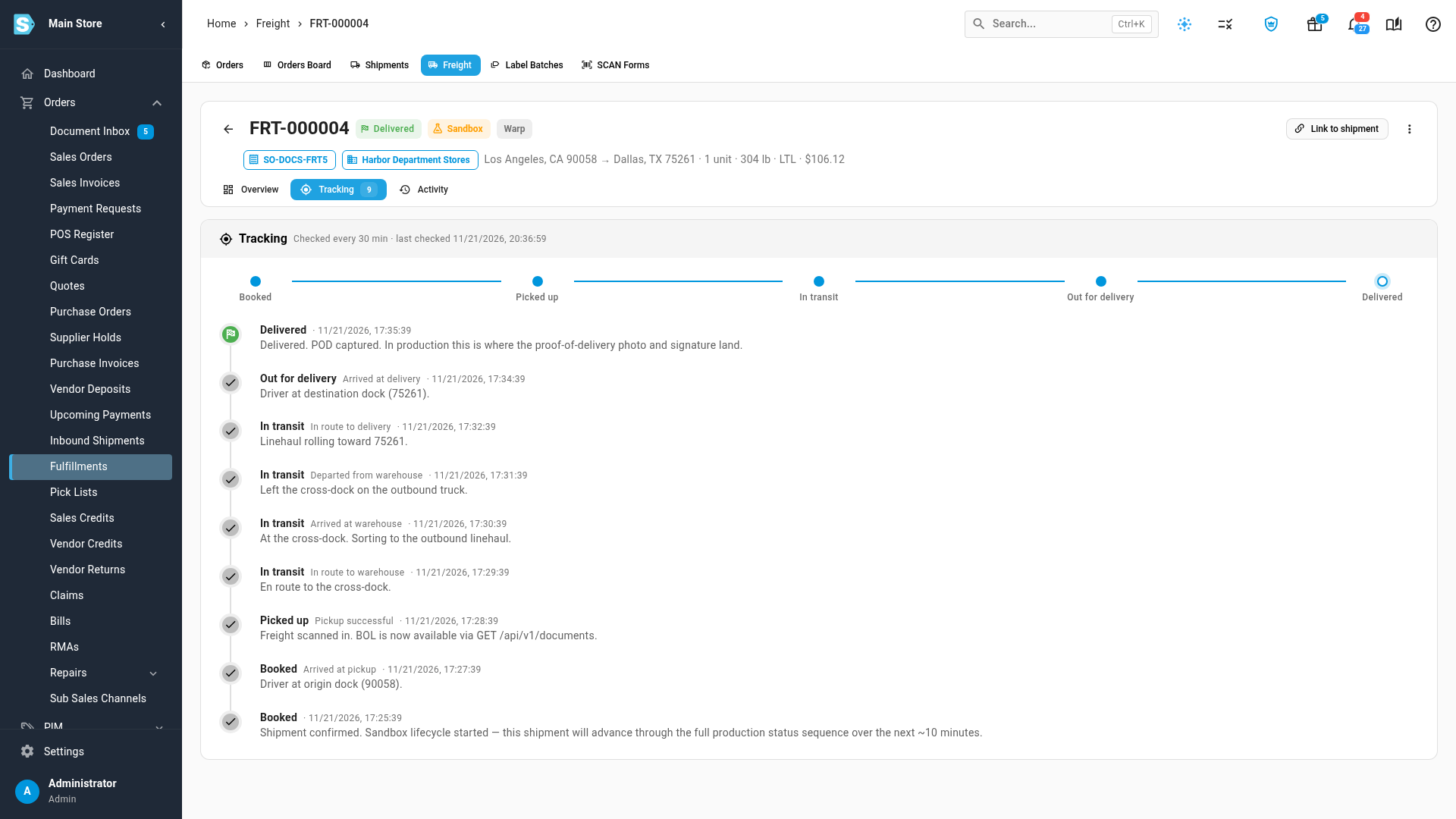
- Choose the Tracking tab. It shows when the load was last checked, and a progress line: Booked → Picked up → In transit → Out for delivery → Delivered.
- To check now instead of waiting for the next check, click Refresh tracking.
Each event on the timeline shows its status, the provider's description and the time, newest first.
To refresh many loads at once, select them on the Freight list and use Refresh tracking there.
What tracking updates
- Status: the load's chip follows the provider's updates. See How Warp's tracking maps to these statuses.
- Estimated delivery: kept up to date from the provider, on the load and on its linked shipment.
- Carrier pickup: when the carrier picks the load up, SKU.io records the pickup on the linked shipment, unless someone already recorded one. Retailers that wait for the carrier pickup get their ship notice then.
- PRO number: if the carrier's PRO arrives after booking, it fills the shipment's PRO #, unless someone changed it by hand.
Bill of lading and proof of delivery
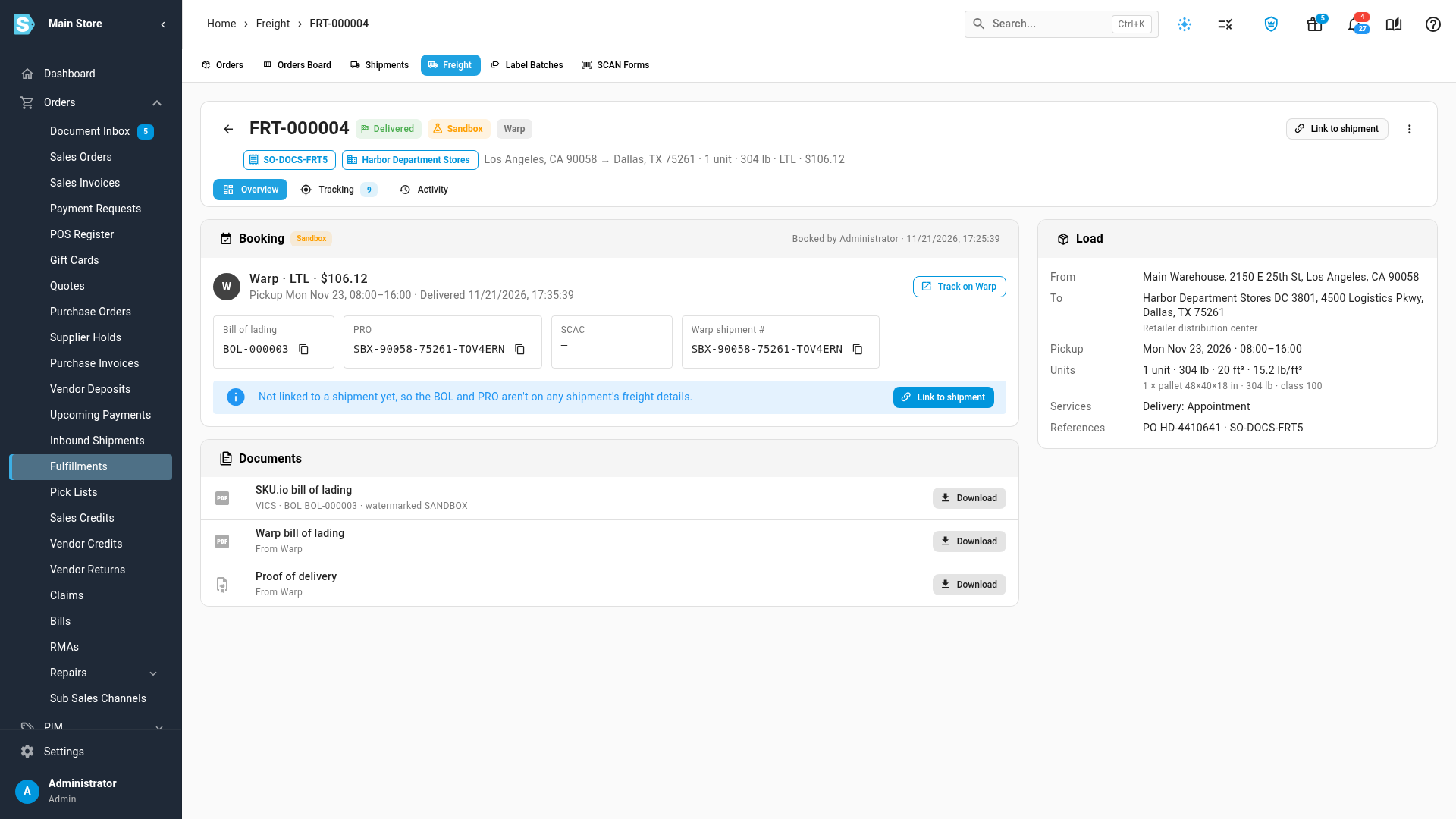
On the Overview tab, Documents holds the SKU.io bill of lading. Click Fetch under the provider's documents to get its bill of lading, and its Proof of delivery once the load is delivered.
When something goes wrong
- A failed pickup or delivery turns the load Exception, with the carrier's message. The Freight list's Exceptions quick view finds these loads.
- If tracking can't be refreshed three times in a row, the error shows on the load.
- A load with no update for 30 days stops being checked: Tracking stopped: no update for 30 days.
- If the freight account the load was booked with is disconnected, the load can't be tracked any more.
Next steps
Video transcript
SKU.io checks every moving load with its provider every 30 minutes. To follow one, open it from the Freight list, and choose the Tracking tab. To check now, click Refresh tracking. Each update appears on the timeline, newest first, and the load moves through Picked up, In transit and Out for delivery, to Delivered. On the Overview tab, Documents holds the SKU.io bill of lading. Click Fetch to get the provider's own documents, with the proof of delivery once the load is delivered. If the carrier reports a failed pickup or delivery, the load turns Exception, and the Exceptions quick view on the list finds it. When the load is linked to a shipment, its pickup and delivery dates update the shipment too.