Export a send plan
Export a send plan when you want its numbers in a spreadsheet: to share with a 3PL or a colleague, to check it against another report, or to keep a copy. The file always holds the whole saved plan, one row per SKU and network, whatever the grid is showing.
Before you begin
- You need the Send Planner → View permission. Editing and drafting permissions aren't needed. API tokens need the read scope for send plans. See Send Planner permissions.
- A plan must exist. Before the first calculation, Export is greyed out with "Calculate a plan first".
Export the plan
-
Go to Inventory → Send Planner. The Plan tab opens.
-
To export a scenario or another plan instead of the working plan, choose it in the view menu at the top right (it reads Working plan by default).
-
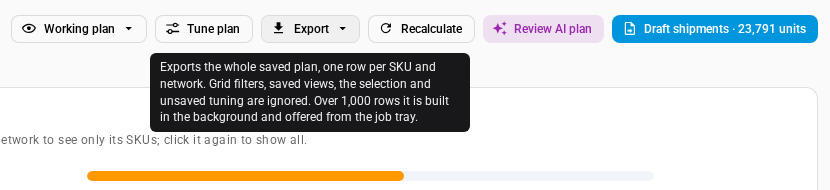
Click Export.
-
Click Excel (.xlsx) or CSV (.csv).
The button shows a spinner while the file builds. A plan of up to 1,000 rows downloads straight away as send-plan-N.xlsx or send-plan-N.csv, where N is the plan's number.
On a phone, tap ⋯ and pick Excel (.xlsx) or CSV (.csv) under Export (one row per SKU and network).
What the file includes
The export is the whole saved plan. Nothing on the screen narrows it:
| On the screen | In the file |
|---|---|
| Search, quick filters, filters and saved views | Ignored. Every SKU in the plan is exported. |
| Ticked SKUs and the selection bar | Ignored. |
| Sort order | Ignored. Rows follow the products, then each product's networks. |
| A Tune plan preview you haven't applied | Not included. The file has the saved plan's numbers. Click Apply & recalculate first if you want them. |
| A scenario you're viewing | That scenario's numbers. Scenarios can be exported even though they're read-only. |
| A plan that's calculating | The last finished plan, the one still on screen. |
There's one row per SKU and network, so a SKU planned for four networks has four rows. For every column, what it holds and when it's blank, see Send plan export columns. The per-product stock columns are filled once per SKU, on its first row, so you can total them without counting a SKU twice.
The file doesn't include shipment drafts, edit reasons or notes. For drafts, see Follow up on shipment drafts.
Large plans
A plan with more than 1,000 rows is built in the background. Rows are SKU and network pairs, not products: 400 SKUs across 3 networks is 1,200 rows.
- Click Export and pick the format as usual.
- Read the message, for example "The export has 1,200 rows, so it is being built in the background — download it from the job tray."
- Open the job tray from the app bar. The job is named Export Send Plan: #N (CSV) or (XLSX).
- When it says "Export completed with N records", download the file from the job.
The background file is named send-plan-N- followed by the date and time it was built. You can keep working while it builds. See Follow background jobs.
A background export runs once and stops after 30 minutes. If the plan is deleted before the export starts, the job fails with "Send plan #N no longer exists."
Excel and CSV
Both formats have the same columns.
- Excel (.xlsx): one sheet named Send plan #N. Numbers stay numbers, so you can sum and sort them. Text, such as product names, is always stored as text.
- CSV (.csv): starts with a byte-order mark, so Excel opens product names with accents correctly. Text that starts with
=,+,-or@gets an apostrophe in front, so a spreadsheet never runs it as a formula.
If the export can't be built, you see "Could not export the plan." Try again.
There's no import
The Send Planner has no import. You can't edit an exported file and upload it back, and you can't bulk-upload its settings:
- To change send quantities, edit them on the grid. See Change a send quantity, including changing many SKUs at once.
- Product overrides, Capacity limits, ship-from lanes, network settings and transfer destinations are entered one at a time under Network rules. See Set product overrides and Set network capacity limits.
- The planning policy import in Demand Planning is a different feature. It doesn't set the Send Planner's per-network rules.