See why a SKU gets its quantity
Every quantity in the send plan has a reason. The Why these numbers drawer shows it for one SKU: what's kept back, where the rest goes, which warehouse ships it, how each network's number was worked out step by step, and what the marketplace would have sent instead. Open it whenever a number surprises you, before you change it.
Before you begin
- You need the Send Planner → View permission.
- It helps to know how the numbers are built. See How a network's send is calculated and How stock is shared between networks.
Open the drawer
- Go to Inventory → Send Planner.
- In SKUs in this plan, find the SKU.
- Click the arrow at the end of its row. You can also right-click the row and choose Why these numbers. The drawer opens on the right, with the SKU's total to send under Send in total.
- Read the alerts at the top first. They name anything that needs action for this SKU.
- Read Where the pool goes and Ship from to see how the stock is split.
- Scroll to the network cards, such as Amazon FBA US: why 1,416?, to see each network's calculation.
- Close the drawer with the close button or your browser's Back button.
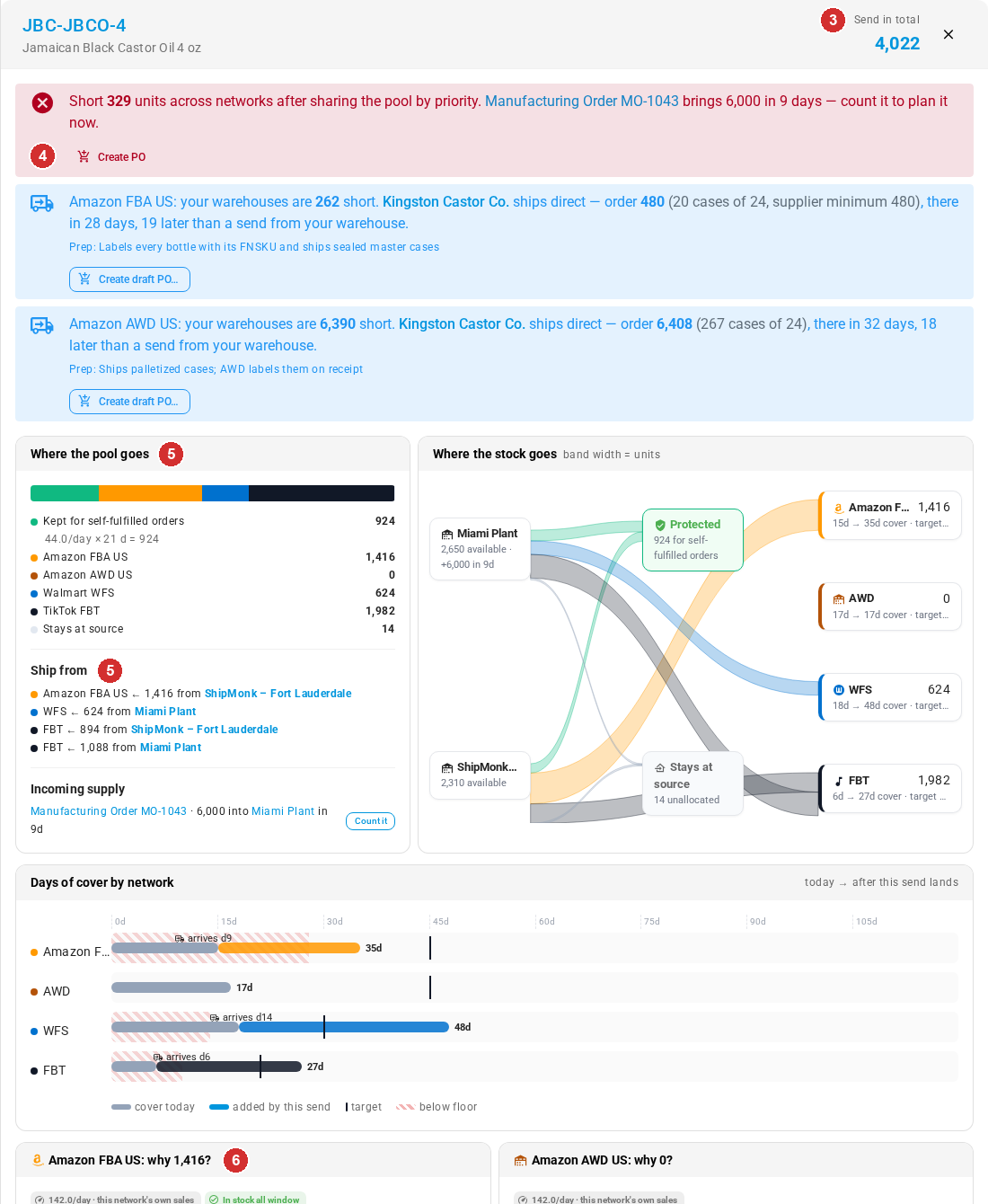
The open drawer is part of the page address, so it stays open when you refresh, you can share the link with a colleague, and Back closes it. On a phone it opens full screen. The title reads Loading… while the SKU loads; if it can't load, the drawer shows the error in place of the details. To open the product itself, click the SKU at the top of the drawer.
Alerts at the top
The drawer starts with what needs action for this SKU:
| Alert | What it means |
|---|---|
| Short N units across networks after sharing the pool by priority. | Your warehouses don't have enough for every network. When an order on its way would cover it, the alert names it, for example Manufacturing Order MO-1043 brings 6,000 in 9 days — count it to plan it now. When none would, it says No open production or purchase order covers this. Buttons let you Create PO, or Plan production for a product you make or a kit. See Cover a shortfall. |
| Network: your warehouses are N short. Supplier ships direct | A supplier can deliver the gap straight to the network. See Order from suppliers that ship straight to a network. |
| On the production schedule: N needed at warehouse by date | The planner already added this shortfall to the Master Production Schedule. |
| N kits are built. N more can be assembled from components | For a kit: how many are built, how many could be, and how many this plan needs built. Click Assemble N kits (or Create assembly order) to start an assembly. |
| Network: reason. Nothing is sent there until the listing is active again. | The listing is stranded or not eligible at that network. Click Open listing to fix it. |
| All stock is kept for self-fulfilled demand (orders you ship from your own warehouses), so nothing is offered to the networks. | Everything available is kept back, so the SKU has nothing to share. |
The last alert has three wordings, depending on what used up the stock: All stock is allocated to open orders, All stock is kept for open self-fulfilled orders, or All stock is kept for self-fulfilled demand. It's information, not an error, and the line carries the All protected flag. Turning off Protect self-fulfilled orders: include forecast demand in Network rules doesn't always clear it, because open orders and backorders are still kept. To send some anyway, see Send more than there is to share.
Where the pool goes
The bar and list under Where the pool goes split the SKU's stock into:
- Kept for self-fulfilled orders, with how it was worked out underneath, for example
44.0/day × 21 d = 924. Any open wholesale orders, other open orders and backorders are added (+ N open wholesale, + N other open orders, + N backordered). When you favor a network under When stock is short, the part it takes shows as − N released to a favored network. Units already allocated to orders are noted as N more already allocated to open orders (not in available, so not counted again). - Each network, with its units.
- Stays at source: what's left at your warehouses after every network has its share.
When the stock includes kits you could assemble, or orders on their way that you counted, a line says so: Includes N kits buildable from components or Includes N units of incoming supply.
Ship from
Ship from lists which of your warehouses sends each network's units, one line per warehouse, such as FBT ← 894 from ShipMonk – Fort Lauderdale and FBT ← 1,088 from Miami Plant. Click a warehouse to open it.
- A lock icon means stock is allocated for that line. See Allocate stock for a send.
- After you edit a quantity, or a capacity limit trims it, the lines show the split that actually applies.
- Once a line is drafted, Drafted: chips link to each shipment draft in the network.
- Units planned from an order on its way show as incoming supply instead of a warehouse.
If nothing ships from your warehouses for this SKU, it says Nothing ships from the sources for this SKU.
Incoming supply
When purchase orders, manufacturing orders or transfers are on their way to your warehouses, Incoming supply lists each one with a link, the units, the warehouse it's going to and when it's due, such as Manufacturing Order MO-1043 · 6,000 into Miami Plant in 9d.
To plan with one of them now, click Count it. This sets Count stock on the way in Tune plan to 14 or 30 days, whichever covers the order, for every SKU in the plan, not just this one. It's a preview: the drawer closes, purple numbers show what would change, and nothing is planned until you click Apply & recalculate. See Tune the plan.
Count it is greyed out, and its tooltip says why, when:
- The order has no arrival date: No arrival date: the planner can only count supply with an expected date.
- It arrives more than 30 days out: Arrives in N days: the planner counts supply arriving within 30 days at most.
- It's already counted: Already counted: the plan counts supply arriving within N days.
- You're viewing a scenario, which is read-only.
Where the stock goes
Where the stock goes draws the same split as a flow map: a band from each of your warehouses to what's kept, to each network and to what stays at the source. A wider band means more units (band width = units). Each warehouse shows what's available there, plus anything on its way, and each network shows its units and its days of cover before and after, against its target. On a phone, the map scrolls sideways.
Days of cover by network
Days of cover by network shows, for each network, its cover today → after this send lands, against a scale in days. The legend marks cover today, what's added by this send, the target and below floor. Each network also shows when the send arrives, such as arrives d9: nine days from now.
Each network's calculation
Below the charts there's one card per network, titled with the network and its quantity, such as Amazon FBA US: why 1,416? Each card shows:
-
The velocity chip: the sales per day it planned from and where they came from, such as 142.0/day · this network's own sales, with a chip for any stock-out adjustment, such as In stock all window or No stock history. Hover over a chip for the detail.
-
The line facts: the sales window it used, the listing's identifiers (such as MSKU, ASIN, FNSKU or seller SKU), any units reserved at the network (not counted as cover), and the marketplace's own days of supply.
-
The steps, from the need to the send. For example:
Step Units Velocity 142.0/day × (45 target + 9 lead) days 7,668 − On hand at network 2,150 − In transit / receiving 1,440 − Buffer stock that replenishes this network automatically 2,400 Need 1,678 Then share the remaining pool by weight 1.0 1,415 Rounded up to 59 cases of 24 1,416 Send 1,416 Warnings in the steps, such as a missing case label, tell you what to fix and where. Every step is explained in How a network's send is calculated. If a card says No explanation recorded for this line., recalculate the plan to rebuild it.
-
A status chip in the card title once the line has moved on: allocated, drafted or skipped.
What the marketplace suggests
For Amazon FBA and Walmart WFS, a box compares the plan with the marketplace's own suggestion, such as Amazon Restock suggests 4,100; we send 1,416. followed by why they differ. When they match, it says this plan sends the same. Chips add what the marketplace reported: an alert (Out of stock or Low stock), Ship by a date, days of supply, units sold in 30 days, Customer favorite, and as of the date of the report. The reasons are listed in The network's own suggestion.
Edits and history
When someone changed the quantity, a box says Edited date from N · reason: and the reason, with any note. The card's title then gives both numbers, such as Amazon FBA US: why 1,416? Edited to 1,200: the steps explain the plan's number, and the edit is what's sent.
Under History, every change to the line is listed with its date and who made it: Edited (from → to, with the reason, or No reason given), Reason added when a reason was saved after the edit, such as Reason added: Promo planned, Reset to the plan, Edit carried forward, Rebalanced, Resolved in send run, and edits that took stock kept for self-fulfilled orders. A change by someone who has since lost access shows by a user who no longer has access. When a send run decided the line, it also says Resolved in the send run: and the decision.