Track portal and B2B sales
Portal orders are ordinary sales orders on their own Customer Portal sales channel, so they sit in the same reports as your Shopify, Amazon or manual orders. On top of that, Portal Analytics shows how your wholesale customers are using the portal.
Before you begin
- You need the portal.manage permission for Portal Analytics, and access to the reports you want to use.
Read Portal Analytics
-
Go to Contacts → Customers, then click the Portal tab and Analytics.
-
Set From and To, and click Apply. It opens on the last 30 days.
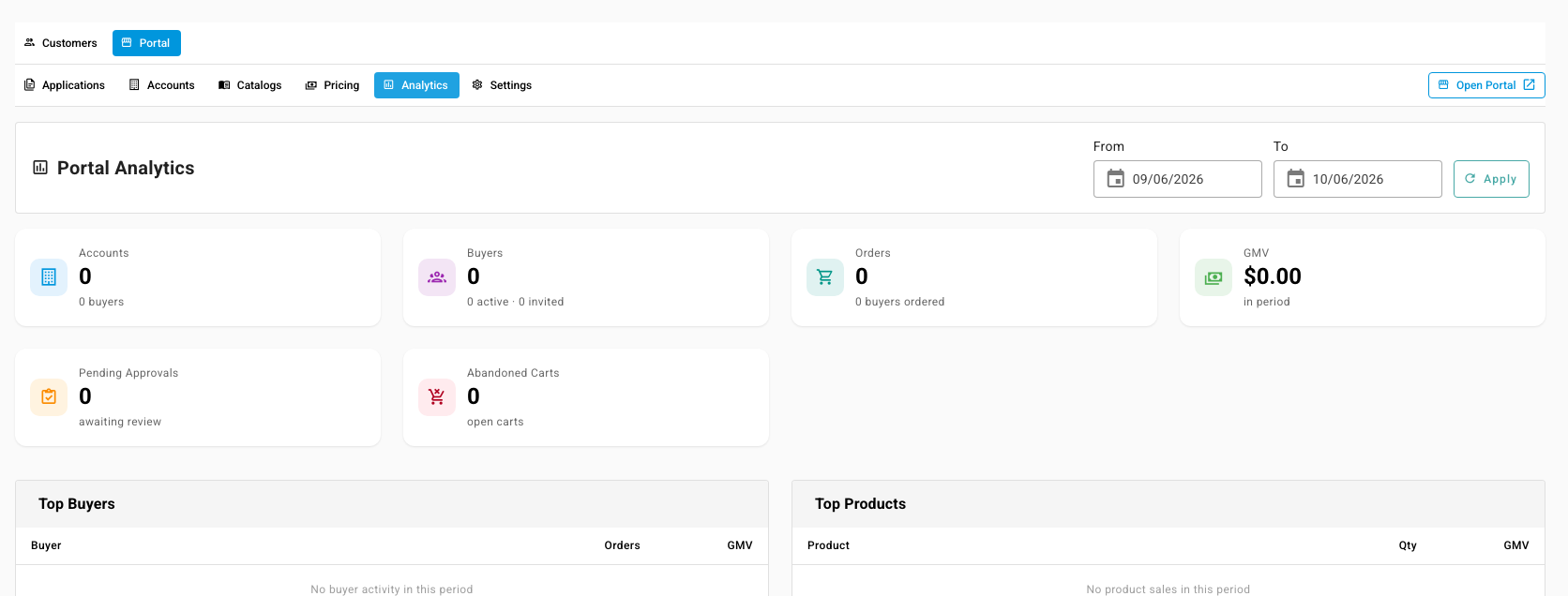
| Tile or table | Shows |
|---|---|
| Accounts | Customers on the portal, with how many buyers they have. |
| Buyers | Buyers, split into active and still invited. |
| Orders | Portal orders in the period, and how many buyers ordered. |
| GMV | The value of those orders. |
| Pending Approvals | Orders waiting for sign-off inside a customer's company. See Require approval for portal orders. |
| Abandoned Carts | Accounts with items in the cart that haven't been ordered. |
| Top Buyers | The buyers who ordered most, by orders and GMV. |
| Top Products | The products ordered most, by quantity and GMV. |
Portal orders count here once you've moved them out of Draft. A portal order arrives as a draft for you to review, so a period with orders you haven't reviewed yet shows fewer orders than buyers have placed.
Compare portal orders with other channels
- Find portal orders: in Orders → Sales Orders, filter by the Customer Portal sales channel. Each portal order carries the buyer's PO number.
- Compare channels: in the Profitability Report, group by Sales Channel to see Customer Portal revenue, cost and margin beside your other channels. See Analyze profitability.
- By customer segment: tag your wholesale customers, then group the same report by Customer Tags. See Segment profitability by customer tag.
- By sales rep: commission reports cover the orders credited to each rep, portal orders included. See Track sales rep commissions.
No report groups by pricing tier. To compare tiers, tag customers by tier and group by Customer Tags.
Next steps
Last verified:
Was this helpful?