Review portal account applications
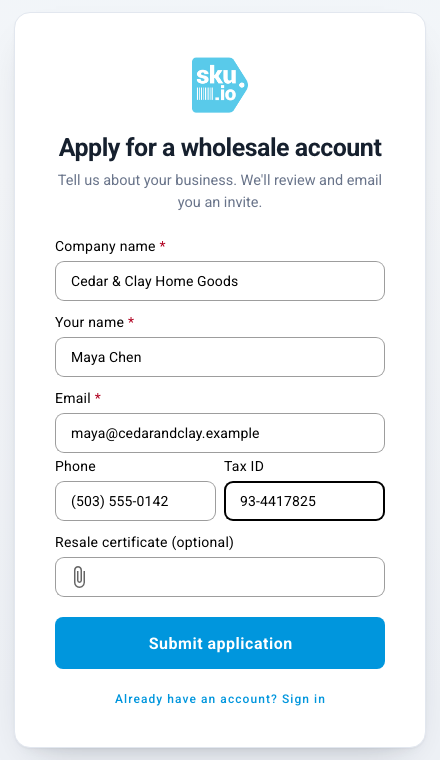
New wholesale customers don't have to wait for you to set them up. The Customer Portal's sign-in page has an Apply for a wholesale account link. A business fills in the form, and the application waits for you on Portal → Applications. When you approve it, SKU.io creates the customer with the catalog, prices and terms you choose and emails the applicant an invitation. Nothing is created until you approve.
Before you begin
- You need the portal.manage permission.
- Build the catalog you want new accounts to start on. See Restrict what buyers see with portal catalogs.
- Share the portal's sign-in page with prospects, for example from your website. The Open Portal button on Contacts → Customers → Portal opens it.
What the applicant fills in
On Apply for a wholesale account, the applicant enters their Company name, Your name and Email, and optionally a Phone, Tax ID and Resale certificate (a PDF or image). They click Submit application and see that it's pending review.
Review the queue
-
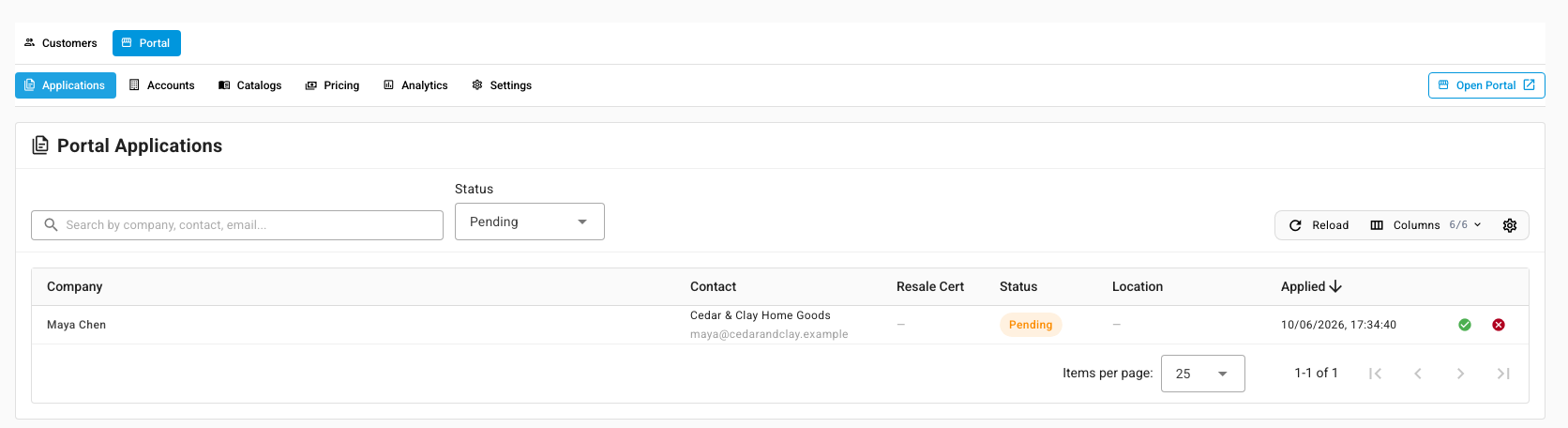
Go to Contacts → Customers, then click the Portal tab and Applications. The list shows Pending applications by default, with the Company, Contact, whether a Resale Cert was attached, and when they Applied. Change Status to see reviewed applications.
-
Use the search box to find an application by company, contact or email.
Approve an application
-
On the application's row, click the green Approve icon.
-
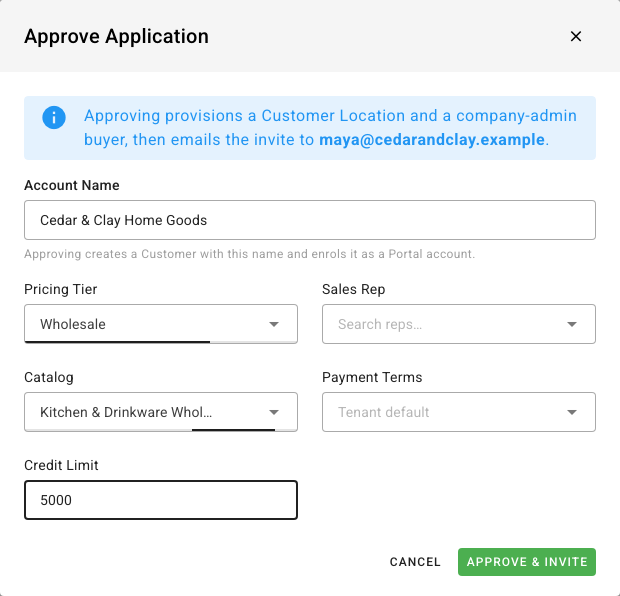
In Approve Application, check the Account Name. It starts as the company name, and it becomes the customer's name. Then choose:
- Pricing Tier — the prices this account buys at.
- Sales Rep — who owns the account.
- Catalog — what the account can see. Leave it empty to show every product.
- Payment Terms and Credit Limit — how the account may pay on account. Leave Payment Terms empty to use your default terms.
-
Click Approve & Invite.
SKU.io creates the customer as a portal account, adds the applicant as its Company Admin buyer, and emails them an invitation to set a password. The application's Location column then links to the new customer.
Reject an application
- On the application's row, click the red Reject icon.
- Enter a Reason. Tick Email the applicant to send it to them.
- Click Reject. No customer is created.
Next steps
- Invite buyers to the Customer Portal — add the rest of the new customer's team.
- Require approval for portal orders