Track sales rep commissions
Give each sales rep a commission rate, decide whether commission is earned when an order is placed or when it ships, and report on what reps and teams earned over any date range.
Before you begin
- You need at least one sales rep, and orders credited to them.
- Commission only counts orders that have a rep on them. A rep set as a customer's default is carried onto every new order for that customer automatically.
Choose when commission is earned
This is an account-wide setting, so do it before you rely on the numbers.
- Go to Contacts → Sales Reps and click Settings.
- Under Commission Calculation Basis, choose one:
- On Sale (when order is placed) — the rep is credited on the order date.
- On Fulfillment (when order is shipped) — the rep is credited on the fulfillment date.
- Under Additional Options, turn on Include partial fulfillments if a partly shipped order should still earn commission. It is pro-rated by the amount actually fulfilled.
- Leave Include canceled orders off unless you have a specific reason to pay on cancelled business.
- Click SAVE.
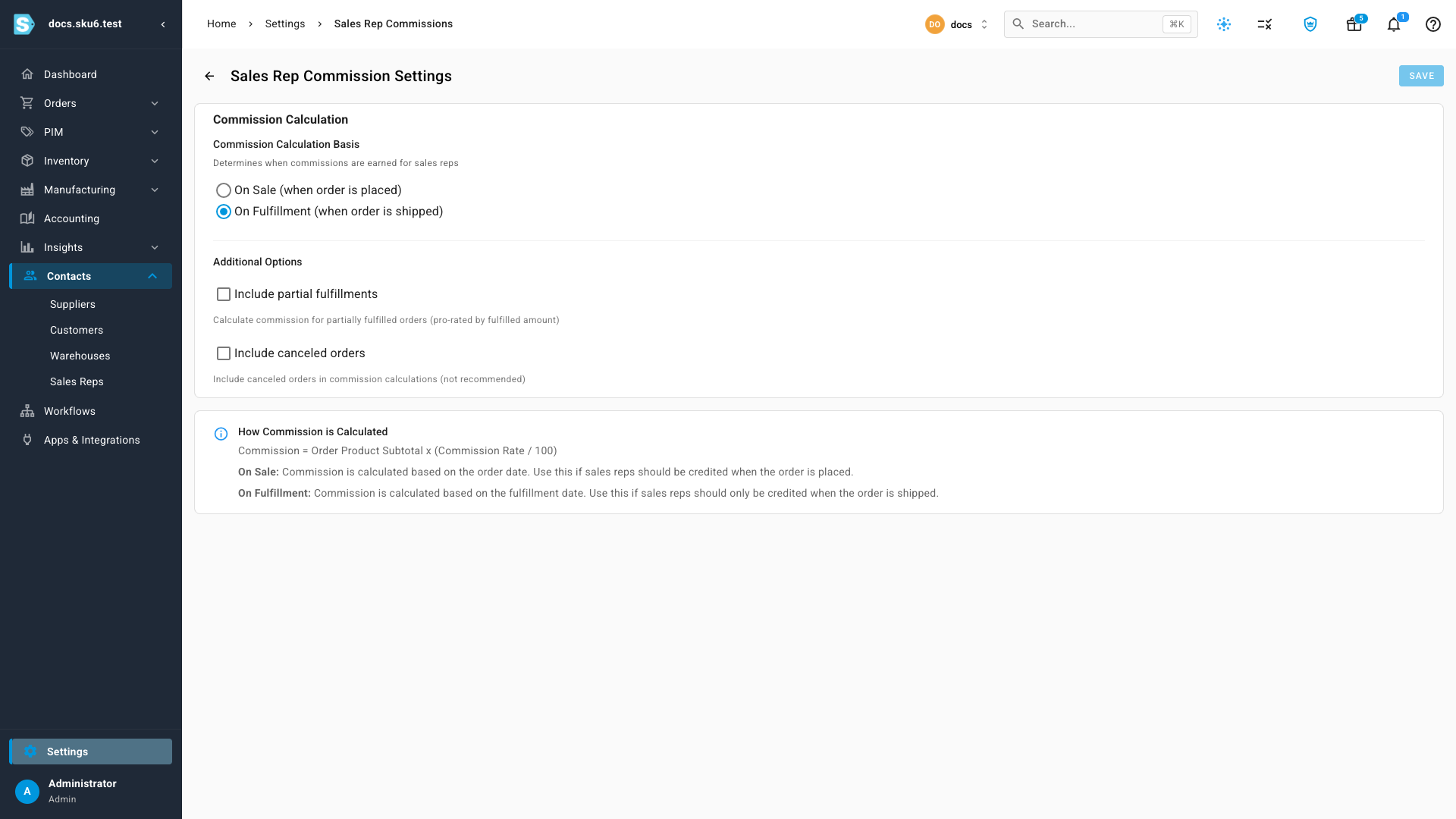
The page shows the formula it applies:
Commission = Order Product Subtotal × (Commission Rate / 100)
On On Fulfillment, an order that has not shipped earns nothing yet — it appears in the reports only once it is fulfilled. If a report looks emptier than you expect, check this setting first.
Set a rep's commission rate
- Go to Contacts → Sales Reps.
- Click Add Sales Rep, or click a rep's name and then Edit.
- Enter a Commission Rate (%) — a percentage between 0 and 100, to two decimal places.
- Click Create — or Update, when editing an existing rep.
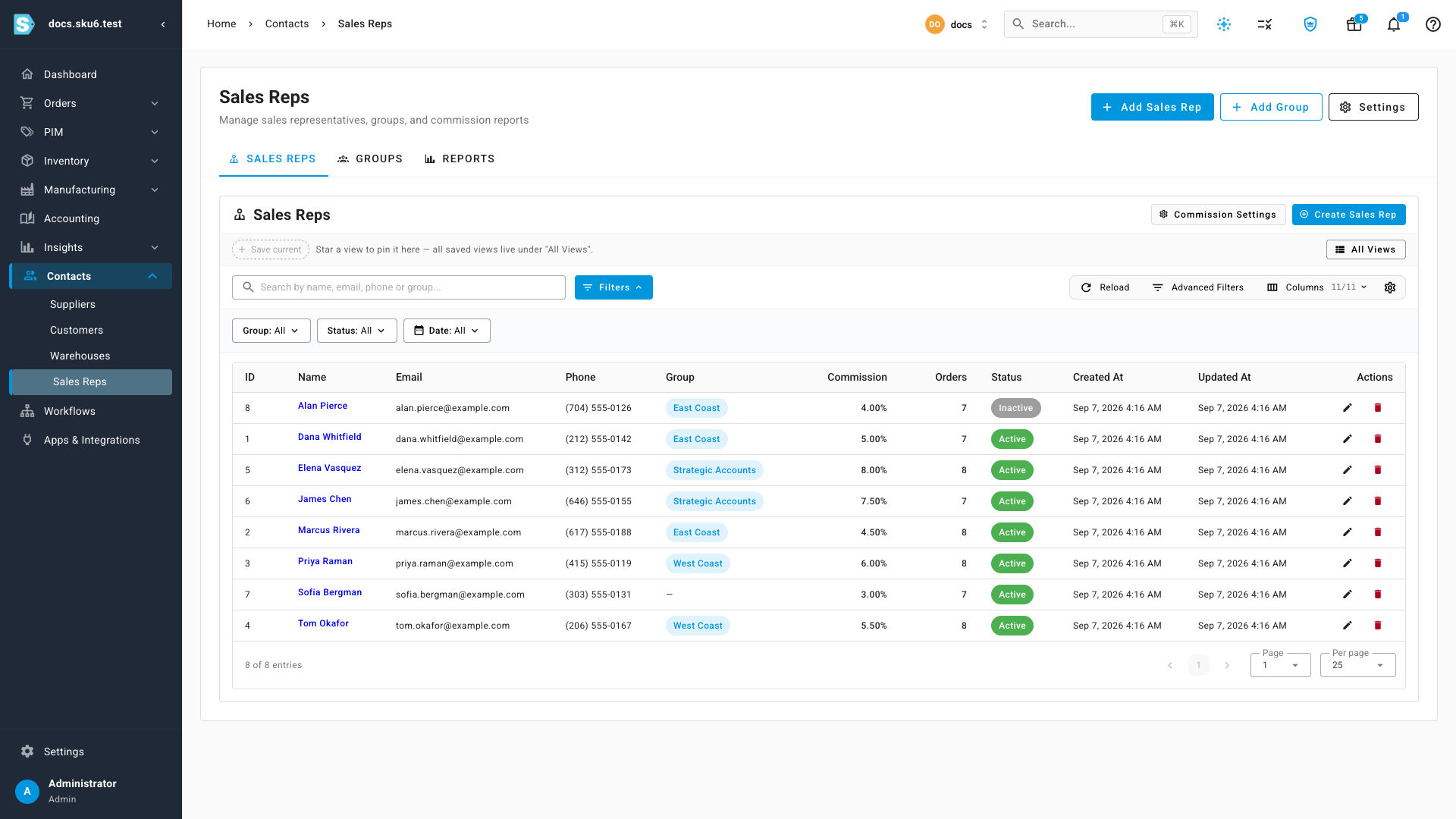
The Commission column on the list shows each rep's rate, and the rep's own page shows a Commission this month panel with their orders, sales, commission and rate for the month to date.
Group reps into teams
Groups let you report on a territory or team as a unit.
- Go to Contacts → Sales Reps and open the Groups tab.
- Click Add Group.
- Enter a Group Name (required) and an optional Description.
- Leave Active on and click Create.
- To put reps in the group, go back to Sales Reps, edit a rep, and pick the Group.
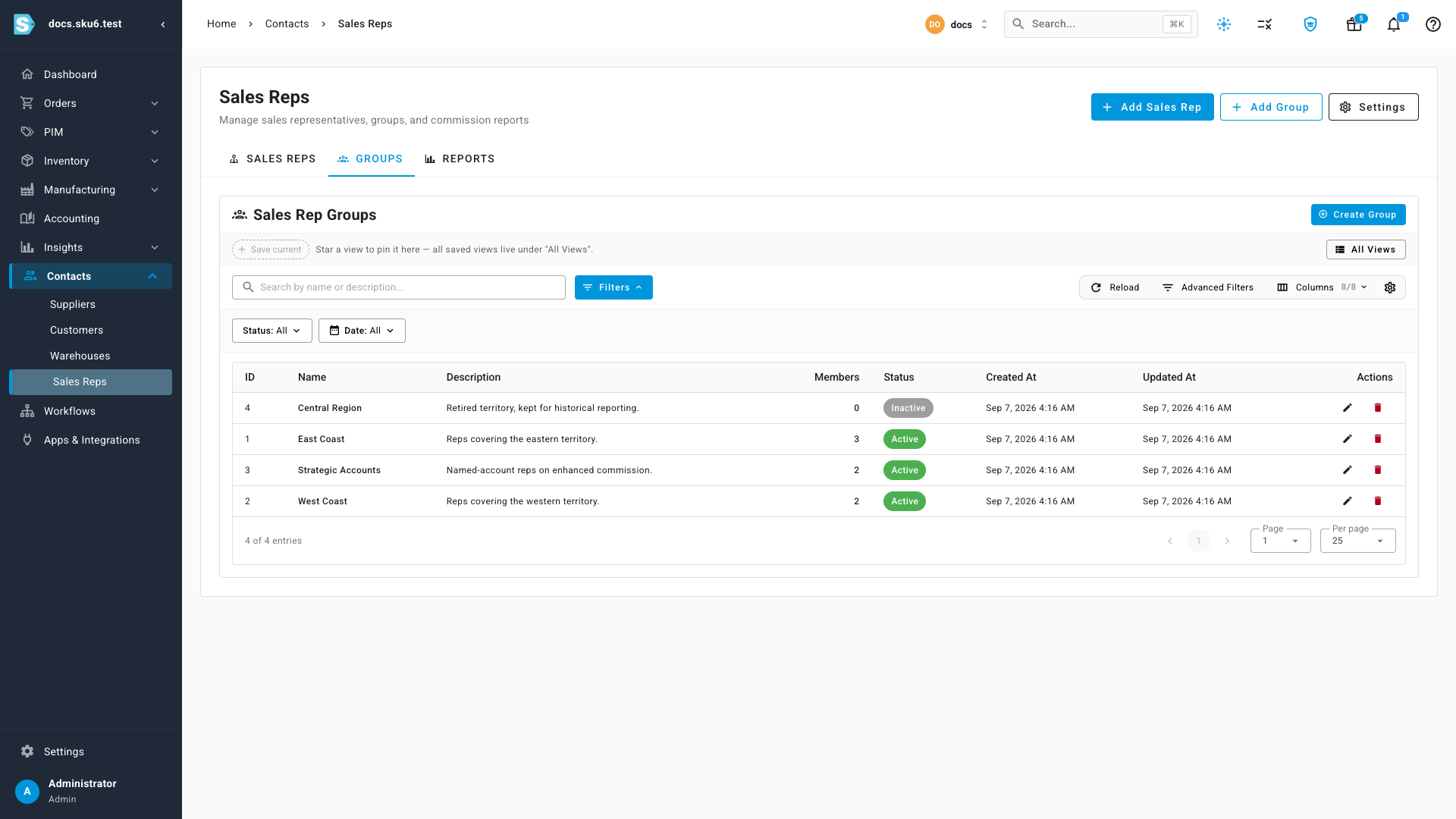
The Groups tab lists each group's Members count and Status. Reps without a group still earn commission — they report under Unassigned.
Turn a group Inactive rather than deleting it when a territory is retired. Its past orders stay in the reports.
Run the reports
- Go to Contacts → Sales Reps and open the Reports tab.
- Set a Start Date and End Date, and optionally narrow to one or more Sales Rep Groups.
- Click Generate Report.
Reports open on the current month to date, so widen the dates to see a longer trend.
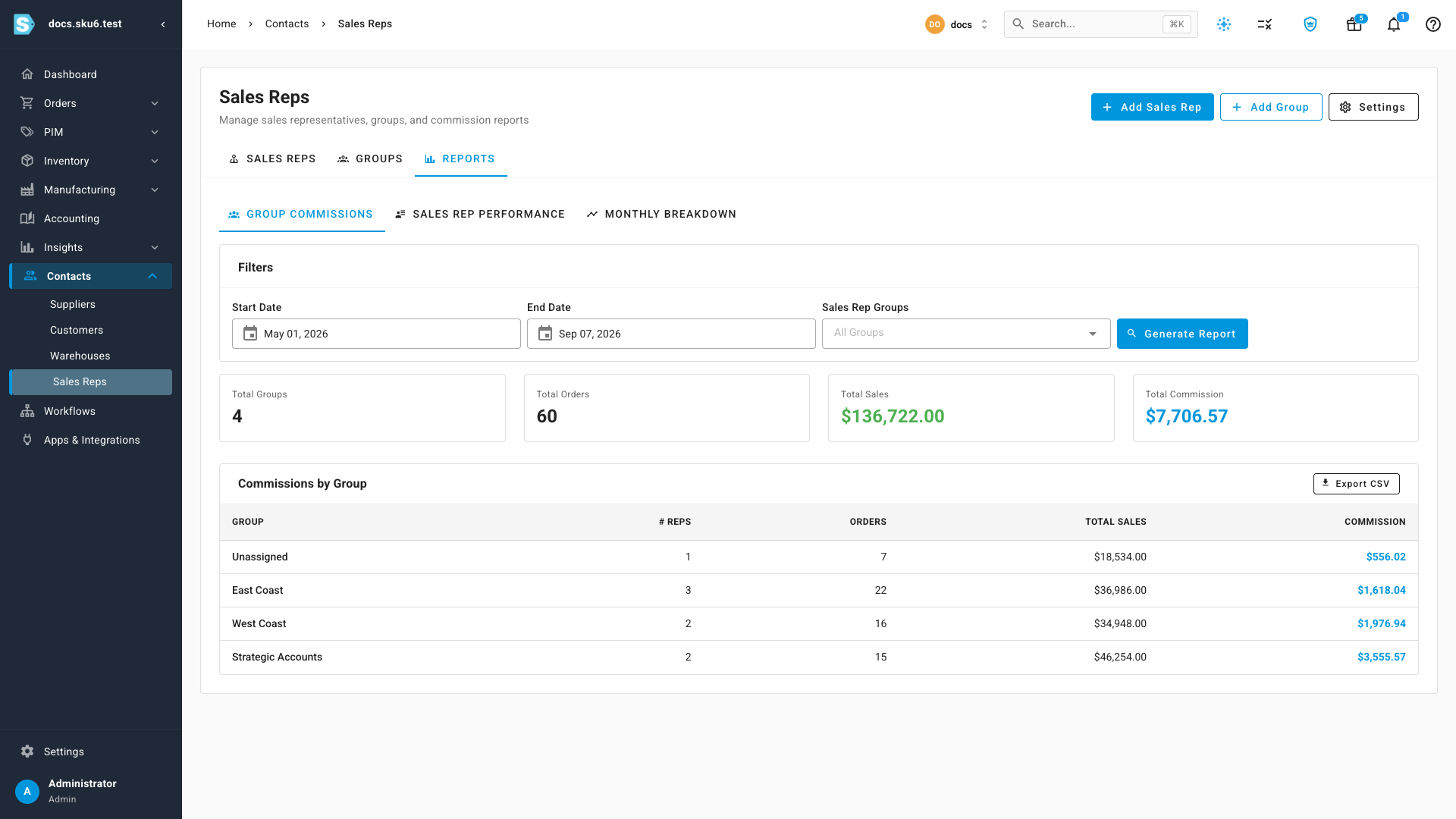
There are three views:
- Group Commissions — one row per group, with # Reps, Orders, Total Sales and Commission. Use it to compare territories.
- Sales Rep Performance — one row per rep, adding their Rate and Avg Order. Use it to see who is carrying the number.
- Monthly Breakdown — commission by month, with a trend chart. Switch between By Sales Rep and By Group.
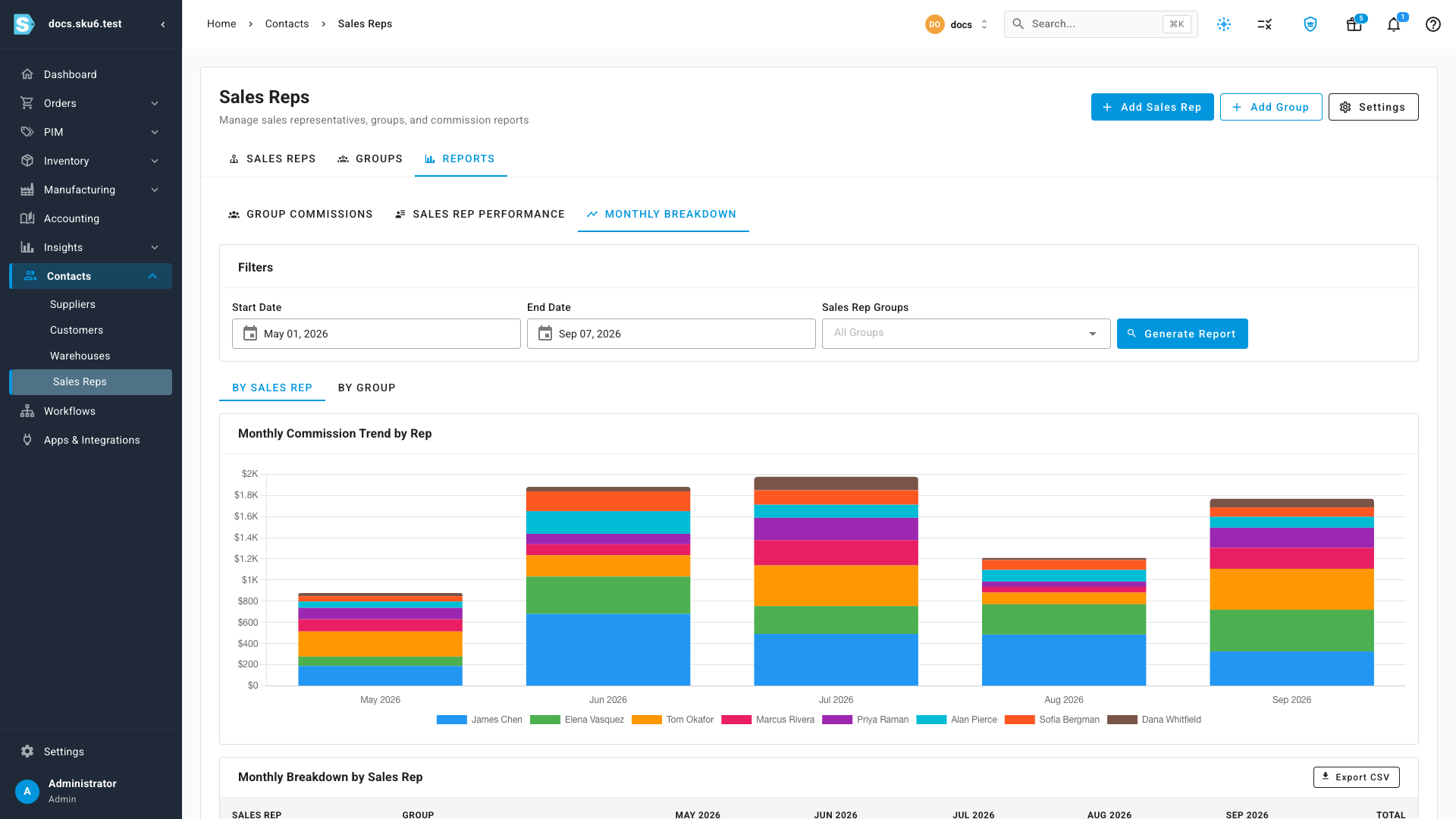
Each view has an Export CSV button that exports exactly what you filtered.
A group's commission is the sum of its reps' commission, so a group whose members are on different rates shows a blended figure rather than any single rate.
Next steps
- Manage sales reps — add reps and see the orders credited to them.
- Create & edit a customer — set a customer's default rep so orders carry it automatically.
- Create a sales order — how a rep lands on an order.
Video transcript
Commission follows the sales rep credited on an order. To set it up, open Contacts, then Sales Reps. First decide when commission is earned. Click Settings. Choose On Sale to credit the rep when the order is placed, or On Fulfillment when it ships. A partly shipped order can be pro-rated. Each rep carries their own rate. The Commission column shows it, and you set it when you add or edit a rep. Groups let you report on a territory as a unit. Open the Groups tab. Each one shows how many members it has. Anybody left out reports under Unassigned. Open Reports. The range defaults to the current month, so widen the start date to see more history. Step back to whichever period you want, pick a day, then click Generate Report. Group Commissions compares territories by orders, total sales and commission. Sales Rep Performance breaks the range down by person, adding their rate and average order. Monthly Breakdown plots those figures month by month. Every view exports to CSV.