Restrict what buyers see with portal catalogs
Out of the box, a portal account sees every active product you stock, unless you've marked a catalog as the default. A portal catalog narrows that down: a gift shop sees your kitchen and drinkware range, while a distributor sees everything except one brand you sell direct. Buyers can only browse, add to cart, quote and order products in their account's catalog.
Before you begin
- You need the portal.manage permission. Without it, the Portal tab doesn't appear on the customers page.
- The customer should already be a portal account. See Invite buyers to the Customer Portal.
How the rules combine
A catalog is a list of rules. Each rule names a product, a brand or a category, and either includes or excludes it.
- No rules: the catalog includes every product.
- Include rules: the catalog holds everything matched by any include rule. An include for the brand Harbor & Lane plus an include for the category Drinkware shows both ranges.
- Exclude rules always win. A product matched by an exclude rule is hidden even when an include rule also matches it. Use them to carve exceptions out of a brand or category.
Brand and category filters in the buyer's catalog only offer the brands and categories left after the rules.
Steps
-
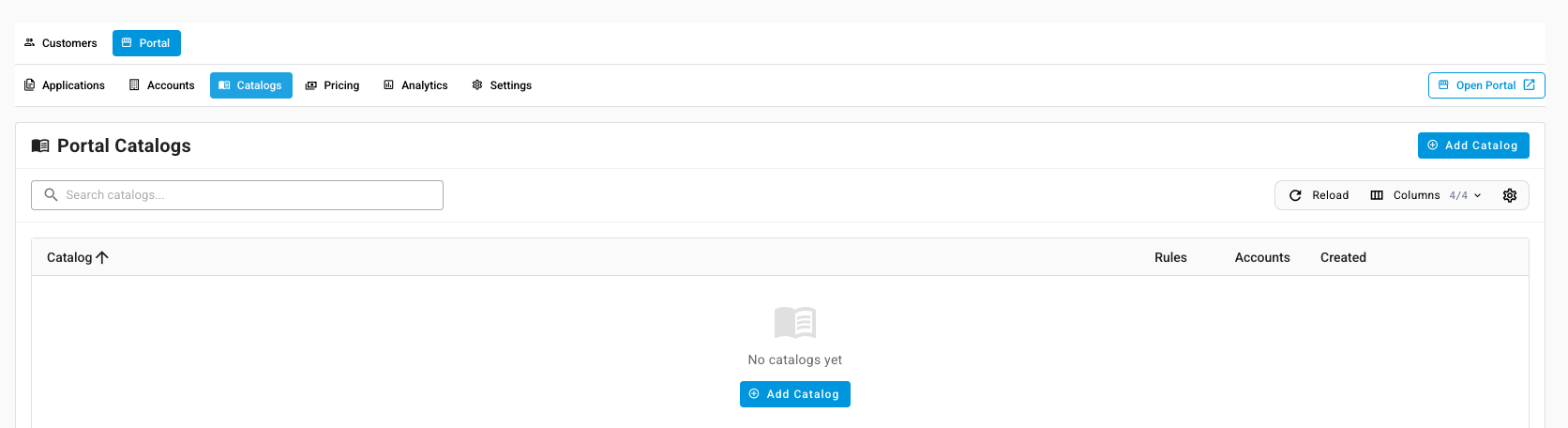
Go to Contacts → Customers, then click the Portal tab and Catalogs.
-
Click Add Catalog. A new catalog opens in the Edit Catalog window.
-
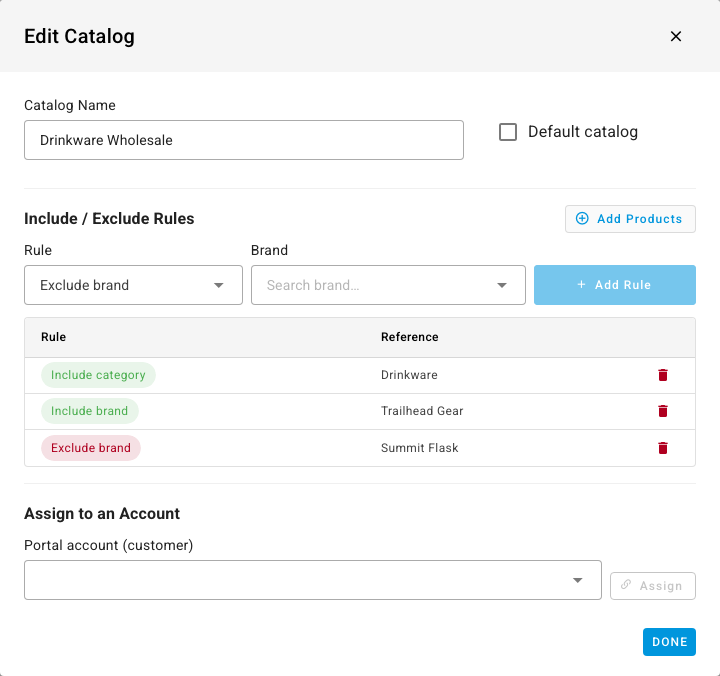
In Catalog Name, type a name your team will recognize, such as Kitchen & Drinkware Wholesale. It saves when you leave the field. Tick Default catalog if this catalog should apply to every account that has no catalog of its own.
-
Add a rule:
- In Rule, choose the kind of rule, for example Include brand.
- In the next field, search for the brand, category or product and select it.
- Click Add Rule. The rule appears in the table, green for an include and red for an exclude.
-
Repeat for each rule. To remove one, click its delete icon.
-
To include many individual products at once, click Add Products:
- Browse products: tick products in the list, then add them.
- Paste or import SKUs: paste one SKU per line (or comma-separated), or click Choose file to load a CSV whose first column holds SKUs. Click Add N products.
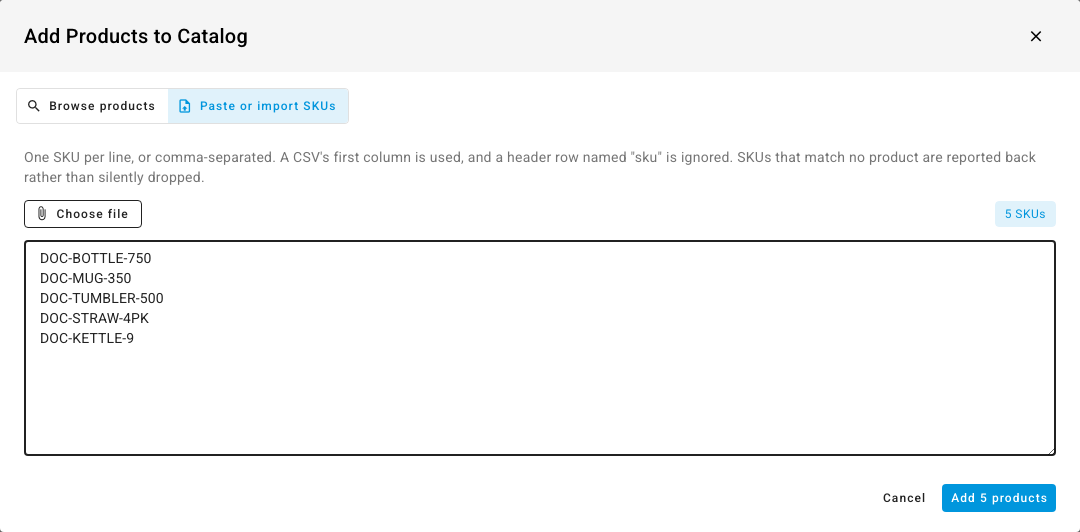
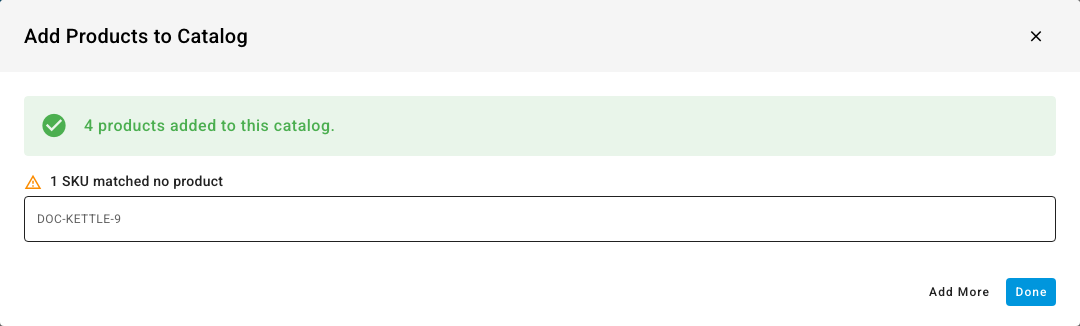
Each SKU you add becomes an Include product rule. SKUs that match no product are listed back to you rather than dropped silently.
-
Under Assign to an Account, search for the customer in Portal account (customer), select it, and click Assign.
-
Click Done. The Rules and Accounts columns on the list update.
Change an account's catalog from the customer
An account has one catalog at a time. You can also set it from the customer:
- Open the customer and click Settings.
- Click Edit, then in the Customer Portal section choose the Catalog. Clear it to fall back to the default catalog, or to every product when there is no default.
- Click Save.
What the buyer sees
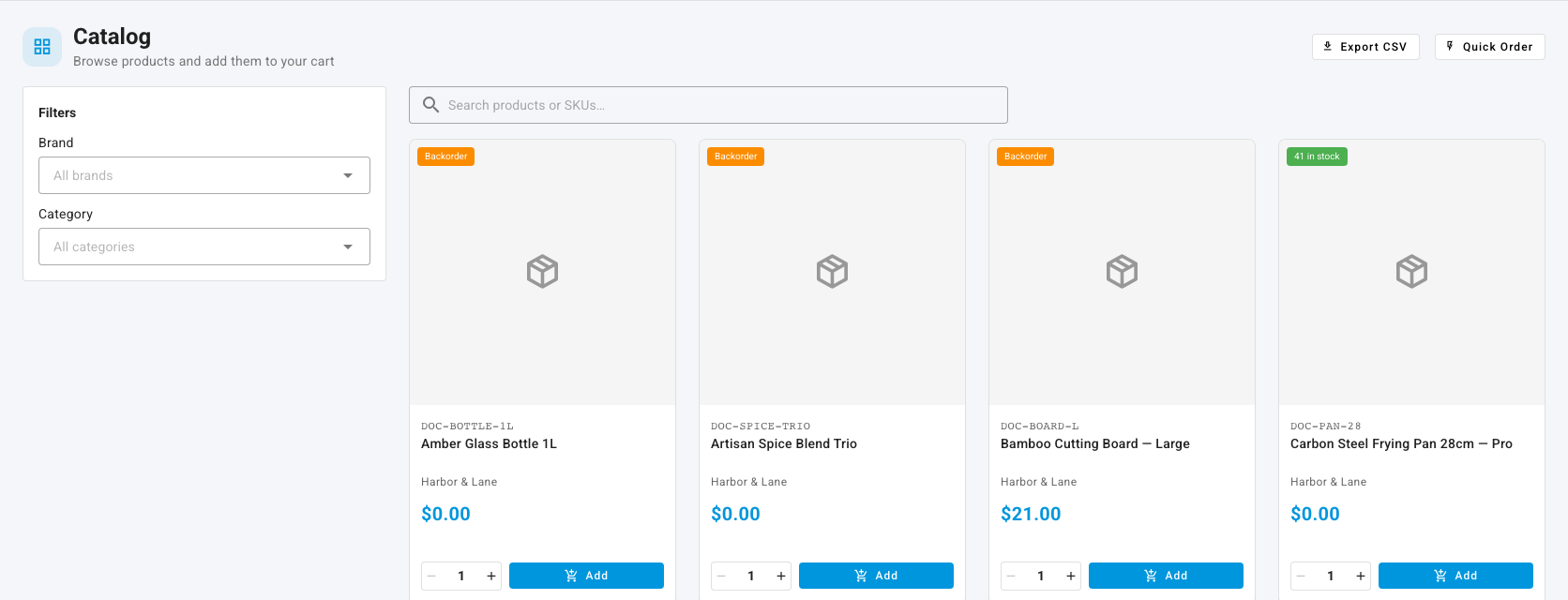
The next time a buyer on the account loads the catalog, only the products the rules allow appear, at their own prices.
Next steps
- How the Customer Portal works
- Share an inventory feed with a buyer — the feed follows the same catalog.