Share an inventory feed with a buyer
Resellers often want your stock in their own spreadsheet or system. Instead of emailing a stock file every week, a portal buyer can generate an inventory feed link. The link returns their own catalog, at their own prices, with your current availability, as CSV or JSON, and keeps itself up to date every time it's read.
Before you begin
- The customer is a portal account with at least one active buyer. See Invite buyers to the Customer Portal.
- The feed shows only products in the account's catalog. See Restrict what buyers see with portal catalogs.
Generate the link (buyer)
Send these steps to your buyer. They run them on the Customer Portal.
-
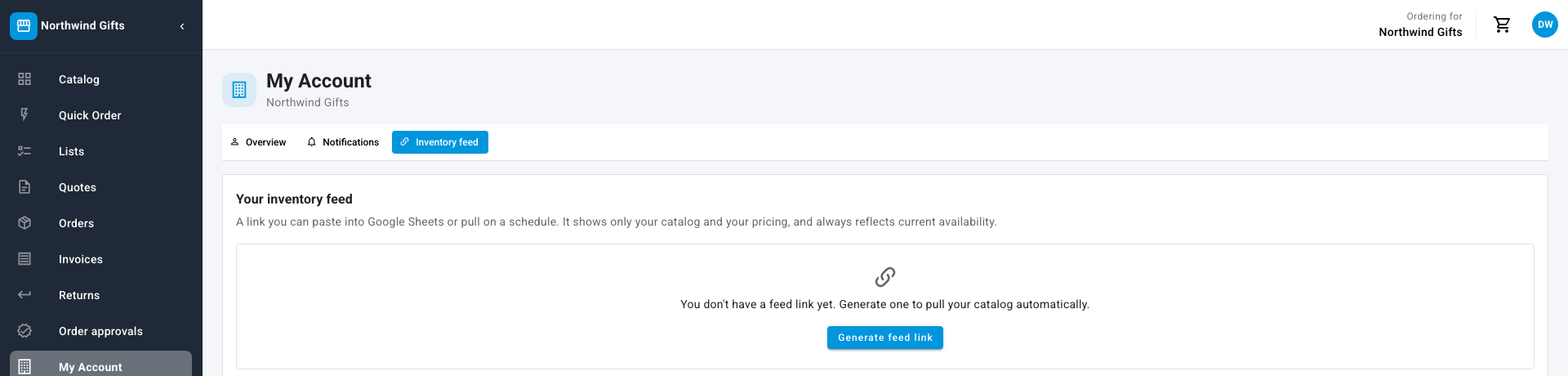
Click My Account, then the Inventory feed tab.
-
Click Generate feed link.
-
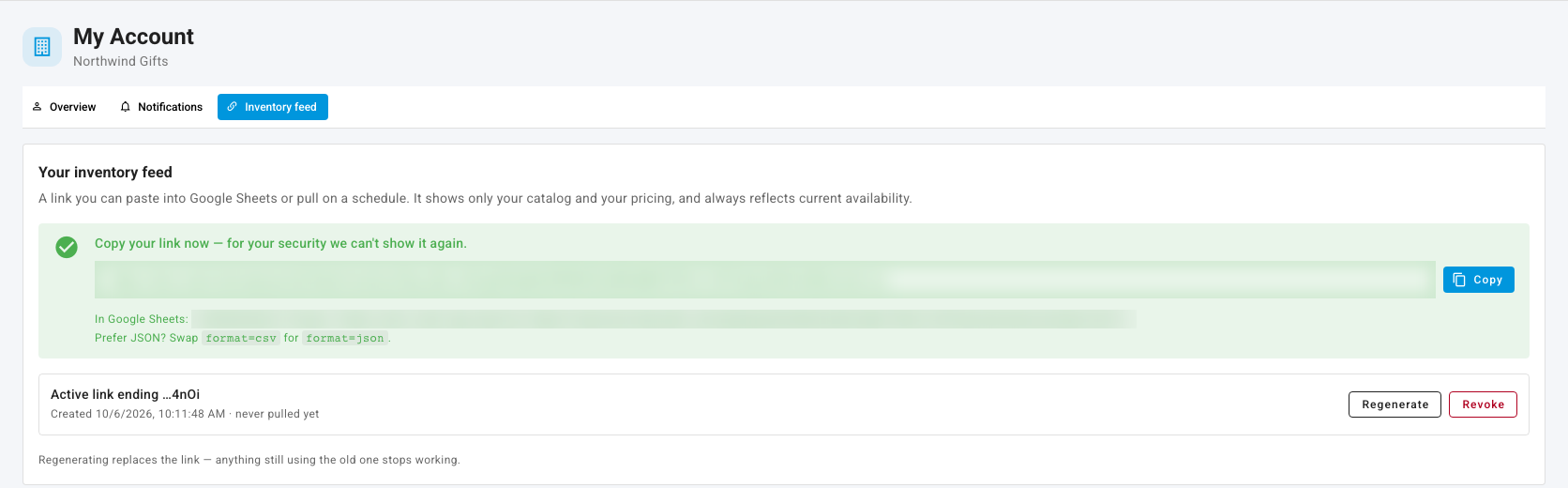
Click Copy. The full link is shown only once, so they should save it somewhere safe now.
-
To pull it into Google Sheets, paste the formula the page shows,
=IMPORTDATA("<the link>"), into a cell. For JSON instead of CSV, changeformat=csvin the link toformat=json.
Afterwards the tab shows Active link ending … with the last four characters, when it was created, and when it was last pulled. Regenerate replaces the link, and anything still using the old one stops working. Revoke turns it off.
An account has one feed link at a time. For a one-off download, a buyer can also click Export CSV on the Catalog page.
What's in the feed
One row per product, with these columns:
| Column | Holds |
|---|---|
sku, name, brand, category | The product. |
unit_price, currency | The buyer's own price. |
availability_status, available_qty | Stock as the buyer is allowed to see it. With an inventory holdback on, it's the reduced figure. |
lead_time_days, restock_date | When more is expected, if known. |
backorderable | Whether the buyer can order beyond stock. |
moq, order_increment | The least they can order and the multiple they must order in. |
The feed can be read about 12 times a minute, which suits scheduled pulls and spreadsheets.
See or revoke a buyer's link (you)
- Open the customer and click the Customer Portal tab.
- Inventory Feed Links lists each live link with the Buyer who made it, the end of the Link, and when it was Last pulled.
- To cut a link off, open its menu and click Revoke. The link stops working at once, and the buyer keeps their portal login.