Saved lists and reorders on the portal
Most wholesale orders repeat. The Customer Portal gives buyers two ways to avoid rebuilding them: saved lists they fill once and add to the cart whenever they need them, and Reorder on any past order. Share these steps with your buyers. They run them on the portal.
Before you begin
- The buyer has the Company Admin, Approver or Buyer role. Viewers can browse but can't order.
- Lists belong to the account, so everyone on it sees and uses the same lists.
Create a list
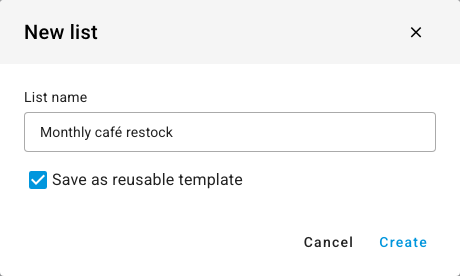
- Click Lists, then Create list.
- Enter a List name, such as Monthly café restock.
- Tick Save as reusable template if it's a standing order the team should reuse. Templates carry a Template label.
- Click Create.
Add products to a list
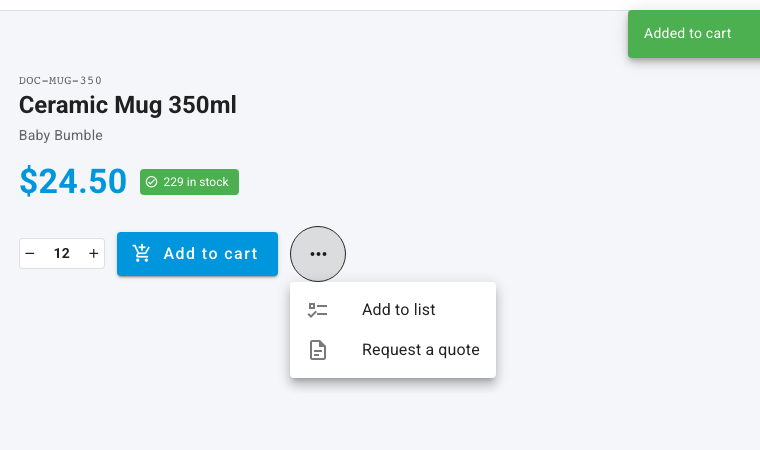
- Open a product from the Catalog.
- Set the quantity you usually order.
- Click the ⋯ button next to Add to cart, then Add to list.
- Choose the list in Select a list and click Add.
Order from a list
- Click Lists.
- On the list's card, click Add all to cart. View shows what's on it first, and the delete icon removes the list.
- Review the cart and check out as usual.

Reorder a past order
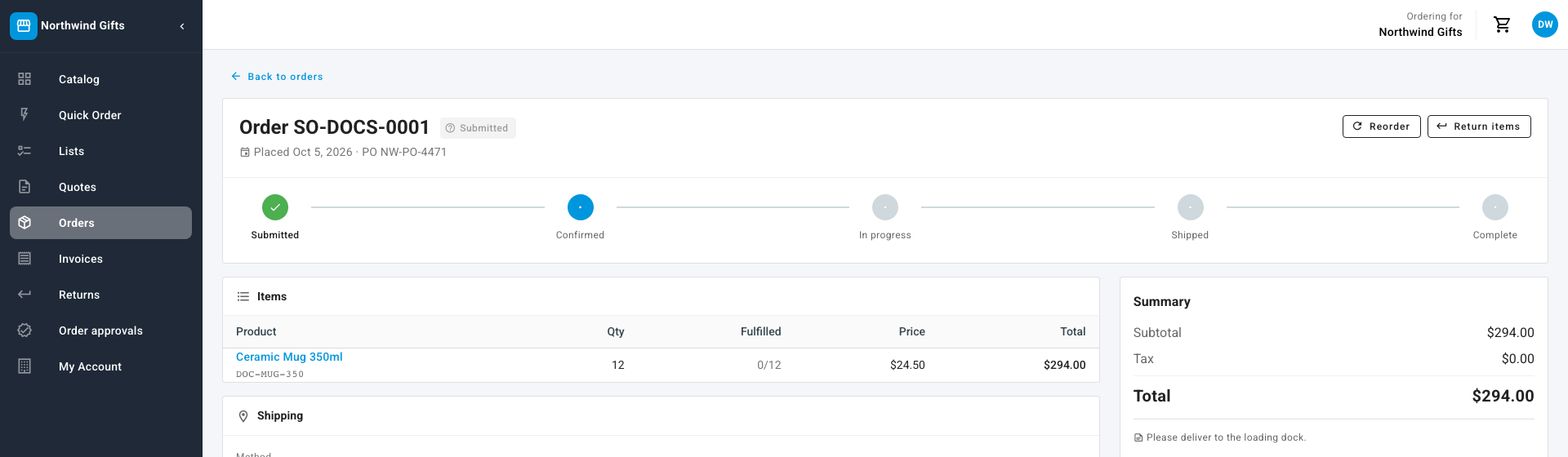
- Click Orders and open the order.
- Click Reorder. Its lines go into the cart at today's prices.
What's checked
Adding a list or a past order to the cart uses the same rules as adding items by hand. Prices are today's prices for the account, not the prices when the list was saved or the order placed. A product that's no longer in the account's catalog is skipped, and a quantity that breaks a case-quantity rule is refused, so check the cart before checking out. See Sell in case quantities on the portal.
Next steps
Last verified:
Was this helpful?