Require approval for portal orders
Many wholesale customers want a manager to sign off a big order before it's placed. Order Approval rules on a portal account do that on the buyer's side: when a checkout trips a rule, the order waits on the portal's Order approvals page until the right people at the customer approve it. Only then does it reach you as a sales order. This is your customer's own sign-off, not yours.
Before you begin
- You need the portal.manage permission.
- The customer is a portal account with at least one buyer who has the Approver or Company Admin role. See Invite buyers to the Customer Portal.
Set the rules
-
Open the customer and click Settings.
-
Click Edit, then scroll to Order Approval in the Customer Portal section.
-
Fill in the rules you need. Leave all of them blank to never require approval.
Field What it does Always approve below Orders under this subtotal never need approval, whatever the other rules say. Require approval at or above Orders at or over this subtotal need approval. Require approval at line count Orders with this many lines or more need approval. Require approval at SKU count Orders with this many different SKUs or more need approval. Always require approval for Buyers in these roles need sign-off on every order. Approver chain Who signs off, in the order you select them. Defaults to Approver. 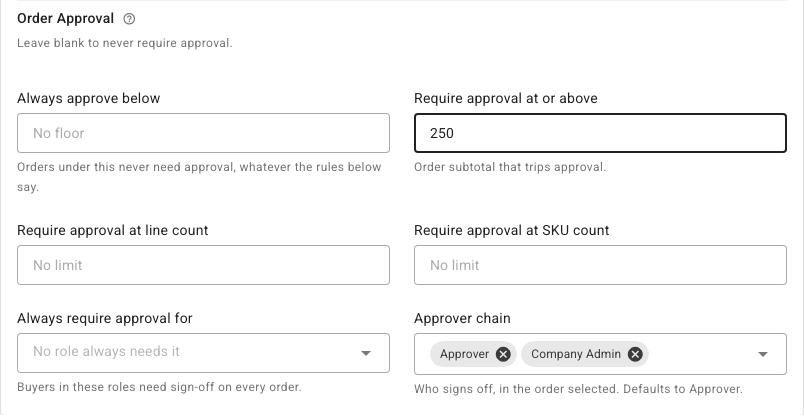
-
Click Save.
Always approve below must be lower than Require approval at or above, or the threshold could never trigger, and the form tells you so.
The subtotal the rules check is what the account will pay after any order-value discount.
What happens at checkout
When a buyer's order trips a rule, Place order shows Submitted for approval instead of placing the order.
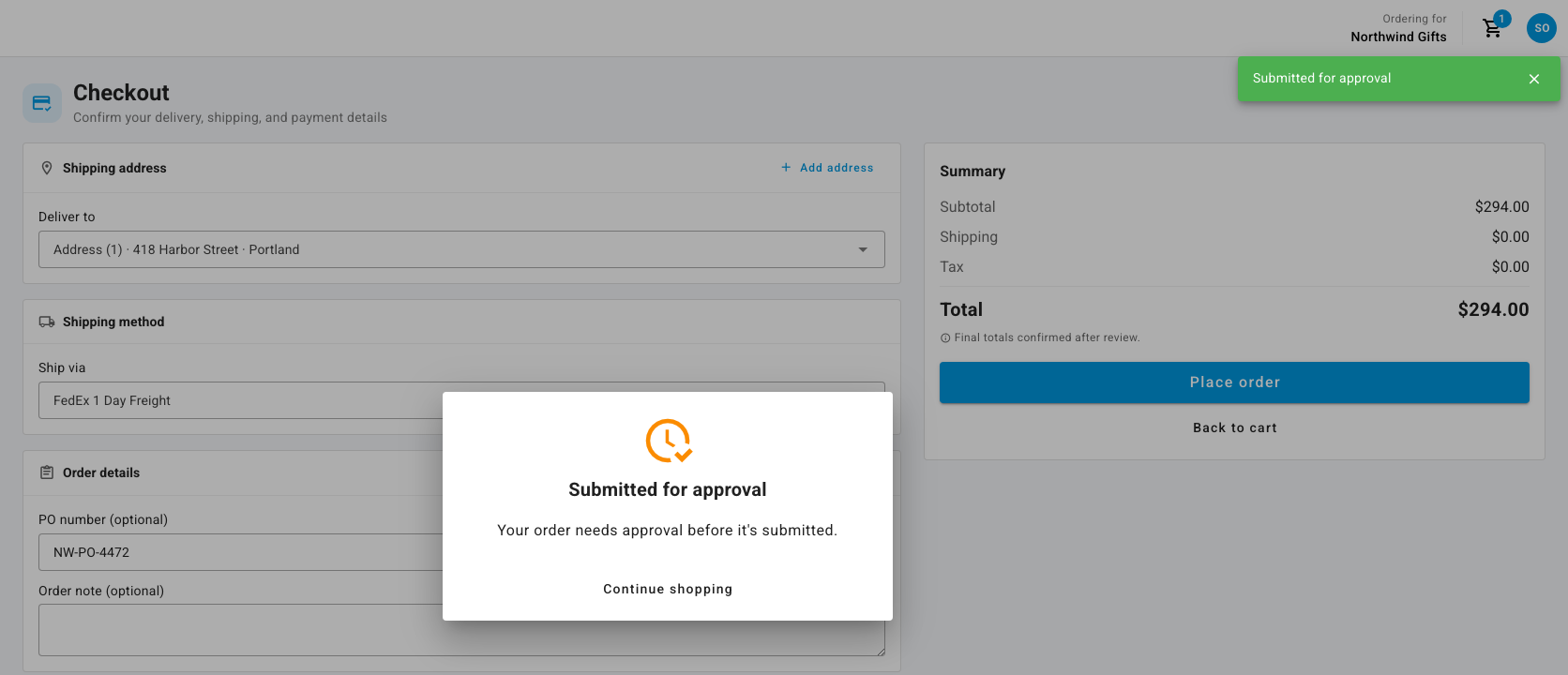
Each person in the approver chain then signs off in turn. With the chain Approver, Company Admin, an Approver signs first, then a Company Admin.
Approve or reject on the portal
Buyers with the Approver or Company Admin role see Order approvals in the portal menu.
-
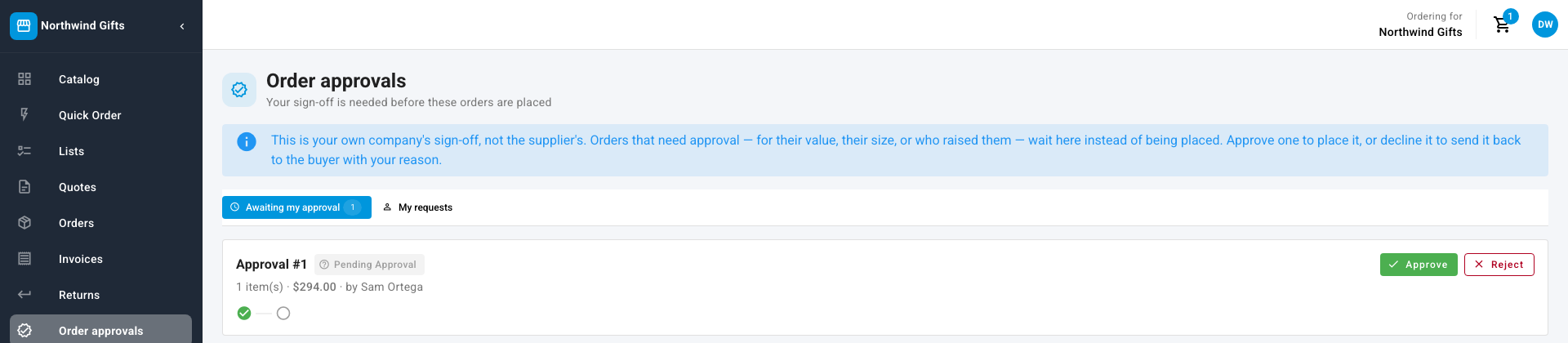
Click Order approvals. Awaiting my approval lists the orders waiting for you, with their items, total and who raised them.
-
Click Approve to sign off your step. When the last step is approved, the order is placed and arrives in SKU.io as a draft sales order.
-
Or click Reject, enter a Reason for rejection, and confirm. The order goes back to the buyer with your reason, and no sales order is created. The buyer can change the cart and check out again.
Whoever raised the order can follow its progress under My requests, and is emailed when it's approved or rejected unless they've turned that notification off under My Account.
Next steps
- How the Customer Portal works
- Set a customer's payment terms and credit limit — credit limits and credit hold also gate portal checkouts.