Connect your store with the dropship API and feed
This page is for retailers who send orders through their supplier's Customer Portal. If you run SKU.io yourself and want one of your own suppliers to ship an order for you, see Create a dropship request.
On this page, you are the retailer, your supplier is the business that runs this portal and ships your orders, and your customer is the shopper who bought from your store. The Feed & API page connects your store to your supplier in two ways: an availability feed that keeps your store's stock and dropship prices up to date, and API keys that let your own systems send dropship orders, cancel them and pull tracking back without anyone logging in.
Before you begin
| Requirement | Why it's needed |
|---|---|
| Your supplier has turned on dropship for your account | The Dropship menu item and its pages appear only then. See How dropship works on the portal. |
| Your supplier allows orders by API | Without it, the page shows only the availability feed, and no API reference or New API key. Ask your supplier to turn it on. |
| Your portal role is Buyer or Company Admin | A Viewer can see the page but can't generate feed links or create, regenerate or revoke keys. The buttons are greyed out, with a note that says why. |
Open the Feed & API page
- In the portal menu, click Dropship.
- Click the Feed & API tab.
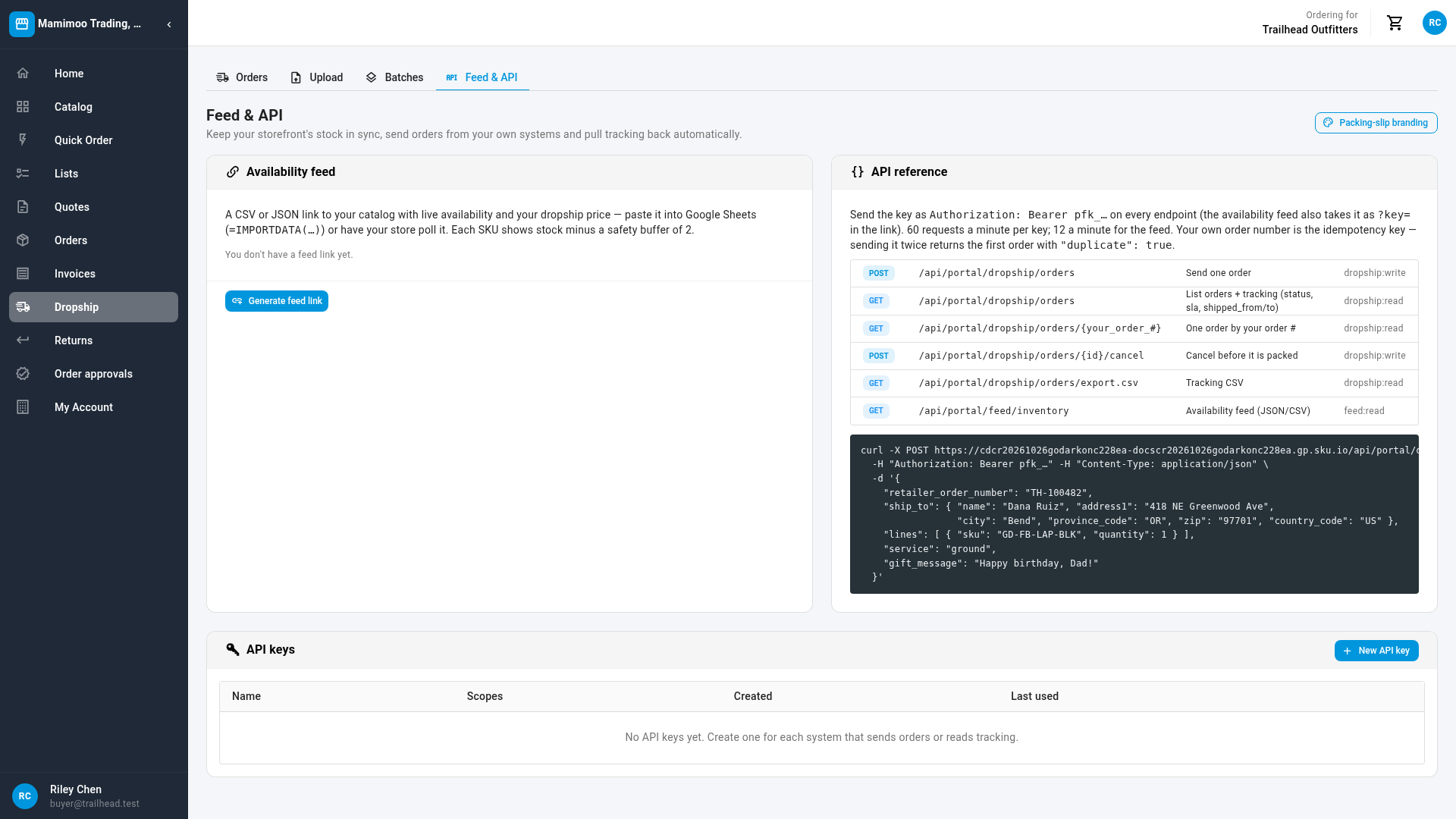
Get your availability feed link
The availability feed is a CSV or JSON link to your catalog with live availability and your dropship price. Paste it into Google Sheets, or have your store read it on a schedule. When your supplier holds back a safety buffer, the card says so: Each SKU shows stock minus a safety buffer of 2, for example.
- On the Availability feed card, click Generate feed link.
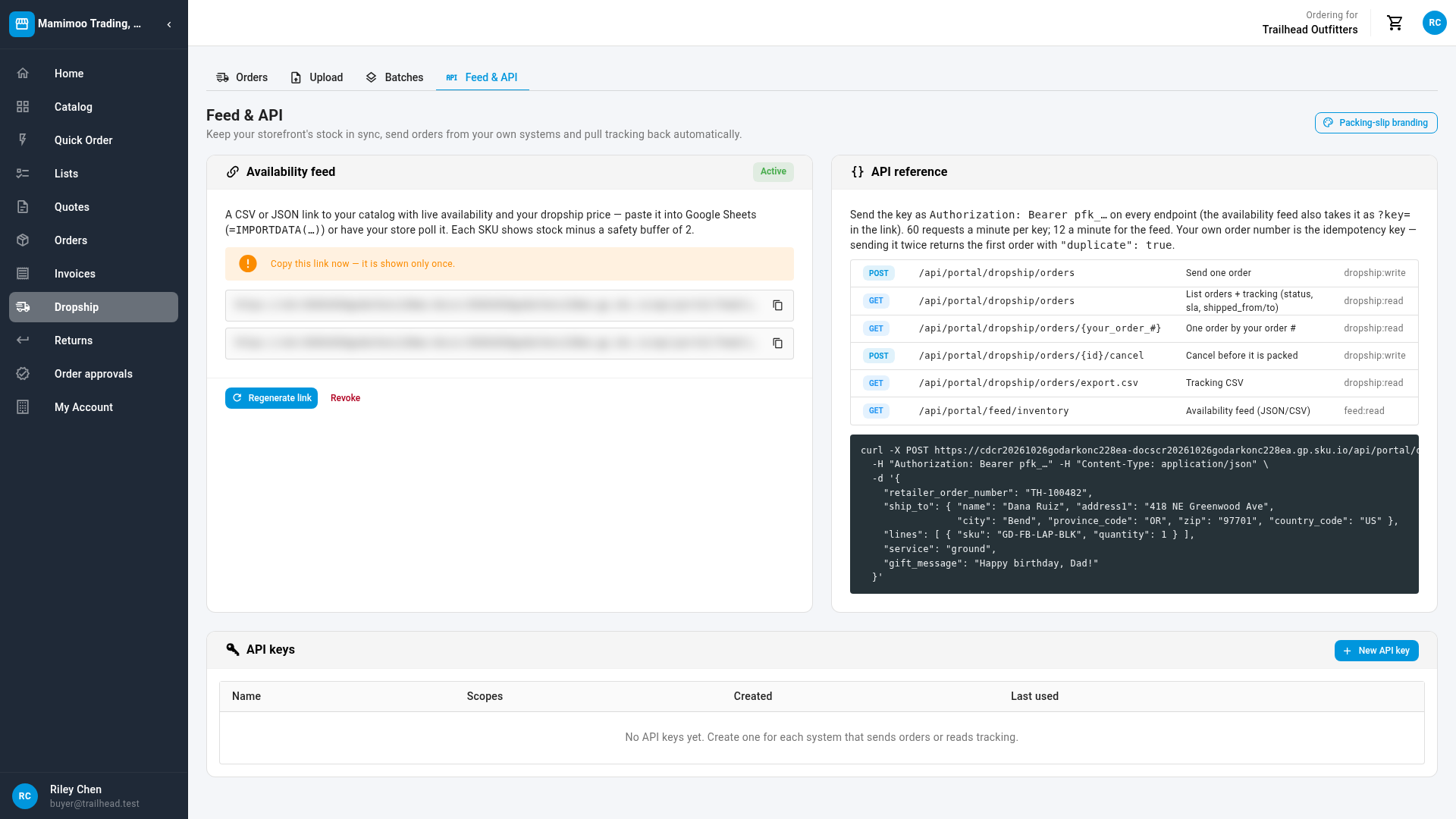
- Copy the CSV or the JSON link with the copy button next to it. Copy this link now — it is shown only once.
- Paste the link where it's needed: into a Google Sheets cell as
=IMPORTDATA("<the link>"), or into your store's stock-sync settings.
Afterwards the card shows Active link ending … with the last four characters, when it was created, and when it was last pulled and how many rows that pull returned.
The feed works like the inventory feed every portal account has, with the same columns and the same limit of about 12 reads a minute. See Share an inventory feed with a buyer for the columns. On a dropship account it differs in three ways:
- Stock counts only what your supplier can ship to your customers, less the safety buffer.
- Products are limited to the ones your supplier lets you dropship.
- Prices are your dropship prices, not your wholesale catalog prices.
Your account has one feed link. My Account → Inventory feed and Dropship → Feed & API show the same link, not two separate ones. If you click Regenerate link or Revoke on either page, the link stops working on both. A Google Sheet or a store that reads the link from My Account stops updating until you give it the new one.
Replace or turn off the feed link
-
To replace the link, click Regenerate link. The Regenerate your feed link? dialog explains that the current link stops working right away, in both places.
-
Click Regenerate link in the dialog. Copy the new link while it's shown, and update everything that used the old one.
-
To turn the feed off instead, click Revoke, then Revoke link.
Create an API key
Create one key for each system that connects, such as your store's order sync or a warehouse script. A key only does what its scopes allow.
-
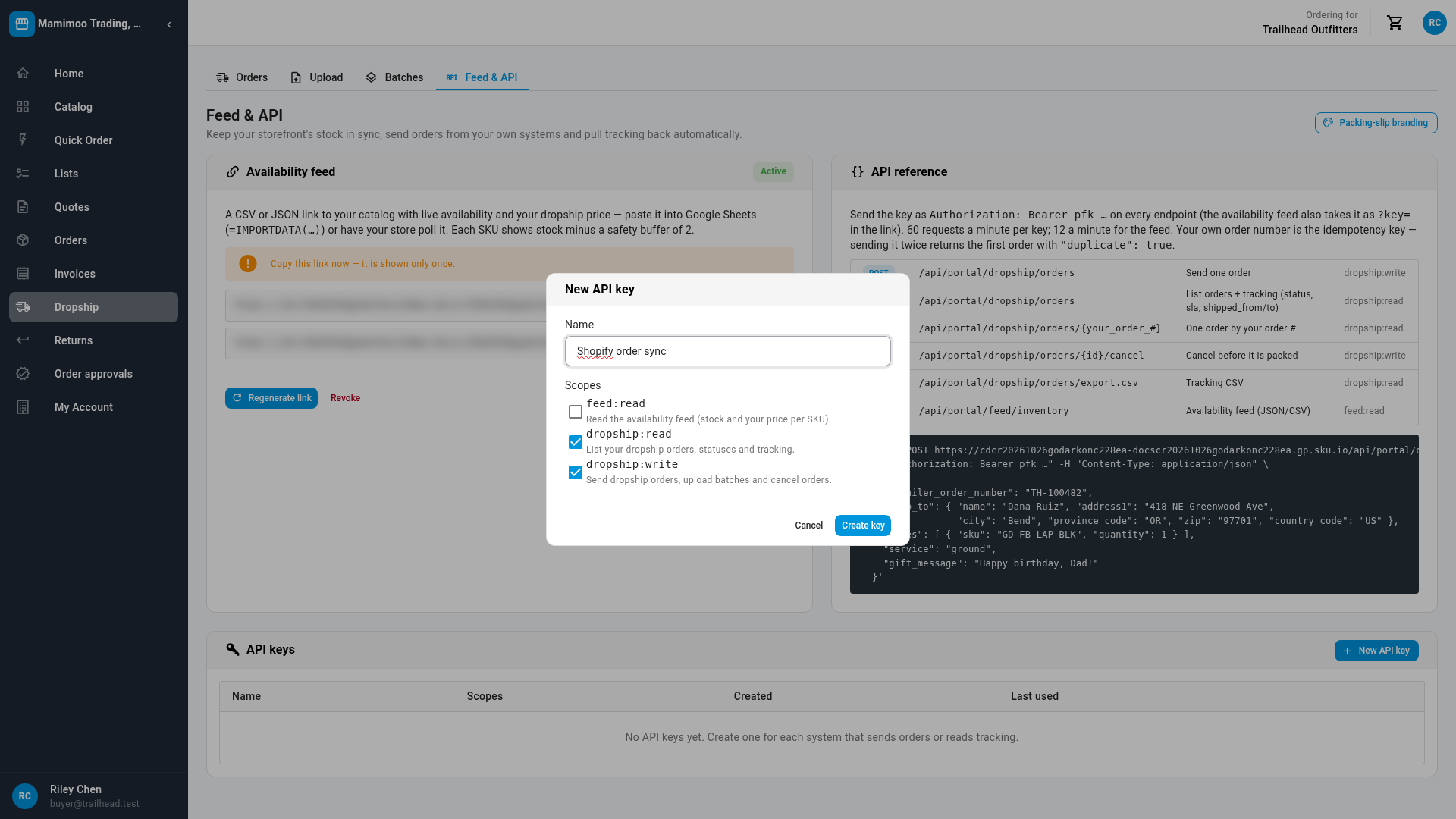
On the API keys card, click New API key.
-
In Name, name the key after the system that will use it, for example
Shopify order sync. -
Under Scopes, tick what the system needs. dropship:read and dropship:write are ticked for you.
Scope Lets the key feed:read Read the availability feed (stock and your price per SKU). dropship:read List your dropship orders, statuses and tracking. dropship:write Send dropship orders, upload batches and cancel orders. The scopes don't include each other: dropship:write doesn't let a key read orders. A system that sends orders and then checks their tracking needs both dropship:read and dropship:write.
-
Click Create key. Create key stays greyed out until the key has a name and at least one scope.
-
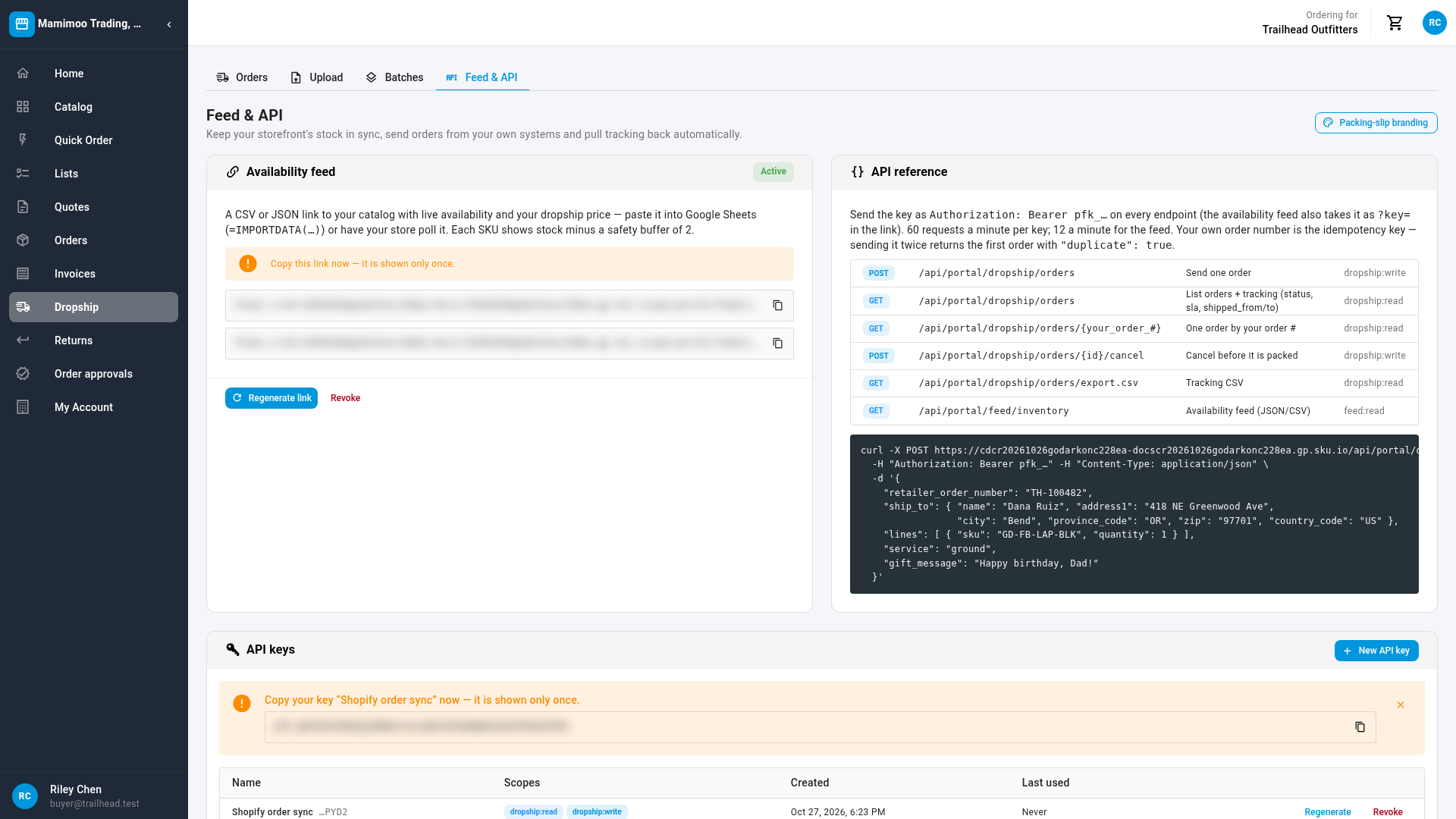
Copy the key from the yellow banner. Copy your key "Shopify order sync" now — it is shown only once. Paste it into the system that will use it, then close the banner.
The key appears in the table with its Name and last four characters, its Scopes, when it was Created and when it was Last used (Never until its first call). The table lists the keys you created for this account. You can have up to 10.
What a key lets your systems do
The API reference card sums it up: send the key as Authorization: Bearer pfk_… on every request (the feed also accepts it in the link). Each key can make 60 requests a minute, and the feed 12 a minute. Your own order number is the idempotency key: send the same order number twice and you get the first order back, never a second order. With a key, your systems can:
- send one dropship order at a time,
- list your dropship orders with their status, ship-by date and tracking, or look one up by your order number,
- cancel an order before your supplier's warehouse starts on it,
- download the tracking file.
The card lists each request. For the fields, examples and error messages, see the Customer Portal API on developer.sku.io. The rules every order must pass, whichever way you send it, are in the Dropship orders reference.
Replace or revoke a key
- To replace a key that may have leaked, click Regenerate on its row. The current key stops working immediately, so update every system that uses it with the new key, which is shown once.
- To retire a key, click Revoke on its row, then Revoke. Anything using it stops working immediately, and you can't undo this.
If your supplier later turns the API off, the API keys card stays only while you have keys, with a note that they can't send or read orders. You can still revoke them.
If something goes wrong
| What you see | What it means |
|---|---|
| You already have 10 API keys. Revoke one you no longer use first. | You've reached the limit. Revoke a key that's no longer used. |
| A system's requests fail with This API key does not have the dropship:read scope, or another scope | The key is missing that scope. Create a new key with it, update the system, and revoke the old key. |
| A system's requests fail with This API key is not valid. It may have been regenerated or revoked. | Someone regenerated or revoked the key. Give the system the current key. |
| Requests fail with The dropship API isn't turned on for your account — ask your supplier. | Your supplier has turned API orders off. |
| Too many requests | The system sent more than 60 requests in a minute. Slow it down and retry. |
| A Google Sheet stopped updating | The feed link was regenerated or revoked, perhaps from My Account → Inventory feed. Generate or copy the current link and paste it in again. |
Next steps
- Upload dropship orders from a CSV, if you'd rather send orders in a file.
- Edit your packing-slip branding, reached from the Packing-slip branding button on this page.
- Track, cancel and return dropship orders
- Dropship orders reference
Video transcript
Your supplier's portal can keep your store in sync. Click Dropship, then the Feed and API tab. The availability feed lists your catalog with live stock and your dropship price. Click Generate feed link, and copy the CSV or JSON link now. It is shown only once. This is the same link as My Account, Inventory feed. Regenerating it here stops the old link in both places, so the page asks first. To let your store send orders, click New API key. Use your store's name, so you can tell your keys apart. The two dropship scopes are already ticked. Click Create key, and copy the key into your system straight away, before you leave the page. Like the feed link, it is shown only once. Once you've copied it, close the message. Each key shows its scopes and when it was last used. Regenerate replaces a key, and Revoke turns it off for good.