Upload dropship orders from a CSV
This page is for retailers who send orders through their supplier's Customer Portal. If you run SKU.io yourself and want one of your own suppliers to ship an order for you, see Create a dropship request.
When you (the retailer) have a day's worth of your customers' orders, upload them to your supplier in one CSV file instead of placing each one at checkout. Uploading only checks the file: you see every order as Ready, Warning or Error, with its price, before anything is sent. Nothing is created until you click Submit. The examples use the retailer Trailhead Outfitters.
Before you begin
- Your portal role is Buyer or Company Admin. A Viewer can download the template and open past batches, but can't upload, submit or discard.
- Your supplier has turned on CSV upload for your account. Without it, the Dropship pages have no Upload tab.
- Your orders are in the portal's template, or in a Shopify Export orders CSV. Other layouts aren't read, and you can't map your own columns.
Prepare your file
Go to Dropship → Upload and click Download template. You get dropship-orders-template.csv with 16 columns and one example order on two rows (two products for one customer). Replace the example rows with your own orders: the example SKUs aren't in your catalog.
Each row is one item. Rows with the same order_number make one order, so an order with three products has three rows. Keep an order's rows next to each other, and put the address on the order's first row.
Every order needs these columns filled in:
| Column | What to put in it |
|---|---|
order_number | Your own order number, up to 128 characters. See How the order number prevents duplicates. |
sku | Your supplier's SKU, as shown in the portal Catalog. |
quantity | A whole number, 1 or more. |
ship_name | Your customer's name. You can leave it blank when ship_company is filled. |
ship_address1, ship_city, ship_state, ship_zip | Your customer's street address, city, state (OR or Oregon) and ZIP code. |
The other columns are optional: ship_company, ship_address2, ship_country (blank means your supplier's home country), ship_phone (needed for another country), ship_email (needed if your supplier emails your customer when the order ships), service (blank uses your default service), gift_message (up to 500 characters, printed on the slip) and notes (a note to your supplier). Column headers aren't case-sensitive, the columns can be in any order, and any other column is ignored. Every column's accepted values and messages are in CSV template columns.
The file must be a comma-separated .csv saved as UTF-8, of 5 MB and 2,000 rows at most. Save Excel or Numbers sheets as CSV first. A file that breaks a limit is turned away with its message, and no batch is kept. See File limits.
Use a Shopify order export instead
You can upload Shopify's Export orders CSV as it is: the portal spots it by its columns. Shopify's Name becomes your order number without the # (#1048 is order 1048), and its Shipping columns and Email are your customer's address and email. A Shopify export has no gift message. When Shipping Method isn't one of your dropship services (Shopify usually exports names such as "Standard Shipping"), the order uses your default service and gets a Warning, not an error.
Filter the export in Shopify to unfulfilled orders before you download it. The full column mapping is in Shopify order export.
Upload and check the file
-
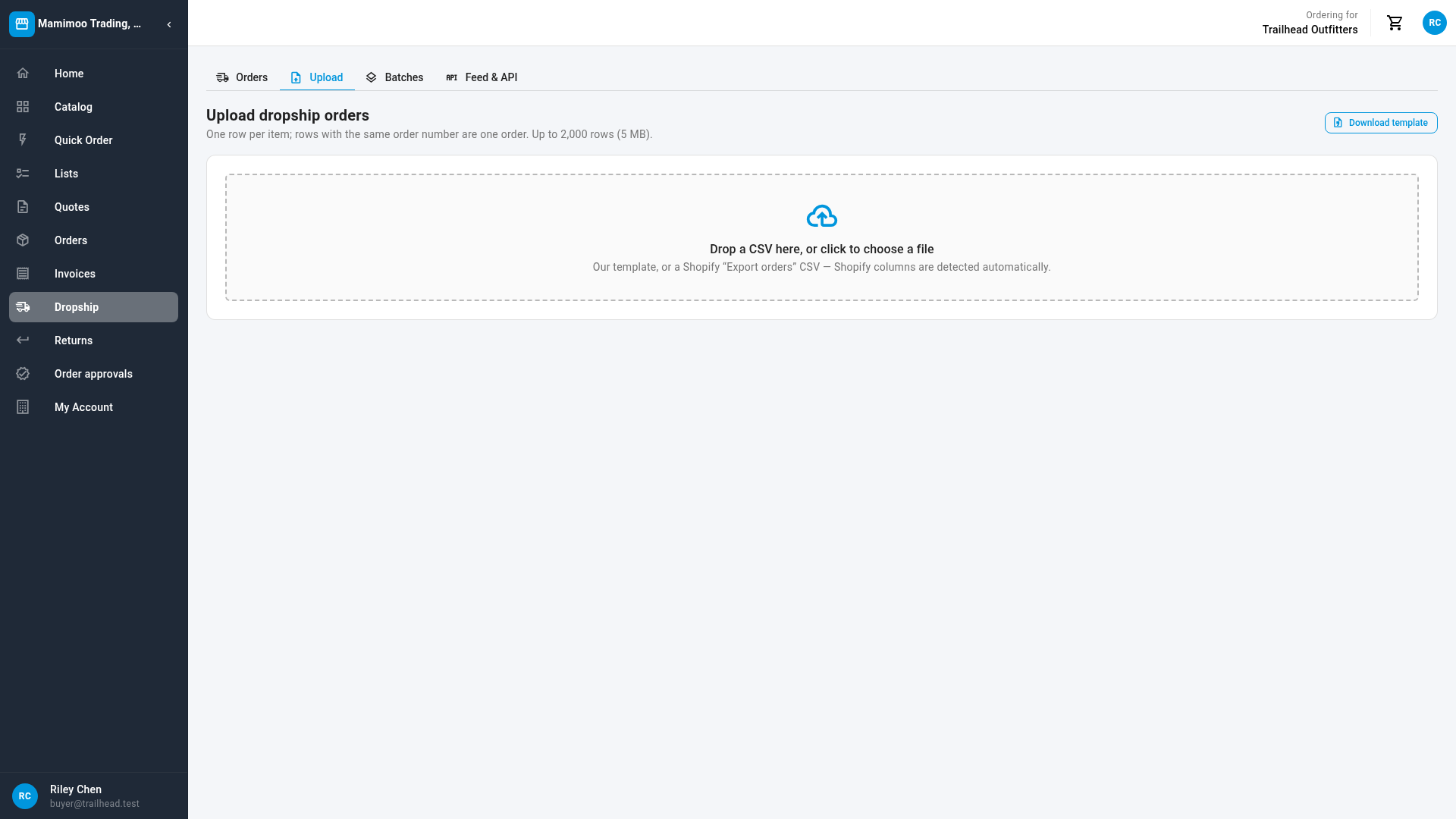
Go to Dropship → Upload. You can also click Upload CSV on the Orders or Batches tab.
-
Drag your file onto Drop a CSV here, or click to choose a file, or click it and choose the file.
The portal shows Checking your orders… while it checks every order against your catalog, prices, stock, your customer's address and your order numbers. Nothing is sent yet.
-
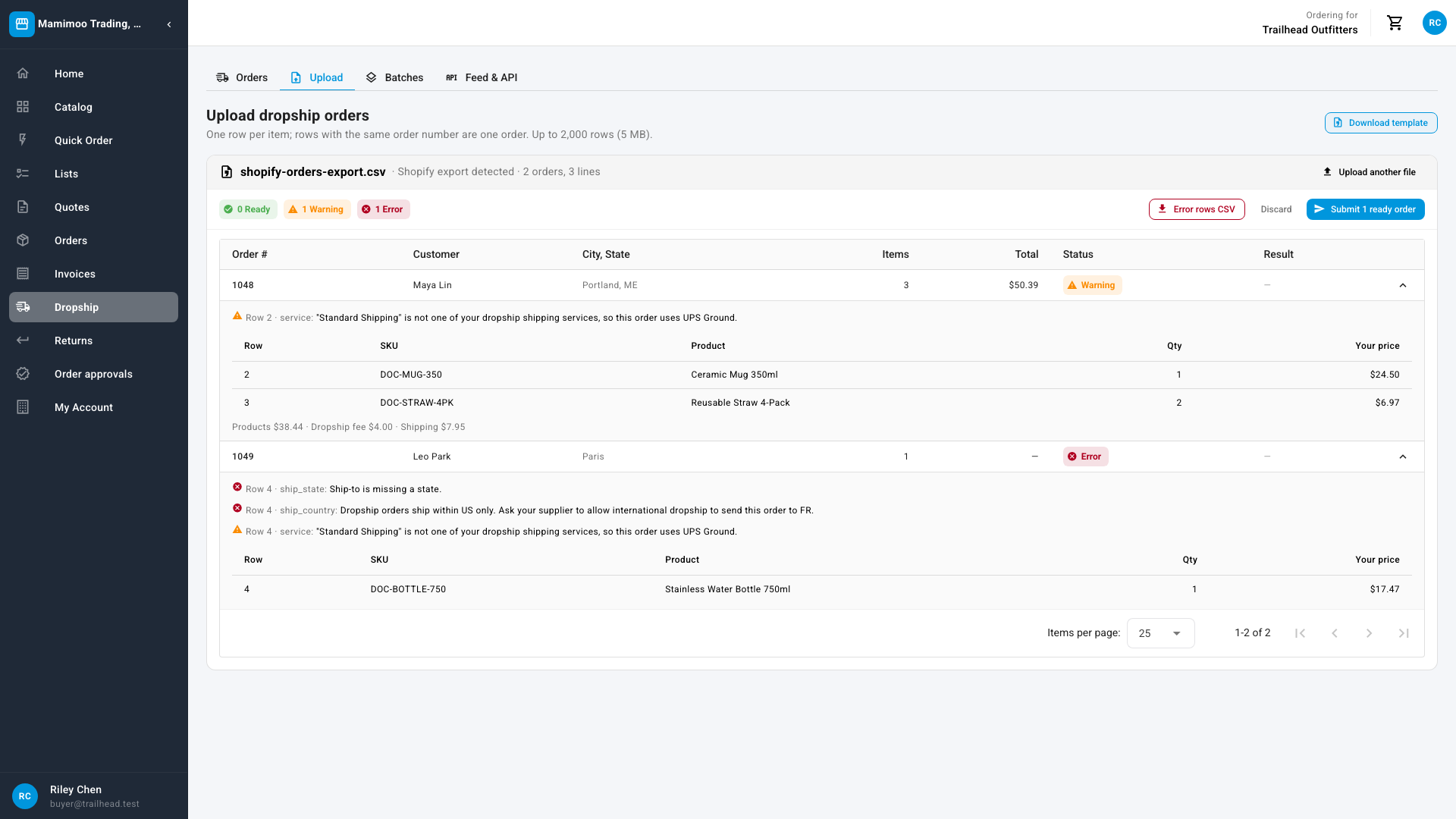
Read the preview. Its header names the file, the format (Standard template, or Shopify export detected) and how many orders and lines it found. Each order has a status:
Status Means Ready It will be placed. Warning It will be placed, but something is worth a look, such as a ZIP code in an odd format, a product that will be backordered, or a Shopify shipping method replaced by your default service. Error It won't be sent. Fix it and upload it again. The table shows Order #, Customer, City, State, Items, Total, Status and Result. An order with an error has no total.
-
Expand an order to see its problems and lines. Orders with a warning or error open by themselves (the first 10). Each problem names the row and column it came from, for example Row 5 · sku: SKU DOC-MUG-305 was not found. Did you mean DOC-MUG-350? Row numbers count the header as row 1, so your first order is on row 2. A message such as DOC-BOARD-L now has 0 available. counts only the stock your supplier can ship to your customers, so a product the Catalog shows as in stock can still have none available for dropship. Below the problems, each line shows Row, SKU, Product, Qty and Your price, then the order's Products, Dropship fee and Shipping.
-
To see only one kind, click the Ready, Warning or Error chip above the table. Click it again to see every order.
Submit the ready orders
-
Click Submit N ready orders. It sends every Ready and Warning order. Error orders are skipped.
The button is greyed out when no order is ready (Fix the errors and upload the file again — no orders are ready.) and for a Viewer (Your role can view orders but not place them.).
-
The portal shows Creating your orders — this page updates as they are placed. and a progress bar, Creating orders — X of Y. You can leave the page: the orders keep being placed, and you can come back to the batch from Batches.
Each order is checked again as it's created, because stock and prices can change after the preview, and each order is created on its own. One order failing doesn't stop the others.
-
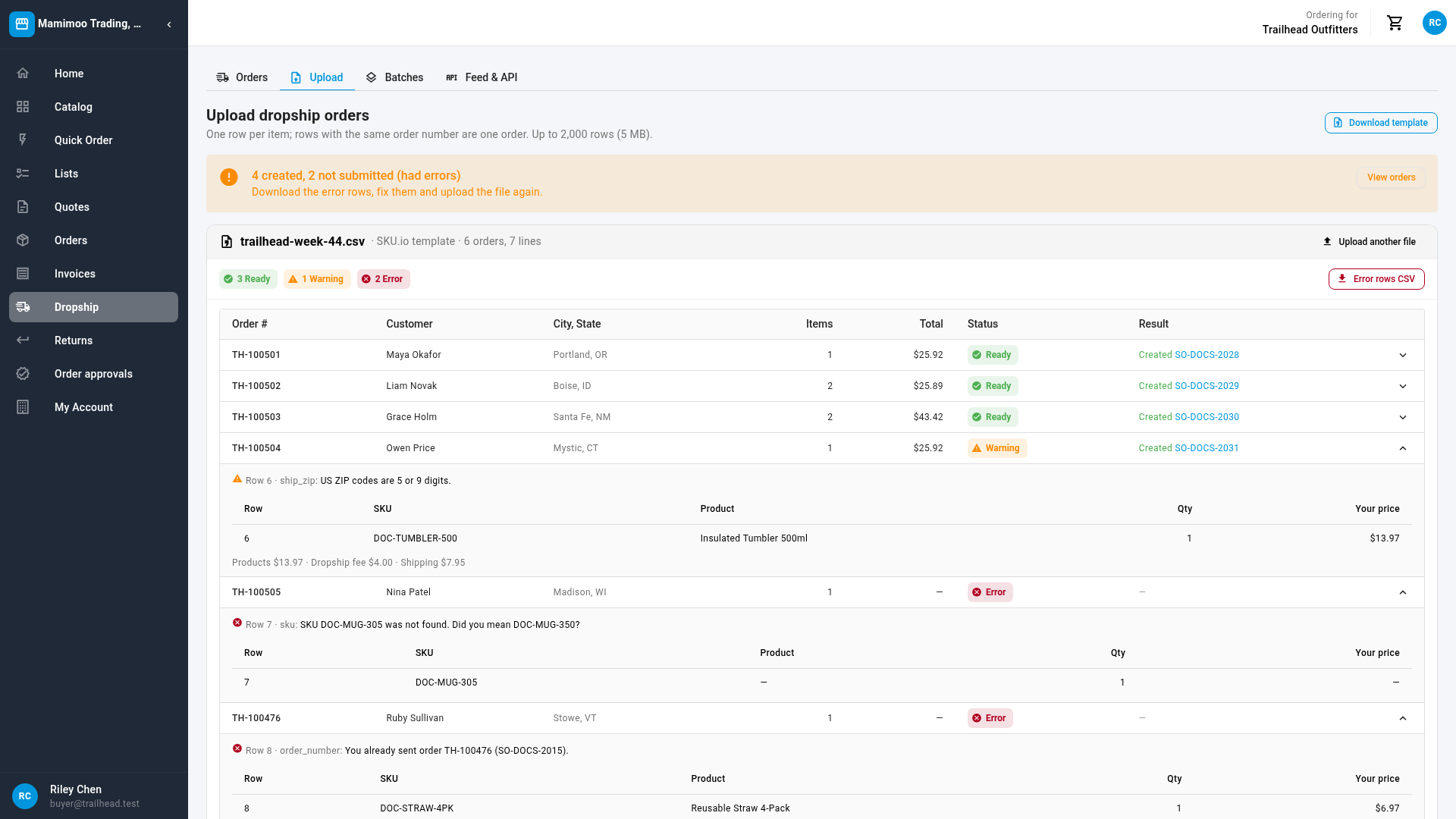
Read the results. The banner at the top says how many were created and how many failed. Each order's Result shows:
Result Means Created and the order number The order was placed. Click the number to open it. Already sent and the order number An open order already uses this order number. Nothing new was created. Awaiting approval Your company makes bigger orders wait for approval. Your supplier gets it once it's approved. Failed It wasn't created. Expand the order for the reason. If prices changed between the preview and the submit, the banner says so, for example 2 orders re-priced since the preview ($1.40). Click View orders to see the new orders on the Orders tab.
Checks made only when you submit
A Ready order can still fail at submit. These are checked only then:
- Your order minimum, unless your supplier exempts dropship orders from it: Your order subtotal is below the minimum of … Add … more to check out.
- Your credit: Your account is on credit hold. Please contact us to place orders. or This order would exceed your available credit of …
- An order number longer than 128 characters.
- Stock and prices that changed since the preview.
- Your account's standing, and whether dropship is still on: Dropship was switched off for this account before this order was created.
An unexpected problem on your supplier's side shows This order could not be created. Your supplier has been notified — try again later.
How the order number prevents duplicates
Your order number is the key that matches an order, so you can't send the same order twice by accident:
- While an order is open (not cancelled), its number can't be used again, whichever way you sent it. In the preview, that order is an Error: You already sent order TH-100476 (SO-…).
- An order number that turns up again further down the file, after another order's rows, is treated as a second order with the same number and is an Error.
- Submitting a batch again, after an interruption, never creates an order a second time.
- Uploading a file again after a partial success is safe: the orders already created come back as errors, and only the rest can be submitted.
Once an order is cancelled, its number is free to use again.
Fix errors and upload again
-
On the batch, click Error rows CSV.
You get your file's name with
-errors.csvon the end. It has every row of every order that has an Error, or that Failed at submit, in the template's columns, plus anerrorcolumn with the reasons, for exampleRow 5: SKU DOC-MUG-305 was not found. Did you mean DOC-MUG-350?. Orders that were created are left out. Each row keeps its own address, so a mismatch you need to fix is still there. -
Fix the rows in the file. You can leave the
errorcolumn in: it's ignored on upload. -
Click Upload another file, then upload the fixed file.
The row numbers in the new preview count from the new file, so they won't match the first upload.
Discard an upload
To drop a file you haven't submitted, open it and click Discard. Batch discarded confirms it, and nothing is created. Discarded uploads leave the Batches list. You can't discard a batch once it has been submitted (Only a batch that has not been submitted can be discarded.); cancel the orders you don't want instead. See Track, cancel and return dropship orders.
If a submit is interrupted or stuck
- Interrupted. If creating the orders stops part-way, the batch goes back to not submitted and says The last submit was interrupted (…). Orders already created are kept — submit again to create the remaining N. Click Submit again: only the orders without a result are created.
- Stuck. If a batch shows Creating orders with no progress for 45 minutes, it says This batch has made no progress for a while. Submit it again to resume the orders not yet created, or discard it. Submitting it again resumes it; discarding it keeps the orders already created.
You may also see these when you click Submit:
| Message | Means |
|---|---|
| No orders in this batch are ready. Fix the errors and upload the file again. | Every order has an error. |
| Every order in this batch already has a result, so the batch is now complete. | There's nothing left to create. |
| This batch could not be submitted right now. Try again in a few minutes. | Your supplier's system couldn't start it. Nothing was created. |
| This batch was already … | It's being created or is finished, for example after a second click. |
Find past uploads
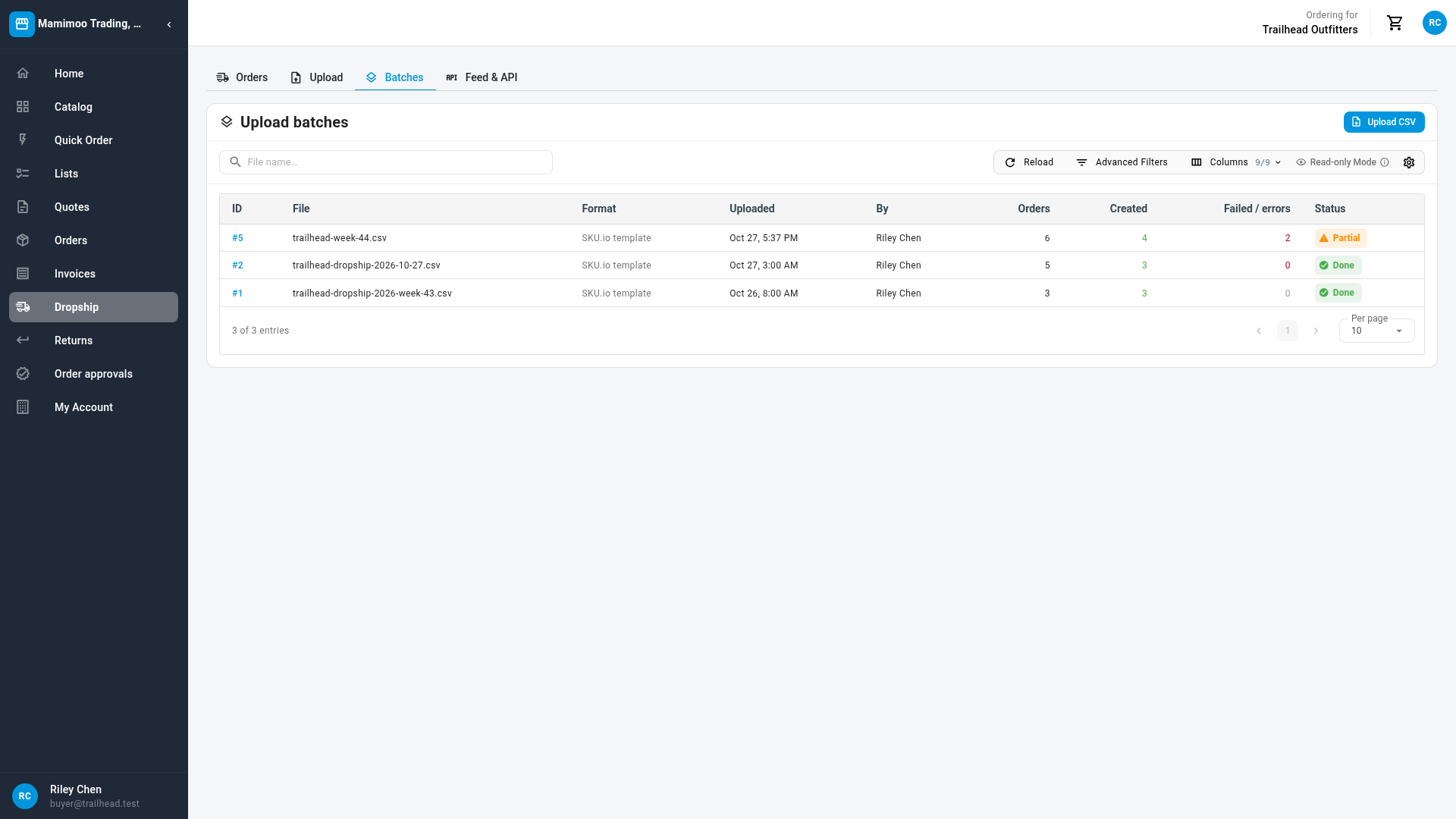
Go to Dropship → Batches. Upload batches lists every file you've uploaded, newest first, with ID, File, Format, Uploaded, By, Orders, Created, Failed / errors and Status. Search by File name…. Click a batch, or right-click it and choose Open batch, to see its preview and results again.
| Status | Means |
|---|---|
| Not submitted | Checked but not sent. Open it to submit or discard it. Failed / errors counts its Error orders. |
| Creating orders | Being submitted. The list refreshes by itself. |
| Done | Every order that was submitted was created. |
| Partial | Some submitted orders failed. Failed / errors counts them. |
For a submitted batch, Failed / errors counts only orders that failed at submit. Orders with an Error in the preview were never sent, so a batch can say Done while Created is lower than Orders. Open the batch and download the Error rows CSV to send them.
Before your first upload, the list says No uploads yet.
Next steps
- Track, cancel and return dropship orders
- Dropship orders reference, for every column rule and message
- Connect your store with the dropship API and feed, to send orders from your store without a file
Video transcript
To send many dropship orders at once, open Dropship, then the Upload tab. Start from the template, under Download template. Each row is one item, and rows with the same order number make one order. A Shopify order export works too, as it is. Drop your file here. Nothing is sent yet: every order is checked first. Each one is Ready, Warning, or Error, and each problem shows its row and column. When the check looks right, click Submit, to send the ready orders and the ones with warnings. Orders with errors are skipped. You can leave the page while the orders are created. To fix the rest, download the error rows. Each row says what's wrong. Fix them, and upload the file again. Orders already created are never sent twice. Every upload is listed under Batches, with what was created and what failed.