How dropship works on the portal
This page is for retailers who send orders through their supplier's Customer Portal. If you run SKU.io yourself and want one of your own suppliers to ship an order for you, see Create a dropship request.
On this page, you are the retailer: a business that buys from your supplier on the Customer Portal and sells online. Your customer is the shopper who bought from your store. With dropship, you don't hold the stock. You send each of your customer's orders to your supplier, and your supplier picks, packs and ships it straight to your customer.
What you get
- Your brand, never your supplier's. Every parcel ships blind: the packing slip carries your logo (or your name), your order number, the items, any gift message, your own message and your support contact, and a returns block that points your customer back to you. It never shows prices or your supplier's name. Your supplier sets this branding up, and can let your company admins edit it. See Edit your packing-slip branding.
- A ship-by date on every order. Your supplier commits to shipping within a number of business days, shown at checkout as, for example, "ships within 2 business days".
- Tracking back to you. Tracking appears on the portal as soon as an order ships, and you can download it as a file.
The branding is copied onto each order when you place it. A change to your branding applies to orders you place afterwards, not to orders already sent.
Three ways to send orders
| Route | Best for | Where |
|---|---|---|
| Checkout | One order at a time, from your cart | Place a dropship order at checkout |
| CSV upload | Many orders at once, from the template or a Shopify order export | Upload dropship orders from a CSV |
| API | Sending orders and reading tracking from your own store or system | Connect your store with the dropship API and feed |
Your supplier decides which of these you can use. A route that's off doesn't appear: there's no dropship switch at checkout, no Upload tab, or no API keys. If your supplier receives your purchase orders through EDI (SPS Commerce), it can take dropship orders that way too; that's set up on your supplier's side.
Every route checks an order the same way: your order number, the products, stock, your customer's address, the shipping service, and your credit. The rules and their messages are in the Dropship orders reference.
Where dropship is on the portal
Dropship sits in the portal's left menu, between Invoices and Returns. It appears only once your supplier has turned dropship on for your account. Its pages share four tabs:
| Tab | What it's for |
|---|---|
| Orders | Every dropship order, with its status, ship-by date and tracking. The Dropship menu item opens here. |
| Upload | Upload a CSV of orders and check it before you send it. |
| Batches | Every CSV you've uploaded, with what was created and what needs fixing. |
| Feed & API | Your availability feed link and your API keys. Packing-slip branding opens from here. |
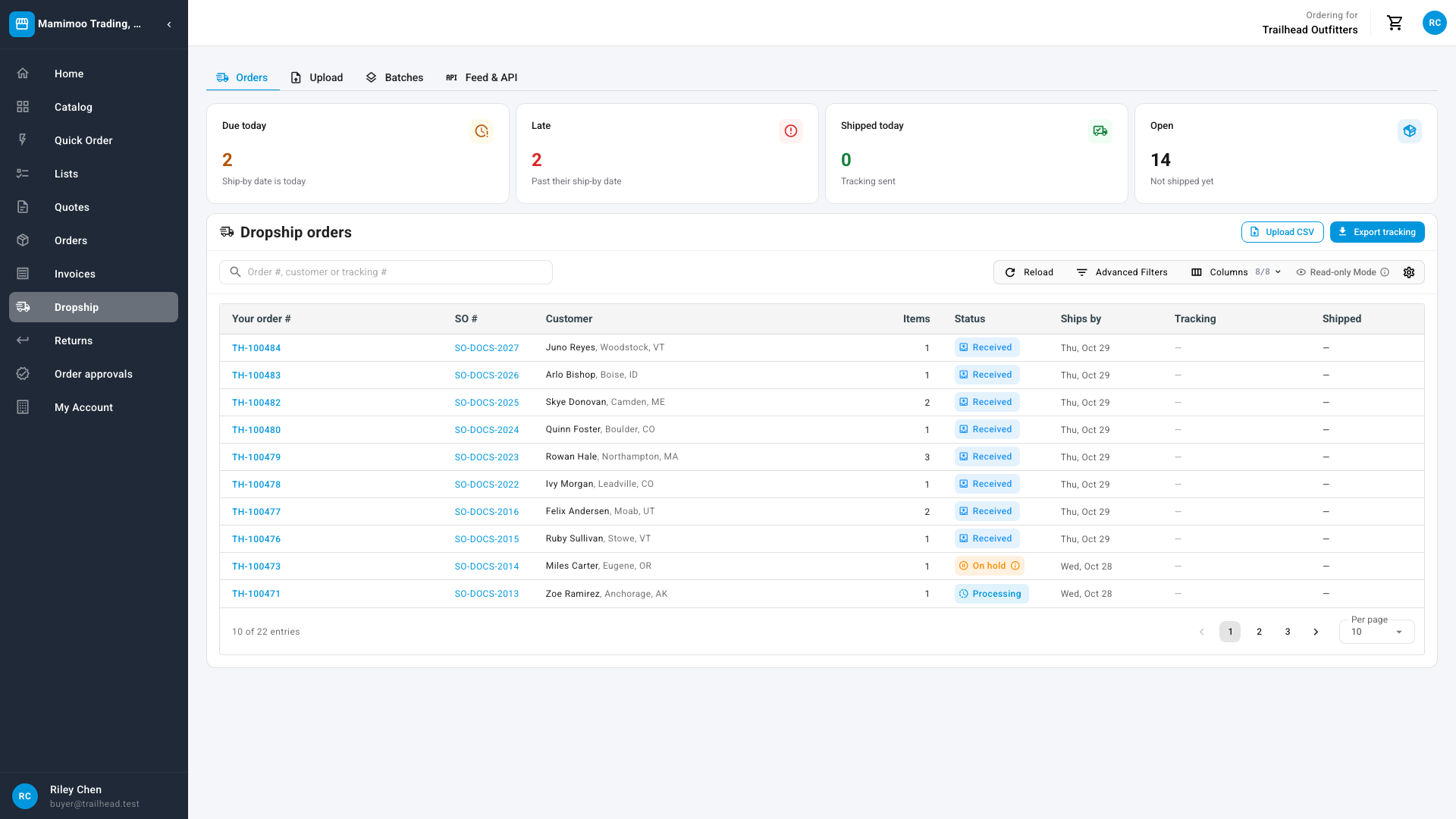
Each dropship order is also a normal order with your supplier. It's listed under Orders too, where its order page shows your order number as PO followed by the number.
The life of a dropship order
- You send the order, with your own order number. Your order number is how you and your supplier refer to the order. You can use each number only once while its order is open.
- Your supplier receives it. It shows as Received, with a ship-by date. If your company makes bigger orders wait for approval, the order first waits for sign-off, and its ship-by date starts when it's approved.
- The warehouse starts on it. It shows as Processing. From here, you can't cancel it on the portal.
- It ships. It shows as Shipped, with tracking.
An order can also be Cancelled, by you before the warehouse starts or by your supplier, or On hold while your supplier checks something, such as your credit or stock at a warehouse that can ship it. Every status and hold reason is in the Dropship orders reference.
How the ship-by date works
- The clock starts when your supplier receives the order, or when the last approver in your company signs it off.
- An order that arrives after your supplier's daily cut-off, or at a weekend, starts on the next business day.
- The ship-by date counts business days, Monday to Friday, in your supplier's timezone.
On the Orders tab, an order that isn't shipped is Due today on its ship-by day and Late after it.
Which prices apply
Your dropship prices can differ from your wholesale prices.
- The Catalog and the cart show your normal wholesale prices.
- At checkout, switching on Ship directly to my customer (dropship) reprices the order at your dropship prices. The summary then shows the dropship subtotal.
- CSV uploads, API orders and your availability feed always use your dropship prices.
- Volume and catalog discounts don't apply to dropship orders.
On top of the products, a dropship order can carry a Dropship fee and a Shipping charge, as your supplier set them. You see both before you send an order: in the checkout summary, and in each order's details in a CSV preview.
What you and your customer hear
- You see tracking on the Orders tab as soon as an order ships. Your supplier can also email you tracking, and send it to your own system.
- Your customer hears nothing from the portal, unless your supplier sends a shipped email in your name. That email goes only to orders that carry your customer's email address, so add it when you send the order.
Your supplier's side of all this, including how it sets up your account, is in How dropship for retailers works.